Table of Contents >> Show >> Hide
- What Bitmoji on Your Keyboard Actually Does
- Before You Start
- How to Add Bitmoji to an iPhone Keyboard
- How to Add Bitmoji to an Android Keyboard
- How to Use Bitmoji After Setup
- Why Bitmoji Sometimes Does Not Work
- Bitmoji Permissions and Privacy, Explained Like a Normal Human
- Tips for a Better Bitmoji Keyboard Experience
- What Users Often Experience After Adding Bitmoji to Their Keyboard
- Final Thoughts
- SEO Tags
If your text messages feel a little too plain lately, Bitmoji is the digital confetti cannon you’ve been missing. Instead of sending the same tired thumbs-up emoji for the 900th time, you can send a cartoon version of yourself looking thrilled, dramatic, confused, caffeinated, or spiritually unprepared for Monday. In other words, it adds personality to your keyboard without requiring you to suddenly become funnier in real life.
This guide walks you through exactly how to add Bitmoji to your phone’s keyboard on both iPhone and Android. You’ll learn the setup steps, the permissions that tend to scare people off, the difference between Bitmoji Keyboard and Gboard integration, and the fastest ways to troubleshoot things when the keyboard refuses to cooperate. If you’ve ever stared at your settings menu like it personally betrayed you, you are in the right place.
What Bitmoji on Your Keyboard Actually Does
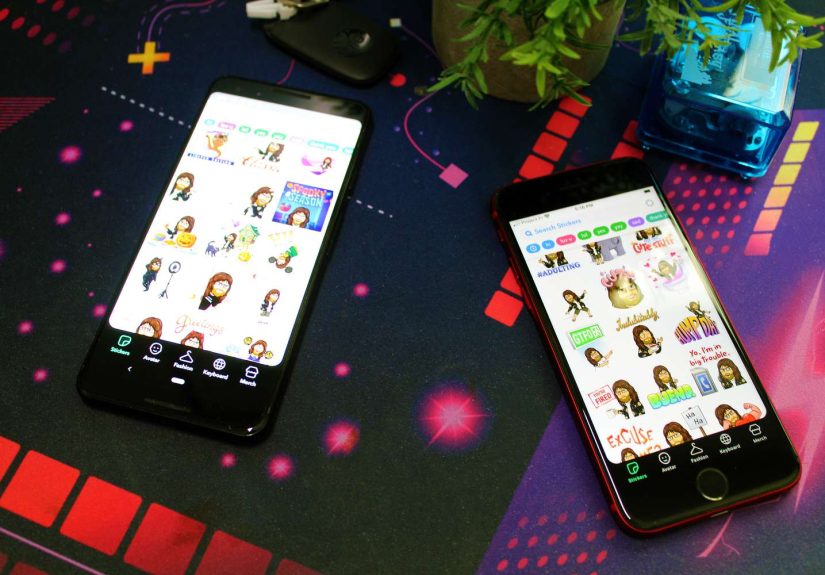
Before jumping into setup, it helps to know what you’re adding. Bitmoji is not just a normal emoji pack. It is a personalized sticker library built around your avatar. Once connected to your keyboard, it lets you insert stickers into supported apps, usually through a direct paste or share action. That means your messages can feel more personal, more visual, and honestly much more entertaining.
For many users, adding Bitmoji to the keyboard is easier than opening the Bitmoji app every time they want a sticker. Instead of bouncing between apps like a caffeinated squirrel, you can access your Bitmoji while you type. That convenience is the whole point.
Before You Start
There are a few basics you should handle first:
- Download the Bitmoji app from the App Store or Google Play.
- Create your Bitmoji avatar or log in to your existing account.
- Update your phone and the Bitmoji app if you have not done that in a while.
- Know that some messaging apps support direct image pasting better than others.
That last point matters. If Bitmoji works beautifully in one app and acts weird in another, your phone is not necessarily haunted. Some apps simply handle sticker insertion better than others.
How to Add Bitmoji to an iPhone Keyboard
If you use an iPhone, the setup process is pretty straightforward. Apple lets you add third-party keyboards, but you do need to switch a few settings on manually.
1. Install Bitmoji and Set Up Your Avatar
Start by installing the Bitmoji app and signing in. If you are brand new, create your avatar first. This is the fun part where you decide whether cartoon-you looks polished, chaotic, or suspiciously better rested than actual-you.
2. Add Bitmoji as a Keyboard
Now go to your iPhone’s settings and follow this path:
Settings > General > Keyboard > Keyboards > Add New Keyboard > Bitmoji
Once Bitmoji appears in your list of keyboards, tap it so you can finish setup.
3. Turn On Full Access
This is the step that makes many people pause and squint at their screen. After you add Bitmoji, you will likely be asked to enable Full Access. That sounds dramatic, like you are handing over the nuclear codes, but the main reason is practical: Bitmoji needs permission to download your custom stickers from its servers so they can appear inside the keyboard.
In plain English, no Full Access usually means no personalized sticker magic. So yes, you probably need to toggle it on.
4. Start Using Bitmoji in Messages
Open a messaging app, tap into a text field, and bring up the keyboard. Then touch and hold the globe icon or keyboard-switch key and choose Bitmoji. You should see your sticker library appear. Tap a sticker, and it will usually copy or paste into the message field, depending on the app.
If your sticker does not land exactly where you expect, do not panic. Some apps paste it directly. Others make you tap once more. Technology loves keeping us humble.
How to Add Bitmoji to an Android Keyboard
Android gives you a little more flexibility, which is both a blessing and a classic Android adventure. Depending on your phone, you may use the dedicated Bitmoji Keyboard, Bitmoji inside Gboard, or Bitmoji with Samsung Keyboard on select devices.
Option 1: Use the Bitmoji Keyboard
If you want the full Bitmoji Keyboard experience, open the Bitmoji app and tap the keyboard or globe tab. From there, follow the prompts to enable Bitmoji on your phone.
If your phone does not show the guided setup, you can usually add it manually through something like:
Settings > Languages and input > Virtual Keyboard or On-screen Keyboard > Manage Keyboards > Turn on Bitmoji Keyboard
Once it is enabled, switch to Bitmoji in any text field and start browsing stickers by category or search.
Option 2: Use Bitmoji with Gboard
Plenty of Android users prefer Gboard, and for good reason. If you already use Google’s keyboard, you may be able to access Bitmoji there instead of switching to the dedicated Bitmoji Keyboard. After installing Gboard and selecting it as your input method, open a message field, choose Gboard, tap the smiley face, then tap Bitmoji and sign in.
This setup can feel smoother for people who do not want to swap between multiple keyboards all day. It keeps your regular typing experience intact while giving you access to Bitmoji stickers when you want them.
Option 3: Use Bitmoji with Samsung Keyboard
On some Samsung phones, Bitmoji can work directly through Samsung Keyboard. If your device supports it, open Samsung Keyboard in a chat app, tap the sticker icon, and select Bitmoji. It is a nice option for Samsung users who would rather not install yet another keyboard setup.
Not every Samsung device handles this the same way, so this feature is a little more “check your mileage” than “guaranteed road trip.”
How to Use Bitmoji After Setup
Once Bitmoji is connected, using it becomes second nature. Open any supported app, tap into a message box, switch to the Bitmoji-enabled keyboard, and pick the sticker you want. Most users quickly develop a rotation of favorites, usually including one cheerful greeting, one low-energy response, one birthday sticker, and one deeply dramatic reaction image that gets far too much use.
You can also search for stickers by mood or topic. Want something for “good morning,” “thank you,” “congrats,” or “I am pretending to be chill”? Bitmoji usually has you covered.
Why Bitmoji Sometimes Does Not Work
If the keyboard is missing, frozen, or refusing to paste stickers, do not assume you broke your phone. These are the most common causes:
The Keyboard Was Not Fully Enabled
On iPhone, go back and confirm that Bitmoji was added under your keyboards list and that Full Access is turned on. On Android, confirm the keyboard is enabled under your phone’s keyboard manager.
You Are Logged Out of the Bitmoji App
The keyboard depends on the main Bitmoji app. If the app is logged out, outdated, or glitchy, the keyboard may stop cooperating. Open the app and make sure your account is active.
The App You Are Using Has Limited Image Pasting Support
This one trips up a lot of people. Some apps support direct image pasting from the keyboard. Others do not. If Bitmoji behaves perfectly in one app and awkwardly in another, that is usually an app limitation rather than a Bitmoji disaster.
Your Phone Just Needs a Reset
Yes, the oldest advice in tech support still works. Close the messaging app, reopen it, and if needed restart your phone. It is not glamorous, but neither is spending 45 minutes arguing with your settings screen.
Bitmoji Permissions and Privacy, Explained Like a Normal Human
People often get nervous when a keyboard asks for permission, and that is fair. Keyboards are intimate little creatures. They see a lot. Bitmoji says it needs Full Access so it can pull your custom stickers from its servers and display them in the keyboard. That is how your avatar-based stickers show up at all.
Bitmoji’s support guidance also explains that the keyboard does not read everything you type just because it has that access. On Android, the service also notes that sticker suggestions are powered on-device. That said, it is always smart to be selective about what keyboards you install and to avoid entering sensitive information into any search feature inside a third-party app unless you trust it completely.
That is the grown-up version of “have fun, but do not hand your banking life to random software.”
Tips for a Better Bitmoji Keyboard Experience
- Keep the Bitmoji app updated so keyboard fixes and compatibility changes are included.
- Use search when you want a specific mood instead of endless scrolling.
- Try Gboard if switching between keyboards on Android feels clunky.
- Use your most common messaging apps first to test which ones support direct sticker insertion best.
- Reopen the Bitmoji app after major phone updates so your account sync stays fresh.
If you use Bitmoji a lot, your speed improves quickly. After a week or two, you stop thinking of it as a novelty and start using it like a visual shortcut for reactions. It becomes less “Look what my phone can do!” and more “This sticker says exactly what my tired brain could not.”
What Users Often Experience After Adding Bitmoji to Their Keyboard
One of the most common experiences people describe after adding Bitmoji to their phone’s keyboard is that texting suddenly feels more personal. Before setup, most messages are just words, emojis, or the occasional GIF. After setup, your conversations start carrying a cartoon version of your own face reacting to life in real time. That sounds silly until you use it for a few days. Then you realize that a custom sticker can sometimes say “I’m excited,” “I’m kidding,” or “I am hanging on by a thread” more clearly than a full paragraph ever could.
Another very relatable experience is the awkward setup phase. Plenty of people install the app and assume Bitmoji will magically appear the moment they open Messages. Then nothing happens. So they open Settings, tap around, question their life choices, and eventually find the keyboard menu hiding in a perfectly logical place no normal person would ever guess on the first try. This is especially true on iPhone, where the Full Access prompt can make users stop and wonder whether they are about to accidentally sell their soul for a cartoon sticker. Once they understand why the permission is needed, the process feels much less dramatic.
Android users often have a slightly different experience. Some love using Bitmoji directly in Gboard because it feels integrated and convenient. Others prefer the full Bitmoji Keyboard because of the sticker suggestions and category browsing. And then there are the folks who discover their phone has three keyboard paths, two settings menus, one manufacturer overlay, and a deeply unserious commitment to making anything easy. For them, the real victory is not sending the first sticker. It is figuring out which keyboard is actually active.
Once setup is complete, the most noticeable change is speed. At first, people browse Bitmoji like they are shopping in a novelty store. They search everything. They send too many stickers. They overuse the dramatic ones. Then a pattern forms. Users find their favorites and start using Bitmoji as a shortcut for daily communication. Good morning texts, birthday wishes, casual thank-yous, flirting, friendly sarcasm, work chat reactions, family group messages, and holiday greetings all get easier. Instead of typing the same emotional script every day, they send a sticker and move on with their life.
There is also the social side of it. Bitmoji tends to get stronger reactions from friends and family than regular emojis because it feels more custom. It looks like you. It carries your vibe. It feels like an inside joke, even when it is not. That is why people often keep using Bitmoji long after the novelty should have worn off. It is fast, expressive, and just self-aware enough to be charming instead of cheesy.
Of course, not every experience is perfect. Some users run into apps that do not paste stickers cleanly. Others get annoyed when the keyboard disappears after an update or when they have to toggle permissions again. But even with those hiccups, most people who add Bitmoji to their phone’s keyboard keep it because the payoff is simple: messaging becomes more visual, more playful, and a lot less boring. That is not life-changing, but in a sea of dry text bubbles, it is a pretty nice upgrade.
Final Thoughts
If you want your messages to feel more expressive, adding Bitmoji to your phone’s keyboard is a quick upgrade that pays off immediately. On iPhone, the main job is enabling the keyboard and turning on Full Access. On Android, the best route depends on whether you prefer the Bitmoji Keyboard, Gboard, or Samsung Keyboard. Either way, the end result is the same: faster access to custom stickers that make everyday conversations feel more fun and a little less robotic.
And really, that is the whole appeal. Your phone keyboard already helps you say things. Bitmoji helps you say them with eyebrows.







aviator bônus slots [url=aviator63663.icu]aviator bônus slots[/url]
1win tjs [url=1win81527.icu]1win81527.icu[/url]
True Fortune casino has become a go-to online casino for many players in the United Kingdom. Big-money jackpots and trending games are easy to find on the homepage. A loyalty programme rewards active players with points that convert into real bonuses. Topping up an account is instant with no fees on most payment methods. Fair play is guaranteed by independently tested RNG games with published RTP rates. Clear rules and a well-organised help centre keep everything straightforward. true fortune casino no deposit bonus free spins [url=true-fortune-casino21.com/free-spins]true fortune casino no deposit bonus free spins[/url]
In the United Kingdom, True Fortune casino stands out as a trusted online gambling destination. Live blackjack, roulette and game shows are available at any time of day. A welcome offer with matched bonus funds and free spins awaits new players in the United Kingdom. Players can fund their account via cards, digital wallets and modern payment services. Player information is protected with encryption and strict data-handling standards. A detailed FAQ and clear terms make it easy for players in the United Kingdom to find answers fast. truefortune casino no deposit bonus codes [url=true-fortune-casino29.com/no-deposit-bonus]truefortune casino no deposit bonus codes[/url]
True Fortune casino has become a go-to online casino for many players in the United Kingdom. A dedicated live casino streams real-dealer roulette, blackjack and baccarat around the clock. Players enjoy recurring promotions including cashback and free spins on selected slots. 100 free spins promo codes for true fortune casino [url=true-fortune-casino32.com/free-spins]100 free spins promo codes for true fortune casino[/url] Fast, transparent withdrawals mean winnings reach players without long delays. A valid licence and secure infrastructure make True Fortune a safe place to play. Players can enjoy the full game library on mobile without installing an app.
Народ у кого дети Дневники эти вечные Ребёнок к вечеру как выжатый лимон Короче, реально крутая система — онлайн образование без стресса и нервов Никаких сборов в 8 утра В общем, смотрите сами по ссылке — Не мучайте себя и детей Перешлите другим родителям
mostbet lucky jet играть [url=mostbet59898.online]mostbet59898.online[/url]
plinko ars [url=plinko90488.icu]plinko ars[/url]
chicken road bonus registrazione [url=chicken-road71021.icu]chicken-road71021.icu[/url]
888starz Curacao rasmiy litsenziyasi asosida ishlab, o’yinchi hisobini va pulini himoya qiladi. Eksklyuziv 888Games to’plamida Crash, Dice, Plinko va Lottery kabi tez o’yinlar bor. Real vaqt tikishi yuqori koeffitsiyent va tezkor yangilanish bilan ishlaydi. 888starz bukmeker bo’limida birinchi depozitga 100 evrogacha 100% bonus beradi. 888starzda yangi akkaunt minimal ma’lumot bilan qisqa vaqtda yaratiladi. 88stars [url=888stars2.com]88stars[/url]
888starz.bet O’zbekiston o’yinchilari uchun kazino va sport tikishlarini yagona rasmiy platformada birlashtiradi. 888. [url=888starz-uzb9.com]888.[/url] 888Games bo’limida Crash va Plinko kabi ommabop tez o’yinlar doimo mavjud. 888starz eng muhim o’yinlarni kuchli koeffitsiyentlar bilan qamrab oladi. Sportga tikuvchilar uchun alohida 100% bonus 100€ gacha ochiladi. 24/7 qo’llab-quvvatlash jonli chat va email orqali ishlaydi, ilova Android va iOS uchun mavjud.
мостбет платежные методы [url=mostbet57408.online]мостбет платежные методы[/url]
cote fotbal melbet [url=melbet33145.help]melbet33145.help[/url]
1win unblocked site [url=1win20574.help]1win20574.help[/url]
mostbet aviator prognoz [url=mostbet81183.help]mostbet81183.help[/url]
мелбет ставки на теннис [url=melbet66023.online]мелбет ставки на теннис[/url]
aviator maintenance malawi [url=aviator33280.online]aviator maintenance malawi[/url]
mostbet lucky jet taktika [url=mostbet84891.online]mostbet84891.online[/url]
мостбет скачать если сайт заблокирован [url=mostbet73296.online]mostbet73296.online[/url]
mostbet ilovasini yuklab olish [url=mostbet06693.help]mostbet06693.help[/url]
mostbet установить [url=mostbet86491.online]mostbet86491.online[/url]
mostbet Oʻzbekiston rasmiy sayt [url=mostbet44945.help]mostbet44945.help[/url]
mostbet kupon bonusowy [url=mostbet29665.online]mostbet29665.online[/url]
mostbet app store [url=mostbet52410.online]mostbet app store[/url]
1win игровые автоматы [url=1win17590.help]1win17590.help[/url]
pinup UZS depozit [url=pinup24711.help]pinup UZS depozit[/url]
Je cherchais une application mobile de qualité pour mes paris. Télécharger un fichier sûr devenait un vrai casse-tête chinois. J’ai vérifié les dernières mises à jour pour lancer le processus sans erreur. J’ai finalement trouvé la bonne source et je voulais vous partager tous les détails, vous pouvez consulter les informations à jour ici: télécharger 1xbet app [url=pupusasriolempa.com]télécharger 1xbet app[/url]. Voilà, pour être clair net et précis — après l’avoir installée, j’étais vraiment bluffé. l’installation était rapide comme l’éclair. Pour être franc, c’est la plus fiable que j’aie testée — c’est sans doute l’application la plus performante du marché. Bonne chance à toutes et tous…
pin up kirish [url=pinup38742.help]pin up kirish[/url]
1вин уз депозит [url=1win75197.online]1win75197.online[/url]
aviator signals review [url=aviator95405.online]aviator signals review[/url]
1win rotiri gratuite nu apar [url=1win39929.help]1win39929.help[/url]
aviator sürətli çıxarış [url=aviator85462.help]aviator85462.help[/url]
slots pin-up [url=pinup38399.help]slots pin-up[/url]
pariuri pe handbal melbet [url=melbet31393.help]melbet31393.help[/url]
как вывести на карту mostbet [url=mostbetskg.buzz]mostbetskg.buzz[/url]
bitcoin poker sites reddit [url=poker-bitcoin-de.de]bitcoin poker sites reddit[/url] .
mostbet poker [url=mostbet93547.help]mostbet poker[/url]
bitcoin wallet online poker [url=onlinepokerbitcoin.de]onlinepokerbitcoin.de[/url] .
1win crash Republica Moldova [url=1win11397.help]1win11397.help[/url]
mostbet установка apk [url=mostbet30562.online]mostbet30562.online[/url]
plinko Upay withdrawal [url=plinko37046.help]plinko Upay withdrawal[/url]
1вин промокод [url=1win82740.help]1вин промокод[/url]
mostbet registrace bez bonusu [url=mostbet06318.help]mostbet06318.help[/url]
1win install [url=1win3004.mobi]1win3004.mobi[/url]
мостбет как пройти kyc [url=mostbet45018.help]mostbet45018.help[/url]
подарки корпоративные [url=suvenirnaya-produkcziya-s-logotipom-8.ru]подарки корпоративные[/url]
melbet app for iphone [url=melbet67541.help]melbet67541.help[/url]
mostbet lucky jet Кыргызстан [url=mostbet80395.help]mostbet80395.help[/url]
melbet без паспорта регистрация [url=melbet31507.help]melbet31507.help[/url]
what is the true meaning of fortune? [url=true-fortune-gb.com]true-fortune-gb.com[/url] .
чӣ тавр дар mostbet маблағ гузоштан [url=mostbet13748.help]чӣ тавр дар mostbet маблағ гузоштан[/url]
true fortune no deposit bonus may 2026 [url=truefortune-promo-code.com]truefortune-promo-code.com[/url] .
1win Тоҷикистон download [url=1win38596.help]1win38596.help[/url]
Azərbaycanda 1win bonus [url=1win25674.help]1win25674.help[/url]
mostbet ставки [url=mostbet81396.help]mostbet81396.help[/url]
мостбет приложение скачать Кыргызстан [url=mostbet47129.help]мостбет приложение скачать Кыргызстан[/url]
мелбет yumoney [url=melbet85713.help]melbet85713.help[/url]
jak zainstalować apk mostbet [url=mostbet82175.help]mostbet82175.help[/url]
мостбет официальный [url=mostbet20581.help]mostbet20581.help[/url]
pin-up Chile depósito [url=pinup2004.help]pinup2004.help[/url]
mines gra mostbet [url=mostbet90617.help]mines gra mostbet[/url]
melbet зеркало без блокировки [url=melbet70382.help]melbet зеркало без блокировки[/url]
1win fara comision retragere [url=1win5757.help]1win5757.help[/url]
mostbet pariuri live [url=mostbet41079.help]mostbet pariuri live[/url]
888 стар [url=888starz-uz1.org]888 стар[/url] .
casino malaysia [url=100cuci-9.com]casino malaysia[/url]