Table of Contents >> Show >> Hide
- What “Windows Update Cache” Actually Means (And Why It Gets Grumpy)
- Before You Start: A 60-Second Safety Checklist
- Method 1: Clear Update Cache via Settings (Temporary Files)
- Method 2: Use Disk Cleanup (The Classic “Windows Update Cleanup” Button)
- Method 3: Manually Delete the SoftwareDistribution Download Cache (Services + File Explorer)
- Method 4: Reset Windows Update Components (Command Prompt, Full Reset)
- Method 5: PowerShell “One-Script” Cleanup (Fast, Precise, and Satisfying)
- Bonus Troubleshooting: When Clearing Cache Isn’t Enough
- Conclusion
- Real-World Experiences: What Usually Happens After You Clear the Cache (About )
Windows Update is like that coworker who insists on “just one more quick thing” five minutes before your weekend starts. Most of the time it’s fine. But when updates get stuck, fail, or your C: drive starts wheezing for air, the culprit is often the Windows Update cacheaka the place Windows stores downloaded update files and related data so it can install (or… try to install) them later.
The good news: clearing the Windows Update cache is usually safe, surprisingly effective, and doesn’t require a computer science degree (or a ritual involving a full moon). Below are five easy, proven methodsstarting with the friendliest “clicky” options and ending with the “I mean business” command-line approach.
What “Windows Update Cache” Actually Means (And Why It Gets Grumpy)
When Windows downloads updates, it doesn’t sprinkle those files directly into your system like fairy dust. It stores them in staging areas firstso it can verify, unpack, install, retry, and occasionally throw a dramatic tantrum. Over time, that cached data can become corrupted, incomplete, or just plain huge.
Where the Update Cache Lives
- Main cache folder:
C:WindowsSoftwareDistributionDownload - Update “database” and history data:
C:WindowsSoftwareDistributionDataStore - Cryptographic update signatures:
C:WindowsSystem32catroot2 - Delivery Optimization cache (peer-to-peer downloads): often tied to “Delivery Optimization Files” cleanup
What Happens When You Clear It
- Windows may re-download update files the next time you check for updates.
- The Windows Update history list can look incomplete or reset if you clear certain internal stores. (Installed updates remain installed.)
- The next update scan can take longer, because Windows rebuilds its update metadata.
- You often fix issues like updates stuck at 0%/100%, repeated failures, or cryptic error codes.
Before You Start: A 60-Second Safety Checklist
- Save your work and close apps. Some steps will restart services or require a reboot.
- Use an admin account. Most cache-clearing actions need administrator permissions.
- Don’t delete random folders. We’re targeting specific locations on purpose.
- If you’re cautious: prefer renaming folders to deleting them (you’ll see that option below).
Method 1: Clear Update Cache via Settings (Temporary Files)
If you want the “minimum effort, maximum reward” approach, start here. Windows can clean up several update-related caches from Settings, including temporary update installation files and Delivery Optimization leftovers.
Steps (Windows 11 / Windows 10)
- Open Settings (
Win + I). - Go to System → Storage.
- Select Temporary files.
- Check items like:
- Windows Update Cleanup (if listed)
- Delivery Optimization Files
- Temporary Windows installation files (if listed)
- Click Remove files.
When This Works Best
Use this method when you’re mainly trying to free up disk space or remove leftover update junk after a successful update. It’s also great if you’d rather avoid commands and manual folder surgery.
Quick Tip
If you see Delivery Optimization Files taking up an absurd amount of space, don’t panicWindows can cache update chunks to speed up downloads, especially on networks with multiple PCs. Deleting them is generally safe; it just means Windows may download more directly from Microsoft next time.
Method 2: Use Disk Cleanup (The Classic “Windows Update Cleanup” Button)
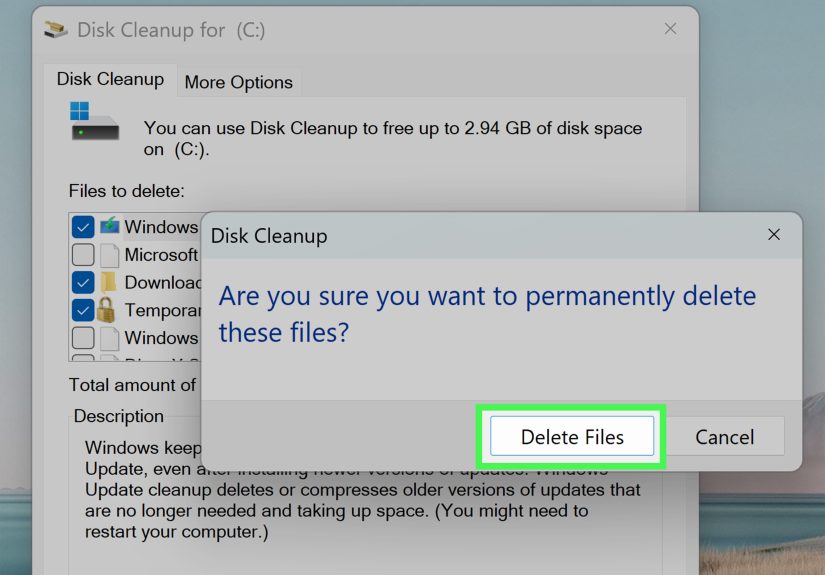
Disk Cleanup is old-school, but it’s still good at what it doesespecially when you run it in “system files” mode. This method is ideal when update leftovers are bloating your drive and you want Windows to handle cleanup the official way.
Steps
- Search Disk Cleanup from the Start menu and open it.
- Select your system drive (usually C:) and click OK.
- Click Clean up system files (this is the important part).
- Select your system drive again if prompted.
- Check:
- Windows Update Cleanup
- Delivery Optimization Files
- Temporary Windows installation files (if present)
- Click OK → Delete Files.
What to Expect
Disk Cleanup may run for a whileespecially if the “Windows Update Cleanup” item is large. If it feels stuck, give it time before you assume it’s frozen. It’s doing real work back there, like a dishwasher with feelings.
Method 3: Manually Delete the SoftwareDistribution Download Cache (Services + File Explorer)
This is the go-to fix for updates that download but won’t install, updates that are stuck repeating, or situations where the update cache is corrupted. The key is stopping the update services firstotherwise Windows will keep files “in use” and you’ll get denied faster than a fake ID at a Vegas club.
Steps
- Press
Win + R, typeservices.msc, and press Enter. - Find Windows Update → right-click → Stop.
- Find Background Intelligent Transfer Service (BITS) → right-click → Stop.
- Open File Explorer and go to:
C:WindowsSoftwareDistributionDownload - Delete everything inside the
Downloadfolder (not the folder itself). - Go back to Services and Start:
- Windows Update
- BITS
- Restart your PC, then check for updates again.
Why This Works
Most “stuck download” or “stuck install” issues come down to broken or partial files in the Download cache. Clearing it forces Windows to fetch clean copies and rebuild the download queue.
Method 4: Reset Windows Update Components (Command Prompt, Full Reset)
When simple cache deletion doesn’t cut itespecially with repeated failuresresetting Windows Update components is the heavyweight move. This approach stops key services, then renames update-related folders so Windows can recreate them cleanly. Renaming (instead of deleting) is safer because you can roll back if needed.
Steps (Command Prompt as Admin)
- Search cmd, right-click Command Prompt, choose Run as administrator.
- Run these commands to stop services:
Now rename the cache folders (Windows will rebuild them):
Restart the services:
Reboot your PC. Then go to Settings → Windows Update and click Check for updates.
Important Notes
- catroot2 helps manage update signatures. Renaming it is a common repair step when updates fail verification.
- After the reset, the first update scan may take longer than usual. That’s normal.
- If everything works, you can delete the
.oldfolders later to reclaim space.
Method 5: PowerShell “One-Script” Cleanup (Fast, Precise, and Satisfying)
If you like your fixes quick and your results measurable, PowerShell is your friend. This method stops services, clears the update download cache, and starts services againsimilar to Method 3, but cleaner and easier to repeat.
Steps (PowerShell as Admin)
- Right-click Start → choose Windows Terminal (Admin) or PowerShell (Admin).
- Paste the following:
If You Still Can’t Delete Files
Some systems lock update files stubbornly. In that case:
- Reboot and try again.
- Try the same steps in Safe Mode.
- Use Method 4 (folder rename) to force a rebuild.
Bonus Troubleshooting: When Clearing Cache Isn’t Enough
If you cleared the cache and Windows Update still refuses to cooperate, the issue might be corrupted system files, a stuck servicing stack, or networking/security software interference. Here are practical follow-ups that often help:
1) Run the Windows Update Troubleshooter
Go to Settings → System → Troubleshoot → Other troubleshooters → run Windows Update.
2) Repair System Files (SFC + DISM)
3) Check the Obvious Stuff (Yes, It Matters)
- Disk space: Feature updates can need many GB of breathing room.
- Date/time: Wrong clock can break update verification.
- VPN/proxy: Temporarily disable if downloads stall.
- Third-party antivirus: Rare, but it can interfere with update processes.
Conclusion
Clearing the Windows Update cache is one of those “why didn’t I do this sooner?” fixes. When updates get stuck, fail repeatedly, or hoard storage like a dragon with a subscription to cloud backups, the cache is a prime suspect.
Start simple with Settings or Disk Cleanup. If that doesn’t work, move to manual cache deletion, then level up to a full Windows Update component reset. With these five methods, you can usually get updates moving again without reinstalling Windows or bargaining with your laptop using snacks.
Real-World Experiences: What Usually Happens After You Clear the Cache (About )
In real life, clearing the Windows Update cache tends to fall into three common storieseach with its own personality. The first is the “instant relief” situation. This is the PC that’s been stuck on a cumulative update at 100% downloaded, but never installs. You clear SoftwareDistributionDownload, reboot, and suddenly Windows stops acting like it forgot how to update. The next scan takes longer, sure, but the update downloads cleanly and installs like it was never a problem. These are the moments that make you feel like a wizarduntil you remember the “spell” was basically “turn it off, delete the junk, turn it back on.”
The second story is the “storage mystery.” Someone opens Storage settings and sees multiple gigabytes in update-related items: Delivery Optimization Files, temporary installation files, and other leftovers that quietly accumulated. After cleanup, the machine doesn’t necessarily update “better,” but it breathes againespecially on smaller SSDs. The noticeable win here is space, not drama. It’s the digital equivalent of cleaning your closet: nothing magical happened, but you can now close the door without using a running start.
The third story is the “cache-clearing wasn’t the whole story” case. You delete the cache, you reset components, and Windows Update still fails with an error code that looks like a robot sneezed on the keyboard. This is where the best troubleshooting habits pay off: run the Windows Update troubleshooter, verify services are running, then move to system integrity checks like sfc /scannow and DISM. In many of these cases, the cache was a symptom, not the disease. Corrupted system files, inconsistent servicing stack components, or even a half-installed update from a previous attempt can keep problems going.
One more real-world pattern: people worry they’ll “break Windows” by clearing the cache. In practice, Windows is designed to rebuild these folders and re-fetch what it needs. The main practical side effects are that update checks can take longer right after cleanup, and the update history list may look differentyet the system’s actual installed updates remain intact. The smartest approach is to start with the gentle methods (Settings and Disk Cleanup), then only move to folder deletion/renaming if updates are stuck or failing repeatedly.
Finally, if you manage multiple PCs (family, office, or your own personal tech zoo), the “best” experience is consistency: pick one method you’re comfortable with, do it safely (stop services first), and reboot afterward. If an update is still stubborn, resist the temptation to run five different “fix” tools at once. Windows Update is like a fragile houseplant: it doesn’t thrive when you water it, repot it, fertilize it, and sing to it all in the same minute. Make one change, test, and move on only if needed.