Table of Contents >> Show >> Hide
- What Is Mail.com and Why Do People Use It?
- Before You Create a Mail.com Email Address
- How to Create a Mail.com Email Address Step by Step
- What to Do Right After You Create the Account
- Common Problems When Creating a Mail.com Email Address
- Is Mail.com a Good Choice?
- Best Practices for Using Your New Mail.com Email Safely
- Final Thoughts
- Experiences and Practical Lessons from Creating a Mail.com Email Address
- SEO Tags
If you want a new email address without handing your entire digital life to the first shiny signup button you see, Mail.com is one of the easier options to try. It gives you a free email account, a huge menu of domain choices, and enough features to make you feel like you joined a grown-up inbox instead of a sad little message closet.
This guide walks you through exactly how to create a Mail.com email address, what to expect during signup, how to choose a smart username, and what to do right after registration so your new inbox is actually useful. Because yes, creating the account is the easy part. Remembering where the settings live two days later? That is the real character-building exercise.
What Is Mail.com and Why Do People Use It?
Mail.com is a free webmail service that lets you create an email account with a wide variety of domain names instead of being limited to one standard ending. That means you can choose something classic, something professional, or something that feels a little more personal. For people who care about branding, job hunting, side hustles, organization, or just escaping a messy old inbox, that flexibility is a big selling point.
Another reason people choose Mail.com is convenience. A standard free account gives you webmail access, mobile app access, spam protection, antivirus features, folder organization, filters, contacts, and the ability to create multiple addresses under one login. In plain English, it is not just “here is an inbox, good luck.” It is more like “here is an inbox with a toolbox attached.”
Before You Create a Mail.com Email Address
Before you rush into signup mode like you are grabbing the last shopping cart before a storm, pause for a minute and decide what you want this email address to do.
Ask yourself these quick questions:
- Will this be your personal email or your professional email?
- Do you want your real name in the address?
- Will you use it for shopping, newsletters, and signups?
- Do you want one polished address for resumes and another for everyday use?
Your answers matter because the best email address is not just available. It is useful. An address like [email protected] feels very different from [email protected]. One says “Please review my application.” The other says “I own at least one RGB keyboard.”
How to Create a Mail.com Email Address Step by Step
Here is the simple version first: go to Mail.com, click the free signup button, enter your details, choose your email address and password, add recovery information, complete the verification step, and accept the terms. That is the whole road map. Now let’s break it down so nothing feels vague.
Step 1: Go to the Mail.com Signup Page
Open your browser and go to the official Mail.com website. Look for the button that says something like Free sign-up or Create an email account. Click it to start the registration process.
If you are on a phone, you can also begin through the Mail.com app, but many people find the desktop version easier for first-time setup because everything is visible and you are less likely to fat-finger your future identity.
Step 2: Enter Your Basic Personal Information
Mail.com will ask for standard account details such as your first name, last name, and date of birth. This information also helps generate email address suggestions. Fill in the fields carefully. You do not want to realize later that your birthday is somehow listed as 1897 unless you are, in fact, the oldest webmail user on Earth.
Use accurate information where required. It can help with account management and recovery later, especially if you ever get locked out.
Step 3: Choose Your New Email Address
This is the fun part. Mail.com gives you many domain options, so you are not stuck with only one ending. Start by typing your preferred username. Then choose the domain that fits your purpose.
Good examples:
- [email protected] for a polished personal identity
- [email protected] for freelance or portfolio use
- [email protected] for a simple everyday address
Try to keep your username:
- Short enough to remember
- Easy to spell over the phone
- Free of weird numbers unless necessary
- Appropriate for the audience who will see it
If your first choice is taken, do not panic and add six random digits like you are naming a Wi-Fi network. Try a middle initial, a profession, a location, or a cleaner variation of your name.
Step 4: Create a Strong Password
Mail.com asks for a secure password, and this is not the moment to recycle the same one you used for an old game account, a pizza app, and that shopping site you forgot existed. Your email account is the control center for password resets on many other accounts, so it deserves serious protection.
A strong password should be long, unique, and hard to guess. A memorable passphrase often works better than a short complicated mess. Something based on a phrase you can remember is usually smarter than something so cryptic you will need a support group to log in again.
Examples of better password strategy:
- Use a long phrase with mixed characters
- Do not reuse passwords across major accounts
- Avoid names, birthdays, or obvious words
- Consider a trusted password manager if you manage many accounts
Step 5: Add Recovery Information
Mail.com lets you add a cell phone number or another email address for password recovery. Please do this. Seriously. Future You will either send a thank-you card or at least stop yelling at the screen.
Recovery information is what helps you regain access if you forget your password, lose a device, or suspect someone else got into your account. Make sure the backup email or phone number is one you actually control and still check.
Step 6: Complete the Verification Step
You will likely need to complete a CAPTCHA or a similar verification step. This helps block automated signups and fake accounts. It is mildly annoying, yes, but still less annoying than an inbox filled with robot-created accounts pretending to be humans who really love cryptocurrency and “urgent investment opportunities.”
Step 7: Accept the Terms and Finish Registration
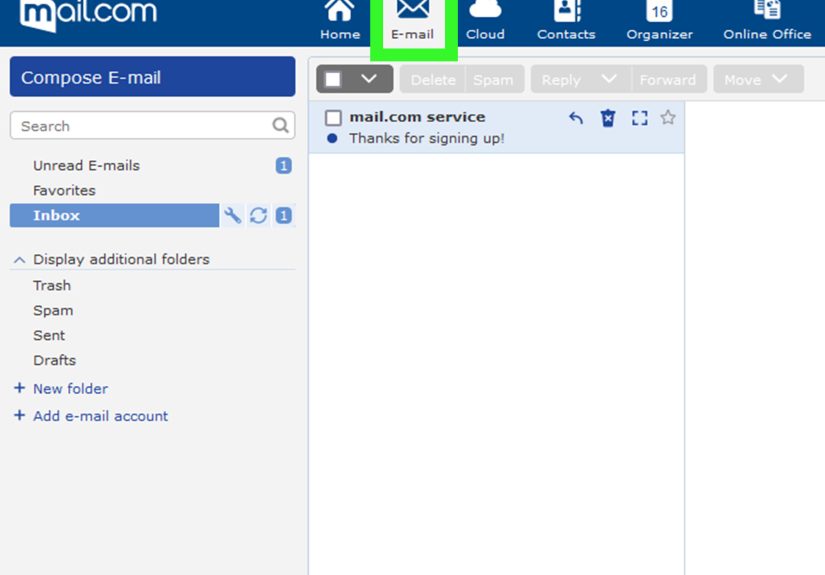
After filling out the required fields and completing verification, click the final button to accept the terms and create the account. Once that is done, your new Mail.com email address should be ready to use.
Congratulations. You now own a fresh inbox and at least three new responsibilities.
What to Do Right After You Create the Account
Creating the account is only step one. To get real value from your new email, spend a few minutes on setup. These small steps make a big difference.
1. Turn on Two-Factor Authentication
If Mail.com offers 2FA for your account, enable it right away. This adds another verification layer on top of your password, usually through an authentication app that generates a short code. Even if someone steals your password, they still cannot get in without that second factor.
This is one of the smartest security upgrades you can make. It takes a few minutes to set up and can save you from a giant headache later.
2. Set a Default Sender Name and Signature
If you plan to use the account for work, freelance inquiries, or networking, add a clean signature. A simple format works well:
Best,
Jordan Lee
Freelance Copywriter
[email protected]
A signature makes your messages look more professional and saves time every time you send an email.
3. Create Folders and Filters
One of the easiest ways to keep your inbox sane is to create folders such as:
- Work
- Bills
- Shopping
- Travel
- Newsletters
Then add filters so incoming messages go where they belong automatically. This is the difference between “I have an inbox” and “I have a system.”
4. Add Important Contacts
Save frequent contacts early. This helps with quick composition and can reduce the odds of important messages being treated as spam.
5. Decide Whether to Create Alias Addresses
Mail.com supports additional addresses under the same account, which can be very useful. For example, you might use one address for job applications, one for personal communication, and another for shopping or signups.
This can help keep your main address cleaner and give you more control over who gets which email. It is a neat trick for staying organized without juggling multiple separate accounts.
Common Problems When Creating a Mail.com Email Address
The username you want is taken
This happens all the time. Try adding a middle initial, professional word, or simple variation instead of random clutter. Clean and memorable wins.
The password is rejected
If the system says no, check whether the password meets the character requirements. Add length, mix upper- and lowercase letters, include numbers and symbols, and avoid weak patterns.
You do not get through verification
Refresh the page carefully, try again, and make sure your browser is not blocking required elements. If you are on mobile, switching to a desktop browser can help.
You forget your account details right away
Write them down in a secure place or save them in a trusted password manager. “I’ll totally remember this” has launched many tragic account recovery journeys.
Is Mail.com a Good Choice?
For many users, yes. Mail.com is a solid option if you want a free email account with more domain variety than usual, practical mailbox tools, and room to organize multiple addresses. It is especially appealing if you want an address that looks more tailored than the usual generic free-email setup.
It may also work well for side projects, online selling, freelance work, newsletter signups, or separating personal life from internet chaos. And honestly, that last one alone deserves applause.
Best Practices for Using Your New Mail.com Email Safely
- Use a unique password that is not shared with any other important account
- Turn on two-factor authentication as soon as possible
- Keep your recovery phone number or backup email up to date
- Do not click suspicious links in unsolicited emails
- Visit the official site directly if an email claims there is a problem with your account
- Review spam and security settings every so often
Email is not just for messages anymore. It is the front door to your digital identity. Treat it that way.
Final Thoughts
If you were wondering how to create a Mail.com email address, the process is thankfully straightforward. Go to the signup page, fill in your details, choose your preferred address, create a strong password, add recovery information, complete verification, and finish registration. After that, spend a few extra minutes securing and customizing the account so it works for your real life, not just for the five seconds after signup.
The best part is not just that Mail.com gives you a new inbox. It gives you flexibility. You can build an address that looks more personal, more professional, or more organized than the one you have been tolerating since your teenage years. And that, frankly, is personal growth.
Experiences and Practical Lessons from Creating a Mail.com Email Address
People who create a Mail.com email address often have one thing in common: they are trying to fix an email problem they have been putting off for way too long. Sometimes the old inbox is overloaded with newsletters, shopping receipts, and random signups from eight years ago. Sometimes the existing address feels too casual for work. Sometimes the person simply wants a fresh start without mixing personal messages, job applications, and online orders in one place. In those situations, creating a Mail.com account usually feels less like making “just another email” and more like finally cleaning out the junk drawer of your digital life.
One common experience is surprise at how much the domain choice matters. A user may start the signup process thinking, “An email address is an email address.” Then they see the options and suddenly realize that the ending can shape first impressions. Someone applying for freelance work might prefer a domain that sounds clean and professional. Another person might choose something more personal for family and friends. That small decision often changes how confident people feel when they hand out the address.
Another frequent experience is discovering that account setup is easy, but account setup done well takes a bit more thought. Many users breeze through registration in a few minutes, then later realize they skipped important things like adding recovery information, saving the password securely, or enabling two-factor authentication. That is usually when the lesson hits: convenience is great, but security matters more. The smartest users tend to pause after signup and spend a few extra minutes tightening everything up.
There is also the organization factor. Users who create alias addresses or separate folders often report that their inbox becomes much easier to manage. For example, one address can be used for shopping and discounts, while the main address stays reserved for personal or professional communication. That simple separation can make daily email feel dramatically less chaotic. It is not magic. It is just structure, which feels like magic when your inbox previously looked like a garage sale in message form.
People also learn quickly that new email habits matter as much as the new account itself. If they start handing out the new address to every app, coupon form, and sketchy download page on day one, the fresh-start feeling fades fast. But if they use the address intentionally, save important contacts, filter incoming mail, and stay alert to phishing attempts, the account remains useful and clean for much longer.
The biggest lesson from real-world use is simple: creating a Mail.com email address is not just about registration. It is about designing a better email routine. Users who treat the account like a tool, not just a login, get the best results. They end up with an inbox that looks better, works harder, and causes fewer headaches. In the world of email, that is basically luxury living.