Table of Contents >> Show >> Hide
- Quick reality check: “No WiFi” usually means “Download ahead of time”
- Before you download: set up your iPad for offline binge success
- Method 1: Download inside streaming apps (the easiest option)
- How to avoid the most common offline-download faceplants
- Method 2: Put your own movies and TV files on iPad (no streaming needed)
- Option A: Sync from a Mac using Finder
- Option B: Use iTunes/File Sharing on Windows (or older macOS)
- Option C: AirDrop from iPhone or Mac
- Option D: Files app + iCloud Drive (or other cloud storage)
- Option E: VLC for iPad (great for tricky formats)
- Option F: Plex Downloads (your personal media library)
- Offline viewing checklist (print this in your brain)
- Conclusion
- Field Notes: of real-world “offline iPad” experience (so you don’t learn the hard way)
There are two kinds of travelers: the ones who pack snacks, and the ones who pack snacks and an iPad full of offline entertainment.
If you’re reading this, you’re aiming for the second (superior) category.
This guide walks you through the legal, actually-works ways to download movies and TV shows to your iPad so you can watch them with
no WiFion flights, road trips, cruises, rural cabins, and anywhere the internet goes to “find itself.”
We’ll cover built-in downloads from streaming apps, plus how to load your own video files onto an iPad for offline viewing.
Quick reality check: “No WiFi” usually means “Download ahead of time”
Most streaming services don’t let you download content once you’re already offline (because, well… the internet is not optional for downloading).
The trick is to download while you still have a connectionusually WiFi, sometimes cellularthen watch later without internet.
Also: downloads from streaming apps are typically protected and only play inside that app. So yes, you can watch them offlinebut no, you usually can’t
export them like regular video files. (Streaming companies love convenience. They love control even more.)
Before you download: set up your iPad for offline binge success
1) Check storage (because “low storage” is the fun police)
Go to Settings > General > iPad Storage. If you’re living on 2.3 GB free space, your iPad is going to start making “helpful suggestions”
like deleting the apps you actually use. Aim for at least 10–20 GB free if you’re downloading a few movies or multiple TV episodes.
Tip: download in Standard quality if you’re building a big offline library. Save “Best quality” for the one cinematic masterpiece you’ll
definitely watch (and not just scroll past while you rewatch comfort sitcoms).
2) Update your apps and iPadOS
Download features can be picky about app versions and iPadOS updates. Before a trip, update your streaming apps and install pending iPadOS updates
(preferably not five minutes before leaving the house like a chaos gremlin).
3) Decide whether you’ll allow downloads over cellular
If you have a WiFi + Cellular iPad, some apps let you download over mobile data, others default to WiFi-only.
If you plan to download while tethered to your phone or using cellular, check each app’s download settings.
4) Do the “Airplane Mode test”
After downloading, switch on Airplane Mode, then open the app and play a downloaded title.
This is the offline equivalent of checking your passport exists before you arrive at the airport.
Method 1: Download inside streaming apps (the easiest option)
Most major services support offline downloads on iPad, but the exact rules vary: plan requirements, download limits, expiration timers, and “this title
can’t be downloaded because licensing says no.”
Apple TV app (Apple TV+, channels, and purchases)
The Apple TV app lets you download eligible shows, movies, and events on iPhone/iPad/Mac/PC. You typically tap the Download button on a title,
then find it under Library > Downloaded.
Important detail: you generally can’t download in the Apple TV app on an Apple TV device or many streaming boxesthose are stream-only.
Also, some Apple TV channel downloads may expire (often up to about 30 days) and channels can impose device/title limits.
Netflix downloads on iPad
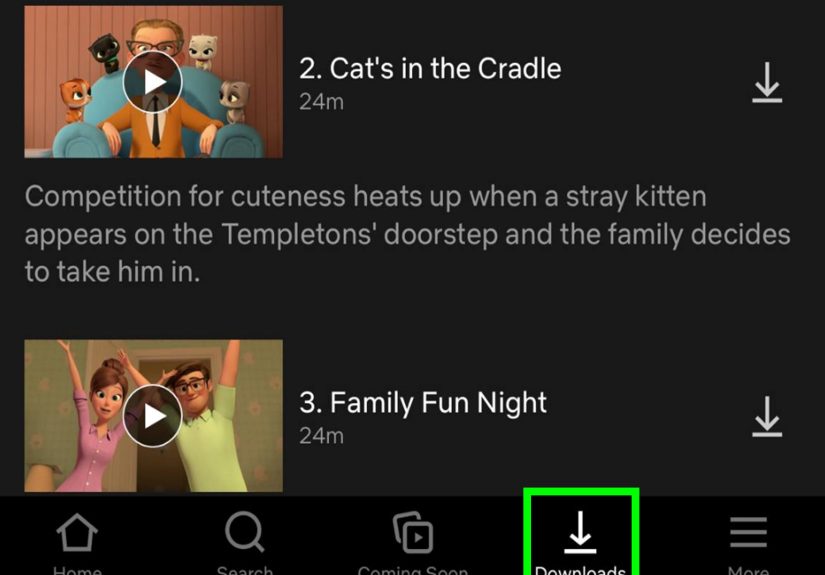
In Netflix, open a title and look for the Download icon. To browse what’s downloadable, go to the Downloads section and use the
“find more” option (wording can vary by app version).
Netflix also offers convenience features like auto-downloads (“Downloads for You”) on supported plans, plus basic controls for deleting downloads when storage
starts gasping for air.
If a title has no download icon, it’s not youit’s licensing. Some content simply can’t be downloaded.
Disney+ offline downloads
Disney+ makes this simple: open a movie or a series, then tap the Download button (for series, it’s usually on the episodes page).
Downloads live inside the app for offline viewing. If downloads fail, the usual culprits are low storage, an outdated app, or connection hiccups.
Prime Video downloads (Amazon)
Prime Video supports downloading on iPad through the Prime Video app. Find a movie/episode, tap Download, and look for a Downloads
section to play offline. Prime Video’s availability can vary by title and region, so if you don’t see a download button, it may not be eligible.
Hulu downloads
Hulu supports offline viewing on iPad through its app, typically via a Downloads area where you can view and play saved titles.
Hulu’s download availability depends on your plan and the specific show/movie. Downloads can expireso don’t assume the episodes you grabbed three months ago
are still ready for your flight today.
Max (formerly HBO Max) downloads
Max allows downloads on iPad via the Max app for supported plans. You can tap the download icon on eligible titles and manage quality settings in the app.
Typical rules include overall download caps (which vary by plan), and expiration windows (commonly “unwatched expires after a set period” and “once you start,
you have a limited time to finish”).
Travel tip: many services let you watch already-downloaded content while traveling, but streaming and “new downloads” may depend on the country you’re in.
Paramount+ downloads
Paramount+ offers offline downloads for select titles on certain subscription tiers. If you can’t download, it may be your planor the title may not be eligible.
Also note: downloads can be sensitive to region changes, so if you travel internationally, you may need to reconnect or you may temporarily lose access until the
app verifies your account in that region.
Peacock offline viewing
Peacock supports offline downloads on eligible plans (typically the higher tier), and not every title is downloadable.
Many services also set time limits like “unwatched downloads expire after a number of days” and “watched downloads expire shortly after playback starts.”
If you’re outside the U.S., availability can be limited, so download before you go if you’ll be traveling.
YouTube Premium and Google TV (purchased/rented titles)
For YouTube, offline downloads on iPad are primarily a YouTube Premium feature. On the watch page, tap Download, and find saved
videos under your profile’s Downloads.
If you buy or rent movies/TV through Google TV on iOS, you can usually download from your Library for offline playback in the app.
How to avoid the most common offline-download faceplants
1) Download limits are real (and they vary)
Some services limit the total number of downloads across your account, others limit per device, and some cap how many times a title can be downloaded.
If you hit a limit, deleting older downloads usually fixes it.
2) Downloads expire (sometimes faster than milk)
Many platforms use time windows like “available for about 30 days” if unwatched, and “finish within about 48 hours after you start watching.”
Even if you never press play, licenses can change and a title can disappear from the servicetaking your download with it.
3) You must stay signed in
Offline content often requires you to be logged in on that device. If you log out, switch profiles, or reinstall the app, you may lose downloads.
Before a trip, sign in and keep it that way.
4) Region rules can change when you travel
Some apps will still play existing downloads abroad, but may restrict streaming or new downloads depending on local availability.
If your trip crosses borders, download early and test offline before you leave.
Method 2: Put your own movies and TV files on iPad (no streaming needed)
If you own video files (home videos, legal downloads, personal backups, indie films, course videos), you can load them onto your iPad so they play offline in
the TV app, Files, or a media player like VLC. This is also the best route if you want offline access that doesn’t expire every 48 hours like a dramatic reality
show relationship.
Option A: Sync from a Mac using Finder
On macOS Catalina and later, your iPad appears in Finder when connected by cable. From there, you can sync supported content (like movies or TV
shows in your local library) to the iPad. This is great for a big, one-time load before travel.
Option B: Use iTunes/File Sharing on Windows (or older macOS)
On Windows, you can use iTunes to transfer files to certain apps via File Sharing. For example, you can move compatible video files into a player
app that supports file import.
Option C: AirDrop from iPhone or Mac
AirDrop is the “just toss it over here” method. Send a video file from your Mac or iPhone to your iPad, then save it into Files or
Photos (depending on the source and file type). It’s fast, encrypted, and doesn’t require cables.
Option D: Files app + iCloud Drive (or other cloud storage)
If your video files are stored in iCloud Drive, you can access them in the Files app and keep specific files available for offline use by
downloading them to the device ahead of time. This is especially handy for episodic content or travel folders (movies, subtitles, PDFs, the works).
Option E: VLC for iPad (great for tricky formats)
If you’ve ever had an MP4 that plays everywhere except the one place you need it, VLC is your friend. VLC can handle a wide range of formats, and you can move
files into the VLC app via computer transfer methods (like Finder/iTunes file sharing) or other import options.
Option F: Plex Downloads (your personal media library)
If you run a Plex Media Server, Plex can download items to your iPad for offline viewing (often as a premium feature depending on your setup and subscription).
This is a strong “bring-your-own-library” approach: your content, your organization, your offline accessno expiring licenses mid-vacation.
Offline viewing checklist (print this in your brain)
- Update iPadOS and streaming apps.
- Free up storage (or choose standard download quality).
- Download on a strong WiFi connection.
- Open each app and confirm your downloads appear.
- Play one downloaded title in Airplane Mode as a test.
- Bring headphones. The universe will seat you next to a talker.
- Bring a charger or battery pack. Offline viewing still eats battery.
Conclusion
If you want to watch movies and TV shows on your iPad with no WiFi, you’ve got two solid paths:
(1) download directly inside streaming apps ahead of time, and (2) load your own video files via Finder, AirDrop, Files, VLC,
or Plex for a more permanent offline library.
Do your downloads early, test in Airplane Mode, and treat storage like the precious resource it is. Because the only thing worse than no WiFi is realizing
you forgot to download episode 8… right after episode 7 ends on a cliffhanger.
Field Notes: of real-world “offline iPad” experience (so you don’t learn the hard way)
Let’s talk about what actually happens when people try to download movies to an iPad for a no-WiFi trip. The plan is always noble:
“I’ll download a few shows for the flight.” The execution, however, often looks like someone trying to assemble furniture without the instructions
and with a cat sitting in the box.
The first common moment of panic is the night-before download sprint. Someone remembers they have a five-hour flight, opens a streaming app,
and hits Download on an entire seasonthen discovers their hotel WiFi speed is “historic dial-up reenactment.” The fix is simple: start earlier than you think
you need to. Even better, download in smaller batches: two movies, a few episodes, and one comfort show you’ve seen a thousand times but still laugh at.
If you have time later, add more.
Next comes the storage surprise. An iPad with “plenty of space” suddenly isn’t so roomy when you’re downloading in the highest quality.
People often forget that one hour of HD video can be several gigabytes, and a few movies can quietly eat a big chunk of storage. A practical approach is to
mix quality levels: download the visually stunning movie in higher quality, and keep sitcom episodes in standard quality. No one needs 4K pores on a comedy
character’s face while you’re watching in a cramped seat anyway.
Another classic: the “I downloaded it… why can’t I play it?” issue. This is usually one of three things: you’re not signed in,
the download expired, or you’re trying to play it from the wrong place. Streaming downloads live inside the streaming app. They don’t show up in Photos.
They don’t show up in Files. They’re not “real files” you can shuffle around like MP4s. That’s why the Airplane Mode test is so powerful: it confirms you can
open the right app, find the right download section, and hit play without any network.
Then there’s the travel-region plot twist. Even if an app can play existing downloads while you travel, some services become picky when you cross
borders or stay offline too long without verifying your account. People sometimes arrive at their destination, open the app, and see a message that basically
translates to “Hello, yes, we need you to briefly touch the internet so we can remember you exist.” The fix: connect once at the airport or hotel lobby,
let the app refresh, and then go back to offline life.
Finally, the most underrated move is building a tiny personal offline library for the stuff you truly own: home videos, classes,
documentary files, or legal downloads. Tools like Finder syncing, AirDrop, VLC, and Plex can give you offline content that doesn’t evaporate after 30 days.
The streaming apps are great for convenience, but having a few “forever files” is like packing a spare charger: you may not need it, but when you do,
you’ll feel like a genius.