Table of Contents >> Show >> Hide
- What the error usually means (and why it’s so annoyingly vague)
- Before you go full detective: 5 quick checks (2 minutes total)
- Step-by-step fixes (start here and work down)
- Fix 1: Make sure Messages has microphone permission
- Fix 2: Check Screen Time restrictions (the sneaky mic blocker)
- Fix 3: Turn iMessage off and back on (the “reset the brain” move)
- Fix 4: Confirm Date & Time is correct
- Fix 5: Disable VPN and “privacy” network tools temporarily
- Fix 6: Check for low storage (audio needs breathing room)
- Fix 7: Update iOS (and the app ecosystem around it)
- Fix 8: Test your microphone outside Messages (quick hardware sanity check)
- Fix 9: Disconnect audio accessories and try again
- Fix 10: Clean microphone openings (gently, like your phone is a tiny pet)
- Fix 11: Reset Network Settings (when the network stack is cursed)
- Fix 12: Reset All Settings (bigger hammer, still not a factory wipe)
- Fix 13: Sign out of Apple Account and sign back in (for stubborn iMessage activation)
- Fix 14: Try a different conversation (or start a new one)
- Fix 15: If nothing works, it may be hardware (or carrier/account-level)
- If the problem happens in WhatsApp, Instagram, Messenger, or Telegram
- Workarounds when you need to send audio right now
- Prevention tips (so this doesn’t become your new hobby)
- 500+ words of real-world experience: what usually fixed it (and what wasted time)
You press and hold to record an audio message, you say something brilliant (or at least funny), you lift your finger… and your iPhone hits you with: “Cannot Send Audio Message at This Time.” Cool. Love that. It’s like your phone is politely saying, “Not right now, bestie.”
This guide focuses on the Messages app (iMessage), because that exact wording most commonly appears there. But many fixes also help if you’re seeing similar “can’t send voice message” issues in apps like WhatsApp, Instagram, Messenger, or Telegram. (There’s a section for those too.)
What the error usually means (and why it’s so annoyingly vague)
That message isn’t one single problemit’s iOS lumping several “audio message failed” situations into one generic shrug. In real life, the cause is usually one of these:
- Network trouble (weak Wi-Fi, spotty cellular, VPN issues, captive portals like hotel Wi-Fi).
- iMessage activation or account mismatch (phone number not activated, wrong “Send & Receive,” eSIM activation quirks).
- Microphone access blocked (privacy permissions, Screen Time restrictions, or an app stuck “hogging” the mic).
- Software hiccup (Messages glitch, iOS bug after an update, background process stuck).
- Low storage (your iPhone is full and suddenly everything becomes “not at this time”).
- Hardware/audio accessory conflict (Bluetooth headset weirdness, debris blocking mic ports, damaged mic).
Before you go full detective: 5 quick checks (2 minutes total)
1) Check whether iMessage is having a bad day
If iMessage is temporarily down, your phone can be perfectly fine and still refuse to send audio. Check Apple’s System Status page for iMessage disruptions. If there’s an outage, the best fix is… time. (I know. The worst fix.)
2) Try sending a regular text or photo in the same conversation
If texts/images are also delayed or failing, you’re dealing with a connection or iMessage problemnot audio-only. If texts send instantly but audio fails, think microphone access, storage, or a Messages-specific bug.
3) Switch networks once
Toggle Wi-Fi off and try cellular data (or vice versa). Audio messages are bigger than text and can fail on flaky networks. Public Wi-Fi is especially guilty because it loves sign-in pages and “security” filters.
4) Close and reopen Messages
Simple? Yes. Effective? Weirdly often. Swipe up (or double-press Home on older iPhones) and force-close Messages, then reopen it and try again.
5) Restart your iPhone
The classic “turn it off and on again” is popular for a reason: it resets stuck audio services and background processes. If your phone is frozen, do a force restart.
Step-by-step fixes (start here and work down)
Go in order. Don’t jump straight to nuclear options unless you enjoy re-entering Wi-Fi passwords for fun.
Fix 1: Make sure Messages has microphone permission
If Messages doesn’t have mic access, audio messages can fail even if other apps work fine. Check this first:
- Open Settings → Privacy & Security → Microphone.
- Make sure Messages is turned ON.
Tip: If Messages isn’t listed at all, it may not have requested permission properly yet. A restart can prompt it, or you can test recording in Messages again to trigger the permission request.
Fix 2: Check Screen Time restrictions (the sneaky mic blocker)
Screen Time can block microphone access or prevent permission changes, especially on family-managed devices. If you can’t enable mic permissions, check:
- Settings → Screen Time → Content & Privacy Restrictions
- Look for Microphone and ensure it’s allowed (or set to “Allow Changes”).
Fix 3: Turn iMessage off and back on (the “reset the brain” move)
If iMessage activation is glitchingeven slightlyaudio messages can fail. Reset the service:
- Settings → Apps → Messages
- Toggle iMessage OFF
- Wait 10–20 seconds
- Toggle iMessage ON
Afterward, go to Send & Receive and make sure your phone number is selected. If iMessage is sending from an email when you expect your number, that mismatch can cause weird delivery behavior.
Fix 4: Confirm Date & Time is correct
It sounds unrelated until you remember iMessage relies on secure connections that hate incorrect time settings. Make sure time zone/date are right:
- Settings → General → Date & Time
- Turn on Set Automatically (when possible)
Fix 5: Disable VPN and “privacy” network tools temporarily
VPNs, ad blockers that create local VPN profiles, school/work filtering apps, and “secure DNS” tools can interfere with message attachmentsespecially audio. Turn them off briefly, test sending one audio message, then decide what to keep.
Fix 6: Check for low storage (audio needs breathing room)
iPhones act extra dramatic when storage is nearly full. Audio messages are files, and creating/sending them requires space. Check:
- Settings → General → iPhone Storage
- Free up space (delete large videos, offload unused apps, clear big message attachments)
If you’re hovering near “0 GB available,” don’t expect audio sending to be your phone’s top priority.
Fix 7: Update iOS (and the app ecosystem around it)
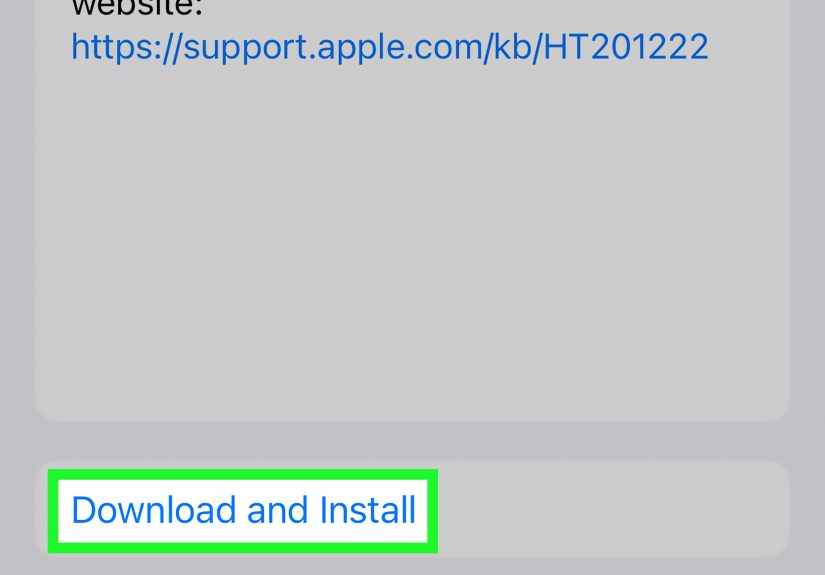
If the problem started right after an iOS update, you may be hitting a bug that gets patched later. Check for updates:
- Settings → General → Software Update
Also update third-party messaging apps in the App Store if you’re seeing the issue outside Messages.
Fix 8: Test your microphone outside Messages (quick hardware sanity check)
Open Voice Memos and record for 10 seconds. Then play it back. If it sounds muffled, cuts out, or is silent, the problem might be:
- Debris blocking the mic ports
- A Bluetooth headset stealing the input
- A hardware mic issue
Fix 9: Disconnect audio accessories and try again
Bluetooth can “helpfully” route microphone input to the wrong device. Try this:
- Turn Bluetooth OFF temporarily
- Unplug any wired headset or adapter
- Try sending the audio message again
Fix 10: Clean microphone openings (gently, like your phone is a tiny pet)
Pocket lint is undefeated. If your mic is partially blocked, audio recording or sending can fail. Remove bulky cases/screen protectors and clean gently with a soft brush or cloth. Avoid blasting compressed air into ports.
Fix 11: Reset Network Settings (when the network stack is cursed)
If switching Wi-Fi/cellular changes nothing, a network reset can help. This will remove saved Wi-Fi networks/passwords and reset cellular/VPN settings, so have your Wi-Fi password ready.
- Settings → General → Transfer or Reset iPhone → Reset
- Tap Reset Network Settings
Fix 12: Reset All Settings (bigger hammer, still not a factory wipe)
If audio sending is still broken, “Reset All Settings” can clear corrupted preferences without deleting your photos and apps. It does reset things like Wi-Fi networks, privacy settings, and keyboard dictionaryso it’s annoying, but not catastrophic.
- Settings → General → Transfer or Reset iPhone → Reset
- Tap Reset All Settings
Fix 13: Sign out of Apple Account and sign back in (for stubborn iMessage activation)
If iMessage won’t properly associate your number or keeps acting “half signed-in,” signing out and back in can refresh the link. Do this only if you’re comfortable with your Apple Account login and 2FA.
Fix 14: Try a different conversation (or start a new one)
Sometimes the issue is conversation-specificespecially in long threads with lots of attachments or older glitches. Start a new chat with the same person and send a short audio message as a test.
Fix 15: If nothing works, it may be hardware (or carrier/account-level)
If Voice Memos can’t record reliably and multiple apps fail to capture audio, you might be dealing with a microphone hardware issue. If Voice Memos works fine but iMessage audio never sends (across networks, after updates, after resets), contact Apple Support or your carrierespecially if iMessage activation SMS is failing.
If the problem happens in WhatsApp, Instagram, Messenger, or Telegram
The exact error text varies by app, but the fix categories are basically the same: permissions, connection, storage, app updates, and background restrictions.
Quick app checklist
- Microphone permission: Settings → Privacy & Security → Microphone → enable the app.
- Connection: Switch Wi-Fi/cellular; avoid captive portal Wi-Fi; disable VPN to test.
- Background restrictions: Low Power Mode or aggressive background limits can interrupt sending.
- Update the app: App Store updates often fix voice-message bugs.
- Storage: Low space can break media sending.
- Restart phone: Clears stuck audio input services.
WhatsApp specifically recommends checking your connection and restarting your phone if voice message recording or sending fails.
Workarounds when you need to send audio right now
If you’re on a deadline (or a drama timeline), here are reliable backups:
- Record in Voice Memos and share the file via Messages.
- Use dictation to convert speech to text (fastest “audio-ish” replacement).
- Send a short video (even black-screen) if audio messages keep failing but video works.
- Switch apps temporarily (WhatsApp/Signal/Telegram) if iMessage is acting up.
Prevention tips (so this doesn’t become your new hobby)
- Keep some storage free. Your iPhone performs better when it isn’t living life at 99.9% capacity.
- Update iOS regularly (and apps too), especially after a widely reported messaging bug.
- Be cautious with VPNs and device-management profiles that filter traffic.
- Review Screen Time rules if your mic permissions keep “mysteriously” changing.
- Test your mic occasionally in Voice Memoscatch hardware issues early.
500+ words of real-world experience: what usually fixed it (and what wasted time)
If you asked ten people how they solved the “Cannot Send Audio Message at This Time” error, you’d get fifteen answers, two conspiracy theories, and one person who insists the fix is “buy a new phone.” In practice, the wins cluster around a few predictable patternshere are the ones that show up again and again.
Scenario A: “It only fails on my home Wi-Fi.”
This one is incredibly common. The audio message records fine, but sending fails or hangs foreveryet cellular data works instantly. The fix is usually not mystical iPhone behavior; it’s the network. Home routers with outdated firmware, aggressive “security” features, or DNS/VPN profiles can block the kind of attachment transfer iMessage uses. The fastest success path tends to be: switch to cellular to confirm it’s Wi-Fi-related → disable VPN/ad-blocker profiles temporarily → reboot the router (yes, actually) → reset network settings if your phone has cached a broken connection state. People often spend an hour blaming the Messages app, when the router is basically wearing a fake mustache and pretending everything is fine.
Scenario B: “Texts send, photos send, but audio refuses.”
When other message types work, the issue is usually microphone access, storage, or a stuck audio service. The “aha” moment is often finding Messages mic permission turned offsometimes after a privacy reset, Screen Time change, or device migration. Another frequent culprit: Bluetooth. A headset connects, iPhone routes mic input to it, the headset is in another room, and Messages throws an error like it’s disappointed in your life choices. Turning off Bluetooth for 60 seconds fixes it more often than people expect.
Scenario C: “It started after an iOS update.”
Post-update weirdness is real. You don’t need to panic, but you do need to do the boring basics: restart the phone, force-close Messages, toggle iMessage off/on, and confirm your phone number is selected under Send & Receive. If you recently activated an eSIM or changed carriers, iMessage can get stuck in a half-activated state where texts still limp through, but audio (and other attachment-like features) misbehave. People who fixed it quickly typically did the iMessage toggle + restart combo, then waited a few minutes for activation to settle before testing again (iMessage activation isn’t always instant).
Scenario D: “Nothing works… until I free up storage.”
This is the sneakiest one because the phone doesn’t always warn you in a dramatic way. When storage is near zero, iOS can fail at creating temporary files needed for recording/sending audio. Users report that clearing a couple of gigabytesdeleting a few large videos, offloading unused apps, removing huge message attachmentssuddenly makes audio messages behave like nothing ever happened. It feels ridiculous (“I can’t send a 12-second audio clip because of my 4K vacation video collection?”) but it’s consistent.
Scenario E: “It’s not software. It’s hardware.”
When Voice Memos sounds muffled, cuts in and out, or is silent, the fix list changes. Cleaning the mic ports and removing bulky cases helps surprisingly often (pocket lint is undefeated), but if every app struggles to record, you may be looking at a microphone issue that needs service. The quickest way to avoid wasting time is that simple Voice Memos test: if the mic can’t record cleanly there, Messages isn’t the villain.
The big lesson: most people solve this error with one of five movesswitch networks, enable mic permission, toggle iMessage, restart/force restart, or free storage. Everything else is the “if those fail” layer. Start small, test after each change, and you’ll fix it faster than a random internet comment section can argue about it.