Table of Contents >> Show >> Hide
- What “Connection Reset” Means in Minecraft (In Plain English)
- 2-Minute Pre-Check (Do This Before Any Fixes)
- Fix #1: Confirm Version Match and Rule Out Server Problems
- Fix #2: Reset Your Network the “Clean” Way
- Fix #3: Let Minecraft Through Your Firewall and Security Tools
- Fix #4: Update/Repair Minecraft (and Java if Needed)
- Fix #5: Mods, Add-Ons, and Settings That Quietly Break Multiplayer
- When to Stop Troubleshooting and Blame the Server
- Quick FAQ
- Real-World Experiences: What Actually Worked (500+ Words)
- Conclusion
Few things ruin a good Minecraft session faster than getting kicked with a message like
“Connection reset”, “Connection reset by peer”, or the
Java Edition classic: Internal Exception: java.net.SocketException: Connection reset.
One second you’re placing your final block… the next you’re staring at a multiplayer menu like it just
broke up with you via text.
The good news: this error usually isn’t mysterious or permanent. It’s almost always a
connection interruption caused by your network, your security software, a mismatched game setup, or
(occasionally) the server having a bad day. Below are 5 easy fixes that cover the most
common real-world causeswithout turning your PC into a science fair project.
What “Connection Reset” Means in Minecraft (In Plain English)
A “connection reset” is basically your game saying: “We were talking to the server, and the
conversation got abruptly cut off.” That cutoff can happen when:
- Your internet stutters (Wi-Fi drops, router hiccup, packet loss).
- A firewall or antivirus blocks Minecraft or Java mid-connection.
- A VPN/proxy changes your route and the server doesn’t like it.
- Your client and server disagree on versions, mods, or protocol details.
- The server is overloaded, restarting, misconfigured, or rate-limiting connections.
Think of it like joining a voice call: if your mic is muted by “security,” your Wi-Fi cuts out, or you
try to join the wrong meeting link, you’ll get booted. Minecraft is the samejust with more creepers.
2-Minute Pre-Check (Do This Before Any Fixes)
- Is it only one server? Try a different server or a Realm. If only one server fails, it’s likely server-side or a server-specific rule.
- Is your game updated? Make sure your Minecraft version matches what the server runs.
- Are you using mods, shaders, or a custom launcher? Keep that in mindFix #5 will be your best friend.
- Are you on Wi-Fi far from the router? If yes, network stability is suspect. (Wi-Fi can be brave, but it’s also dramatic.)
Fix #1: Confirm Version Match and Rule Out Server Problems
1) Check whether the issue is server-specific
If you can join other servers just fine, your internet is probably okayand the problem is specific
to that server (or your account permissions on it).
- Try another public server (Java) or another multiplayer world/featured server (Bedrock).
- Try joining from a different device on the same network if possible.
- Ask a friend if they can join the server right now. If nobody can, that’s your answer.
2) Make sure your Minecraft version matches the server
Minecraft multiplayer is picky in the way only a blocky masterpiece can be. A server running one version
may reject clients on anotherespecially if plugins/mods are involved.
Example: If a server is running a modpack on 1.20.1 and you try joining with vanilla 1.20.4,
you may connect briefly, then get kicked with a reset/decoder/protocol error.
- Java Edition: In your launcher, select the exact version/profile the server expects.
- Bedrock Edition: Update the game fully; Bedrock is stricter about version parity.
3) If you run the server, do the boring-but-effective basics
- Restart the server and wait for it to fully finish loading.
- Check server performance (CPU/RAM spikes can cause disconnects).
- Review server logs for repeated disconnects, timeouts, or security plugins blocking connections.
If Fix #1 screams “server-side,” don’t waste an hour doing router gymnastics. Skip to the
“When to blame the server” section near the end.
Fix #2: Reset Your Network the “Clean” Way
1) Power-cycle your router (yes, really)
Unplug your modem/router combo for 20–30 seconds, then plug it back in. This clears stale
sessions and forces a fresh connection route. It’s the tech equivalent of “turn it off and on again,”
becauseannoyinglyit works.
- If possible, switch to Ethernet while testing. Even a temporary cable test can prove whether Wi-Fi is the culprit.
- Pause heavy network usage: big downloads, cloud backups, 4K streaming, and the “just one more” update queue.
2) Flush DNS and reset the Windows network stack (Windows 10/11)
If your DNS cache is staleor your network stack is in a weird moodMinecraft can get unstable connections.
Open Command Prompt (Run as administrator), then run:
Restart your PC after running those commands. Then try Minecraft again.
3) Try a reliable DNS (optional, but surprisingly helpful)
If your ISP DNS is slow or flaky, switching DNS can stabilize lookups (especially if the reset happens right
as you connect). Popular options include:
- Google DNS: 8.8.8.8 and 8.8.4.4
- Cloudflare DNS: 1.1.1.1 and 1.0.0.1
You can change DNS in Windows network settings or on your router. If you’re not sure, change it on your PC first
(easier to undo).
4) On consoles/Bedrock: check NAT type if multiplayer is weird
If you’re on Xbox/PlayStation and you can’t reliably join worlds, NAT type can matter.
A Strict NAT can block peer connections and cause repeated drops.
If you see strict NAT, enabling UPnP on your router is often the first step. If you can’t access
router settings, ask a parent/guardian or whoever manages your Wi-Fi.
Fix #3: Let Minecraft Through Your Firewall and Security Tools
1) Allow Minecraft (and Java) through Windows Firewall
“Connection reset” is commonly caused by security software interrupting Java’s network connection.
The safest approach is allow-listing Minecraft instead of disabling security entirely.
- Open Windows Security → Firewall & network protection.
- Select Allow an app through firewall.
- Make sure Minecraft Launcher and Java(TM) Platform SE binary (or similar Java entry) are allowed on your current network type (Private/Public).
Tip: If you use a school/public network profile, Windows may treat it as “Public,” which is more restrictive.
If you’re at home, using a Private network profile can reduce random blocking.
2) If you use antivirus/firewall software (Norton, Avast, etc.), check its firewall rules
Third-party security suites often include their own firewall layer (separate from Windows Firewall).
If Minecraft works only when you disable the suite’s firewall, you’ve found your villain.
- Add an exception/allow rule for Minecraft Launcher and Java.
- Turn off “web shield”/“network shield” temporarily for testing, then re-enable and create proper allow rules.
- If you’re unsure what to allow: start with the launcher and the Java process used by your Minecraft profile.
3) Disable VPNs, proxies, and “network helper” apps (for testing)
VPNs (including gaming VPNs), proxies, and tools like Hamachi can change how your traffic routes. Some servers
will reject those connections; others will accept them and then drop them unpredictably.
Turn them off temporarily, reboot Minecraft, and test again. If the reset disappears, you can decide whether to:
(a) play without the VPN, or (b) try a different VPN endpoint that doesn’t trigger disconnects.
Fix #4: Update/Repair Minecraft (and Java if Needed)
1) Use the official launcher’s bundled Java runtime (Java Edition)
Modern Minecraft launchers typically manage Java for you. But if you (or a modpack) changed the
Java executable to a system-installed Java version, you can get mismatches that lead to weird
disconnectsincluding connection resets.
- Open your launcher profile settings.
- Look for Java executable and switch it back to Use bundled runtime (wording varies by launcher).
- If you use third-party launchers/modpacks, verify you have the Java version that profile expects.
2) Repair game files / reset the launcher cache
Corrupted files can cause networking problems in surprisingly indirect ways (especially if a modded install
is half-updated). Try:
- Sign out of the launcher, close it completely, then sign back in.
- Create a fresh installation/profile and try connecting with it.
- If modded: update the modpack as a unit (don’t “mix and match” random versions).
3) Update network drivers (Windows)
If you get resets across multiple online gamesnot just Minecraftyour network driver can be a sneaky culprit.
Updating your Wi-Fi/Ethernet driver through Device Manager or the manufacturer’s support site can improve stability,
especially after big Windows updates.
Fix #5: Mods, Add-Ons, and Settings That Quietly Break Multiplayer
1) Test a “vanilla” connection (fastest way to catch mod conflicts)
Mods, shaders, performance tools, and custom clients can change the way packets are handled. If the server
doesn’t expect itor if two mods argue like roommatesthe connection can drop.
Do this:
- Make a new profile with no mods (vanilla).
- Disable shaders/resource packs temporarily.
- Try joining the same server.
If vanilla works, your problem is almost certainly a mod, mod version mismatch, or a config issue.
2) Reduce settings that increase network load
This won’t fix a firewall problem, but it can help if you connect and then get kicked after a few seconds
especially on busy servers.
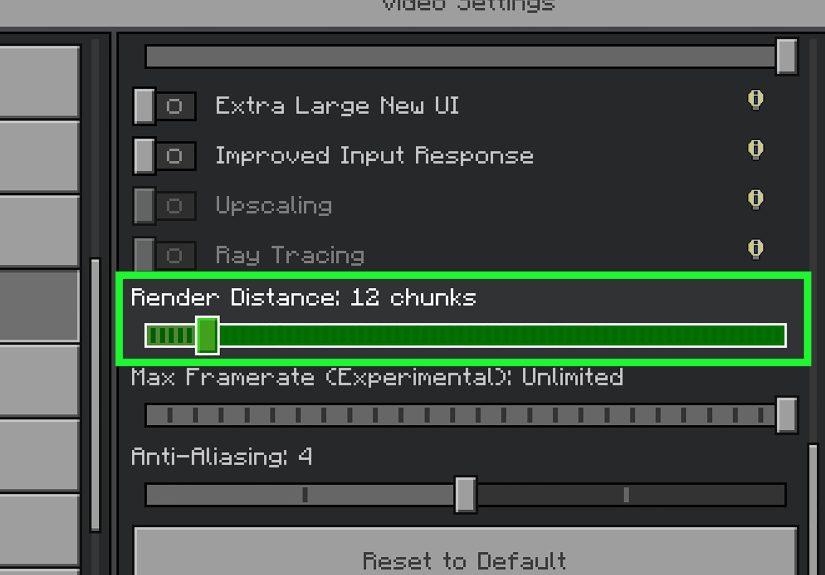
- Lower render distance and simulation distance.
- Turn off fancy extras temporarily (high-resolution packs, heavy shaders).
- Close background apps that hook networking (overlays, bandwidth tools, “game boosters”).
3) For Bedrock: disable add-ons and clear storage pressure
On consoles/mobile, add-ons and low storage can make multiplayer flaky. If you’re stuck on “Connecting…”
or get dropped often:
- Disable add-ons for testing.
- Make sure you have enough free storage space.
- Fully close Minecraft (not just “sleep mode”) and relaunch.
When to Stop Troubleshooting and Blame the Server
Sometimes the most therapeutic fix is accepting that the server is the problem. Consider it server-side if:
- You can join other servers/Realms fine, but one specific server always resets.
- Your friend can’t join either (or multiple players report disconnects).
- The server recently changed versions, added plugins/mods, or is lagging heavily.
In that case, message the server admin with helpful details: your Minecraft version, whether you’re modded,
and the exact error text. That’s more useful than “it’s broken” (even though you’re correct).
Quick FAQ
Is “Connection reset” the same as “Timed out”?
Not exactly. Timeouts usually mean the server didn’t respond fast enough. Resets usually mean the connection
was actively interrupted (by a firewall, a network drop, or the server ending the session).
Should I just turn off my firewall?
For quick testing, you can temporarily disable itbriefly. But the better long-term solution is
to allow Minecraft/Java through the firewall so you’re protected and playable.
Why does it work sometimes and fail other times?
Intermittent resets are usually Wi-Fi instability, background network traffic,
or a security tool that “inspects” traffic inconsistently. That’s why Fix #2 and Fix #3 often solve “random” resets.
Real-World Experiences: What Actually Worked (500+ Words)
Here’s what “connection reset” looks like in the wildbecause the internet is full of people saying “same”
and then disappearing into the void (kind of like the error itself).
Scenario A: The 10-second kick after joining a server.
A super common pattern is: you join, you can move for a moment, maybe chunks load halfway, thenboomreset.
When that happens across multiple servers, it’s often your network dropping packets or your firewall cutting
off Java after it starts sending/receiving data. In practice, the biggest “aha” moment for a lot of players is
discovering that Minecraft wasn’t actually “blocked” in an obvious wayWindows (or a security suite) was allowing
the launcher, but not the Java process that does the actual networking. Once Java was allow-listed, the reset
stopped instantly.
Scenario B: “It only happens on Wi-Fi.”
Minecraft can be more sensitive to unstable Wi-Fi than you’d expect, especially on crowded 2.4 GHz networks
where every neighbor’s router is basically shouting over yours. Players report that switching to Ethernet
(even temporarily) is the fastest way to prove the point: if Ethernet is stable, the server isn’t the issue.
After that, the fix is usually practical: move closer to the router, switch to 5 GHz if available, reduce
interference, or stop the “everyone download a game update at the same time” tradition.
Scenario C: Modded Minecraft worked yesterday. Today? Reset city.
Modded setups are incredible… and also a delicate ecosystem where one update can knock over ten dominoes.
A frequent experience is joining a friend’s server right after either side updates a mod “real quick.”
If the server’s mod list and the client’s mod list aren’t perfectly aligned (including minor versions and configs),
the connection might start and then crash out as soon as the server sends a packet the client can’t decode.
The fix that actually works is boring but reliable: launch a clean vanilla profile to confirm the server is reachable,
then update the modpack using a single source of truth (the modpack manager or the server’s published mod list),
not a patchwork of downloads.
Scenario D: The VPN “helped” until it didn’t.
Some players enable a VPN for privacy or routingand occasionally it improves ping by choosing a better route.
But “connection reset” can appear when the VPN endpoint changes, the server blocks certain ranges, or the VPN
introduces brief reconnections that Minecraft treats as a hard drop. In real usage, the simplest test is
disabling the VPN for one session. If the resets stop, you’ve got options: keep it off while playing, switch
endpoints, or use split tunneling (advanced, optional, and not always available).
Scenario E: Bedrock multiplayer fails on console, but everything else is fine.
Console Bedrock issues often come down to NAT type and network environment. In many households, the router
is doing double duty (modem/router combo), sometimes with another router plugged in, creating “double NAT.”
Multiplayer can still work in some games but fail in others. The real-world fix is usually enabling UPnP,
removing double NAT if possible, or adjusting the network so the console can get an “Open” NAT.
If you don’t control the router settings, the most practical move is asking whoever doesand explaining
it as “Minecraft needs better NAT for multiplayer,” not “I want to rewire the internet for fun.” (Even if you do.)
The main takeaway from all these experiences: don’t guess forever. Use fast tests to narrow
the categoryserver-specific vs. network vs. security vs. modsthen apply the fix that matches the cause.
That’s how you get back to building instead of troubleshooting.
Conclusion
“Connection reset” in Minecraft feels random, but it usually comes from a small set of predictable causes:
unstable network, firewall/security interference, version/mod mismatches, or server-side issues.
Start with the quick checks, stabilize your connection, allow Minecraft/Java through your security tools,
and test vanilla if you’re modded. With the five fixes above, you can resolve most resets in minutesand
save your big brain energy for redstone, where it truly belongs.