Table of Contents >> Show >> Hide
- Why You Might Want to Save Just One Page of a PDF
- Before You Start: Extract vs. Print to PDF
- Method 1: Use Print to PDF on Windows or in Your Browser
- Method 2: Save One PDF Page with Preview on Mac
- Method 3: Use a Free Online PDF Page Extractor
- Which of These 3 Easy Ways Is Best?
- What If You Cannot Save the Page?
- Tips for Saving a Single PDF Page Like a Pro
- Real-World Examples
- Final Thoughts
- Extra Experience and Practical Insights
PDFs are wonderful right up until they become a little too wonderful. You need one page. The file has 87. Your boss wants the receipt page, your teacher wants only the signed form, or your client needs the chart and not the 46-page backstory. Suddenly, you are staring at a PDF like it personally offended you.
The good news is that saving one page of a PDF file for free is usually very easy. In fact, you can do it in a few minutes using tools you may already have on your computer. And if you do not, there are free online options that can get the job done without turning your afternoon into a tech support drama.
In this guide, you will learn how to save one page of a PDF using three practical methods: built-in print tools, Mac Preview, and free online PDF extractors. We will also cover when each method makes the most sense, what can go wrong, and how to avoid turning one clean page into a blurry mess.
Why You Might Want to Save Just One Page of a PDF
Sometimes you do not need the whole document. You just need the page that matters. Maybe it is a contract signature page, a boarding pass, an invoice, a medical form, a class assignment, or a single chart from a report. Saving only one page makes the file smaller, easier to send, and less likely to confuse the person receiving it.
It can also protect privacy. If your PDF contains personal information, financial details, or pages someone does not need to see, pulling out only the relevant page is the smart move. Think of it as editing with manners.
Before You Start: Extract vs. Print to PDF
There are two common ways to create a one-page PDF:
1. Extract the page
This removes or copies the selected page into a brand-new PDF. It is usually the cleanest option because the page stays in PDF format without being flattened in strange ways.
2. Print the page to PDF
This works like sending the page to a virtual printer. Instead of paper coming out, a new PDF file is created. It is simple and free, and it works especially well when you only need one page fast.
Both methods work. The best one depends on what device you are using and whether you want an offline or online solution.
Method 1: Use Print to PDF on Windows or in Your Browser
This is one of the easiest ways to save a single page from a PDF for free. If you are on Windows, you can often use Microsoft Print to PDF. If your PDF opens in a browser like Chrome or Edge, you can use the print menu there as well.
How it works
You open the PDF, choose Print, select only the page you want, and save the output as a new PDF. It is simple, fast, and does not require premium software.
Steps on Windows
- Open your PDF in a viewer such as Edge, Adobe Reader, or another app with print support.
- Press Ctrl + P to open the Print dialog.
- Choose Microsoft Print to PDF or Save as PDF if that option appears.
- In the Pages or Page Range box, enter the page number you want, such as 5.
- Click Print or Save.
- Name the new file and choose where to save it.
Why this method is great
- No extra download required
- Works in many PDF viewers and browsers
- Fast for one-page jobs
- Perfect for office computers where you cannot install software
Example
Say you have a 24-page PDF report, but your coworker only needs page 11 with the final summary chart. Instead of emailing the whole file and hoping they scroll correctly, you can print page 11 to PDF and send a clean, one-page document. Elegant. Efficient. Mildly heroic.
Possible downside
Depending on the app, printing to PDF may slightly change formatting, clickable links, or interactive form fields. For plain documents, that is usually not a big deal. For complex forms, extraction may be better.
Method 2: Save One PDF Page with Preview on Mac
If you are on a Mac, you already have one of the easiest PDF tools sitting quietly in your Applications folder: Preview. It is built in, free, and surprisingly capable for basic PDF tasks.
Option A: Print one page as a new PDF
- Open the PDF in Preview.
- Go to File > Print.
- In the Pages field, enter the page number you want.
- At the bottom of the print window, click the PDF button.
- Select Save as PDF.
- Name the file and save it.
Option B: Drag the thumbnail out as a new PDF
- Open the PDF in Preview.
- Enable the thumbnail sidebar if it is not visible.
- Click the page thumbnail you want.
- Drag that thumbnail to your desktop or into a Finder folder.
- Preview creates a new PDF containing that page.
Why Mac users love this method
- It is built in and free
- No sign-up, upload, or extra software needed
- Great for students, freelancers, and anyone working from a MacBook at a coffee shop pretending not to people-watch
Best use case
If you work with PDFs often and want a quick offline method, Preview is hard to beat. It is especially handy when you are dealing with forms, drafts, lesson materials, or receipts and you only need one or two pages.
Method 3: Use a Free Online PDF Page Extractor
If you do not want to install anything and your device is being stubborn, a free online PDF tool can save the day. Many PDF websites let you upload a document, choose a single page, and download a new PDF in seconds.
How online PDF tools work
You upload the original file, select the page or range you want, and the tool creates a new PDF for download. It is the digital equivalent of asking for one slice instead of the whole pizza.
When this method is best
- You are using a Chromebook or shared computer
- You do not have a full PDF editor installed
- You want a visual page picker with thumbnails
- You need to split multiple files quickly
General steps
- Go to a free PDF splitter or page extractor.
- Upload your PDF file.
- Select the exact page you want.
- Choose whether to save it as one new PDF.
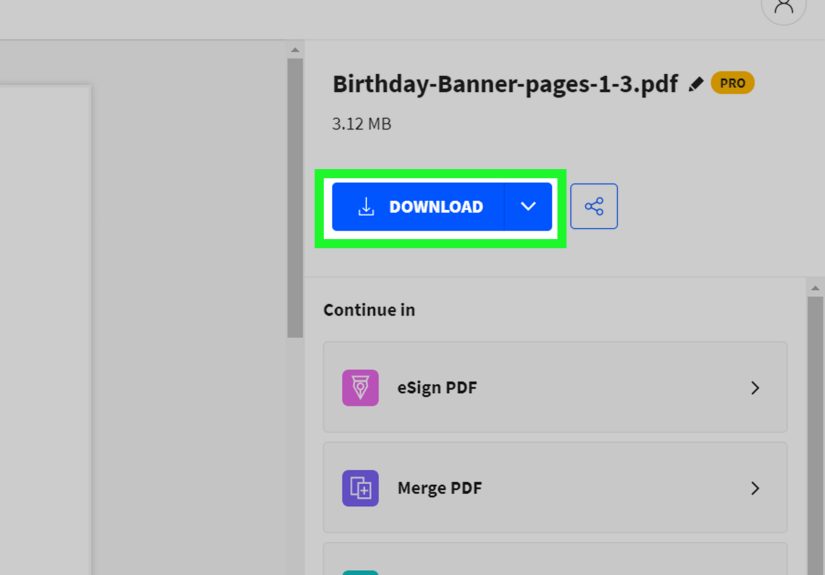
- Download the new file.
Important caution
Online tools are convenient, but not every PDF belongs on the internet. If your file contains sensitive information like tax records, legal paperwork, medical forms, or client data, use an offline method instead whenever possible.
Which of These 3 Easy Ways Is Best?
Choose Print to PDF if:
- You are on Windows
- You need a fast built-in option
- Your PDF is simple and does not rely on advanced interactive elements
Choose Preview if:
- You use a Mac
- You want a free offline method
- You prefer a clean, native app that does not ask you to make an account for breathing near a PDF
Choose an online tool if:
- You are on a Chromebook or borrowed device
- You want an easy visual page selector
- You need convenience more than privacy
What If You Cannot Save the Page?
Sometimes a PDF refuses to cooperate. Because of course it does. Here are a few common reasons:
The PDF is protected
Some files have security restrictions that block printing, copying, or page extraction. This is common with contracts, ebooks, or official documents. In that case, you may need permission from the file owner.
The page looks wrong after saving
If the new PDF has strange margins, missing backgrounds, or odd scaling, go back to the print dialog and review the layout settings. A different PDF viewer may also help.
The file becomes blurry
This can happen if you save a screenshot instead of a real PDF page. A proper PDF extraction or print-to-PDF method will usually keep the page much cleaner.
The page number is confusing
Some PDFs display page labels that do not match the file’s actual internal page numbers. Double-check the page before saving, especially in long reports with cover pages or Roman numerals.
Tips for Saving a Single PDF Page Like a Pro
- Rename the new file clearly. “Invoice-page-2.pdf” is better than “final-final-real-final2.pdf.”
- Check the saved file before sending it. Open it and confirm it contains the correct page.
- Use offline methods for private documents. Your future self will thank you.
- Keep the original PDF untouched. Save the extracted page as a new file rather than overwriting the original.
- Test another viewer if needed. Adobe Reader, Edge, Preview, and browser print tools may behave a little differently.
Real-World Examples
Student use: You download a 50-page lecture packet, but your professor only wants page 18 submitted as your worksheet. Saving just that page keeps your upload neat and avoids accidental oversharing.
Work use: A client asks for the signed signature page from a proposal, not the whole file. Extracting one page makes your response faster and more professional.
Personal use: You have a giant PDF of travel documents, but only need the page with your hotel confirmation. One page is easier to store on your phone and easier to find when you are tired in an airport.
Final Thoughts
If you have been wondering how to save one page of a PDF file for free, the answer is refreshingly simple. You can print that page to a new PDF on Windows, use Preview on Mac, or turn to a free online PDF extractor when convenience matters most.
The best method depends on your device, your privacy needs, and how often you handle PDFs. For everyday use, built-in tools are often more than enough. For quick online fixes, web-based splitters are convenient. Either way, you do not need expensive software just to rescue one lonely page from a giant PDF.
In other words, the next time a 90-page file is standing between you and one important page, do not panic. Just extract, save, and move on with your life like the organized document wizard you were always meant to be.
Extra Experience and Practical Insights
One of the most common mistakes people make when trying to save a single PDF page is overcomplicating the job. They assume they need professional PDF software, a paid subscription, or some mysterious office trick known only to one coworker named Kevin. In reality, most people already have what they need. The trick is not finding a magical tool. It is knowing which simple option matches the situation in front of you.
For example, if you are working at a regular Windows desktop, the built-in print-to-PDF method is often the quickest path. It is not glamorous, but it is dependable. Many people discover this only after wasting time searching for downloads, installing random apps, and clicking through enough pop-ups to question every life choice that led them there. A basic print menu could have solved the problem in two minutes.
Mac users usually have a smoother experience because Preview is quietly excellent for lightweight PDF tasks. It does not try to impress you with fifty buttons you will never touch. It just opens the file, lets you see the pages, and helps you save what you need. There is something deeply satisfying about dragging one page thumbnail to the desktop and watching a neat little PDF appear like it always wanted to cooperate.
Online tools are a different story. They are perfect when you are on a Chromebook, using a library computer, or helping a relative over video chat who says things like, “I clicked the blue thing and now everything is different.” In those moments, a free website with a visual page picker can be a lifesaver. You upload the file, click page 7, download the result, and everyone feels slightly more technologically powerful than they were ten minutes earlier.
That said, experience teaches an important lesson: convenience and privacy are not the same thing. If the PDF contains sensitive information, offline methods are usually the safer bet. Think tax forms, legal records, medical paperwork, confidential business pages, or anything else that would make you unhappy if mishandled. A good rule is simple: if you would not casually hand the document to a stranger in a coffee shop, do not casually upload it unless you truly trust the service and understand the risk.
Another practical tip is to check the saved file immediately. Do not assume the page came out perfectly. Open the new PDF and confirm that the text is readable, the page orientation is correct, and you did not accidentally save page 6 instead of page 9 because the document used weird numbering. Long PDFs love to play little numbering games, especially reports with cover pages, appendices, and Roman numerals pretending to be helpful.
People also run into trouble when they choose the wrong method for the type of PDF. A scanned PDF may behave differently from a digital one. A simple report can usually be printed to PDF without issue, but a fillable form may lose interactive fields in the process. That does not mean the method failed. It means the method changed the document in a way that matters. Knowing the difference can save a lot of frustration.
In day-to-day use, the best workflow is often boring in the best possible way: use built-in tools first, keep the original file untouched, rename the new file clearly, and verify the result before sending it anywhere. That routine prevents most problems. It also makes you look like the person who always has documents under control, which is an oddly powerful reputation to have in school, at work, or in family group chats.
So yes, saving one page from a PDF is a small skill. But it is one of those small skills that keeps proving useful. Once you know how to do it well, you stop treating PDFs like moody, untouchable artifacts and start handling them like ordinary files. That is when life gets easier.