Table of Contents >> Show >> Hide
- What Does “Unsend” Mean on iPhone?
- Why Can't I Unsend Messages on iPhone?
- How to Unsend an iMessage on iPhone
- Can the Other Person Still See an Unsent Message?
- Unsend vs. Edit: What Is the Difference?
- Does iOS 18 RCS Let You Unsend Messages to Android?
- Quick Troubleshooting: What to Check First
- What to Do If You Cannot Unsend a Message
- Best Practices to Avoid Needing Undo Send
- Real-World Experiences: When the iPhone Unsend Feature Helpsand When It Does Not
- Conclusion
Few modern panic moments compare to watching your thumb tap “Send” and instantly realizing the message was meant for someone else, autocorrect betrayed you, or your “Sure, sounds great” was sent with the emotional energy of a courtroom confession. Naturally, the next move is to press and hold the message bubble and look for Apple’s magical escape hatch: Undo Send.
But sometimes the option simply is not there. Other times it appears for one message and disappears for another. And if the bubble is green? Well, your iPhone may quietly step aside and whisper, “That one belongs to the universe now.”
The good news is that nothing is necessarily wrong with your phone. Apple’s unsend feature is real, useful, and surprisingly simple once you understand the rules. The not-so-good news is that it comes with strict limits. In this guide, we will explain exactly why you cannot unsend messages on iPhone, how the feature works, what changed with newer iOS versions, and what you can do when the option is missing.
What Does “Unsend” Mean on iPhone?
On iPhone, “unsend” means removing a recently sent iMessage from both your conversation and the recipient’s conversation. When it works, the original message bubble disappears and is replaced by a small notice saying that a message was unsent.
This feature is part of Apple’s Messages app and was introduced with iOS 16. It was designed to fix those fast, painful messaging mistakes: sending to the wrong person, making an embarrassing typo, dropping confidential information into the wrong chat, or firing off a message before your brain had finished loading.
However, Apple did not make it a universal time machine. You cannot unsend every message, you cannot do it whenever you want, and you cannot use it on every type of text. The feature is powerful, but it behaves more like a small emergency brake than a full “delete history” button.
Why Can’t I Unsend Messages on iPhone?
If you cannot unsend a message on your iPhone, the most common reason is simple: the message does not meet Apple’s requirements. The Undo Send option only appears when several conditions are true at the same time.
1. The Message Is Older Than 2 Minutes
This is the big one. Apple allows you to unsend an iMessage for only up to two minutes after sending it. After that short window closes, the Undo Send option disappears from the menu.
Two minutes may sound generous when you are calm. It feels like three seconds when you have accidentally texted “Love you” to your dentist. Still, Apple chose a short time limit to balance convenience with transparency. The feature is meant for quick corrections, not rewriting the past three hours after a group chat turns into a courtroom exhibit.
2. The Message Is a Green Bubble
If your message bubble is green, it was sent as SMS, MMS, or RCS instead of iMessage. That matters because Undo Send only works with blue-bubble iMessages.
Blue bubbles mean the message was sent through Apple’s iMessage service between Apple devices. Green bubbles mean the message used a carrier-based texting system, often when texting Android users or when iMessage is unavailable. Even though iOS 18 added RCS support for richer texting with non-Apple devices, RCS messages are still not iMessages. In plain English: green bubbles may be better than they used to be, but they still do not get Apple’s Undo Send magic.
3. You or the Recipient Is Not Using Compatible Software
The unsend feature requires modern Apple software. If you are using an older iOS version, the option may not appear. If the recipient is using outdated software, the message may not fully disappear from their device.
This is why someone might tell you, “I still saw that message,” even though you tapped Undo Send on your side. Your iPhone may have removed it from your conversation, but older software on the other person’s device may not support the same recall behavior.
4. iMessage Is Turned Off
If iMessage is disabled on your phone, your messages may be sent as SMS, MMS, or RCS. That means they will appear as green bubbles, and the Undo Send option will not be available.
To check, go to Settings > Apps > Messages and make sure iMessage is turned on. You can also check Send & Receive to confirm that your phone number or Apple Account email is properly selected.
5. The Conversation Temporarily Fell Back to SMS
Sometimes a conversation that is usually blue suddenly turns green. This can happen if iMessage is temporarily unavailable, one person loses data connection, a device is not activated properly, or the recipient’s Apple device is offline.
If the message was sent as a green bubble, it does not matter that previous messages in the same conversation were blue. That specific message is not eligible for Undo Send.
6. You Are Trying to Delete Instead of Unsend
Deleting a message is not the same as unsending it. When you delete a message from your iPhone, you remove it from your own device. The other person may still have it. When you unsend an eligible iMessage within the time limit, the message is removed from both sides of the conversation.
This difference confuses many people because both actions involve making a message disappear from your screen. Think of deleting as cleaning your room. Think of unsending as convincing the message to pack its suitcase and leave everyone’s room. Much more dramatic.
How to Unsend an iMessage on iPhone
If your message qualifies, unsending it is quick:
- Open the Messages app.
- Go to the conversation with the message you want to recall.
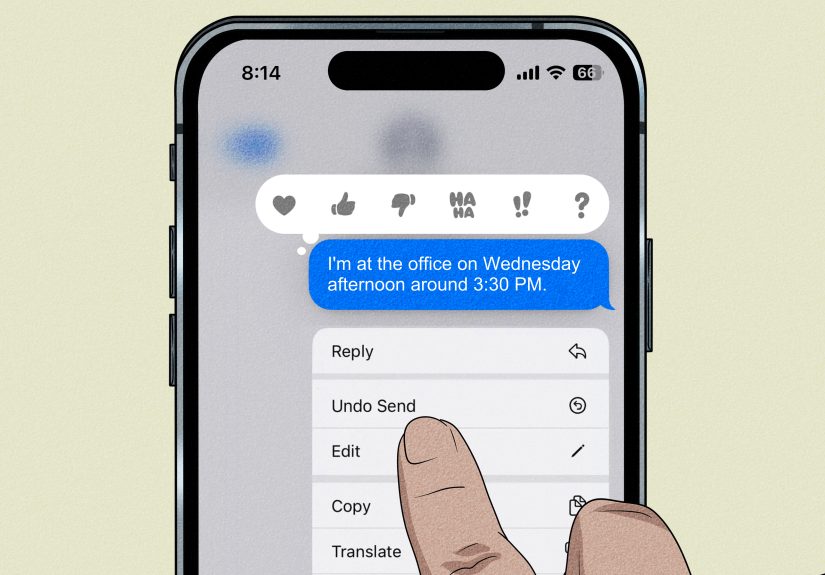
- Touch and hold the blue message bubble.
- Tap Undo Send.
The message should disappear, and both conversation transcripts will show a notice that the message was unsent. The recipient will not see the original message in the thread if their device supports the feature and the action happens within the allowed time.
Can the Other Person Still See an Unsent Message?
Possibly. The feature removes the message from supported devices, but there are a few real-world exceptions. The recipient might have seen the message before you unsent it. They may have received a notification preview. They may have an older Apple device or older software. They could also have taken a screenshot, although that requires them to move with the reflexes of a raccoon stealing snacks.
This is why Undo Send should be treated as a quick correction tool, not a privacy guarantee. It can reduce damage, but it cannot guarantee that nobody saw the message.
Unsend vs. Edit: What Is the Difference?
Apple also lets you edit certain iMessages after sending them. This is different from unsending. Editing keeps the message in the conversation but lets you change the text.
The edit feature has its own rules. You can edit an iMessage up to five times within 15 minutes after sending it. The message will show that it was edited, and the recipient may be able to view edit history. This makes editing great for typos, missing words, and “ducking” autocorrect disasters, but not ideal if you wanted the whole message to vanish.
Use Undo Send when the message should disappear. Use Edit when the message is mostly fine but needs a repair job.
Does iOS 18 RCS Let You Unsend Messages to Android?
No. iOS 18 brought RCS support to iPhone, which improved messaging with Android users. RCS can support better media quality, more reliable group messaging, typing indicators, read receipts, and a more modern texting experience compared with old SMS and MMS.
But RCS support does not make Android conversations work like iMessage conversations. Messages sent through RCS still appear as green bubbles on iPhone, and Apple’s Undo Send feature does not apply to them.
So if you are texting someone with an Android phone, you may get a better messaging experience than before, but you still should not expect the same blue-bubble recall tools. In short: RCS is an upgrade, not a magic eraser.
Quick Troubleshooting: What to Check First
Check the Bubble Color
If it is blue, you may be able to unsend it. If it is green, you cannot use Apple’s Undo Send feature for that message.
Check the Time
If more than two minutes have passed, the Undo Send option will not appear. At that point, you may still be able to edit the iMessage within 15 minutes, but you cannot recall it.
Update Your iPhone
Go to Settings > General > Software Update and install the latest available iOS version. Updating helps ensure that Messages features work as expected.
Confirm iMessage Is On
Go to Settings > Apps > Messages and turn on iMessage. Then check Send & Receive to make sure your number or Apple Account is selected.
Ask About the Recipient’s Device
If the recipient is using an older Apple device or old software, unsending may not behave the way you expect. They may still see the original message.
What to Do If You Cannot Unsend a Message
Once the two-minute window has passed, you cannot force Undo Send to return. But you still have options.
If the issue is a typo or unclear wording, use Edit if you are still within 15 minutes and the message is an eligible iMessage. If the message went to the wrong person, send a calm follow-up. A simple “Sorry, wrong chat” is often better than pretending your phone became haunted.
If you shared sensitive information, take practical action. Change passwords, update account settings, contact the intended recipient through a safer channel, or ask the unintended recipient to disregard and delete the message. The faster you act, the better.
If the message was emotional, awkward, or sent too quickly, a sincere follow-up usually works better than technical gymnastics. Something like, “I sent that before thinking it through. Let me rephrase,” can save more dignity than repeatedly pressing the screen and hoping a hidden “undo my life choices” button appears.
Best Practices to Avoid Needing Undo Send
The best unsend strategy is not needing it in the first place. Before sending anything important, glance at the recipient name, read the message once, and pause for a second if the conversation is emotional, professional, or complicated.
For sensitive information, avoid sending passwords, private documents, medical details, or financial information through regular text unless absolutely necessary. Use secure channels when appropriate. For work messages, especially those involving clients, classmates, managers, or group chats, slow down before hitting send. Your thumb may be fast, but your reputation prefers a seatbelt.
Also, be careful with voice dictation. It can turn “I will handle the report” into something that sounds like a medieval curse. Read before sending, especially when autocorrect seems suspiciously confident.
Real-World Experiences: When the iPhone Unsend Feature Helpsand When It Does Not
Most people discover Undo Send during a tiny emergency. Maybe they send a message to the wrong group chat. Maybe they reply to a teacher, boss, parent, or client with a sentence that was meant for a friend. Maybe autocorrect swaps one innocent word for a wildly inappropriate cousin. The feature feels like a superhero cape in those moments, but only if you catch the mistake quickly.
One common experience is the “wrong person” message. Imagine texting, “Can you believe what happened in the meeting?” and realizing it went directly to the person who ran the meeting. If it is a blue-bubble iMessage and you notice within two minutes, Undo Send can remove it before the conversation becomes a full-season drama. But if the person already saw the notification, you may still need a follow-up explanation.
Another everyday situation involves typos. The edit feature may be better here. If you wrote “I can’t wait to meat your family,” you probably do not need to unsend the message. You can edit it to “meet,” keep your dignity, and avoid sounding like you are arriving with a barbecue agenda. Editing is more graceful for small mistakes because it does not make the entire message disappear.
Then there is the green-bubble surprise. Many iPhone users assume all Messages app texts work the same way, but they do not. A message to an Android user may use RCS, SMS, or MMS, and Apple’s Undo Send will not apply. This is especially confusing because iOS 18 improved green-bubble conversations with RCS. People see better media sharing or typing indicators and assume all iMessage-style features are included. They are not. Green still means no Apple Undo Send.
Group chats create their own comedy. In an all-iPhone group, Undo Send can work if everyone’s devices support it and you act quickly. In mixed groups with Android users, it will not work the same way. That is why the safest rule for group chats is simple: before sending, check the audience. Group chats have the memory of an elephant and the speed of a gossip-powered rocket.
Professional messaging is another area where this feature can help, but should not be relied on too heavily. If you send a half-written update to a coworker, Undo Send may rescue you. But for important communication, it is smarter to draft carefully, reread once, and then send. A two-minute recall window is useful, but it is not a substitute for good communication habits.
The biggest lesson from real-life use is that Undo Send is a safety net, not a parachute. It catches small mistakes when you react fast. It does not guarantee privacy, erase notifications, control screenshots, or work across every messaging type. Used wisely, it is one of the most helpful iPhone messaging features Apple has added. Used carelessly, it can give a false sense of security.
Conclusion
If you cannot unsend messages on iPhone, the reason is usually one of four things: the message is older than two minutes, it is a green-bubble text, iMessage is not active, or one of the devices does not support the feature properly. Apple’s Undo Send feature is useful, but it is intentionally limited.
The simplest rule is this: blue bubble, under two minutes, modern Apple software. If those conditions are met, press and hold the message and tap Undo Send. If not, editing, deleting on your side, or sending a polite follow-up may be your best option.
In a perfect world, every message would arrive polished, thoughtful, and typo-free. In the real world, autocorrect exists, thumbs are reckless, and group chats are dangerous terrain. Thankfully, the iPhone’s unsend feature gives you a small window to fix the fastest mistakesjust do not wait too long, and do not expect green bubbles to play by blue-bubble rules.
Note: This article is written for general technology education and reflects current iPhone Messages behavior, including iMessage, SMS/MMS, and RCS limitations.