Table of Contents >> Show >> Hide
- Why Add Google Analytics to Blogger in the First Place?
- Before You Start: Get Your GA4 Measurement ID
- Method 1: Add Google Analytics Through Blogger’s Built-In Setting
- Method 2: Paste the Google Tag Into Your Blogger Theme HTML
- Method 3: Install Google Analytics Through Google Tag Manager
- Method 4: Add Analytics Through a Reusable Blogger HTML/JavaScript Area or Theme Module
- Which Method Should You Choose?
- How to Check If Google Analytics Is Working on Blogger
- Common Mistakes Blogger Users Make
- Practical Examples of Blogger Analytics Use
- Experience Notes: What Bloggers Usually Learn After Setting Up Google Analytics
- Final Thoughts
- SEO Tags
If you run a Blogger site and you are not using Google Analytics yet, you are basically driving with your eyes closed and hoping the road is friendly. Sure, Blogger gives you some built-in stats, but Google Analytics gives you the juicy stuff: where visitors come from, which posts keep people reading, which pages bounce harder than a toddler after too much birthday cake, and what content actually moves your blog forward.
The good news is that adding Google Analytics to Blogger is not rocket science. The better news is that you have more than one way to do it. Whether you want the fast and easy method, the copy-and-paste method, or the “I enjoy tinkering with templates at 11:47 p.m.” method, there is an option that fits.
In this guide, you will learn four ways to add Google Analytics to Blogger, when each method makes sense, what mistakes to avoid, and how to confirm your tracking is actually working. Because nothing is more tragic than “installing analytics” and then discovering a week later that you have been tracking exactly zero humans.
Why Add Google Analytics to Blogger in the First Place?
Blogger is simple, free, and still surprisingly useful for personal brands, niche blogs, hobby sites, and content experiments. But if you want to grow traffic, improve SEO, or make smarter publishing decisions, you need better data than pageview guesses and wishful thinking.
Google Analytics 4, often called GA4, helps Blogger users understand:
- Which blog posts bring in the most traffic
- How readers find your site through Google, social media, or referrals
- How long visitors stay and which pages they view next
- What devices your readers use
- Which actions matter most, such as newsletter clicks, contact form visits, or outbound link engagement
That means you can stop guessing and start making content decisions like a person with a plan. A stylish, caffeinated plan.
Before You Start: Get Your GA4 Measurement ID
Before adding anything to Blogger, create a Google Analytics property for your site and open your web data stream. You will need your Measurement ID, which starts with G-. That ID connects your Blogger site to your GA4 property.
If you already have Analytics set up somewhere else, double-check that you are copying the correct G-ID for the right web stream. Using the wrong ID is the digital equivalent of putting your house key into your neighbor’s mailbox and expecting a good outcome.
Method 1: Add Google Analytics Through Blogger’s Built-In Setting
If you want the easiest route, Blogger offers a native field for Google Analytics. This is the beginner-friendly option and, for many site owners, the best place to start.
How it works
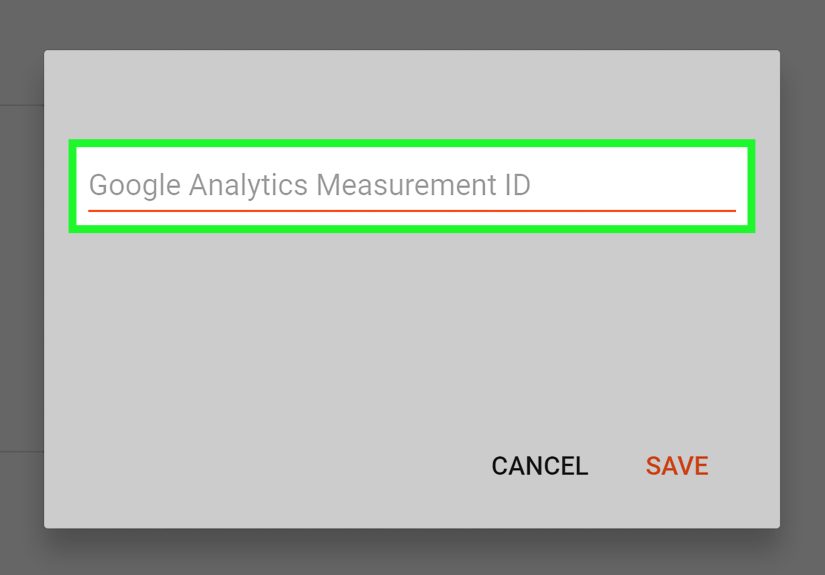
Blogger includes a Google Analytics Measurement setting where you can paste your GA4 Measurement ID. Once saved, Blogger handles the connection for you.
How to do it
- Sign in to Blogger and choose your blog.
- Go to Settings.
- Find Google Analytics Measurement under the basic settings area.
- Paste your G-XXXXXXXXXX ID.
- Click Save.
Why this method is great
- Fast and simple
- No code editing required
- Ideal for beginners and smaller blogs
- Lower chance of breaking your template
Best for
New bloggers, casual publishers, and anyone who wants basic GA4 tracking without touching HTML.
Watch out for this
Do not combine this method with another full GA4 install unless you know exactly what you are doing. If you add the same Google tag twice, you may end up with duplicate pageviews and reports that look suspiciously enthusiastic.
Method 2: Paste the Google Tag Into Your Blogger Theme HTML
If you like full control, you can manually install Google Analytics by placing the Google tag in your Blogger theme. This is the classic hands-on method and works well if you want to see exactly what is happening under the hood.
How it works
You copy the Google tag snippet from GA4 and paste it into your Blogger theme, typically before the closing </head> tag. That way the script loads sitewide across your blog.
How to do it
- In GA4, open your web data stream and copy the Google tag snippet.
- In Blogger, go to Theme.
- Click Edit HTML.
- Find the closing
</head>tag. - Paste the Google tag snippet right above it.
- Save your theme.
Why people choose this method
- You control the exact implementation
- Useful if the built-in field is unavailable or not behaving as expected
- Good for custom templates and advanced Blogger themes
Best for
Users comfortable editing template code, custom theme users, and bloggers who want manual control.
Pro tip
Back up your theme before editing it. Blogger template mistakes are usually fixable, but it is much nicer when your recovery plan is not “panic first, restore later.”
Method 3: Install Google Analytics Through Google Tag Manager
If you plan to do more than track pageviews, Google Tag Manager is the grown-up option. It lets you manage your Google Analytics setup and additional tracking without repeatedly editing Blogger code.
How it works
You install a Google Tag Manager container on your Blogger site, then create and publish your GA4 tag inside GTM. From there, you can add event tracking, outbound click tracking, custom triggers, and more.
How to do it
- Create a Google Tag Manager account and container for your blog.
- Copy the GTM container snippets.
- In Blogger, go to Theme and Edit HTML.
- Place the first GTM snippet in the
<head>area and the second snippet immediately after the opening<body>tag if your theme allows it. - In GTM, create a Google tag or GA4 configuration setup for your Measurement ID.
- Publish the container.
Why this method is powerful
- Scales better as your blog grows
- Makes advanced event tracking easier
- Lets you manage tags in one place
- Useful for marketers, SEO pros, and monetized blogs
Best for
Serious bloggers, affiliate marketers, advertisers, and anyone who expects to track more than simple page views.
One caution
GTM is amazing, but it also makes it easier to overcomplicate your setup. If you use GTM, avoid also leaving a separate full GA4 install in Blogger settings or your theme unless you intentionally separate what each tag does. Otherwise, your data can become a messy double-counting party.
Method 4: Add Analytics Through a Reusable Blogger HTML/JavaScript Area or Theme Module
This method is a more flexible workaround for advanced users who want to inject code through a reusable area in Blogger rather than relying only on the native field. In practice, this usually means adding code through an HTML/JavaScript gadget, a reusable template section, or a conditional theme module.
How it works
Instead of using Blogger’s built-in Analytics field, you place your tracking code in a reusable part of the layout or template. Some bloggers use this for custom layouts, specific sections, or when they want to load tracking in a highly controlled way.
How to do it
- Open Layout or Theme in Blogger.
- Add or edit an HTML/JavaScript gadget, or place the script inside a reusable template block.
- Paste your Google tag snippet.
- Save changes and test thoroughly.
Why this method exists
- Helpful for customized Blogger sites
- Can work for special placement needs
- Useful when you want more control without rebuilding your whole theme
Best for
Advanced Blogger users and experimenters who understand how their theme and layout render code.
The honest truth
This is usually not the first method I recommend. The built-in setting, manual theme install, or GTM setup are typically cleaner. But for certain Blogger customizations, this option can still be useful, especially when you need controlled placement or a workaround for a theme-specific issue.
Which Method Should You Choose?
Here is the simple version:
- Choose Method 1 if you want the easiest setup.
- Choose Method 2 if you want direct code control.
- Choose Method 3 if you want scalable tracking and future flexibility.
- Choose Method 4 if you are working with a custom Blogger structure and know your way around layout modules.
For most Blogger users, Method 1 is enough. For growing blogs that care about SEO, conversions, affiliate links, or advanced events, Method 3 is often the smarter long-term move.
How to Check If Google Analytics Is Working on Blogger
Installing analytics is only half the job. The other half is verifying that your data is actually reaching GA4.
Use these checks
- Open your blog in a browser and visit a few pages yourself.
- Go to the Realtime report in GA4 and look for active users.
- Use Tag Assistant or GTM Preview mode to confirm your tag fires correctly.
- Check that the Measurement ID on your site matches the Measurement ID in your GA4 web stream.
If you do not see traffic immediately, do not panic and assume the internet has rejected you personally. Realtime often shows activity sooner than standard reports, so test there first.
Common Mistakes Blogger Users Make
1. Installing GA4 twice
This is the big one. If you add your tag through Blogger settings and also through your theme or GTM, you may duplicate pageview tracking. Choose one primary installation path unless you have a very specific technical reason not to.
2. Using the wrong Measurement ID
Always confirm you copied the correct G-ID. A single incorrect character can break tracking.
3. Forgetting to publish GTM changes
Creating a tag in Google Tag Manager is not enough. You still need to publish the container. Draft mode does not magically read your mind.
4. Editing the theme without a backup
Manual HTML changes can go sideways. Export your theme first.
5. Expecting instant reporting perfection
Analytics data can take a little time to settle into regular reports. Use Realtime for early verification, then review broader reports once data accumulates.
Practical Examples of Blogger Analytics Use
Imagine you run a recipe blog on Blogger. GA4 shows that your “one-pan pasta” post gets strong traffic from Pinterest, while your “fancy herb glossary” gets tumbleweeds and a lonely cricket. That tells you what content readers actually want.
Or maybe you run a personal finance blog. Analytics reveals that mobile users dominate your traffic and leave quickly on pages with giant walls of text. Congratulations, your audience has spoken: shorter paragraphs, cleaner formatting, and fewer accidental essay marathons.
A travel Blogger site might discover that destination guides get organic traffic, but itinerary pages drive the longest engagement. That insight can shape your editorial calendar, internal linking, and lead magnet strategy.
Experience Notes: What Bloggers Usually Learn After Setting Up Google Analytics
Here is the part nobody tells you when you first add Google Analytics to Blogger: the installation itself is quick, but the learning that comes after is where the real value lives. Most bloggers think analytics will instantly reveal a magical formula for traffic growth. In reality, it is more like getting a flashlight in a dark room. You still have to look around, but at least now you stop stepping on Lego bricks.
One common experience is discovering that the posts you love most are not the posts readers love most. A blogger may spend three hours polishing a thoughtful opinion piece, then find that a simple how-to article from six months ago keeps pulling in search traffic every single week. That can sting a little, but it is also incredibly useful. Analytics helps separate “I had fun writing this” from “this actually grows my blog.” Ideally, you want both, but if you must choose where to invest time, data is a wonderful tie-breaker.
Another frequent surprise is just how much mobile traffic Blogger sites get. Many users install GA4, open their reports, and realize that most visitors are on phones. That usually leads to a sudden burst of self-reflection. Are your paragraphs too long? Are your images too heavy? Does your navigation make sense on a small screen, or does it behave like a trapped raccoon? With analytics in place, those questions become measurable, not hypothetical.
Bloggers also learn that traffic sources matter more than raw pageviews. Ten thousand visits sound exciting, but not if those users arrive, blink once, and vanish forever. A smaller stream of search traffic that reads multiple pages can be more valuable than a giant spike from a social platform that treats attention spans like expired coupons. Once Google Analytics is connected to Blogger, you can compare traffic quality, not just quantity.
There is also a practical emotional benefit: analytics calms the chaos. Instead of changing your strategy every time you feel dramatic on a Tuesday, you can make decisions based on patterns. Maybe tutorials perform better than list posts. Maybe old evergreen content deserves updates. Maybe one category brings in nearly all your search traffic. Those insights save time, reduce guesswork, and keep your blog from turning into a random pile of good intentions.
And yes, bloggers who move from the simple Blogger field to Google Tag Manager often report the same thing: a brief moment of confusion followed by a glorious sense of control. Once you understand the basics, GTM can make your setup far more flexible. It is the difference between owning one screwdriver and having a toolbox. Both can help, but one gives you room to grow.
Final Thoughts
If you want to grow a Blogger site with intention, adding Google Analytics is not optional anymore. It is one of the smartest upgrades you can make, and you do not need a developer, a ten-step ritual, or a lucky moon phase to do it.
Start with the method that matches your comfort level. Use the built-in Blogger setting for speed, the theme HTML for control, Google Tag Manager for flexibility, or a custom layout-based setup for advanced cases. Then verify your tag, avoid duplicate installs, and give your reports a little time to populate.
Once Analytics is working, your Blogger site stops being just a collection of posts and starts becoming a real content asset. You will know what readers want, what search engines reward, and where your next growth opportunity is hiding. And that is a lot more useful than guessing into the void with a brave smile.