Table of Contents >> Show >> Hide
- The 4 Steps (Quick Overview)
- Step 1: Start Your Email Draft
- Step 2: Choose How You Want to Attach It
- Step 3: Select Your File and Let It Upload
- Step 4: Confirm the Attachment (and Permissions), Then Send
- How to Attach Files in Gmail on Desktop (Web Browser)
- How to Attach Files in the Gmail App (Android and iPhone)
- Common Attachment Problems (and How to Fix Them)
- Attachment Etiquette: Send Files Like a Pro
- Bonus: Real-World Attachment Experiences (What People Actually Run Into)
- Conclusion
The paperclip icon in Gmail is basically the digital equivalent of duct tape: it fixes a lot, gets used daily, and occasionally
leaves you wondering how you survived without it. Whether you’re emailing a résumé, sending family photos, or delivering a PDF
that absolutely, positively must be in someone’s inbox by 5 p.m., knowing how to add attachments on Gmail is a core life skill.
Here’s the good news: attaching files in Gmail is easy. Here’s the slightly less good news: the “easy” part sometimes gets tripped up by
file size limits, blocked file types, and that classic moment when you hit Send… then realize you forgot the attachment.
(Gmail tries to save you from that last one, but we’ll still talk about best practicesbecause Gmail isn’t your mom.)
The 4 Steps (Quick Overview)
- Start your email (new message, reply, or forward).
- Click the attachment option (paperclip for files, Drive icon for big stuff).
- Select your file and let it finish uploading.
- Double-check the attachment (and permissions, if it’s a Drive link), then send.
Step 1: Start Your Email Draft
In Gmail, attachments can be added to a brand-new email or to a reply/forward. Either way, the process starts the same:
- Click Compose for a new email, or open an email and hit Reply / Forward.
- Add your recipient, subject line, and a quick message so the attachment isn’t the only thing doing the talking.
Pro move: write your message first, then attach. That way you’re less likely to send a mysterious file with the emotional energy of
“Here. Figure it out.”
Step 2: Choose How You Want to Attach It
Gmail gives you a couple of “attachment lanes,” and choosing the right one saves time (and awkward follow-up emails):
Option A: Attach a file from your device (the paperclip)
This is the most common methodperfect for PDFs, Word docs, images, spreadsheets, and everyday files that aren’t huge.
Option B: Insert from Google Drive (best for big files)
If your attachments are large, Gmail may switch you to a Google Drive link. This can be greatfaster delivery, cleaner inboxes,
and less “why is this email 48MB?” energy.
Option C: Drag-and-drop (desktop convenience)
On a computer, you can often drag a file from your desktop/file explorer right into the email draft. It’s fast, satisfying, and feels
like you’re living in the future (even though this has been around for a while).
Step 3: Select Your File and Let It Upload
Once you pick your attachment method, choose the file and give Gmail a moment to upload it. You’ll usually see:
- A filename “chip” or bar appear in your draft
- An upload progress indicator for larger files
- Sometimes a switch to a Drive link if it’s too big
File size reality check (so you don’t fight physics)
Even if your file is “25MB-ish,” it may fail because attachments can grow a bit in transit (encoding overhead is a real buzzkill).
If you’re close to the limit, consider compressing or using Drive.
Security reality check (so you don’t fight Gmail security)
Gmail blocks certain file types (especially executables) to protect people from malware. If you try to attach something like an .exe
(or a compressed file that contains blocked items), Gmail may refuse or bounce it.
Step 4: Confirm the Attachment (and Permissions), Then Send
Before you hit Send, do a quick two-second check:
- Is the right file attached? (File name looks correct. Bonus points if it’s clearly named.)
- Is it finished uploading? (Don’t race the progress bar.)
-
If it’s a Drive link: do recipients have access? If the file is restricted, your recipient may get a “request access” screen,
and your email will become a mini customer support ticket.
Example: If you’re sending a “Q4 Budget.xlsx” to three teammates, make sure the Drive sharing is set appropriatelyeither shared with their
emails or accessible to anyone in your organization (depending on your company’s policy).
How to Attach Files in Gmail on Desktop (Web Browser)
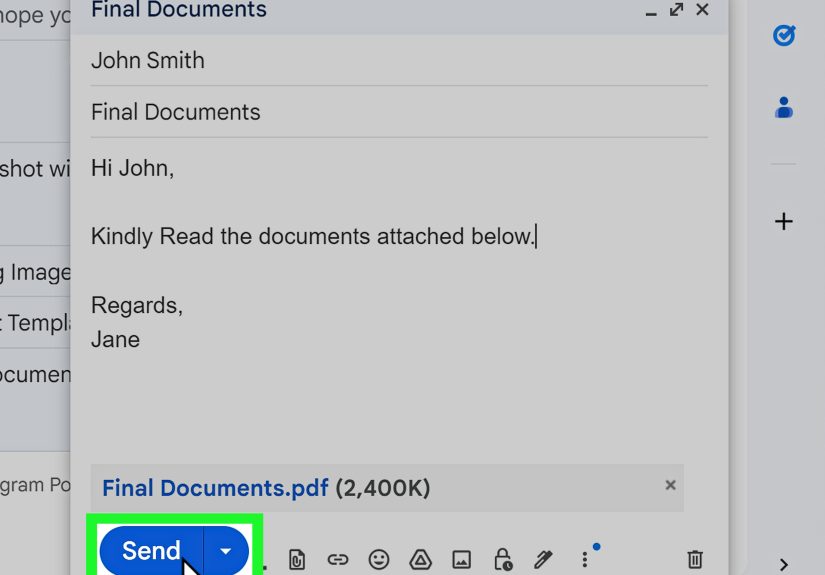
- Open Gmail and click Compose.
- Click the paperclip icon (Attach files).
- Select your file and click Open.
- Wait for the file to appear in the draft, then click Send.
Desktop tips that make you look suspiciously competent
- Drag-and-drop: drag a file into the message window to attach it quickly.
- Multiple attachments: attach more than one file, but remember the total size matters.
-
Confidential mode: if you enable it, it can affect what recipients can do with the message and its attachments
(like downloading/forwarding).
How to Attach Files in the Gmail App (Android and iPhone)
The Gmail app has the same goalattach file, send emailbut the buttons are placed differently depending on your device.
Look for a paperclip (Attach) in the compose screen.
On Android (common flow)
- Open the Gmail app and tap Compose.
- Tap the paperclip icon.
- Choose Attach file, Insert photo, or Insert from Drive.
- Select your file, confirm it appears in the email, then tap Send.
If an attachment is too large, Gmail may upload it to Drive and include a link instead. This is normal behavior and often the
easiest path forward for large videos or chunky PDFs.
On iPhone (what usually trips people up)
iOS has multiple “file pickers,” so the easiest route depends on where your file lives:
- If it’s in the Files app (iCloud Drive, On My iPhone, etc.), attach from there.
- If it’s a photo/video, choose Insert photo or pick it from Photos.
- If it’s in Drive, use Insert from Drive (or share the Drive link).
Common Attachment Problems (and How to Fix Them)
“My attachment won’t upload.”
- Check file size: if you’re near the limit, switch to Drive or compress the file.
- Try a different browser: Chrome, Firefox, Edgesometimes extensions or settings interfere.
- Disable extensions temporarily: ad blockers and privacy tools can block upload dialogs.
- Try drag-and-drop: it can bypass a finicky file picker.
“Gmail says the attachment is blocked.”
If Gmail blocks it, it’s usually because the file type is considered risky (often executable formats) or the file is corrupted.
The safest workaround is to share via a trusted cloud service and avoid sending executable code through email.
“I sent a Drive link, and the recipient can’t open it.”
- Permissions: change sharing from “Restricted” to the correct people (or your org), if appropriate.
- External recipients: if they don’t have access to your org’s Drive, they may need a different sharing setting.
- Quick test: open the link in an incognito/private windowif you can’t access it, they probably can’t either.
“I forgot to attach the file.”
Welcome to the club. Gmail sometimes prompts you if it detects phrases like “I’ve attached” without an attachment. Still, don’t rely
on the robot to save you every time. A quick “attachment check” before sending is cheaper than your dignity.
Attachment Etiquette: Send Files Like a Pro
- Name files clearly: “Final_v7_REALFINAL(2).pdf” is a cry for help. Try “2026-02 Proposal – Acme Co.pdf”.
- Explain what’s attached: one sentence of context prevents confusion and extra replies.
- Compress folders: if you need to send multiple files, zip them into one foldercleaner for everyone.
- Use Drive for collaboration: if people need to edit, a shared Drive file beats emailing “Version 12.”
- Be mindful of sensitive info: if it’s confidential, consider Drive permissions or secure sharing methods.
Bonus: Real-World Attachment Experiences (What People Actually Run Into)
Attaching a file sounds simple until the real world shows up with a trench coat full of chaos. In practice, “How to add attachments on Gmail”
often turns into “Why is my attachment a link?” or “Why did Gmail block my file?” or the timeless classic, “I swear I attached it.”
One common scenario: someone tries to email a short video from their phonemaybe a 30-second clip for a school project or a quick product demo.
The file looks small in Photos, but once it’s exported at high resolution, it balloons. Gmail politely refuses to cram it into the email
and switches to a Google Drive link. That’s not Gmail being difficult; it’s Gmail being realistic about how email systems handle big payloads.
The “experience lesson” here is to embrace Drive links for media and treat direct attachments as best for documents, photos, and modest-sized files.
Another frequent “I didn’t know this was a thing” moment is permission drama. You attach from Drive, hit Send, and feel accomplisheduntil your
recipient replies, “It says I need access.” This happens when the file is restricted to your account or your organization, and the recipient is
outside that circle. The fix is simple (adjust sharing), but the experience teaches a habit: after inserting a Drive file, glance at the sharing
setting Gmail offers (view/comment/edit) and consider who’s on the receiving end.
Then there’s the workplace rite of passage: sending a folder. Gmail doesn’t attach folders directly because email attachments expect files, not
file structures. So people either attach five things separately (clutter) or zip the folder (clean). Zipping also reduces the chance of “I only
received three of the five files” confusion. A good rule: if you’re sending multiple related items, zip itunless collaboration is the goal, in
which case Drive wins again.
Security issues pop up tooespecially with anything that smells like executable code. People try to email installers, scripts, or “helpful tools,”
and Gmail blocks them for everyone’s safety. It can feel annoying when you’re the harmless sender, but it’s the same system that keeps countless
malicious attachments out of inboxes. The practical takeaway: email is for documents; software should be shared through approved channels
(company repositories, secure portals, or vetted file-sharing services).
Finally, the human factor: forgetting the attachment. Even seasoned professionals do it. The best prevention is a micro-checklist:
(1) did the file appear in the draft, (2) does the name match what you intended, (3) is it done uploading? That’s it. Ten seconds, maximum.
Less time than writing the apology email that starts with, “Sorryattached now!”
Conclusion
If you remember nothing else, remember this: Compose → Attach → Select → Confirm → Send. Gmail keeps attachments simple on purpose,
but the detailssize limits, Drive links, and blocked file typesare where people get tripped up. Use direct attachments for everyday files,
switch to Google Drive for large items, and always do the two-second “did it actually attach?” check before sending.