Table of Contents >> Show >> Hide
- What Tinder Search Distance Means
- How to Adjust Your Tinder Search Distance: 6 Steps
- Best Tinder Distance Settings by Situation
- Why Tinder Still Shows People Far Away
- Should You Use a Small or Large Tinder Distance?
- Common Mistakes When Changing Tinder Distance
- Privacy and Safety Tips When Adjusting Tinder Distance
- Troubleshooting: Tinder Distance Not Updating
- Real-World Experiences: What Happens When You Change Tinder Distance
- Final Thoughts
- SEO Tags
Want better matches without accidentally planning a first date three counties away? Learning how to adjust your Tinder search distance is one of the simplest ways to make the app feel smarter, calmer, and a lot less like a geography quiz you did not sign up for.
Tinder’s search distance setting controls the radius used in Discovery, the section where you see potential matches. Set it too narrow, and your match pool may dry up faster than a group chat after someone says, “So what are we?” Set it too wide, and you might match with someone charming, funny, emotionally available, and unfortunately located two toll roads, one bridge, and a small personal crisis away.
This guide explains how to change your Tinder distance settings in six clear steps, what the Maximum Distance slider actually does, why you may still see profiles slightly outside your range, and how to choose a realistic radius based on your dating goals.
What Tinder Search Distance Means
Tinder search distance is the geographic range used to show potential matches near your current location or selected Passport location. In plain English: it tells Tinder how far you are willing to look for people in Discovery.
The setting is usually found under Discovery Settings, where you can also adjust preferences such as age range and other match filters. The distance setting does not teleport you, change your actual GPS location, or guarantee that every profile will be exactly inside your preferred radius. Instead, it helps Tinder decide which profiles to prioritize.
Think of it like setting the size of your social fishing net. A small net catches people nearby. A larger net catches more people, but some of them may live far enough away that “grabbing coffee” becomes a logistical summit.
How to Adjust Your Tinder Search Distance: 6 Steps
Step 1: Open the Tinder App
Start by opening Tinder on your iPhone or Android device. Make sure you are signed in to the account you actually use. This sounds obvious, but anyone who has ever had an old account, a Facebook login, a phone-number login, and a moment of app-related confusion knows this step deserves respect.
If the app is acting strangely, update Tinder from the App Store or Google Play before changing your settings. Older app versions can display settings differently or lag when saving new preferences.
Step 2: Tap the Profile Icon
Once Tinder is open, tap your profile icon. This is usually located in the bottom navigation area or near the main profile screen, depending on your app version and device layout.
Your profile area is where Tinder keeps account controls, editing tools, subscriptions, privacy settings, and Discovery preferences. In other words, this is the command center. No cape required.
Step 3: Go to Settings
From your profile screen, tap Settings. On many versions of Tinder, this appears as a gear icon. Scroll carefully because Tinder settings can include several sections, including account information, payment options, safety tools, privacy controls, and Discovery Settings.
Do not confuse general app settings with your phone’s location settings. Tinder’s in-app distance slider controls who you see in Discovery. Your phone’s location permissions control whether Tinder can accurately detect where you are.
Step 4: Scroll Down to Discovery Settings
Inside Settings, scroll until you find Discovery or Discovery Settings. This is the section that controls who appears while you swipe.
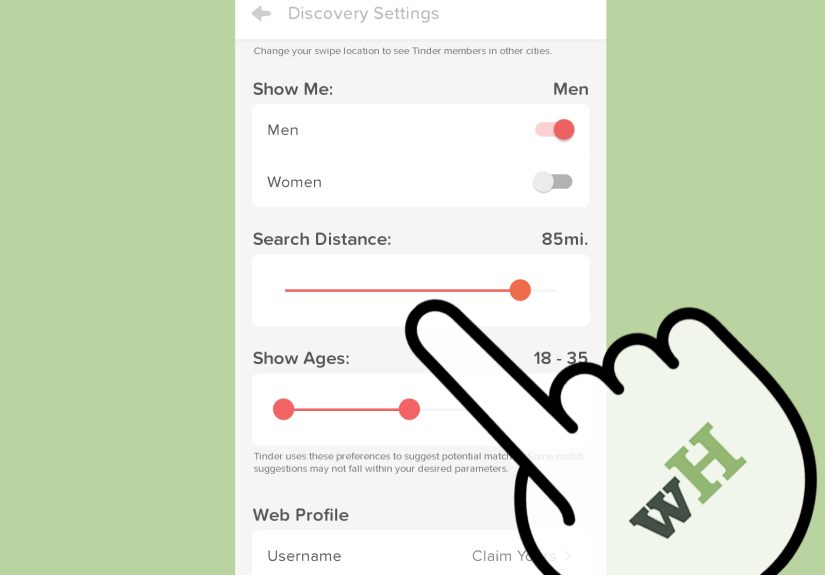
Here, you should see options related to your match preferences. Look for the distance control, often labeled Maximum Distance. This is the slider you need.
Step 5: Move the Maximum Distance Slider
Drag the Maximum Distance slider left or right to adjust your Tinder search radius. Moving it left usually narrows the range, showing people closer to you. Moving it right expands the range, showing people farther away.
For example, if you live in a dense city, a 5- to 15-mile range may be plenty. If you live in a suburb, college town, rural area, or smaller dating market, you may need 25, 50, or more miles to see enough active profiles.
There is no universally perfect Tinder distance. The best setting depends on how far you are realistically willing to travel, how active your local dating pool is, and whether you are looking for casual dates, serious relationships, new friends, travel connections, or a future spouse who does not require a connecting flight.
Step 6: Check the “Outside My Range” Toggle and Save Your Preference
Tinder may show potential matches slightly outside your age or distance preferences, especially if there are fewer recommendations available within your selected range. In Discovery Settings, you may see a toggle below the distance slider that controls whether Tinder can show people slightly outside your range.
If you want a stricter distance filter, turn this option off or set the preference as a dealbreaker where available. If you are open to surprises, leave it on. Sometimes the person five extra miles away is a great match. Sometimes they live across a body of water and “five miles” means “bring snacks and emotional resilience.”
After adjusting your slider and toggle, return to Discovery and swipe normally. If your results do not update right away, close and reopen the app.
Best Tinder Distance Settings by Situation
For Big Cities
If you live in New York, Los Angeles, Chicago, Houston, Phoenix, Philadelphia, or another large metro area, start small. A 5- to 10-mile radius can already include thousands of people, depending on population density and app activity.
A smaller radius also makes planning dates easier. A match who lives three miles away is much more likely to become an actual coffee date than someone who lives 48 miles away and says, “I’m never really on your side of town.” Translation: this romance now requires project management software.
For Suburbs
In suburban areas, a 15- to 30-mile distance setting is often more practical. You may need to include neighboring towns to get a healthy mix of profiles. The trick is to expand enough to see options without matching with people so far away that every date starts with checking traffic maps.
For Rural Areas
Rural users often need a wider Tinder radius. A 40- to 100-mile setting may be necessary if your local area has fewer active users. That does not mean you must date someone far away, but it gives you more visibility and helps Tinder show profiles beyond your immediate surroundings.
For Travel
If you are traveling and want to meet people in a new city, adjust your distance once you arrive. If you use Tinder Passport, you can search by city or drop a pin in another location before you get there. Passport Mode is available as a paid feature or through certain Tinder subscription options, depending on your plan and region.
For travel dating, set a realistic radius around where you will actually spend time. If you are visiting Boston for a weekend and staying downtown, you probably do not need to match with someone deep in another state unless your love language is commuter rail.
Why Tinder Still Shows People Far Away
Even after you adjust your Tinder search distance, you may occasionally see profiles outside your chosen radius. This can happen for several reasons.
1. Tinder May Expand Recommendations Slightly
Tinder may surface profiles slightly outside your preferences when it runs low on recommendations within your selected range. This is why the dealbreaker or outside-range toggle matters. If you want tighter control, review that setting under the distance slider.
2. The Other Person May Be Using Passport
Someone far away may be using Passport Mode to view profiles in your city. From your perspective, they appear in your area because their selected Tinder location is near you, even if their physical location is somewhere else.
3. You Recently Traveled
If you recently visited another city, Tinder may temporarily continue showing some profiles from that location. Closing and reopening the app can help refresh your location. If the issue continues, check your device’s location permissions.
4. Your Phone Location Is Not Accurate
Tinder depends on location access to show relevant nearby profiles. If your iPhone or Android phone is sharing only approximate location, blocking Tinder’s location access, or experiencing GPS issues, your match distance may look strange.
On iPhone, check Settings > Privacy & Security > Location Services > Tinder and make sure the permission is appropriate. On Android, check Settings > Location > App location permissions > Tinder. The exact wording may vary by device, but the goal is the same: let Tinder access your location while using the app.
Should You Use a Small or Large Tinder Distance?
A smaller Tinder distance is better when you want convenient dates, local matches, and less back-and-forth about who drives where. It is especially useful in big cities, college towns, and areas with strong app activity.
A larger Tinder distance is better when your local dating pool feels empty, you live in a low-density area, or you are open to meeting people in nearby cities. It can also help if you are new to an area and want a broader sense of who is around.
The sweet spot is usually the distance you would genuinely travel for a first date without secretly resenting your own optimism. If you would not drive 60 miles for tacos and conversation, do not set your radius to 60 miles just because someone might have great hair.
Common Mistakes When Changing Tinder Distance
Setting the Radius Too Wide
More profiles do not always mean better matches. A huge radius can fill your Discovery stack with people you will never realistically meet. This can make Tinder feel busy but not productive.
Setting the Radius Too Narrow
If your distance is extremely narrow, you may run out of profiles quickly. This is especially true outside major cities. If Tinder says there are no new profiles around you, try expanding your distance gradually.
Ignoring Location Permissions
If Tinder cannot access your location properly, your distance setting may not work as expected. Always check phone permissions before blaming the app, your horoscope, or the entire dating ecosystem.
Forgetting About Travel
If you swipe while traveling, your match pool can change. When you return home, refresh the app and check your location. If you use Passport Mode, confirm that your selected city is correct.
Assuming Distance Equals Compatibility
Distance matters, but it is not everything. Someone nearby can still be emotionally unavailable, allergic to planning, or convinced that “entrepreneur” means selling sunglasses from a backpack. Use distance as a practical filter, not your entire dating strategy.
Privacy and Safety Tips When Adjusting Tinder Distance
Your Tinder distance setting affects who you see, but your profile may also show approximate distance to others unless you use privacy controls available with certain subscription features. If privacy matters to you, review Tinder’s privacy settings and consider whether hiding your distance is available on your plan.
Be careful with extremely narrow ranges in small communities. If you live in a tiny town and set your distance to one or two miles, people may be able to make educated guesses about your general area. Tinder does not show your exact address, but approximate distance can still reveal more than you intend in low-population places.
For safety, keep early conversations on the app, avoid sharing your home address, and meet first dates in public places. Be cautious if someone quickly asks to move the conversation off-platform, requests money, claims an emergency, or seems too perfect in a way that feels less romantic and more like a suspiciously polished sales funnel.
Troubleshooting: Tinder Distance Not Updating
If your Tinder distance settings are not updating, try these fixes:
- Close and reopen Tinder. This can refresh Discovery and location data.
- Check app permissions. Make sure Tinder can access your location while you use the app.
- Turn location services off and on. This can reset a stuck GPS signal.
- Update Tinder. App updates often fix bugs and display issues.
- Log out and log back in. This can refresh your account settings.
- Reinstall the app. Use this as a last resort if the problem continues.
If you are still seeing far-away profiles, review the toggle that allows Tinder to show people outside your range. Also check whether you are using Passport Mode or recently changed locations.
Real-World Experiences: What Happens When You Change Tinder Distance
Changing your Tinder search distance sounds like a tiny setting adjustment, but in real life it can completely change the personality of your match stack. A 5-mile radius can feel like a neighborhood mixer. A 50-mile radius can feel like you accidentally joined a regional conference for single people with decent lighting.
In a large city, narrowing the distance often improves the experience immediately. Imagine someone living in Brooklyn who sets Tinder to 50 miles. Suddenly, their Discovery stack may include people from New Jersey, Long Island, Westchester, Connecticut, and places that require both a train schedule and emotional commitment. When that person lowers the radius to 7 miles, the app becomes more practical. Matches are closer, conversations feel easier to convert into dates, and “Want to meet this week?” no longer requires comparing highway traffic like a logistics manager.
In suburban areas, the opposite may happen. A person in a quiet suburb might set Tinder to 5 miles and wonder why the same few profiles keep appearing. Expanding to 20 or 30 miles can unlock nearby towns, shopping districts, college areas, and city edges. The experience becomes less repetitive. The key is to expand slowly. Jumping from 5 miles to 100 miles may create more options, but many of those options will be impractical unless both people are genuinely open to distance.
Rural users often have the most dramatic experience. A narrow radius can make Tinder look empty, even when good matches exist just one or two towns away. For someone in a rural county, setting the distance to 60 or 80 miles may be the difference between seeing almost no profiles and finding people who share similar interests. The trade-off is time. Wider distance means more planning, more driving, and more honesty about whether a long-distance setup is realistic.
Travelers also learn quickly that distance settings matter. A person visiting Nashville, Austin, Miami, or Seattle for a few days may want a tight radius around where they are staying. Otherwise, they may match with someone who is technically “nearby” but still far enough away to turn a casual drink into an expedition. If the goal is to meet people during a short trip, a smaller radius usually works better.
There is also an emotional side to distance settings. A wider radius can make Tinder feel exciting because there are more faces, more bios, and more possibilities. But too many far-away matches can create disappointment when the conversation is great and the logistics are terrible. A smaller radius may feel less glamorous, but it often leads to more realistic dates.
The best experience usually comes from testing. Try one distance setting for a week, notice the quality of matches, then adjust. If you are getting too few profiles, expand by 5 or 10 miles. If you are matching with people you would never actually meet, narrow the range. Tinder works best when your settings match your real life, not your fantasy version of yourself who apparently loves driving two hours for appetizers.
Final Thoughts
Adjusting your Tinder search distance is quick, but it can make a big difference in your dating experience. Open Tinder, go to your profile, tap Settings, scroll to Discovery, find Maximum Distance, and move the slider to the range that fits your life.
The best Tinder distance setting is not the largest one. It is the most honest one. Choose a radius that reflects where you live, how far you are willing to travel, and what kind of connection you want. Then review the outside-range toggle, check your location permissions, and refresh the app if your results look strange.
Dating apps are already weird enough. Your distance setting should make things easier, not turn every match into a road trip with flirting.
SEO Tags
Note: Tinder’s interface, labels, and available subscription features may vary slightly by device, app version, region, and account type, so use the current in-app wording as your final guide.