Table of Contents >> Show >> Hide
- Quick Answer: Can You Change the WhatsApp Ringtone?
- Before You Start: Know Which Sound You Want to Change
- How to Change the WhatsApp Ringtone on Android
- How to Change the WhatsApp Ringtone on iPhone
- Why Your New WhatsApp Ringtone Isn’t Working
- Best Tips for Choosing a WhatsApp Ringtone
- Android vs. iPhone: Which Gives You More Control?
- Real-World Experiences With Changing the WhatsApp Ringtone
- Final Thoughts
- SEO Tags
There are few tiny victories in life more satisfying than making your phone sound less like everyone else’s phone. If your WhatsApp alerts currently chirp, ding, or buzz with all the personality of a microwave, good news: you can change that. Whether you want a bold ringtone for WhatsApp calls, a softer tone for late-night messages, or a custom sound for that one family group chat that never sleeps, both Android and iPhone give you options.
This guide walks you through how to change the ringtone for WhatsApp on Android and iPhone, what settings actually control the sound, and what to do if your carefully chosen tone refuses to play. We’ll also cover the difference between WhatsApp call ringtones, message notification sounds, and chat-specific tones, because yes, modern smartphones love turning one simple question into a scavenger hunt.
Quick Answer: Can You Change the WhatsApp Ringtone?
Yes, but the process depends on your phone.
- On Android, you can usually change the ringtone for WhatsApp calls and the notification tone for messages inside WhatsApp. Many Android phones also let you change app sounds from the phone’s notification settings.
- On iPhone, you can adjust WhatsApp notification sounds inside the app, but ringtone and alert controls are more limited than on Android. Some versions of WhatsApp on iPhone also allow more customized tones for specific chats or contacts.
In other words, Android gives you more room to tinker. iPhone gives you a cleaner system, but sometimes that system says, “No, thank you, you may not turn your cousin’s group call into a dramatic movie trailer.”
Before You Start: Know Which Sound You Want to Change
When people search for how to change the ringtone for WhatsApp, they often mean one of three different things:
1. WhatsApp call ringtone
This is the sound you hear when someone calls you on WhatsApp.
2. WhatsApp message notification sound
This is the tone that plays when a new message arrives.
3. Custom tone for one person or one group
This is useful when you want a special sound for your best friend, your boss, or the group chat that sends 47 messages before breakfast.
If you know which one you want to change, the setup becomes much easier.
How to Change the WhatsApp Ringtone on Android
Android is generally the easiest platform for changing WhatsApp sounds. Depending on your phone brand and Android version, you may have two ways to do it: inside WhatsApp or through your phone’s app notification settings.
Change the ringtone for WhatsApp calls in the app
- Open WhatsApp.
- Tap the three-dot menu in the upper-right corner.
- Select Settings.
- Tap Notifications.
- Scroll to the Calls section.
- Tap Ringtone.
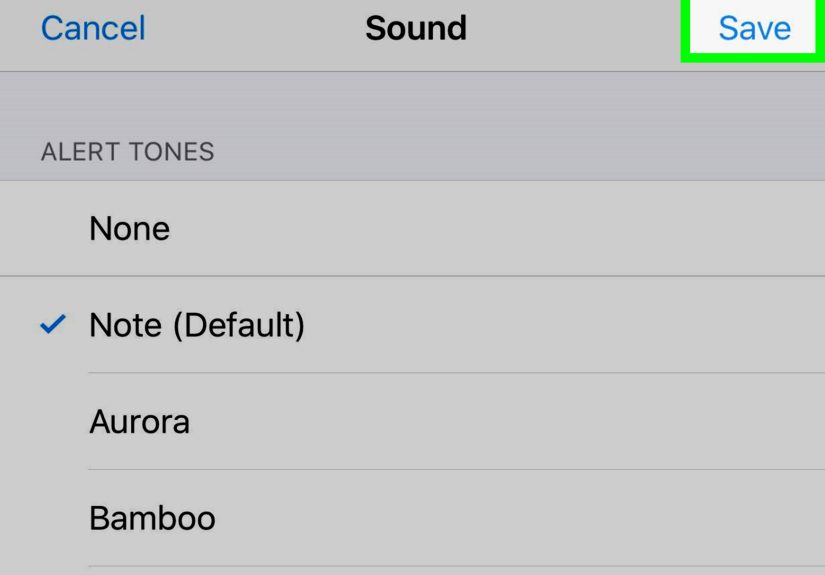
- Choose the sound you want, then tap Save or confirm the selection.
That changes the sound for incoming WhatsApp voice calls. If you want something louder, funnier, or less likely to be confused with every other app on your phone, this is the setting to use.
Change the WhatsApp message notification sound on Android
- Open WhatsApp.
- Go to Settings > Notifications.
- Under Messages, tap Notification tone.
- Under Groups, tap Notification tone if you want a separate sound for group chats.
- Select your preferred tone.
This is handy if you want one sound for direct messages and another for group chats. That way, your brain can instantly sort “important message” from “someone reacted with a laughing emoji for the eighth time.”
Set a custom ringtone or tone for one contact or group on Android
If you want to customize a single chat, WhatsApp may let you set a unique notification sound for that conversation.
- Open the specific chat in WhatsApp.
- Tap the contact name or group name at the top.
- Tap Notifications or Custom notifications, depending on your version.
- Enable custom notifications if needed.
- Choose the tone or ringtone you want.
This is one of the best WhatsApp tricks on Android because it lets you identify who is contacting you without even looking at the screen.
Use Android phone settings if WhatsApp doesn’t give you enough control
On many Android phones, you can also change WhatsApp sounds through the system settings. This is especially useful on Pixel, Samsung Galaxy, and some other Android devices that support notification categories.
- Open your phone’s Settings.
- Tap Notifications or Apps.
- Select WhatsApp.
- Tap Notification categories, App notifications, or a similar option.
- Choose the category you want to edit, such as message alerts or call notifications.
- Tap Sound.
- Select a new tone and save.
Samsung phones often make this especially flexible. Pixels also support app-specific sounds for categories. So if the in-app WhatsApp setting feels too basic, the Android settings menu may be your secret side door.
Can you use a custom song or audio file?
Usually, yes. Many Android phones let you use a downloaded ringtone, saved audio clip, or a file stored on the device. The exact steps depend on the phone brand. On some phones you’ll see an Add or My Sounds option when choosing a ringtone. On others, you may need to copy the file into the proper ringtone or notification folder first.
Just remember: the funniest custom sound in the world becomes much less funny after hearing it 63 times in one afternoon.
How to Change the WhatsApp Ringtone on iPhone
Changing WhatsApp sounds on iPhone is possible, but it’s a little more selective. Apple keeps tighter control over app sound behavior, so not every sound setting works the same way it does on Android.
Change WhatsApp notification sounds on iPhone
- Open WhatsApp.
- Tap Settings in the bottom-right corner.
- Tap Notifications.
- Under Message Notifications, choose Sound.
- Under Group Notifications, choose Sound if you want a separate tone.
- Select the alert tone you want.
This changes the sound for incoming WhatsApp messages and group messages. It’s the most reliable way to customize WhatsApp message alerts on iPhone.
Change WhatsApp call sound or ringtone on iPhone
This is where things get a bit more complicated. On iPhone, WhatsApp does not always offer the same broad ringtone control that Android does. Some versions of WhatsApp support more tailored sound settings for certain chats or contacts, while overall sound behavior is still influenced by iPhone settings such as volume, Focus mode, and notification permissions.
If your version of WhatsApp supports extra customization for a specific contact, try this:
- Open WhatsApp.
- Open the chat with the contact.
- Tap the contact’s name at the top.
- Look for options such as Wallpaper & Sound or chat-specific sound settings.
- Select a new alert tone if available.
That said, iPhone users should know about a key limitation: some WhatsApp call sounds, especially for group calls, may use default behavior and may not be fully customizable in the same way as Android.
Adjust iPhone sound settings so your WhatsApp tone is actually audible
Sometimes the tone is set correctly, but your iPhone is doing its best impression of a polite librarian. Check these settings:
- Open Settings.
- Tap Sounds & Haptics.
- Adjust the Ringtone and Alerts volume slider.
- Make sure your phone is not in Silent Mode if you want audible alerts.
- Check Focus modes like Do Not Disturb, Sleep, or Work, which can suppress notifications.
- Go to Settings > Notifications > WhatsApp and make sure notifications are allowed.
If your chosen WhatsApp sound is not playing on iPhone, the issue is often not the sound itself. It’s usually volume, notification permissions, or Focus mode stepping in like an overenthusiastic security guard.
Why Your New WhatsApp Ringtone Isn’t Working
You changed the setting. You picked a tone. You expected glory. Instead: silence. Here are the most common reasons.
Notifications are turned off
If WhatsApp notifications are disabled at the phone level, changing the tone inside the app won’t help. Check your app notification settings first.
Focus mode or Do Not Disturb is active
Both Android and iPhone can mute or delay alerts when focus features are turned on.
Your volume is too low
On iPhone especially, low alert volume can make it seem as if the ringtone change failed.
You changed the wrong sound
It happens all the time. You meant to change the call ringtone, but changed the message tone instead. Or you customized one chat and expected the whole app to change. Double-check the exact setting.
App-specific categories are controlling the sound
On Android, the phone’s notification category settings can sometimes override what you picked inside WhatsApp.
WhatsApp or the operating system needs an update
If menu names or options look different, update WhatsApp and your phone software before assuming the feature disappeared forever.
Best Tips for Choosing a WhatsApp Ringtone
Since you’re already in the settings, you might as well choose a sound that works in real life.
- Pick something distinct: If your WhatsApp tone sounds like your email app, your brain will resent you.
- Avoid very long audio clips: Great for comedy, less great when your phone rings during a meeting.
- Use different tones for direct messages and groups: This can reduce notification stress fast.
- Choose louder, sharper tones for calls: Especially if you often miss WhatsApp voice calls.
- Use softer tones for late-night chats: Your future sleepy self will be grateful.
Android vs. iPhone: Which Gives You More Control?
If customization is your love language, Android wins. It usually offers more flexibility for app-specific sounds, custom files, and notification categories. Samsung and Pixel phones are especially strong here.
iPhone, meanwhile, gives you a cleaner and more consistent experience, but fewer deep customization options for third-party app sounds. You can still personalize WhatsApp notifications, but it’s not always a full “do whatever you want” sound buffet.
So if your goal is maximum ringtone freedom, Android is the playground. iPhone is the well-organized museum with nice lighting and more rules.
Real-World Experiences With Changing the WhatsApp Ringtone
One of the most common reasons people change the ringtone for WhatsApp on Android or iPhone is simple: they’re tired of missing calls. A default alert can blend into the background, especially if your phone is already buzzing all day with emails, texts, reminders, banking alerts, and whatever app suddenly thinks it’s urgent that you update your password. Switching to a more recognizable WhatsApp call tone can make a huge difference.
For example, a lot of Android users like setting a louder sound just for WhatsApp calls from family members who live in another city or another country. Since WhatsApp is often the main calling app for international communication, a custom ringtone helps those calls stand out immediately. Instead of wondering whether the phone is ringing for a delivery app or a social media alert, you know it’s someone important.
On the message side, separating personal chats from group chats is one of the smartest tweaks you can make. People often describe a sense of relief after giving group messages a softer or less intrusive tone. That way, a chat exploding with memes during lunch doesn’t sound as urgent as a one-on-one message from a spouse, manager, or close friend. It’s a tiny change, but it can make your phone feel far less chaotic.
iPhone users often have a different experience. The customization is usually smoother, but not always as flexible. Many people expect iPhone to let them change every single WhatsApp sound the same way Android does, then discover that iOS keeps certain things more controlled. Still, even limited customization can be enough. Choosing a better WhatsApp message tone, increasing alert volume, and checking Focus settings often solves the biggest frustrations.
There’s also the personal side of all this. Some users pick tones for practical reasons, while others do it because it makes the phone feel more like their phone. Maybe you use a calm tone for work contacts, a cheerful sound for family, or a subtle alert because your old ringtone was so aggressive it could probably wake up the neighbors and three nearby squirrels. Personalizing WhatsApp sounds adds a small sense of order to daily life, and honestly, phones could use more of that.
Another common experience is troubleshooting after a phone update. A user changes the tone, thinks everything is done, and then a system update or app refresh quietly alters notification behavior. Suddenly the chosen ringtone doesn’t play, or a category setting in Android overrides the in-app selection. This is why it helps to understand both sides of the setup: the setting inside WhatsApp and the setting in the phone’s operating system. When you know both, fixing the issue is much faster.
In everyday use, the best result is not just a “cool” ringtone. It’s a sound setup that matches your real life. A clear tone for calls, a softer ping for chats, and less confusion overall. That’s the real win: fewer missed calls, fewer pointless interruptions, and a phone that sounds like it has finally gotten its act together.
Final Thoughts
If you’ve been wondering how to change the ringtone for WhatsApp on Android and iPhone, the short version is this: Android gives you more customization, while iPhone gives you a simpler but more limited setup. On Android, you can usually change WhatsApp call ringtones, message tones, and even app-specific categories with ease. On iPhone, your best options are usually found inside WhatsApp’s notification settings, along with iOS sound and notification controls.
The good news is that on either platform, you do not have to live with the default sound forever. A few taps can make WhatsApp more personal, easier to manage, and much less likely to surprise you with the wrong tone at the worst possible moment.
And that, in the world of smartphone settings, counts as a pretty glorious achievement.