Table of Contents >> Show >> Hide
- What Is Roaming Data on an iPhone?
- How to Check Your Roaming Data Usage on an iPhone: 8 Steps
- Step 1: Open the Settings App
- Step 2: Tap Cellular or Mobile Data
- Step 3: Confirm Which SIM or eSIM Is Using Cellular Data
- Step 4: Scroll to Cellular Data Usage
- Step 5: Read the Current Period Roaming Number
- Step 6: Check App-by-App Roaming Clues
- Step 7: Check System Services
- Step 8: Reset Statistics Before Your Trip or Billing Cycle
- How to Turn Data Roaming On or Off
- Why Your iPhone Usage and Carrier Usage May Not Match
- Tips to Reduce Roaming Data Usage on an iPhone
- Common Problems When Checking Roaming Data Usage
- Real-World Experience: What Travelers Learn the Hard Way
- Conclusion
- SEO Tags
Roaming data can be wonderfully convenientuntil your phone bill starts acting like it ordered room service in Monaco. Whether you are traveling overseas, using a second SIM, testing an eSIM, or simply crossing into an area where your carrier borrows another network, knowing how to check roaming data usage on an iPhone can save money, stress, and a few dramatic airport-lounge sighs.
The good news: your iPhone already includes built-in tools for viewing cellular data usage, including roaming-related usage. The slightly annoying news: the iPhone counter is not always the same as your carrier’s billing counter. Think of your iPhone as the helpful notebook and your carrier as the accountant with the final invoice. For the smartest travel setup, use both.
What Is Roaming Data on an iPhone?
Roaming data is mobile internet usage that happens when your iPhone connects to a network outside your carrier’s normal coverage area. This often happens during international travel, but it can also happen near borders, on cruise ships, in rural areas, or when your carrier uses a partner network.
When roaming is active, your iPhone can still use apps like Maps, Messages, Safari, Mail, WhatsApp, ride-share apps, hotel apps, airline apps, and translation tools. That sounds handy because it is. The catch is that roaming may be included, slowed after a limit, charged daily, charged per megabyte, or blocked depending on your plan. That is why checking your roaming data usage is not a “tech nerd” habitit is a traveler survival skill.
Where iPhone Tracks Roaming Usage
Your iPhone tracks cellular data in the Settings app. Depending on your iOS version and region, the menu may say Cellular or Mobile Data. Inside that menu, you can see data used during the current statistics period, data used by individual apps, system-service data, and in many cases a roaming-related counter such as Current Period Roaming.
Important: “Current Period” does not automatically mean “this billing month.” It usually means the period since the last time the statistics were reset. If you never reset the counter, it may include data from weeks, months, or even years. Yes, your iPhone may be keeping a data diary longer than some people keep houseplants alive.
How to Check Your Roaming Data Usage on an iPhone: 8 Steps
Step 1: Open the Settings App
Unlock your iPhone and open Settings. This is the gray gear icon that quietly controls half your digital life. If you are already abroad, try to do this while connected to Wi-Fi so you are not using more cellular data just to investigate cellular data.
Step 2: Tap Cellular or Mobile Data
Scroll near the top of Settings and tap Cellular. In some regions, the same menu is labeled Mobile Data. Both lead to the same general area: your iPhone’s mobile network settings.
This page lets you turn cellular data on or off, choose which line uses data on Dual SIM models, manage roaming options, and view how much data apps have used.
Step 3: Confirm Which SIM or eSIM Is Using Cellular Data
If your iPhone has one SIM or eSIM, this part is simple. If your iPhone uses Dual SIM, Dual eSIM, or a travel eSIM, look for the line currently assigned to cellular data. You may see labels such as Primary, Travel, Business, or a carrier name.
This matters because roaming usage may belong to one line, while your travel eSIM usage may belong to another. For example, if your primary U.S. line is still active and allowed to roam, it may quietly use data even though you thought your travel eSIM was doing all the work. That is how “I only checked the weather” becomes “Why is my bill wearing a tuxedo?”
Step 4: Scroll to Cellular Data Usage
On the Cellular page, scroll down until you find the usage section. It may be labeled Cellular Data, Mobile Data, or Cellular Data Usage. Here, your iPhone shows data used during the current statistics period.
Look for Current Period to see total cellular data used since the last reset. Then look for Current Period Roaming, if available, to see how much data was used while roaming during that same statistics period.
Step 5: Read the Current Period Roaming Number
The Current Period Roaming number is the main figure you came for. It may appear in KB, MB, or GB. A small number like 2 MB might mean your phone barely sipped data. A number like 900 MB means it had a full buffet. Several GB could be normal if you intentionally used maps, video calls, photo uploads, or hotspotbut it could also mean background apps were partying while you were asleep.
Use this number as an on-device estimate. It is excellent for spotting patterns and catching surprises early. For exact billing, always compare it with your carrier’s app, website, text alerts, or international usage page.
Step 6: Check App-by-App Roaming Clues
Stay on the Cellular page and keep scrolling through your app list. Your iPhone shows how much cellular data each app has used during the current period. Apps that commonly eat roaming data include streaming services, social media, cloud photo backup, email, navigation, browsers, messaging apps, podcast apps, and ride-share apps.
If one app is using more data than expected, turn off its cellular access by toggling the switch beside the app. When cellular access is off, the app should use Wi-Fi only. This is especially useful for apps like Photos, YouTube, TikTok, Instagram, Netflix, Spotify, and podcast players. They are delightful apps, but on roaming data, they can behave like they were raised by wolves.
Step 7: Check System Services
Below the app list, tap System Services. This area shows cellular data used by built-in iPhone services such as push notifications, location services, software-related activity, messaging services, and other system features.
You usually cannot turn off individual system services from this exact list, but the information helps explain mysterious data usage. If System Services is using more data than expected, you can reduce background activity by using Low Data Mode, turning off automatic downloads over cellular, limiting iCloud activity, and connecting to trusted Wi-Fi whenever possible.
Step 8: Reset Statistics Before Your Trip or Billing Cycle
At the bottom of the Cellular page, tap Reset Statistics if you want a fresh measurement period. The best time to reset is right before leaving for a trip, right when a roaming pass starts, or on the first day of your billing cycle.
After resetting, take a screenshot of the zeroed-out screen. Then check again after your first day abroad, after long travel days, and before your plan renews. This simple habit gives you a clean roaming data record without needing a spreadsheet, a crystal ball, or a nervous call to customer support from a hotel hallway.
How to Turn Data Roaming On or Off
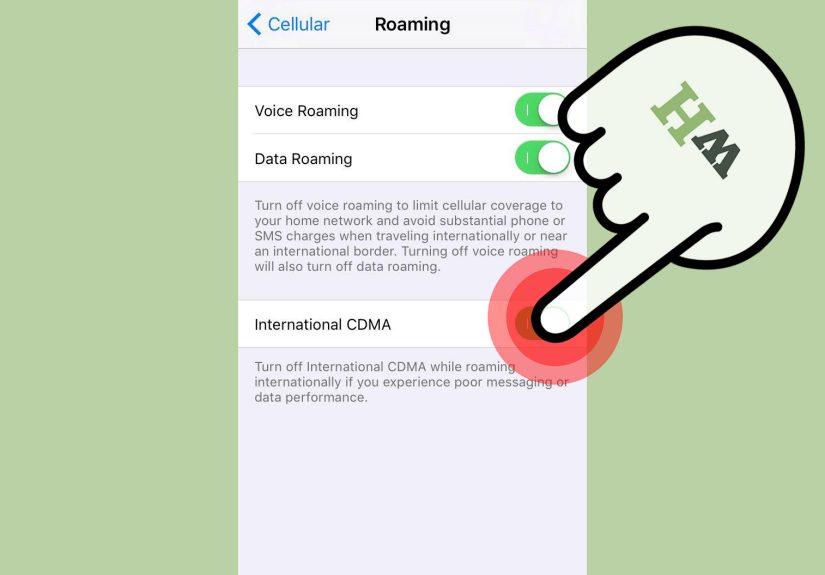
Checking roaming usage is only half the job. You should also know how to control roaming. Go to Settings > Cellular > Cellular Data Options. If you have multiple lines, tap the line you want to manage first, then open Cellular Data Options. From there, toggle Data Roaming on or off.
Turn roaming on only when your plan includes roaming, you bought an international pass, or you intentionally need mobile data outside your home network. Turn it off when you want to prevent accidental data charges. If you are using a travel eSIM, the setup may be different: roaming may need to be on for the travel eSIM line, while roaming should be off for your home carrier line.
Single SIM vs. Dual SIM
With a single SIM, the choice is straightforward: roaming is either on or off for that line. With Dual SIM or eSIM, you need to pay attention to which line is selected for cellular data. A safe setup for many travelers is:
- Home line: Keep on for calls or texts if needed, but turn off Data Roaming if you want to avoid home-carrier roaming data.
- Travel eSIM: Set as the cellular data line and follow the eSIM provider’s instructions for roaming.
- Wi-Fi Calling: Use carefully, because rules and charges vary by carrier and destination.
Why Your iPhone Usage and Carrier Usage May Not Match
Your iPhone measures data from the device side. Your carrier bills from the network side. Usually, the numbers are close, but they may not be identical. Delays, rounding, time zones, roaming partner reporting, plan changes, and unbilled usage can all create differences.
For example, your iPhone might show 480 MB of Current Period Roaming, while your carrier app shows 0.6 GB or updates hours later. Some carriers also warn that roaming usage can take time to appear. That lag is normal, but it means you should not wait until the last minute to check usage.
Use Your Carrier App as the Billing Source
If you use Verizon, check My Verizon for usage and international plan details. If you use AT&T, check the myAT&T app or dial the carrier’s data code when available. If you use T-Mobile, check the T-Life app, T-Mobile website, or supported short codes. Other carriers and MVNOs usually offer similar account dashboards.
The iPhone counter helps you control behavior. The carrier counter helps you understand billing. Use both, and you will travel with fewer surprises.
Tips to Reduce Roaming Data Usage on an iPhone
Turn On Low Data Mode
Go to Settings > Cellular > Cellular Data Options > Data Mode, then choose Low Data Mode. This helps apps reduce network activity. It is not magic, but it can slow down background refreshes, automatic activity, and other quiet data drains.
Download Offline Maps Before You Leave
Maps are one of the best uses of mobile data while traveling, but they can use a lot if you are constantly searching, rerouting, or exploring. Before your trip, open Apple Maps or your preferred map app and download offline maps for your destination. Download them over Wi-Fi, not while standing outside a train station with one bar and a suitcase that suddenly feels judgmental.
Disable Cellular Data for Heavy Apps
In Settings > Cellular, turn off cellular access for apps you do not need on the road. Good candidates include video streaming apps, automatic cloud backup apps, large game apps, shopping apps, and social media apps. You can still use them on Wi-Fi.
Turn Off Automatic Downloads Over Cellular
App updates, media downloads, podcast episodes, and cloud sync can use more data than expected. Before traveling, check App Store settings, podcast settings, photo backup settings, and streaming download settings. If anything says it can download using cellular data, consider switching it to Wi-Fi only.
Use Airplane Mode Strategically
Airplane Mode turns off cellular radios. You can then turn Wi-Fi back on manually. This is the safest option when you want to avoid accidental roaming completely, such as on a cruise ship, during a border crossing, or when your plan does not include international data.
Watch Personal Hotspot
Personal Hotspot can burn through roaming data quickly because laptops and tablets often behave as if they are on unlimited Wi-Fi. They may sync files, update apps, refresh cloud folders, or load desktop websites. If you must use hotspot while roaming, keep sessions short and turn it off immediately afterward.
Common Problems When Checking Roaming Data Usage
You Cannot Find Current Period Roaming
If you do not see a Current Period Roaming line, check that you are in Settings > Cellular and that you have scrolled far enough. iOS wording can vary by region and carrier. You may still be able to view app-by-app cellular usage and compare it with your carrier’s international usage report.
The Counter Looks Too High
If the number looks impossibly high, it may include data from a long period because statistics were never reset. Scroll to the bottom and look for the last reset date if shown. Reset statistics before your next trip so the number starts fresh.
The Counter Looks Too Low
If your iPhone shows very little usage but your carrier reports more, check whether another line, eSIM, hotspot device, Apple Watch, or family-plan line used data. Also remember that carrier reporting can include rounding or delayed roaming partner records.
You Turned Off Roaming but Data Still Works
You may be connected to Wi-Fi, using a travel eSIM, or using a carrier plan that treats your current location as included coverage. Check the status bar, your Cellular settings, and your carrier app to confirm which network and line are active.
Real-World Experience: What Travelers Learn the Hard Way
The first time many people check roaming data usage on an iPhone is not during a calm planning session with coffee and a neatly packed carry-on. It is usually after landing in another country, opening Maps, receiving five welcome texts from the carrier, and suddenly wondering whether “international data” means “included” or “financial jump scare.”
A practical travel routine makes all the difference. Before leaving home, reset your iPhone cellular statistics, screenshot the starting point, download offline maps, update important apps, and decide which apps can use cellular data. This takes about five minutes, which is shorter than most airport coffee lines and far cheaper than accidental roaming.
On the first travel day, check your usage twice: once after leaving the airport and once before going to sleep. Airports are data traps. You might open airline apps, ride-share apps, hotel apps, translation tools, maps, messaging apps, and email all within the first hour. None of those apps are bad, but together they can nibble through a small roaming package faster than you can say, “Where is baggage claim?”
One useful habit is to treat roaming data like cash in your wallet. If you bought a 5 GB international pass for ten days, mentally divide it into daily portions. That gives you about 500 MB per day. You do not need to obey that number perfectly, but it gives you a sense of pace. If you use 1.5 GB on day one because you watched videos during a long taxi ride, the phone is not brokenyou just spent three days of data on one scenic traffic jam.
Another lesson: Wi-Fi is helpful, but it is not always trustworthy or stable. Hotel Wi-Fi can drop. Cafe Wi-Fi can be slow. Public Wi-Fi may require logins that fail at the worst possible moment. If you leave Wi-Fi Assist or background-heavy apps unchecked, your iPhone may use cellular data when Wi-Fi performance is poor. Before traveling, review your settings so weak Wi-Fi does not quietly become paid roaming data.
Travel eSIMs also require careful setup. Many travelers buy an eSIM, install it correctly, then forget to set it as the cellular data line. Others leave roaming on for their home line and accidentally use the expensive network instead of the prepaid travel plan. The best approach is to label your lines clearly. Rename one line “Home” and the other “Travel Data.” Then check Settings > Cellular > Cellular Data and confirm the correct line is selected.
For families, the experience gets even more interesting. One person may be careful, while another streams cartoons, uploads vacation photos, or uses hotspot for a tablet. If everyone is on the same account, check each line separately in the carrier app. Data does not care who had the gelato; it only knows which device connected.
The final real-world tip is simple: do not wait for alerts. Carrier alerts are useful, but they may arrive late, especially when roaming networks report usage with delays. Your iPhone’s roaming counter gives you a quick early warning. Check it every day during travel, compare it with your carrier app, and adjust before the bill becomes a souvenir.
Conclusion
Learning how to check roaming data usage on an iPhone is one of those small skills that can prevent big headaches. The process is simple: open Settings, tap Cellular or Mobile Data, confirm the active SIM or eSIM, review Current Period and Current Period Roaming, inspect app-by-app usage, check System Services, and reset statistics before your next trip.
The smartest travelers do not just check data once. They build a quick routine: reset before travel, monitor daily, use Low Data Mode, download offline maps, limit heavy apps, and compare iPhone numbers with carrier usage. Roaming data is not scary when you can see it, control it, and stop it before it runs wild with your wallet.
Note: Your iPhone’s usage screen is a helpful estimate for managing data, but your wireless carrier’s app, website, alerts, and bill remain the final source for charges.