Table of Contents >> Show >> Hide
- What Is Terminal in Windows?
- Method 1: Open Terminal from the Start Menu
- Method 2: Open Terminal with the Win + X Menu
- Method 3: Open Terminal from the Run Box
- Method 4: Open Terminal from File Explorer
- Method 5: Open Terminal as Administrator
- Method 6: Open Command Prompt Instead of Windows Terminal
- Method 7: Open PowerShell
- Method 8: Open Terminal from Task Manager
- Method 9: Open Terminal with a Taskbar Shortcut
- Method 10: Open Terminal Using the Command Line
- How to Choose Between Windows Terminal, Command Prompt, and PowerShell
- How to Open a New Tab in Windows Terminal
- How to Set Your Default Terminal Profile
- How to Install Windows Terminal If It Is Missing
- Common Problems When Opening Terminal in Windows
- Practical Examples
- Best Tips for Using Terminal Comfortably
- of Real-World Experience: What Opening Terminal in Windows Actually Feels Like
- Conclusion
Opening Terminal in Windows should not feel like discovering a secret room in a video game. Yet for many users, the word “terminal” sounds serious, mysterious, and slightly allergic to fun. The good news is simple: Windows gives you several fast ways to open a terminal, whether you want Windows Terminal, Command Prompt, PowerShell, or a Linux shell through Windows Subsystem for Linux.
This step-by-step guide explains how to open Terminal in Windows using the Start menu, keyboard shortcuts, the Run box, File Explorer, right-click menus, Task Manager, and command-line commands. You will also learn the difference between Windows Terminal, PowerShell, and Command Prompt, because yes, Windows has more command-line personalities than a group chat planning dinner.
By the end, you will know exactly which method to use, when to run Terminal as administrator, how to open it in a specific folder, and how to make Windows Terminal easier to access next time.
What Is Terminal in Windows?
In modern Windows, “Terminal” usually refers to Windows Terminal, Microsoft’s newer command-line host. It can run multiple shells in one app, including PowerShell, Command Prompt, Azure Cloud Shell, and Linux distributions installed through WSL. It supports tabs, panes, themes, keyboard shortcuts, Unicode text, and custom profiles.
Think of Windows Terminal as the building, while PowerShell, Command Prompt, and WSL are rooms inside it. You can walk into the PowerShell room to automate Windows tasks, enter the Command Prompt room for classic commands, or visit the WSL room when you need Linux tools without leaving Windows.
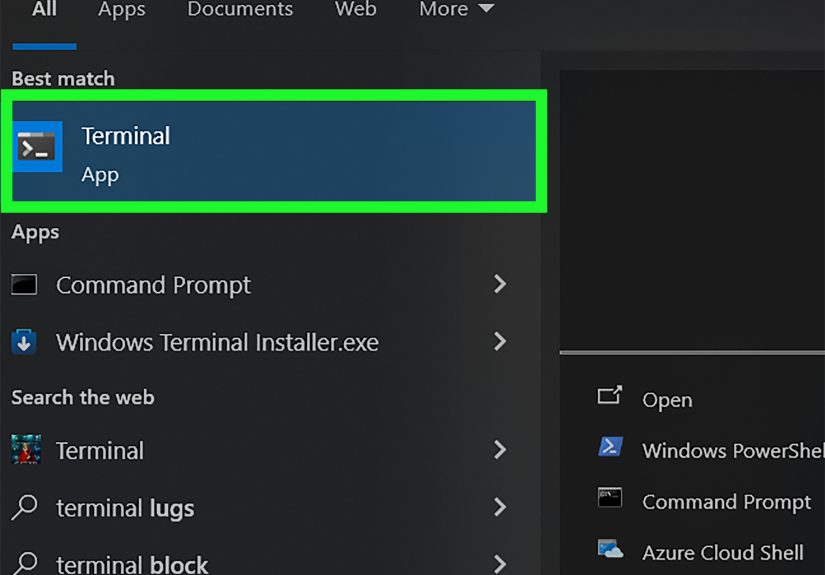
Method 1: Open Terminal from the Start Menu
The Start menu is the easiest method for most users. It works well on Windows 10 and Windows 11, especially if you do not want to memorize shortcuts.
Steps
- Click the Start button on the taskbar.
- Type Terminal.
- Select Windows Terminal from the results.
- Press Enter or click Open.
If Windows Terminal is installed, it usually opens with PowerShell as the default profile. From there, you can click the dropdown arrow next to the tab bar to open Command Prompt, PowerShell, or another available shell.
This method is perfect when you are learning how to open Terminal in Windows for the first time. It is simple, visual, and does not require any special permission unless you choose to run it as administrator.
Method 2: Open Terminal with the Win + X Menu
The Win + X menu is one of the fastest ways to open Terminal. Many experienced Windows users love it because it feels like a shortcut menu for people who have had enough clicking for one lifetime.
Steps
- Press Windows key + X.
- Select Terminal or Windows Terminal.
- To open with elevated permission, choose Terminal (Admin) if available.
- Approve the User Account Control prompt if Windows asks for permission.
On some Windows versions or configurations, you may see PowerShell or Command Prompt instead of Terminal. That is normal. Windows settings, updates, and default terminal preferences can affect what appears in the menu.
Method 3: Open Terminal from the Run Box
The Run box is small, fast, and surprisingly powerful. It is the tiny launcher hiding in Windows that says, “I may be old-school, but I still know where everything lives.”
Steps
- Press Windows key + R.
- Type wt.
- Press Enter.
The command wt launches Windows Terminal. If it does not work, Windows Terminal may not be installed, or the app execution alias may not be enabled. You can also try typing cmd to open Command Prompt or powershell to open Windows PowerShell.
Method 4: Open Terminal from File Explorer
Sometimes you do not just want to open Terminal; you want to open Terminal in a specific folder. This is especially useful for developers, students, IT users, and anyone who has ever typed a long folder path and immediately regretted their life choices.
Steps Using the Address Bar
- Open File Explorer.
- Go to the folder where you want Terminal to start.
- Click the address bar at the top.
- Type wt.
- Press Enter.
Windows Terminal should open in that folder. This is one of the cleanest methods when working with project folders, downloaded files, scripts, or local website files.
Steps Using Right-Click
- Open File Explorer.
- Right-click inside a folder or on a folder.
- Choose Open in Terminal or Open in Windows Terminal.
On Windows 11, the option may appear in the modern right-click menu. On some systems, you may need to choose Show more options first. Either way, the goal is the same: Terminal opens directly in the location you selected.
Method 5: Open Terminal as Administrator
Some commands require administrator permission. For example, changing certain system settings, installing packages globally, modifying protected folders, or running advanced networking commands may need elevated access.
Steps from the Start Menu
- Click Start.
- Type Terminal.
- Right-click Windows Terminal.
- Select Run as administrator.
- Click Yes if Windows asks for confirmation.
Be careful with administrator mode. It is powerful, and powerful tools deserve respect. Running random commands as admin is like giving a toddler permanent markers near a white couch: technically possible, emotionally risky.
Method 6: Open Command Prompt Instead of Windows Terminal
Command Prompt is the classic Windows command-line shell. It is older than Windows Terminal, simpler in appearance, and still useful for commands like ipconfig, ping, dir, and batch files.
Steps
- Click Start.
- Type cmd or Command Prompt.
- Select Command Prompt.
You can also open it from the Run box by pressing Windows key + R, typing cmd, and pressing Enter.
If Windows Terminal is set as your default terminal application, Command Prompt may open inside a Windows Terminal tab. That is not a problem. The shell is still Command Prompt; it is simply being hosted inside the newer Terminal app.
Method 7: Open PowerShell
PowerShell is a command-line shell and scripting language designed for automation. It is more modern and powerful than Command Prompt for many administrative tasks. If Command Prompt is a bicycle, PowerShell is a bicycle with a dashboard, engine, and possibly opinions.
Steps
- Click Start.
- Type PowerShell.
- Select Windows PowerShell or PowerShell.
To open PowerShell from Command Prompt, type powershell and press Enter. To run it as administrator, right-click it in the Start menu and choose Run as administrator.
Method 8: Open Terminal from Task Manager
Task Manager is not just for closing frozen apps while whispering “please behave” at your computer. It can also launch Terminal, Command Prompt, or PowerShell.
Steps
- Press Ctrl + Shift + Esc to open Task Manager.
- Click Run new task.
- Type wt, cmd, or powershell.
- Check Create this task with administrative privileges if you need admin rights.
- Click OK.
This method is helpful when the Start menu is not responding, Explorer is acting strangely, or you are troubleshooting a system issue.
Method 9: Open Terminal with a Taskbar Shortcut
If you use Terminal often, pin it to the taskbar. This turns opening Terminal into a one-click action.
Steps
- Click Start.
- Type Terminal.
- Right-click Windows Terminal.
- Select Pin to taskbar.
After pinning it, you can open it from the taskbar any time. You can also use Windows key + number to launch pinned apps based on their position. For example, if Terminal is the third pinned app, Windows key + 3 can open or switch to it.
Method 10: Open Terminal Using the Command Line
Once you already have a command-line window open, you can launch Windows Terminal from there.
Useful Commands
- wt opens Windows Terminal.
- wt -p “Command Prompt” opens a Command Prompt profile if configured.
- wt -p “Windows PowerShell” opens a PowerShell profile if configured.
- wt -d . opens Terminal in the current directory.
These commands are especially useful for developers and power users. You can build shortcuts, scripts, or workflow commands that open exactly the terminal environment you need.
How to Choose Between Windows Terminal, Command Prompt, and PowerShell
Use Windows Terminal when you want a modern interface with tabs, profiles, split panes, and customization. It is the best everyday choice for most users.
Use Command Prompt when following older tutorials, running batch files, or using classic Windows commands. It is simple, stable, and still widely recognized.
Use PowerShell when automating tasks, managing Windows settings, working with objects, or using scripts. It is excellent for system administration and repeatable workflows.
Use WSL when you need Linux commands, Bash, developer tools, package managers, or a Linux-like environment directly on Windows.
How to Open a New Tab in Windows Terminal
One reason Windows Terminal is popular is that you can run different shells in tabs. You might keep PowerShell in one tab, Command Prompt in another, and Ubuntu through WSL in a third. Your desktop stays clean, and your brain loses one less battle.
Steps
- Open Windows Terminal.
- Click the plus button to open a new tab.
- Click the dropdown arrow to choose a different profile.
- Select Command Prompt, PowerShell, or a WSL distribution.
You can also use keyboard shortcuts such as Ctrl + Shift + T for a new tab and Ctrl + Shift + W to close the current tab.
How to Set Your Default Terminal Profile
If Windows Terminal always opens PowerShell but you prefer Command Prompt, you can change the default profile.
Steps
- Open Windows Terminal.
- Click the dropdown arrow in the tab bar.
- Select Settings.
- Go to Startup.
- Choose your preferred Default profile.
- Save the changes.
This setting controls which shell opens first when you launch Windows Terminal. If you spend most of your time in Command Prompt, make that the default. If you automate Windows tasks, PowerShell may be the better choice.
How to Install Windows Terminal If It Is Missing
Most modern Windows 11 systems include Windows Terminal, but some Windows 10 machines may not have it installed. If typing wt does nothing, install Windows Terminal from the Microsoft Store.
Steps
- Open the Microsoft Store.
- Search for Windows Terminal.
- Select the official Microsoft app.
- Click Get or Install.
- Open it from the Start menu after installation.
After installing, Windows Terminal should appear in search results, app lists, and supported right-click menus.
Common Problems When Opening Terminal in Windows
Typing “wt” Does Not Work
If the wt command fails, Windows Terminal may not be installed, or the app execution alias may be disabled. Install or update Windows Terminal from the Microsoft Store, then try again.
Terminal Opens the Wrong Shell
Change the default profile in Windows Terminal settings. You can set PowerShell, Command Prompt, or another installed profile as your startup shell.
The “Open in Terminal” Option Is Missing
Right-click menu behavior can vary by Windows version, system settings, and app installation. Try opening Terminal through the Start menu or File Explorer address bar instead.
Commands Require Administrator Permission
Close the normal Terminal window, reopen it as administrator, and run the command again. Only use administrator mode when necessary.
Practical Examples
Example 1: Check Your IP Address
Open Terminal and type:
This displays network information, including your IPv4 address. It is useful when troubleshooting Wi-Fi, routers, local servers, or printer connections.
Example 2: Test a Website Connection
Open Terminal and type:
This checks whether your computer can reach a website or server. It is a quick diagnostic tool when the internet is behaving like it needs a nap.
Example 3: Open a Project Folder
Go to your project folder in File Explorer, click the address bar, type wt, and press Enter. Terminal opens directly in that folder, saving you from typing a long path manually.
Best Tips for Using Terminal Comfortably
First, pin Windows Terminal to the taskbar if you use it often. Second, choose your default profile so the right shell opens every time. Third, learn a few shortcuts, especially Ctrl + Shift + T for a new tab and Ctrl + Shift + W for closing a tab. Fourth, avoid administrator mode unless you truly need it. Finally, keep your commands organized. Copying mystery commands from random corners of the internet is not a personality trait; it is a troubleshooting appointment waiting to happen.
of Real-World Experience: What Opening Terminal in Windows Actually Feels Like
The first time many people open Terminal in Windows, they expect something dramatic to happen. Maybe the screen will flash. Maybe a hacker soundtrack will start playing. Maybe the computer will ask if you are “sure you are ready.” In reality, Terminal opens, shows a prompt, and waits politely. That quiet little blinking cursor is not judging you. It is simply saying, “Whenever you are ready.”
In everyday use, the best method depends on what you are doing. If you just need to run a quick command, the Start menu is easy. Press Start, type Terminal, press Enter, and you are there. If you are working inside a folder, the File Explorer method feels much better. Opening Terminal directly in a folder saves time and prevents one of the most common beginner frustrations: navigating through directories with cd commands.
For example, suppose you downloaded a ZIP file, extracted it, and need to run a setup command from that folder. Instead of opening Terminal and typing a path like cd C:UsersYourNameDownloadsVery-Long-Folder-Name, you can open the folder in File Explorer, type wt in the address bar, and start working immediately. It feels small, but after the tenth time, you will wonder why nobody told you earlier.
Another lesson from real use: administrator mode is helpful but should not become your default habit. Many tutorials say “run as administrator” because it avoids permission issues, but using elevated access all the time is not ideal. Normal Terminal is safer for everyday commands. Use administrator mode only when installing system-level tools, changing protected settings, or running commands that clearly require it.
Windows Terminal also becomes more useful once you personalize it. Setting the default profile saves mental energy. If you always use PowerShell, let Terminal open PowerShell. If you are following older Windows tutorials, Command Prompt may feel more familiar. If you work with Linux tools, WSL can sit comfortably inside Terminal like it pays rent.
Tabs are another major quality-of-life upgrade. You can run a local server in one tab, use Git in another, and keep a third tab open for quick commands. This is much cleaner than having three separate black windows scattered across the desktop like digital laundry.
The biggest confidence boost comes from learning that Terminal is not only for experts. You do not need to memorize hundreds of commands. Start with simple ones: dir to list files, cd to change folders, ipconfig to check network details, and cls to clear the screen. Little by little, Terminal changes from “scary developer box” into a practical tool.
In short, the best way to get comfortable is to open Terminal often for small tasks. Use it to check a folder, run a simple command, or follow a trusted guide. The more familiar it becomes, the less mysterious it feels. Eventually, opening Terminal in Windows becomes as normal as opening File Explorer, except with fewer icons and slightly more wizard energy.
Conclusion
Learning how to open Terminal in Windows is a small skill with big rewards. You can launch it from the Start menu, Win + X menu, Run box, File Explorer, Task Manager, taskbar, or another command-line window. For most users, Windows Terminal is the best option because it combines PowerShell, Command Prompt, WSL, tabs, profiles, and modern settings in one place.
Start with the method that feels easiest. Then add shortcuts as you become more comfortable. Before long, opening Terminal will feel less like entering a secret technical cave and more like grabbing the right tool from a neatly organized toolbox. A toolbox with a blinking cursor, but still.
Note: This article is written for general Windows users, students, beginners, and web readers who need a clear, practical guide to opening Terminal in Windows without unnecessary technical clutter.