Table of Contents >> Show >> Hide
- Understanding Where Google Form Responses Are Stored
- Method 1: Download All Google Form Responses as a CSV File
- Method 2: Send Google Form Responses to Google Sheets
- Method 3: Save Google Form Responses as a PDF from Google Forms
- Method 4: Save Google Form Responses as PDF from Google Sheets
- Which Format Should You Choose: CSV, Sheets, or PDF?
- Common Problems When Downloading Google Form Responses
- Best Practices Before You Print or Save Responses
- Example: Saving Job Application Responses as PDFs
- Example: Exporting Event Registration Responses
- Can You Automatically Turn Google Form Responses Into PDFs?
- Extra Experience: What Actually Works Best in Real Life
- Conclusion
Note: Google loves moving buttons just enough to make everyone question their eyesight. The steps below reflect the current Google Forms, Google Sheets, and Chrome workflow on desktop. If your screen looks slightly different, look for the same labels: Responses, More, Download responses (.csv), View in Sheets, Print all responses, and Save as PDF.
Google Forms is one of the easiest ways to collect information without building a website, hiring a developer, or bribing your coworkers with donuts to fill out a spreadsheet manually. Whether you are gathering customer feedback, event registrations, job applications, quiz results, order details, or classroom assignments, the magic happens after people click Submit. That is when your neat little form becomes a treasure chest of responses.
But then comes the real question: how do you download Google Form responses, print them, or save them as a PDF? Good news: you have several options. Google Forms lets you view responses inside the form, export all responses as a CSV file, send responses to Google Sheets, print all responses, or print individual responses and save them as PDF files. The best method depends on what you want to do next.
If you want to analyze the data, export it to Google Sheets or CSV. If you need a clean record for a client, school, HR folder, audit, or personal archive, saving responses as a PDF is often the smarter move. PDFs are easy to share, harder to accidentally edit, and far less chaotic than a spreadsheet with 47 columns and one suspiciously stretched cell containing someone’s entire life story.
Understanding Where Google Form Responses Are Stored
Before downloading anything, it helps to understand where your responses live. When someone submits a Google Form, the response is stored inside the form itself. As the form owner or an authorized collaborator, you can open the form and click the Responses tab to see the results.
Inside the Responses area, Google usually gives you three useful views:
1. Summary View
The Summary view gives you charts, percentages, short-answer summaries, and a quick overview of the entire form. This is helpful when you want to understand trends. For example, if 82 percent of event guests choose chicken over vegetarian pasta, your catering plan just became much easier.
2. Question View
The Question view lets you review answers question by question. This is useful when one specific question matters more than the rest, such as “What size T-shirt do you need?” or “Which workshop session do you want to attend?”
3. Individual View
The Individual view shows one full response at a time. This is the best view when you need to print or save a single person’s submission as a PDF. Think job applications, permission slips, client intake forms, incident reports, or scholarship applications.
Method 1: Download All Google Form Responses as a CSV File
The fastest way to download Google Form responses is to export them as a CSV file. CSV stands for comma-separated values, which sounds like something invented by a committee, but it is actually useful. A CSV file can be opened in Google Sheets, Microsoft Excel, Apple Numbers, database tools, email marketing platforms, and many other systems.
Steps to Download Google Form Responses as CSV
- Open your Google Form.
- Click the Responses tab at the top.
- Click the three-dot More menu in the upper-right area of the Responses section.
- Select Download responses (.csv).
- A compressed ZIP file will download to your computer.
- Open the ZIP file to access the CSV file.
This method is perfect when you need a backup copy of all submissions or want to import response data into another platform. It is also useful if you are done collecting responses and want a simple offline archive.
When CSV Is the Best Choice
Use CSV when you need raw data. For example, a small business might download Google Form responses as CSV to upload customer requests into a CRM. A teacher might use the CSV file to sort quiz submissions. A nonprofit might export volunteer sign-ups and filter them by location, availability, or skill set.
The downside? CSV files are not pretty. They are practical, dependable, and about as glamorous as a filing cabinet. If your goal is presentation, printing, or sharing a polished record, PDF will usually look better.
Method 2: Send Google Form Responses to Google Sheets
If you plan to sort, filter, calculate, clean, or analyze your responses, Google Sheets is your best friend. Google Forms can create a linked spreadsheet that updates as new responses arrive. This gives you a live, organized table of every submission.
Steps to View Google Form Responses in Sheets
- Open your Google Form.
- Click the Responses tab.
- Click the green View in Sheets icon.
- Choose whether to create a new spreadsheet or select an existing spreadsheet.
- Click Create or confirm your selection.
Once the responses are in Google Sheets, you can use filters, pivot tables, charts, formulas, conditional formatting, and all the spreadsheet wizardry your heart can tolerate before needing coffee.
How to Download Google Form Responses from Google Sheets
After your responses are in Google Sheets, you can download them in several formats:
- Open the linked Google Sheet.
- Click File.
- Hover over Download.
- Choose a format such as Microsoft Excel, PDF, CSV, or another available file type.
This is the best route if you want more control before saving or printing. You can hide unnecessary columns, resize rows, freeze headers, delete empty columns, format dates, and make the final file look like it was prepared by a calm professional instead of a raccoon sprinting across a keyboard.
Method 3: Save Google Form Responses as a PDF from Google Forms
Sometimes you do not want a spreadsheet. You want a readable document. Google Forms lets you print responses directly, and from the print screen you can choose Save as PDF instead of sending the job to a physical printer.
This method is useful for creating a PDF record of all responses or individual responses. It is especially helpful for applications, evaluations, inspections, surveys, intake forms, and records that need to be shared in a clean document format.
How to Print All Google Form Responses and Save as PDF
- Open your Google Form.
- Click the Responses tab.
- Click the three-dot More menu.
- Select Print all responses.
- Your browser’s print window will open.
- Under Destination, choose Save as PDF.
- Adjust layout, margins, scale, pages, and other print settings if needed.
- Click Save.
- Choose the folder where you want to store the PDF.
This creates a PDF containing the responses in a printable format. For small forms, this can be beautifully simple. For large forms with hundreds of submissions, the PDF may become long enough to qualify as light gym equipment. In that case, exporting to Sheets first may be easier.
How to Save One Individual Google Form Response as PDF
If you only need one person’s submission, use the Individual response view.
- Open your Google Form.
- Click Responses.
- Select Individual.
- Use the previous and next arrows to find the response you want.
- Click the print icon if available, or use your browser’s print command.
- Choose Save as PDF as the destination.
- Click Save and name the file clearly.
A good file name might be 2026-Event-Registration-Jordan-Lee.pdf or Client-Intake-Maria-Santos-2026-04-27.pdf. Future you will appreciate this. Future you is tired and does not want to open twelve files named response.pdf.
Method 4: Save Google Form Responses as PDF from Google Sheets
If you want your PDF to look like a table, start with Google Sheets. This gives you more control over what appears in the final document.
Steps to Export Responses from Sheets as PDF
- Open the Google Sheet linked to your form.
- Clean up the sheet if needed: resize columns, hide irrelevant columns, wrap text, and freeze the header row.
- Click File.
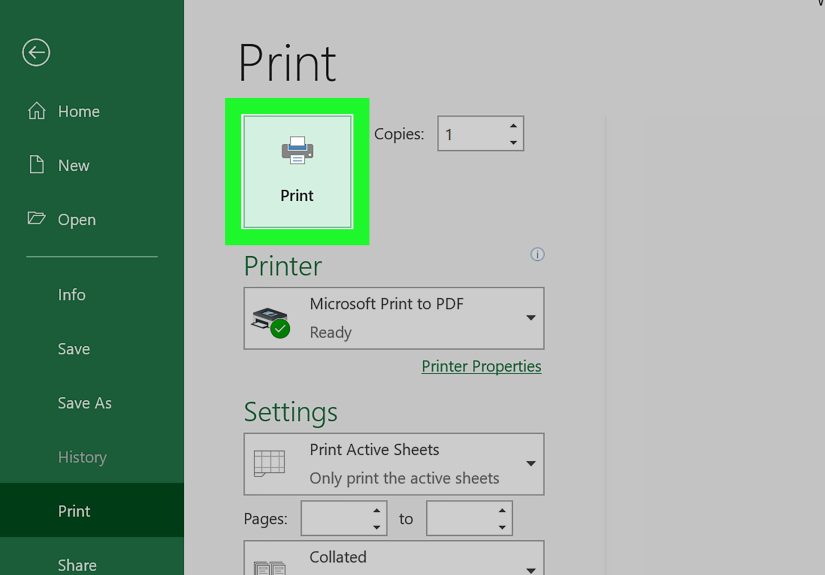
- Choose Print, or go to File > Download > PDF if available in your workflow.
- Adjust print settings such as paper size, orientation, scale, margins, and gridlines.
- Choose whether to export the current sheet, selected cells, or the entire workbook.
- Save the file as a PDF.
This method works well for reports. For example, if you collected feedback after a conference, you could filter responses by session, hide email addresses, create a clean view, and export only the useful columns as a PDF summary.
Which Format Should You Choose: CSV, Sheets, or PDF?
Choosing the right format depends on your goal. Each option has a different job.
Choose CSV If You Want Data Portability
CSV is ideal for backups, data imports, and moving responses into another system. It is lightweight and widely supported, but not visually polished.
Choose Google Sheets If You Want Analysis
Google Sheets is best for sorting, filtering, formulas, charts, and collaboration. If your responses need cleanup or calculations, go to Sheets first.
Choose PDF If You Want a Shareable Record
PDF is best for printing, archiving, emailing, attaching to case files, sending to clients, or preserving a response in a fixed layout.
Common Problems When Downloading Google Form Responses
You Cannot See the Responses Tab
If you cannot see responses, you may not be the form owner or a collaborator with permission. Ask the owner to share edit access with you. View-only access to the public form is not enough.
The PDF Looks Too Wide
If your PDF is cut off or awkwardly stretched, switch the print orientation to landscape, reduce the scale, or export from Google Sheets after hiding unnecessary columns. Long paragraph answers can make table PDFs look like they are trying to escape the page.
The CSV File Opens Weirdly
If your CSV looks messy, open it in Google Sheets instead of a basic text editor. CSV files store data plainly, so spreadsheet software is usually better at displaying rows and columns correctly.
You Downloaded a ZIP File Instead of a CSV
That is normal. Google Forms often downloads responses as a ZIP file containing the CSV. Open or extract the ZIP file, and you will find the response file inside.
Responses Are Still Coming In
If new responses are still arriving, remember that your downloaded CSV or PDF is only a snapshot at the time you created it. For a final archive, stop accepting responses first or note the export date in the file name.
Best Practices Before You Print or Save Responses
1. Review Sensitive Information
Google Form responses may include names, email addresses, phone numbers, student details, medical notes, payment-related information, or private comments. Before sharing a PDF, remove anything the recipient does not need to see.
2. Use Clear File Names
A naming system prevents chaos. Use dates, project names, form names, and respondent names where appropriate. Example: Workshop-Feedback-All-Responses-2026-04-27.pdf.
3. Keep a Raw Backup
Before deleting or heavily editing data, download a CSV backup. A raw backup is your safety net. It is not glamorous, but neither is accidentally deleting 300 customer survey responses.
4. Format Before Exporting
If you are exporting from Sheets, spend two minutes cleaning the layout. Wrap text, resize columns, hide fields you do not need, and check page breaks. Two minutes now can save twenty minutes of squinting later.
5. Test With One Response First
Before exporting a massive PDF, test the process with one individual response or a small page range. This helps you catch formatting problems early.
Example: Saving Job Application Responses as PDFs
Imagine you use Google Forms to collect job applications. Each applicant submits their name, email, phone number, resume link, availability, and answers to short essay questions. You need to send the top 10 applications to a hiring manager.
The cleanest workflow would be:
- Open the form and go to Responses.
- Review submissions in Individual view.
- Save each shortlisted response as a PDF.
- Name each file with the applicant’s name and role.
- Store the PDFs in a secure Drive folder.
- Share the folder only with the hiring team.
This avoids sending a giant spreadsheet full of unnecessary applicant data. It also gives the hiring manager a readable packet for each person.
Example: Exporting Event Registration Responses
Now imagine you are organizing a community workshop. You need to know who registered, what session they chose, and whether they requested lunch. In this case, Google Sheets is probably better than individual PDFs.
You would send responses to Sheets, filter by session, sort by last name, hide irrelevant fields, and export the final attendee list as a PDF. The result is a clean check-in sheet your volunteers can use at the door. No one wants to scroll through a live spreadsheet while 40 people are waiting for name tags.
Can You Automatically Turn Google Form Responses Into PDFs?
Yes, but Google Forms does not provide a full built-in mail-merge PDF generator for every custom workflow. For automation, many users connect Google Forms to Google Sheets, Google Docs templates, Apps Script, or third-party tools that generate PDFs from each new response.
Automation is useful when you need a PDF created every time someone submits a form. Examples include invoices, certificates, contracts, inspection reports, registration confirmations, quote requests, and intake summaries.
For a simple one-time export, use Google Forms or Google Sheets manually. For repeated professional documents, use a template-based workflow. The rule is simple: if you do it once, manual is fine. If you do it every day, automate it before your soul starts making dial-up noises.
Extra Experience: What Actually Works Best in Real Life
After working with Google Forms in practical settings, one thing becomes clear: the best export method is rarely the fanciest one. It is the one that matches how the responses will be used. People often jump straight to “How do I save everything as a PDF?” when what they really need is a clean spreadsheet, a filtered report, or a small set of individual records.
For small forms with fewer than 20 responses, printing all responses from Google Forms is usually quick and painless. The PDF is readable, and you do not need to spend much time formatting. This works well for simple surveys, RSVP lists, parent permission forms, or quick internal polls.
For medium-sized forms, especially those with long answers, Google Sheets becomes more useful. Long paragraph responses can make a direct PDF export bulky. In Sheets, you can wrap text, widen columns, remove timestamp fields, hide internal notes, and create a cleaner final version. This extra formatting step makes the PDF much easier to read.
For large forms with hundreds or thousands of submissions, do not start with PDF. Start with CSV or Sheets. Large PDFs can become slow, hard to search, and unpleasant to print. A spreadsheet lets you filter by date, category, score, department, location, or status. Once you narrow the data, you can export only the section that matters.
Another lesson: always think about privacy before exporting. A Google Form may collect more information than every recipient needs. For example, an event volunteer might need names and meal choices, but not phone numbers. A department manager might need feedback themes, but not respondent emails. Before saving a PDF, remove or hide sensitive columns. This is not just good organization; it is good digital manners.
It also helps to create an “Export View” in Google Sheets. Instead of constantly changing the original response sheet, make a separate tab that pulls in only the columns you want to share. You can use simple formulas or copy the necessary data. Format that tab nicely, then export it as PDF whenever needed. This keeps your raw response data intact while giving you a clean printable version.
For individual PDFs, naming discipline matters more than people expect. A folder full of files called Untitled.pdf, Form Response.pdf, and download (7).pdf is not a system; it is a cry for help. Use consistent names with the date, form topic, and respondent identifier. If you are handling official records, include version numbers or export dates.
One practical trick is to save a PDF immediately after reviewing an important individual response. This is useful for applications, requests, or approvals. Waiting until later may force you to search through dozens of responses again. The Individual response view is convenient, but only if you know which submission you are looking for.
Finally, test your workflow before the deadline. If you are collecting responses for a school event, hiring process, grant application, or client project, submit one fake response and practice exporting it. Check how the PDF looks. Check whether the CSV opens correctly. Check whether the linked Sheet includes every field. A five-minute test can prevent the classic “Why is the printer doing modern art?” crisis.
Conclusion
Downloading Google Form responses is simple once you know which format you need. Use CSV when you want a raw data backup or need to move responses into another tool. Use Google Sheets when you want to sort, filter, calculate, or prepare a clean report. Use PDF when you need a polished, shareable, printable record.
For most users, the best workflow is this: collect responses in Google Forms, send them to Google Sheets for organization, and export or print as PDF only when the data is ready to share. That gives you flexibility, accuracy, and a final document that does not look like it lost a fight with a spreadsheet.
Whether you are managing classroom quizzes, customer feedback, event registrations, job applications, or internal reports, Google Forms gives you enough export options to stay organized. The secret is choosing the right one before you click download.