Table of Contents >> Show >> Hide
- The Fastest Ways to Eject a CD or DVD Tray in Windows 10
- What to Do If the CD or DVD Tray Won’t Open
- Fix 1. Make sure the drive is not busy
- Fix 2. Use the emergency eject hole
- Fix 3. Try File Explorer again after a clean restart
- Fix 4. Reinstall the optical drive in Device Manager
- Fix 5. Check whether the optical drive is detected in BIOS or UEFI
- Fix 6. Update Windows, chipset drivers, and system firmware
- Fix 7. Run the Windows troubleshooter
- Fix 8. Check cables and power on a desktop PC
- Fix 9. Consider a registry repair only as an advanced last resort
- Fix 10. The drive itself may be worn out
- Special Cases You Should Know About
- Quick Troubleshooting Checklist
- Common Mistakes to Avoid
- Real-World Experience: What This Usually Looks Like in Real Life
- Final Takeaway
- SEO Tags
If you still have a PC with an optical drive, congratulations: you are now the proud owner of a tiny time machine. CDs and DVDs may not rule the earth anymore, but they still show up when you need old software, backup discs, music collections, family videos, or that one business archive nobody migrated because “the disc is probably fine.” Then, of course, the tray refuses to open and suddenly your computer feels like it has trust issues.
The good news is that ejecting a CD or DVD tray on Windows 10 is usually easy. The better news is that even when the tray gets stuck, there are several safe fixes before you start poking around like a pirate opening a treasure chest. In this guide, you’ll learn the fastest ways to eject a CD or DVD tray on Windows 10, what to do when the drive won’t open, and how to figure out whether the problem is software, drivers, power, or a mechanical issue.
The Fastest Ways to Eject a CD or DVD Tray in Windows 10
1. Press the physical eject button
Let’s start with the obvious hero of the story: the little eject button on the front of the optical drive. On desktops, it is usually right beside the tray. On laptops, it may be on the side edge of the machine. Press it once and wait a few seconds. If the drive is not busy reading or writing data, the tray should pop open.
This method sounds almost too simple, but it is still the quickest fix. Many people skip it because they assume Windows must do everything. Windows is great, but sometimes a humble button still gets the job done.
2. Use the keyboard eject key, if your PC has one
Some laptops and keyboards include a dedicated disc eject key. It may look like a small triangle over a line, or it may be combined with another function key. On certain laptops, you may need to hold the Fn key while pressing it.
If your computer has this key, try it before moving into deeper troubleshooting. It can trigger the same hardware action as the front-facing eject button without requiring you to lean over your desk like you are trying to negotiate with the machine.
3. Eject the tray from File Explorer
This is the most useful Windows 10 software method, and it works surprisingly often when the physical button does not. Here is the basic path:
- Press Windows + E to open File Explorer.
- Click This PC in the left pane.
- Find your CD/DVD drive under Devices and drives.
- Right-click the drive and choose Eject.
If the tray opens this way, that is a strong clue that the hardware is at least partly functional and the issue may be tied to the physical button, software lockups, or a Windows-side glitch.
4. Restart the PC and try again
If the tray will not open, restart Windows 10 and try the eject button again as soon as the machine comes back up. In some cases, a background app, burning utility, media player, or disc-monitoring process is keeping the drive occupied. A reboot clears that traffic jam.
On some systems, it is also worth trying the eject button during startup before Windows fully loads. If the tray opens before Windows boots but not after you reach the desktop, the problem is often software-related rather than purely mechanical.
What to Do If the CD or DVD Tray Won’t Open
If the easy methods fail, do not panic and absolutely do not attack the drive with a butter knife. There are safer fixes, and they work more often than you might think.
Fix 1. Make sure the drive is not busy
An optical drive may refuse to open if it is still reading, writing, verifying a burned disc, or being accessed by another app. Close anything that could be using the drive, including:
- Media players
- Disc burning software
- Backup tools
- File Explorer windows focused on the disc
- Auto-play or disc utility software
Then wait a few seconds and try again. Some drives simply will not eject during certain activities, which is normal behavior and not always a sign of failure.
Fix 2. Use the emergency eject hole
If your drive uses a traditional tray-loading design, there is often a tiny emergency eject hole on the front panel. This is the classic paper-clip method, and yes, it still works in 2026, just like cargo shorts and arguing about which Windows version was best.
Here is how to do it safely:
- Turn off the computer.
- Straighten a paper clip.
- Locate the small pinhole on the optical drive faceplate.
- Insert the paper clip gently until you feel resistance.
- Push a little farther to trigger the manual release.
- Pull the tray out carefully and remove the disc.
This method is intended for tray-load drives. Not every model has an emergency eject hole, and slot-loading drives usually do not. If your laptop or external drive has no tray and simply swallows the disc, skip this method.
Fix 3. Try File Explorer again after a clean restart
After restarting Windows 10, go back to This PC and use the Eject command again. This is a smart test because it tells you whether the drive responds to the operating system even if the front button still acts like it is on vacation.
If Windows can eject the disc but the physical button cannot, the tray motor may still be healthy, and the failure may be tied to the button, the faceplate, or the drive’s control behavior inside Windows.
Fix 4. Reinstall the optical drive in Device Manager
One of the most common Windows 10 fixes for an optical drive that will not behave normally is to uninstall the drive in Device Manager and let Windows reinstall it after a reboot. The nice part is that most optical drive support is built into Windows, so you usually do not need a special driver disc from the stone age.
- Right-click the Start button and open Device Manager.
- Expand DVD/CD-ROM drives.
- Right-click your optical drive and choose Uninstall device.
- Restart the computer.
When Windows starts again, it should detect the drive and reinstall the necessary driver automatically. If the tray starts working after this step, you were likely dealing with a Windows or driver-level problem, not a dead drive.
Fix 5. Check whether the optical drive is detected in BIOS or UEFI
If the drive is missing in Windows entirely, you need to determine whether this is a Windows problem or a hardware connection problem. That is where BIOS or UEFI comes in.
Restart the PC and enter BIOS or UEFI setup, usually by pressing a key like F2, Delete, or another manufacturer-specific key during startup. If the optical drive appears there, the hardware is at least being seen by the system board. If it does not appear at all, the issue may be a loose cable, failed port, failed drive, or a disabled setting.
This step matters because it stops you from wasting an hour troubleshooting Windows when the real issue is physical hardware.
Fix 6. Update Windows, chipset drivers, and system firmware
If your drive appears in Windows but acts strange, updating the system can help. That includes:
- Running Windows Update
- Installing the latest chipset and storage drivers from your PC maker
- Updating BIOS or UEFI if the manufacturer recommends it
Optical drives do not usually need separate custom drivers, but the system around them does matter. Storage controller issues, chipset bugs, and firmware quirks can affect how the drive responds to eject commands.
Fix 7. Run the Windows troubleshooter
Windows 10 includes troubleshooting tools that can catch basic device issues. If the drive is detected but unreliable, open:
Settings > Update & Security > Troubleshoot
Then run the hardware-related troubleshooter if it is available on your build. This is not magic, but it can repair small configuration problems without much effort.
Fix 8. Check cables and power on a desktop PC
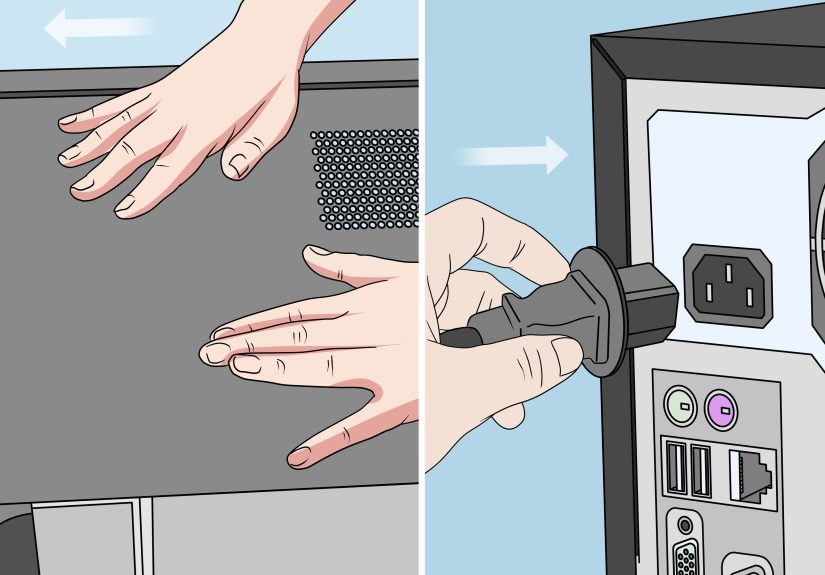
If you are using a desktop with an internal optical drive, shut down the PC and check the power cable and SATA data cable going into the drive. A drive may appear flaky, fail to eject, or vanish from Windows if either cable is loose.
For an external USB DVD drive, try a different USB port, avoid weak hubs, and if the drive has a separate power input, make sure it is actually receiving enough power. External drives are convenient, but they can be drama queens about cables.
Fix 9. Consider a registry repair only as an advanced last resort
Sometimes corrupted Windows registry entries related to optical drives can prevent the drive from working properly. Advanced Microsoft troubleshooting includes removing problematic filter entries in the registry. That can help in stubborn cases where the drive is detected incorrectly or throws device errors.
That said, editing the registry is not where you should begin. If you are not comfortable with it, skip this step or have a knowledgeable person handle it. A stuck disc is annoying. A broken Windows install is a much bigger plot twist.
Fix 10. The drive itself may be worn out
If none of the above works, the problem may be mechanical. Optical drives can fail because of worn tray belts, weak motors, broken eject buttons, jammed faceplates, or internal damage. If you find yourself doing the paper-clip trick regularly, that is your clue that the drive is not merely “quirky.” It is probably nearing retirement.
Special Cases You Should Know About
External USB optical drives
With an external DVD or CD drive, always test another USB port and cable if the tray will not respond. On low-power ports, the drive may light up but still behave badly. That makes it look alive while refusing to cooperate, which is honestly the most irritating kind of broken.
Slot-loading drives
Some slim laptops and specialty drives do not have a tray at all. They pull the disc in through a slot. These drives usually do not have the classic emergency eject pinhole, and there is no tray to grab. If a slot-loading drive will not eject, rely on Windows methods, a reboot, and manufacturer support steps before trying anything physical.
No Eject option in File Explorer
If you do not see an Eject option when right-clicking the drive, Windows may not be recognizing it correctly. At that point, go back to Device Manager, confirm the drive appears under DVD/CD-ROM drives, and consider the uninstall-and-restart fix.
Quick Troubleshooting Checklist
- Press the physical eject button.
- Try the keyboard eject key.
- Use File Explorer > This PC > right-click drive > Eject.
- Restart Windows 10 and try again.
- Close apps that may be using the disc.
- Use the emergency eject hole if your drive has one.
- Reinstall the drive in Device Manager.
- Check BIOS or UEFI detection.
- Inspect cables or USB power.
- Replace the drive if the mechanism is clearly failing.
Common Mistakes to Avoid
First, do not force the tray open with metal tools other than a paper clip in the proper emergency eject hole. Prying the tray itself can bend the mechanism and turn a temporary problem into permanent damage.
Second, do not keep hammering the eject button while the drive is reading or burning a disc. That is like repeatedly pressing an elevator button when the elevator is already on the way. It does not help, and it mainly communicates stress.
Third, do not assume the optical drive needs a fancy custom driver download. In many Windows 10 cases, uninstalling the device and restarting is the correct move because Windows already includes the needed driver support.
Real-World Experience: What This Usually Looks Like in Real Life
In real-world use, optical drive issues are almost never as dramatic as they feel in the moment. Most of the time, the tray does not open because of one of three boring reasons: Windows is still using the disc, the drive briefly glitched, or the hardware is getting old. The trick is figuring out which one you are dealing with before you turn a five-minute annoyance into a two-hour repair project.
A very common scenario goes like this: someone inserts a DVD, watches or copies a few files, closes the player, and assumes the drive is free. Then they press the eject button and nothing happens. The first thought is usually, “Great, the drive is dead.” But after a restart, the tray pops open instantly. That tells you the problem was not a broken tray at all. Something in Windows was still holding the drive busy. Media players, burning apps, backup software, and even File Explorer previews can sometimes keep the drive engaged longer than expected.
Another familiar case happens on older laptops. The button lights up, you hear a faint whirring sound, and the tray moves maybe one millimeter before giving up. That is often a sign of a weak tray belt or a tired eject mechanism. In those situations, the emergency paper-clip method works, but only temporarily. If you have to do it once every few months, you can live with it. If you have to do it every Tuesday, the drive is politely asking to be replaced.
Desktop systems introduce another flavor of weirdness. Sometimes the drive shows in Windows, reads discs fine, but refuses to open from the button. That can point to a sticky front panel door, a loose SATA power connection, or a misaligned drive behind the case bezel. People often blame Windows first, but desktop optical drives can fail in gloriously physical ways. If the drive works in BIOS or before Windows loads, however, that nudges the diagnosis back toward software rather than raw hardware.
External USB DVD drives are their own special comedy. They are portable, affordable, and somehow always connected to the one USB port that cannot provide enough power at the worst possible time. The drive lights up, you think everything is fine, but the tray will not open or the disc keeps spinning without ejecting. Move the cable to a different port, skip the unpowered hub, and suddenly the drive behaves like nothing ever happened. It is maddening, but it is common.
The most useful habit, in my experience, is to test from easiest to most invasive. Start with the button. Then use File Explorer. Then restart. Then try the emergency eject hole if your drive has one. After that, move into Device Manager and BIOS checks. That order matters because it helps you identify the kind of failure you are dealing with. If Windows can still eject the drive, the mechanism probably is not dead. If nothing works and the drive is missing everywhere, hardware becomes the prime suspect.
And that is really the main lesson: an optical drive problem feels mysterious until you break it into stages. Once you do, the issue usually reveals itself pretty quickly. Either Windows is confused, the drive is busy, or the hardware has simply reached the age where it would rather be left alone with its memories.
Final Takeaway
If you need to eject a CD or DVD tray on Windows 10, start simple: use the physical eject button, the keyboard eject key, or the Eject command in File Explorer. If the tray will not open, restart the PC, close any app using the disc, try the emergency eject hole on tray-loading drives, and reinstall the device through Device Manager. If the drive is missing in Windows entirely, check BIOS or UEFI, inspect cables, and prepare for the possibility of a failing optical drive.
In other words, do not assume the worst just because the tray is being stubborn. Sometimes it needs a restart. Sometimes it needs a paper clip. Sometimes it needs retirement. Computers, like people, are complicated.