Table of Contents >> Show >> Hide
- Why Ejecting a PS5 Disc Can Feel Weird at First
- Method 1: Use the Physical Eject Button
- Method 2: Eject the Disc from the PS5 Menu
- Method 3: Manually Eject a Stuck PS5 Disc
- What to Do If Your PS5 Disc Still Won’t Eject
- Common PS5 Disc Eject Mistakes to Avoid
- PS5 Disc Model vs. Digital Edition: Know the Difference
- Final Thoughts
- Player Experiences and Real-World Situations
- SEO Tags
If you’ve ever stood in front of your PlayStation 5 squinting at the glossy black strip and wondering which tiny button is supposed to save your game disc, welcome to the club. Sony made the PS5 sleek, futuristic, and just a little too committed to the “minimalist mystery box” aesthetic. The good news is that ejecting a PS5 disc is usually simple once you know where to look.
Whether you want to swap games, remove a movie, or rescue a disc that suddenly decided it pays rent and never wants to leave, there are three reliable ways to get it out. You can use the physical eject button, use the on-screen menu with your controller, or manually eject the disc if it gets stuck. This guide walks through all three methods in plain English, with practical troubleshooting tips and a few sanity-saving reminders along the way.
One quick note before we begin: this article applies to PS5 systems that have a disc drive installed. If you have a PS5 Digital Edition with no disc drive attached, there is no disc to eject and no physical eject button to press. That sounds obvious, but when panic enters the chat, logic sometimes leaves the room.
Why Ejecting a PS5 Disc Can Feel Weird at First
The PS5 isn’t difficult to use, but it is unusually subtle. The front buttons are slim, low-profile, and easy to miss. Depending on whether your console is vertical or horizontal, the button placement can feel even less obvious. Add in a drive that occasionally gets noisy during install or a menu option that many owners never notice, and it’s easy to see why this simple task becomes a mini side quest.
That’s why knowing all three methods matters. Method one is best for everyday use. Method two is great when you don’t feel like touching the console or keep mixing up the buttons. Method three is the emergency backup plan for a stuck PS5 disc that refuses to come out politely.
Method 1: Use the Physical Eject Button
Where the PS5 Eject Button Is
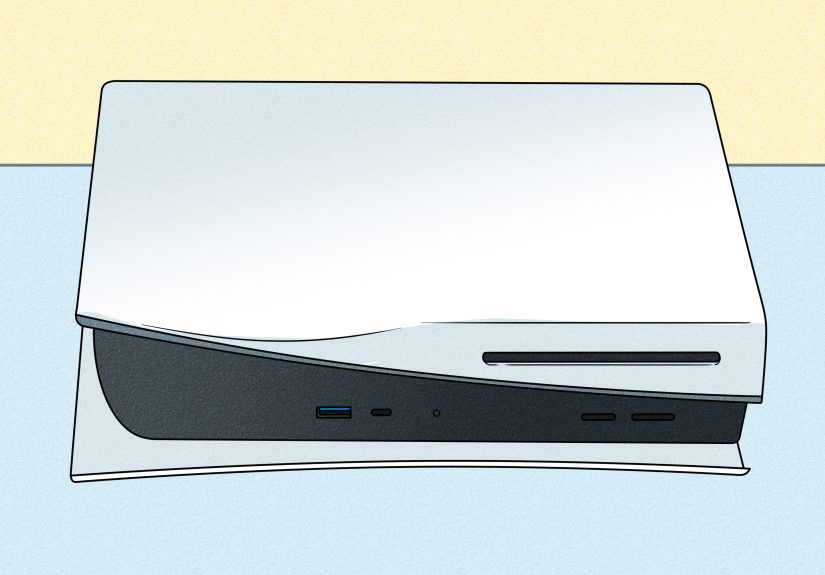
On a disc-drive PS5, the eject button is one of the two slim buttons on the front of the console. It sits next to the power button and is the one associated with the disc drive. If you keep accidentally hitting the wrong one, you are not alone. The easiest way to remember it is this: the eject button is the one closest to the disc drive.
If your PS5 is standing vertically, look closely at the front black center strip near the lower half of the console. If it’s horizontal, the same two buttons are still there, just rotated with the system. In dim lighting, they can be surprisingly hard to spot. This is one of those rare moments when a flashlight is not overkill.
How to Eject a Disc with the Button
- Make sure your PS5 is turned on or fully awake.
- Locate the eject button on the front of the console.
- Press it once firmly.
- Wait a second or two for the disc to slide out.
- Remove the disc gently by the edges.
That’s it. No menus. No controller gymnastics. No spiritual journey.
When This Method Works Best
This is the fastest everyday option when the disc drive is functioning normally. It’s especially useful if you’re swapping between physical games often. If the drive sounds normal and the console responds, the eject button should be your default move.
Still, if pressing the button does nothing, don’t jab it repeatedly like you’re trying to win a game show. Move on to the next method first. If the system still won’t cooperate, then it’s time for the manual eject process.
Method 2: Eject the Disc from the PS5 Menu
How to Eject a PS5 Disc with the Controller
This method is perfect when you don’t want to touch the console, you’re sitting across the room, or you can never remember which little button does what. The PS5 software includes an eject option in the game tile menu.
- Go to the PS5 home screen.
- Highlight the game or media tile for the disc currently in the console.
- Press the Options button on your DualSense controller.
- Select Eject Disc from the menu.
- Wait for the disc to slide out, then remove it carefully.
If you didn’t know this feature existed, congratulations: you have just unlocked one of the most useful PS5 shortcuts that somehow lives in hiding. It’s simple, clean, and especially handy if your console is tucked into a cabinet where reaching the front buttons feels like yoga.
Why the Menu Method Is So Useful
Using the software option reduces button confusion and helps when the eject button is hard to see. It also feels a little more elegant, like the console is helping instead of making you solve a visual puzzle every time you want to play something else.
That said, the menu method depends on your PS5 actually recognizing the inserted disc and responding normally. If the console is frozen, the disc is jammed, or the drive is malfunctioning, the on-screen option may not do anything. That’s when the third method matters most.
Method 3: Manually Eject a Stuck PS5 Disc
Use This Only If the Disc Will Not Come Out Normally
If the physical button doesn’t work and the on-screen eject option fails too, your PS5 disc may be stuck. This is the emergency method Sony provides for getting the disc out safely. It takes a little more effort, but it’s still manageable if you go slowly and follow the steps carefully.
Before you start, do not keep forcing the drive, do not yank the disc, and do not turn the console on with the cover removed. This is a calm, patient process. Think less “wrestling match,” more “tiny repair mission.”
What You’ll Need
- A soft cloth or towel
- A clean, flat work surface
- A #1 Phillips or similar cross-head screwdriver
- Good lighting
How to Manually Eject a Stuck Disc from a PS5
- Turn off your PS5 completely. Do not leave it in Rest Mode.
- Unplug the power cable and disconnect any other attached cables or accessories.
- Let the console cool down if it has been running.
- Place the PS5 on a soft cloth on a stable surface.
- Remove the base or stand if needed.
- Remove the console cover on the disc drive side.
- Locate the manual eject mechanism near the optical drive.
- If there is a thin plastic film covering the screw area, move it aside or carefully push through it as instructed for your model.
- Use the screwdriver to turn the manual eject screw clockwise until the disc becomes visible.
- Gently pull the disc out by its edges. Do not force it.
- Reattach the cover and base.
- Reconnect the cables and power the PS5 back on.
The biggest mistake people make here is rushing. If the disc is only slightly visible, keep turning the screw until enough of the disc is exposed to remove it safely. Pulling too early is a great way to turn a stuck-disc problem into a scratched-disc problem.
Why Manual Eject Matters
This method exists because disc drives are still mechanical devices, and mechanical devices occasionally decide to be dramatic. A software glitch, a misfed disc, or a drive issue can stop normal ejection. Manual eject is your safety net. It is not something you should need every week, but it is absolutely worth knowing before the day comes when your favorite game gets trapped inside the console like it’s auditioning for a prison movie.
What to Do If Your PS5 Disc Still Won’t Eject
If none of the three methods solve the problem, the issue may be bigger than a routine jam. At that point, start with basic troubleshooting before assuming the drive is dead.
1. Restart the Console
A normal restart can clear a temporary software hiccup. If the system was acting strangely, freezing, or refusing to recognize the disc, a reboot may restore normal drive behavior.
2. Check the Disc Itself
Take a close look at the disc after removal. Dirt, fingerprints, and scratches can all cause drive issues. Clean the disc gently with a dry microfiber cloth, wiping from the center outward rather than in circles. If one disc causes problems and another works fine, the disc may be the real villain.
3. Make Sure You Insert Discs the Right Way
On PS5 systems with a disc drive, the label side of the disc should face the side with the power and eject buttons. This is one of the most common mistakes, especially when the console is vertical. It feels backward to many people the first time, so don’t feel bad if your first attempt had “confused caveman discovers technology” energy.
4. Try Another Disc
Testing a second disc helps you figure out whether the problem is with the media or the drive. If your PS5 handles other discs normally, your original disc is probably damaged or dirty.
5. Update System Software
If your drive behavior has become inconsistent, make sure the PS5 system software is up to date. Disc problems are often hardware-related, but software glitches can also interfere with normal reading and ejection behavior.
6. Consider Safe Mode Restart
If the drive is acting up after crashes or boot problems, restarting the PS5 in Safe Mode and selecting the standard restart option can help clear temporary system-level issues. It’s not a magic wand, but it’s a smart troubleshooting step before you assume the worst.
7. Contact PlayStation Support
If the disc keeps getting stuck, the drive makes harsh mechanical noises, or the console repeatedly fails to read and eject discs, it may need service. That is especially true if the unit is under warranty. Repeating manual fixes over and over is not a long-term strategy. At some point, the wise move is to let trained repair techs handle the hardware.
Common PS5 Disc Eject Mistakes to Avoid
- Do not unplug the console while it is still on. Wait until the power indicator is fully off.
- Do not force the disc out. Gentle removal is the goal.
- Do not keep pressing eject repeatedly. That can make a simple issue feel worse.
- Do not power on the PS5 with the cover off. Finish the manual eject process first, then reassemble.
- Do not ignore repeated disc issues. If it keeps happening, something deeper may be wrong.
PS5 Disc Model vs. Digital Edition: Know the Difference
This part is quick but important. A standard PS5 with a disc drive has an eject button and can use all three methods in this guide. A Digital Edition console without a disc drive does not. On newer PS5 hardware that supports an attachable disc drive, the same general logic still applies: if there is a working drive installed, you can eject a disc; if there is no drive, there is nothing to eject.
That sounds obvious, but plenty of search traffic comes from people trying to solve the wrong problem. Sometimes the issue is not “How do I eject a PS5 disc?” It’s actually “Wait, I bought the model without a drive.” That realization can be expensive, so it’s better to know up front.
Final Thoughts
If you just want the simplest answer, here it is: press the eject button on the front of the console. If you prefer using the controller, highlight the game tile, press Options, and select Eject Disc. If the disc is stuck, fully power down the console and use the manual eject screw method carefully.
In other words, the PS5 gives you a fast method, a convenient method, and an emergency method. Once you know all three, swapping games feels a lot less mysterious and a lot more normal. And that’s probably for the best, because a console should challenge you with boss fights, not with finding the eject button.
Player Experiences and Real-World Situations
A lot of people only search for how to eject a PS5 disc after something mildly ridiculous happens. Usually, it starts with a normal evening: one game finishes installing, somebody decides to watch a movie, or a friend brings over a disc-based game and the quick swap should take five seconds. Then the disc does not come out, the front buttons suddenly become invisible, and the whole room falls silent in that very specific way that says, “Please don’t let this console be broken.”
One of the most common experiences is simple button confusion. Owners press the power button instead of eject, the console beeps, and now everybody is annoyed before the real problem has even started. This happens a lot more than people admit. The PS5 looks great on a shelf, but its front buttons are not exactly loud and proud. They’re more like shy interns standing in the corner at the office party.
Another common situation happens when the console is vertical. A player inserts a disc the wrong way, the system doesn’t read it properly, and then they begin to wonder whether the drive is failing. In many cases, the console is fine; the disc orientation was just wrong. The label side needs to face the side with the power and eject buttons, but that can feel counterintuitive when you’re used to other consoles or standard media players. Plenty of perfectly smart people get tripped up by this, then feel deeply betrayed by geometry.
There are also those cases where the menu method becomes the hero. Some owners stop using the physical eject button almost entirely once they discover the on-screen option. It’s especially helpful for setups where the console is tucked behind a TV, inside a media cabinet, or placed low enough that bending down every time starts to feel like part of a workout routine. For them, pressing Options and choosing Eject Disc becomes the best habit because it cuts out the guesswork.
The more stressful stories usually involve a disc that seems stuck after a crash, a loud clicking sound, or a drive that starts acting weird during an install. That’s where the manual eject method earns its reputation. People are often nervous about opening a cover panel for the first time, but once they work slowly, use a soft surface, and follow the steps carefully, many realize it’s less terrifying than it sounds. The biggest surprise is usually not the screw itself. It’s how much confidence comes back once the disc is safely out and the console is reassembled.
What these real-world situations have in common is that the problem often feels bigger than it is. A stuck disc can make you think the entire PS5 is doomed, when sometimes the fix is just the controller menu, a proper restart, or a careful manual eject. Knowing the three methods ahead of time changes the experience completely. Instead of panicking, you troubleshoot. Instead of forcing the drive, you stay calm. And instead of treating the console like a cursed artifact, you handle it like what it really is: a piece of hardware that occasionally needs a little patience and a slightly less dramatic user.