Table of Contents >> Show >> Hide
- Why Fortnite Lags Even When Your Internet Is Fast
- Step 1: Turn On Net Debug Stats in Fortnite
- Step 2: Check Fortnite Server Status First
- Step 3: Use the Best Fortnite Matchmaking Region
- Step 4: Switch From Wi-Fi to Ethernet
- Step 5: Restart Your Modem, Router, and Platform
- Step 6: Stop Background Downloads and Streaming
- Step 7: Fix Bufferbloat on Fast Internet
- Step 8: Update Fortnite, Your Platform, and Your Router
- How to Fix Fortnite Lag on PC
- How to Fix Fortnite Lag on PlayStation PS5 and PS4
- How to Fix Fortnite Lag on Xbox Series X, Series S, and Xbox One
- How to Fix Fortnite Lag on Nintendo Switch and Switch 2
- How to Fix Fortnite Lag on Android, iPhone, and iPad
- How to Fix Fortnite Lag on Cloud Gaming
- Should You Change DNS to Fix Fortnite Lag?
- Router Settings That Can Help Fortnite Lag
- Fortnite Lag Fix Checklist for All Platforms
- When to Contact Your ISP
- Real-World Experience: What Usually Fixes Fortnite Lag With Good Internet
- Conclusion
- SEO Tags
You have fast internet. The speed test looks beautiful. Your download number is flexing like it just won a Victory Royale. And yet Fortnite still feels like your character is trying to build through peanut butter. Shots register late, enemies teleport, edits feel sticky, and your perfect peek turns into a free elimination for someone named “xXCrankLordXx.”
Here is the annoying truth: Fortnite lag with good internet is extremely common because “good internet” does not always mean “good gaming connection.” A 500 Mbps plan can still suffer from high ping, packet loss, jitter, Wi-Fi interference, overloaded routers, background downloads, bad server routing, low FPS, input delay, or platform-specific settings. Fortnite is not just asking for speed. It wants stability, low latency, clean packet delivery, and hardware that can keep up.
This guide explains how to fix Fortnite lag on PC, PlayStation, Xbox, Nintendo Switch, Android, iPhone, iPad, and cloud gaming platforms. We will separate real network lag from FPS drops and input delay, then walk through practical fixes that actually make sense. No magic “zero ping” fairy dust. Just real troubleshooting, minus the tech headache.
Why Fortnite Lags Even When Your Internet Is Fast
Before changing settings randomly like a raccoon in a server room, identify the type of lag you are dealing with. Fortnite problems usually fall into four categories: high ping, packet loss, jitter, and low FPS. They can look similar, but they have different causes.
High Ping
Ping is the time it takes for your device to send data to Fortnite servers and receive a response. Lower is better. A player with 20 ms ping will usually feel more responsive than a player with 90 ms ping, even if both have fast download speeds. High ping causes delayed building, late edits, delayed weapon swaps, and that classic “I swear I was behind the wall” moment.
Packet Loss
Packet loss happens when small pieces of data fail to reach the server or return to your device. This can make players rubber-band, freeze, teleport, or miss shots that visually looked perfect. Packet loss is one of the biggest reasons Fortnite feels broken even when your speed test says everything is fine.
Jitter
Jitter is unstable ping. For example, your connection may bounce from 25 ms to 110 ms, then back to 30 ms. Fortnite dislikes that emotional roller coaster. Jitter usually comes from Wi-Fi interference, router overload, congestion, or unstable ISP routing.
Low FPS or Input Delay
Sometimes the internet is innocent. If your frame rate drops from 120 FPS to 45 FPS during fights, the game will feel laggy even if your ping is perfect. Input delay can also come from controller settings, TV display mode, overloaded hardware, V-Sync, background apps, or cloud gaming latency.
Step 1: Turn On Net Debug Stats in Fortnite
The first fix is not really a fix. It is detective work. Fortnite has a built-in network display that shows ping and packet loss during a match. Turn it on before you start changing routers, cables, DNS settings, and your entire personality.
How to Enable Net Debug Stats
- Open Fortnite.
- Select your player icon.
- Go to Settings.
- Open the Game UI tab.
- Find Net Debug Stats.
- Turn it on and apply the change.
- Start a real match and watch the numbers.
If your ping is stable but FPS drops, you likely have a performance problem. If ping spikes or packet loss appears, you have a network problem. If both happen, congratulations, Fortnite has chosen chaos today.
Step 2: Check Fortnite Server Status First
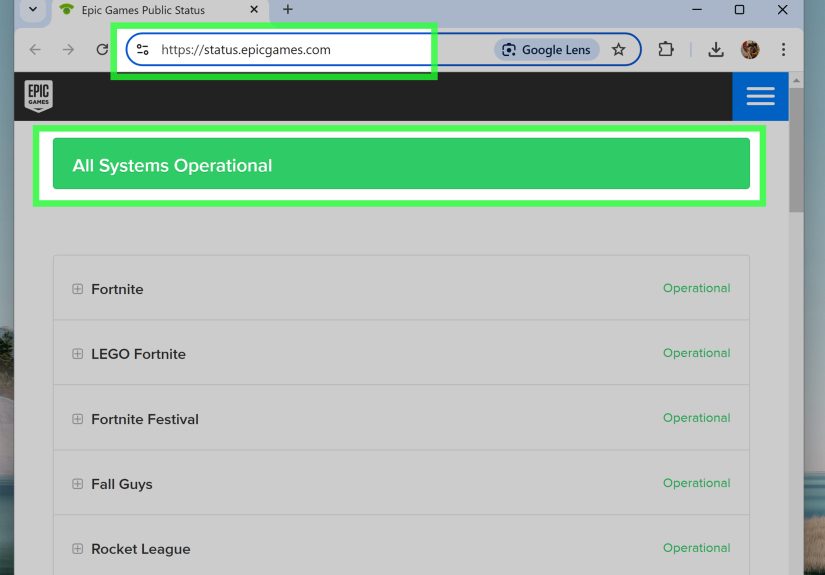
When Fortnite servers are having login, matchmaking, or connection issues, no home fix will save you. You can restart your router, pray to the Ethernet gods, and move your console three inches to the left, but server outages are outside your control.
Before deep troubleshooting, check whether Epic Games services are operational. If matchmaking, login, parties, or Fortnite services are degraded, wait until the issue is resolved. This is especially important after major updates, live events, new seasons, or big collaborations when half the planet seems to log in at once.
Step 3: Use the Best Fortnite Matchmaking Region
Fortnite lets you choose a matchmaking region. The default Auto option usually selects the region with the best ping, but it is still worth checking manually when lag appears out of nowhere.
How to Change Matchmaking Region
- Open Fortnite settings.
- Go to the Game tab.
- Find Matchmaking Region.
- Compare the ping number shown next to each region.
- Select Auto or the region with the lowest stable ping.
- Apply the settings.
For example, a player in the eastern United States should usually not be on Asia or Oceania servers unless they enjoy building one wall per calendar year. If you squad up with friends across the world, the party may end up on a region that is not ideal for everyone. Cross-region play is fun socially, but your ping may become the emotional support animal of the lobby.
Step 4: Switch From Wi-Fi to Ethernet
If you are serious about fixing Fortnite lag, Ethernet is the boring answer that works. Wi-Fi is convenient, but it is also vulnerable to walls, distance, interference, crowded channels, microwave ovens, Bluetooth devices, neighboring networks, and routers hidden in cabinets like forbidden treasure.
Use a wired Ethernet connection whenever possible on PC, PlayStation, Xbox, and Nintendo Switch with a compatible adapter if needed. A wired connection usually reduces packet loss and ping spikes because your game traffic is not fighting through the invisible soup of wireless interference.
If You Must Use Wi-Fi
- Use 5 GHz or 6 GHz Wi-Fi when you are close to the router.
- Use 2.4 GHz only when you need longer range and can tolerate more congestion.
- Move your router into an open area, not a closet, basement, drawer, or behind a fish tank.
- Keep your console or PC away from thick walls and metal objects.
- Restart your router weekly if it gets unstable.
- Update router firmware through the router admin app or web interface.
Small placement changes can matter. A router sitting on the floor behind a TV is basically asking Fortnite to perform parkour before every packet arrives.
Step 5: Restart Your Modem, Router, and Platform
The classic “turn it off and on again” fix is overused because it often works. Routers and modems can hold temporary errors, memory leaks, bad routing states, or stale connections. Restarting gives the network a clean start.
Proper Restart Method
- Shut down Fortnite completely.
- Turn off your PC, console, or mobile device.
- Unplug your modem and router from power.
- Wait at least 30 seconds.
- Plug in the modem first and wait until it is fully online.
- Plug in the router and wait for Wi-Fi or Ethernet to return.
- Turn your gaming device back on and test Fortnite again.
This will not fix a bad ISP route or weak hardware, but it can clear random lag spikes that appear after days of continuous uptime.
Step 6: Stop Background Downloads and Streaming
Your internet can be fast and still lag when someone is uploading videos, syncing cloud files, downloading game updates, streaming 4K movies, or backing up a phone. Fortnite does not need massive bandwidth, but it does need priority. When your router is overloaded, your tiny gaming packets get stuck behind giant downloads like a motorcycle trapped behind a moving truck.
Things to Pause Before Playing
- Game updates on Steam, Epic Games Launcher, PlayStation, Xbox, or Nintendo Switch.
- Windows Update and Delivery Optimization downloads.
- Cloud backup apps such as OneDrive, Google Drive, iCloud, or Dropbox.
- Large uploads to YouTube, TikTok, or cloud storage.
- 4K streaming on TVs in the same home.
- VPNs or browser downloads running in the background.
If lag happens only when other people are using the internet, look into your router’s Quality of Service settings. QoS can prioritize gaming traffic or limit heavy devices so Fortnite is not forced to wrestle Netflix for oxygen.
Step 7: Fix Bufferbloat on Fast Internet
Bufferbloat is one of the sneakiest reasons Fortnite lags with good internet. It happens when your router or modem queues too much data during heavy downloads or uploads. Your speed remains high, but latency shoots up under load. That is why your speed test can look impressive while Fortnite feels like it is being played by mail.
How to Reduce Bufferbloat
- Enable Smart Queue Management, SQM, QoS, or “gaming mode” on your router if available.
- Limit upload-heavy tasks while playing.
- Avoid saturating your upload speed with livestreaming or cloud backups.
- Consider a router known for good latency management.
- Place bandwidth limits on devices that constantly download or upload.
Upload congestion is especially painful. Even a small upload maxing out your connection can cause Fortnite ping spikes. If you stream while playing, lower your bitrate and test again.
Step 8: Update Fortnite, Your Platform, and Your Router
Outdated software can cause performance issues, network bugs, crashes, and strange compatibility problems. Keep everything updated before assuming your connection is haunted.
Update Checklist
- Update Fortnite through Epic Games Launcher, PlayStation, Xbox, Nintendo, Google Play, or Epic Games Store mobile.
- Update your console system software.
- Update Windows and graphics drivers on PC.
- Update Android or iOS when compatible updates are available.
- Update router firmware.
- Restart your device after major updates.
PC players should pay special attention to GPU drivers. NVIDIA, AMD, and Intel driver updates often include game fixes and performance improvements. If Fortnite suddenly starts stuttering after a driver update, try a clean driver installation or roll back to a stable version.
How to Fix Fortnite Lag on PC
PC gives you the most control, which is great until you realize that also means there are 47 places where something can go wrong. Start with the basics: verify game files, reduce background apps, optimize graphics settings, and check Windows gaming options.
Verify Fortnite Game Files
Open the Epic Games Launcher, go to your library, select Fortnite, and use the verify option. This checks for missing or damaged files. Corrupt files can cause stutters, crashes, long loading, and strange behavior.
Use Performance Mode
Fortnite Performance Mode can improve frame rate on lower-end systems by reducing graphical load. In Fortnite, open settings, go to the video tab, find rendering mode, select Performance, apply changes, and restart the game. It will not reduce network ping, but it can make the game feel smoother if your system is struggling.
Lower Graphics Settings
For competitive play, use practical settings instead of cinematic eye candy. Lower shadows, effects, post-processing, and view distance if your FPS drops during fights. Turn off motion blur. Use full-screen mode when stable. Cap FPS to a number your system can hold consistently, such as 120, 144, or 165 FPS, instead of chasing unstable peaks.
Change Windows Performance Settings
- Turn on Game Mode.
- Set Fortnite to High Performance in Windows graphics settings.
- Turn on Hardware-accelerated GPU scheduling if your system supports it and it improves stability.
- Use the High Performance or Best Performance power plan.
- Turn off Windows Delivery Optimization downloads while gaming.
- Close unnecessary startup programs and overlays.
Disable Heavy Overlays
Discord overlay, browser overlays, recording tools, RGB software, performance monitors, and capture apps can sometimes cause stutter. Keep the tools you need, but do not run five overlays just to tell you your game is struggling. The game already knows. It is screaming.
Try the Packet Loss Command Line Option
If Fortnite shows packet loss on PC, Epic provides an additional command line option called -limitclientticks. You can add it in the Epic Games Launcher under Fortnite’s additional command line arguments. This is not a universal miracle, but it may help certain packet loss situations by throttling network updates.
How to Fix Fortnite Lag on PlayStation PS5 and PS4
On PlayStation, start with the network test and system update. Then focus on wired connection, display settings, storage, and background downloads.
PlayStation Fixes
- Use Ethernet instead of Wi-Fi when possible.
- Go to network settings and test your internet connection.
- Update PS5 or PS4 system software.
- Pause downloads and game updates while playing.
- Restart the console and router.
- Use Game Mode on your TV to reduce input delay.
- Make sure Fortnite is installed on fast internal storage when available.
If your ping is fine but the game feels delayed, check your TV. Many TVs add input lag when not in Game Mode. Your internet cannot fix a television that is processing your shotgun shot like it is producing a Hollywood film.
How to Fix Fortnite Lag on Xbox Series X, Series S, and Xbox One
Xbox consoles include useful network statistics. Use them. Go to network settings and run the speed and statistics test. Look for latency and packet loss, not just download speed.
Xbox Fixes
- Use a wired Ethernet connection.
- Run Test network speed & statistics.
- Aim for 0% packet loss.
- Restart your console, modem, and router.
- Pause downloads from the queue.
- Update the console system software.
- Check NAT type and multiplayer connection status.
- Clear alternate MAC address only if standard network troubleshooting fails.
If Xbox reports packet loss while other devices seem fine, test another game and check Xbox network status. Sometimes platform services or routing issues can create problems that do not appear in a normal speed test.
How to Fix Fortnite Lag on Nintendo Switch and Switch 2
Fortnite on Nintendo Switch is more limited by hardware than PC, PS5, or Xbox Series X. That means you may notice lower frame rates even when your internet is stable. Still, connection quality matters.
Nintendo Switch Fixes
- Use a wired LAN adapter when docked.
- Run the Switch internet connection test.
- Check NAT type if you have connection problems.
- Move closer to the router if using Wi-Fi.
- Use 5 GHz Wi-Fi when close enough.
- Restart the console and router.
- Close other software before launching Fortnite.
- Keep the console updated.
Strict NAT can prevent smooth online play or make it harder to connect with other players. If NAT issues persist, review router UPnP settings or ask your ISP whether your connection uses carrier-grade NAT, which can complicate multiplayer connections.
How to Fix Fortnite Lag on Android, iPhone, and iPad
Mobile Fortnite lag is often a mix of Wi-Fi instability, heat, battery-saving settings, background apps, and device performance. Phones and tablets also throttle when they get hot, which can turn smooth gameplay into a slideshow with ambition.
Mobile Fixes
- Use strong Wi-Fi instead of weak cellular data when possible.
- Move closer to the router.
- Close background apps before launching Fortnite.
- Disable battery saver or low power mode while playing.
- Keep the device cool and remove thick cases during long sessions.
- Update Fortnite and your operating system.
- Lower graphics and frame rate settings if the device overheats.
- Use official app sources only, such as Epic Games Store mobile or Google Play where available.
If you play through cloud gaming on mobile, your connection needs to handle both game streaming and input response. Use 5 GHz Wi-Fi, avoid crowded networks, and keep Bluetooth controller distance short to reduce delay.
How to Fix Fortnite Lag on Cloud Gaming
Cloud gaming is different because Fortnite runs on a remote server and streams video to your screen. That means you are not only sending inputs; you are receiving a live video feed. Lag can come from Wi-Fi, streaming quality, controller delay, cloud server distance, or network congestion.
Cloud Gaming Fixes
- Use 5 GHz or 6 GHz Wi-Fi, or Ethernet if your device supports it.
- Sit close to the router.
- Stop other streaming and downloads.
- Use a lower stream resolution if the video becomes blocky or delayed.
- Use a wired controller when possible.
- Try another cloud service region or platform if available.
Cloud Fortnite can be surprisingly playable, but it will rarely feel as direct as running the game locally on a strong PC or console. For casual play, it is great. For sweaty ranked endgames, every millisecond starts acting like rent is due.
Should You Change DNS to Fix Fortnite Lag?
Changing DNS can help if your device has trouble resolving services, logging in, updating, or connecting to certain online features. However, DNS usually does not directly reduce in-match ping once you are already connected to a Fortnite game server. DNS is like finding the restaurant address. It does not make the drive shorter after you are already on the road.
Public DNS services may improve reliability for some users, but do not expect them to magically turn 80 ms into 5 ms. If you try DNS changes, test before and after. Keep the change only if it improves connection stability, login reliability, or update behavior.
Router Settings That Can Help Fortnite Lag
Your router is the traffic cop of your home network. If it is old, overloaded, or poorly configured, Fortnite will suffer even on a fast internet plan.
Useful Router Improvements
- Enable QoS or SQM if available.
- Update router firmware.
- Use UPnP for consoles if your network requires it and you understand the security tradeoff.
- Avoid double NAT by using bridge mode or proper router setup.
- Separate 2.4 GHz and 5 GHz network names so you can choose manually.
- Replace very old routers that cannot handle modern traffic.
- Restart the router after configuration changes.
Do not randomly open ports, disable firewalls, or place devices in DMZ unless you know why you are doing it. Some guides treat your router like a piñata. Hit enough settings and something might change, but not always for the better.
Fortnite Lag Fix Checklist for All Platforms
If you want the fastest practical checklist, follow this order:
- Check Epic Games and platform server status.
- Turn on Net Debug Stats in Fortnite.
- Confirm whether the issue is ping, packet loss, FPS, or input delay.
- Set matchmaking region to Auto or the lowest-ping region.
- Use Ethernet if possible.
- Restart modem, router, and gaming device.
- Pause downloads, uploads, cloud backups, and 4K streaming.
- Update Fortnite, platform software, drivers, and router firmware.
- Lower graphics settings if FPS drops.
- Enable Game Mode on Windows or your TV.
- Check NAT type on consoles.
- Test for bufferbloat if lag appears when others use the internet.
- Contact your ISP with ping and packet loss evidence if problems continue.
When to Contact Your ISP
Contact your internet provider when you consistently see packet loss, unstable ping, or severe latency even after testing with Ethernet and after restarting your network equipment. Give them useful information instead of saying, “Fortnite is lagging and my soul is tired.”
Information to Provide
- Your average ping in Fortnite.
- Packet loss percentage shown by Net Debug Stats.
- Whether the issue happens on Ethernet and Wi-Fi.
- Times of day when lag is worst.
- Whether other online games also lag.
- Results from console network tests or PC ping tests.
If lag only happens during peak evening hours, your local network or ISP node may be congested. If it happens only in Fortnite, it may be routing to Epic servers, server region selection, or game-specific platform behavior.
Real-World Experience: What Usually Fixes Fortnite Lag With Good Internet
After troubleshooting Fortnite lag across different setups, one pattern appears again and again: players focus too much on download speed and not enough on stability. A player with 75 Mbps fiber, Ethernet, and 15 ms stable ping will usually have a better Fortnite experience than someone with 1 Gbps internet over weak Wi-Fi with packet loss. Bigger numbers look nice in screenshots, but Fortnite cares about clean timing.
One common example is the “great internet, bad bedroom Wi-Fi” situation. The router sits downstairs near the modem, while the gaming setup is upstairs behind two walls, a closet, and possibly a small mountain of laundry. Speed tests may still show 200 Mbps, but Fortnite shows ping spikes every fight. Moving the router, adding a proper mesh node with wired backhaul, or using Ethernet often fixes the issue immediately. The player thinks Fortnite was broken, but the real villain was drywall.
Another frequent case is hidden upload congestion. Someone in the house starts uploading videos, syncing photos, or joining a video call. Download speed still looks fine, but Fortnite begins rubber-banding. This happens because uploads can clog the connection and increase latency. The fix is usually simple: pause uploads, lower streaming bitrate, or enable SQM/QoS on the router. Many players discover that their “random lag” is not random at all. It is just Dad uploading vacation videos at the exact moment they enter a box fight.
PC players often mistake FPS drops for network lag. They say, “My ping is 20, but the game lags.” Then they check performance and see the frame rate collapsing during fights. This is common after new seasons, graphics updates, driver changes, or when background apps pile up. Switching to Performance Mode, lowering shadows and effects, closing browser tabs, updating drivers, and setting Fortnite to High Performance in Windows can make the game feel dramatically better. Network fixes will not solve a GPU that is quietly begging for mercy.
Console players usually benefit most from three things: Ethernet, TV Game Mode, and clean storage or system updates. A PlayStation or Xbox connected to a TV without Game Mode can feel delayed even with excellent ping. The player presses a button, but the display adds processing delay. Once Game Mode is enabled, aiming and editing feel more direct. On Xbox, the built-in network statistics test is especially useful because it shows latency and packet loss. On Nintendo Switch, expectations matter too. The game can be fun, but the hardware has limits, so stable connection helps, but it will not magically turn the device into a high-end gaming PC.
Mobile and cloud gaming have their own personality. Heat is a major factor on phones and tablets. A device may run Fortnite smoothly for ten minutes, then throttle as it warms up. Lowering graphics, removing a thick case, closing background apps, and playing near a strong Wi-Fi signal can help. Cloud gaming adds another layer because you are streaming the game itself. Even if the cloud server runs Fortnite perfectly, weak Wi-Fi can make the stream blurry, delayed, or choppy.
The best overall experience usually comes from building a simple pre-game routine. Check server status if something feels strange. Use Net Debug Stats for proof. Pause downloads. Use Ethernet. Keep the device cool. Choose the right matchmaking region. Keep software updated. After that, do not chase every “secret ping setting” on the internet. Many viral fixes are either outdated, exaggerated, or only useful for very specific setups.
In short, fixing Fortnite lag with good internet is less about one magical setting and more about removing weak links. The weak link might be Wi-Fi, server region, router congestion, packet loss, FPS drops, input delay, or ISP routing. Once you identify which one is guilty, the fix becomes much easier. And yes, sometimes the answer really is “plug in the Ethernet cable.” It is not glamorous, but neither is losing a fight because your wall placed three business days late.
Conclusion
Fortnite lag with good internet is frustrating because it feels unfair. You pay for fast internet, the speed test looks great, and the game still stutters, rubber-bands, or delays your actions. The problem is that online gaming depends on more than raw speed. Fortnite needs low ping, stable routing, minimal packet loss, consistent FPS, and low input delay.
Start by turning on Net Debug Stats so you know what is actually happening. Then check server status, use the correct matchmaking region, switch to Ethernet, restart your network, pause background downloads, update your platform, and optimize performance settings. PC players should tune graphics and Windows settings. Console players should test network stats, use wired connections, and enable TV Game Mode. Switch and mobile players should manage Wi-Fi strength, heat, and realistic performance limits.
The good news is that most Fortnite lag problems can be improved once you stop treating “internet speed” as the only clue. Find the real cause, fix the weak link, and your builds, edits, shots, and movement will feel much more responsive. Your opponents may still be cracked, but at least your connection will stop helping them.