Table of Contents >> Show >> Hide
- Why Your PS5 Download Speeds Feel Slow
- Start With the Fastest Checks First
- The Best Ways to Fix Slow PS5 Download Speeds
- Advanced Fixes That Are Worth Trying
- What Usually Helps Less Than People Think
- A Simple Troubleshooting Order That Saves Time
- Real-World Experiences: What PS5 Owners Usually Notice
- Conclusion
If your PS5 download speed feels like it’s moving one byte at a time, welcome to one of modern gaming’s least glamorous boss fights. You bought a powerful console, your internet plan sounds impressive when you say it out loud, and yet a game update the size of a small moon still says “17 hours remaining.” Rude.
The good news is that slow PS5 downloads usually have a cause you can actually fix. Sometimes it’s Wi-Fi interference. Sometimes your router needs a reboot. Sometimes your PS5 is fine and the issue is a PlayStation Network hiccup, limited free storage, or a stuck download queue. And sometimes the real villain is your household, where someone is streaming 4K video, someone else is on a video call, and your console is just trying to download a patch in peace.
In this guide, we’ll break down how to fix slow download speeds on your PS5 with practical, real-world tips that actually make sense. No magic fairy dust. No “change this setting and unlock 9,000 Mbps” nonsense. Just smart troubleshooting, faster setup choices, and a few tricks that can make your PS5 download games and updates much more efficiently.
Why Your PS5 Download Speeds Feel Slow
Before you start changing settings, it helps to know what “slow” can actually mean. A PS5 can have a perfectly fine connection for online gaming and still feel painfully sluggish when downloading a giant new release. That’s because online play, streaming, and file downloads all stress a network in different ways.
Here are the most common reasons PS5 download speeds slow down:
- Your console is on Wi-Fi instead of Ethernet.
- Your PS5 is connected to the 2.4 GHz band instead of 5 GHz.
- The router is too far away, blocked by walls, or dealing with wireless interference.
- Other devices in the house are eating bandwidth.
- The router or modem needs a restart or firmware update.
- The download itself is stuck, corrupted, or colliding with another queued task.
- Your PS5 is low on storage.
- PlayStation Network services are temporarily degraded.
- Your network setup has a niche problem, such as flaky DNS behavior or an IPv6-only router setup.
That last one is rare, but it does happen. So if your internet is fast everywhere else and your PS5 still acts like it’s downloading through a haunted toaster, don’t assume you’re imagining things.
Start With the Fastest Checks First
1. Check PlayStation Network status
Sometimes the problem is not your console, your router, or your life choices. It’s the service. If PlayStation Network is having issues, downloads can slow down, stall, or fail entirely. This is the easiest box to check, and it can save you from spending 30 minutes rearranging cables like an overcaffeinated network engineer.
2. Run the built-in connection test
On your PS5, go to Settings > Network > Connection Status > Test Internet Connection. This gives you a quick look at whether your console is actually seeing the speeds and connectivity you expect. If the result is far below what you get on your phone or laptop in the same room, that points to a console-to-router problem rather than an ISP problem.
3. Check your free storage space
A download can slow down or behave strangely when your storage is nearly full. Large modern games often need more room than people expect because the console may need temporary space during the download and install process. If your PS5 storage is packed tighter than a holiday parking lot, clear some room and try again.
The Best Ways to Fix Slow PS5 Download Speeds
Use a wired Ethernet connection whenever possible
If you want the single biggest upgrade for faster PS5 downloads, this is it. A wired Ethernet connection is usually more stable than Wi-Fi and less vulnerable to interference, signal loss, and random household chaos. If your router is close enough, plug the PS5 directly into it with a LAN cable.
Even if you cannot keep the console wired permanently, temporarily moving it closer to the router for big downloads can be worth it. It may feel dramatic, but it is a lot less dramatic than waiting seven hours for a 40 GB patch.
Switch from 2.4 GHz to 5 GHz Wi-Fi
If Ethernet is not realistic, the next best move is using 5 GHz Wi-Fi. In plain English, 5 GHz is typically faster, while 2.4 GHz usually reaches farther. That means 5 GHz can be a great choice for a PS5 in the same room or one room away from the router, but it may struggle more through walls or across a large home.
If your PS5 is currently hanging out on 2.4 GHz, switching to 5 GHz can noticeably improve download performance. The catch is that distance matters. A weak 5 GHz signal can be worse than a strong 2.4 GHz signal, so this works best when the router is reasonably close.
Move the PS5 or router to reduce interference
Wi-Fi hates obstacles. Thick walls, cabinets, entertainment centers, and random metal objects can all mess with the signal. So can other devices operating on crowded wireless frequencies. If your PS5 is buried behind furniture or tucked into a tight media shelf, give it some breathing room.
Likewise, move the router to a better spot if you can. A central, open location usually works better than hiding it in a corner, behind a TV, or in a cabinet where it can contemplate its poor life choices in darkness.
Pause the bandwidth hogs in your home
This one matters more than many people realize. If someone in the house is streaming 4K video, backing up photos, downloading giant files, or gaming on another device, your PS5 has to share the pipe. Even a fast internet plan can feel a lot slower when many devices are active at once.
For big downloads, try this simple experiment: pause streaming on other devices for 10 to 15 minutes and watch the speed. If the estimate drops dramatically, you found a major culprit.
Restart your modem, router, and PS5
Yes, the old “turn it off and on again” advice is still alive, still annoying, and still weirdly effective. If your PS5 download speed suddenly tanked without any obvious reason, reboot the PS5, then power-cycle the modem and router.
Do it in this order: unplug the modem and router, wait a few minutes, power them back on, let the connection stabilize, and then test the download again. It is not glamorous, but neither is spending your evening staring at a progress bar that appears to be powered by sadness.
Use Rest Mode for big downloads
Rest Mode does not create extra internet speed out of thin air, but it can help your PS5 focus on downloading instead of juggling other activity. Make sure Stay Connected to the Internet is enabled in your PS5’s power-saving settings so downloads and updates can continue while the console rests.
This is especially useful for huge game installs, day-one patches, and system updates. Start the download, put the console in Rest Mode, and let it do its thing while you go do something productive. Or at least something more fun than watching percentages crawl upward.
Advanced Fixes That Are Worth Trying
Update your router’s firmware
Router firmware updates can improve performance, stability, compatibility, and security. If your network equipment has not been updated in a long time, it may be contributing to inconsistent speeds or weird connection behavior.
Check your router manufacturer’s app or admin page for firmware updates. This is one of those maintenance tasks people ignore until the internet starts acting like a Victorian ghost. Don’t be that household.
Update your PS5 system software
Your console itself should also be fully updated. System software updates can fix network bugs, improve stability, and clear up issues with downloads or installs. If your PS5 has been procrastinating on updates, now is the time to stop enabling it.
Pause, delete, and restart a stuck download
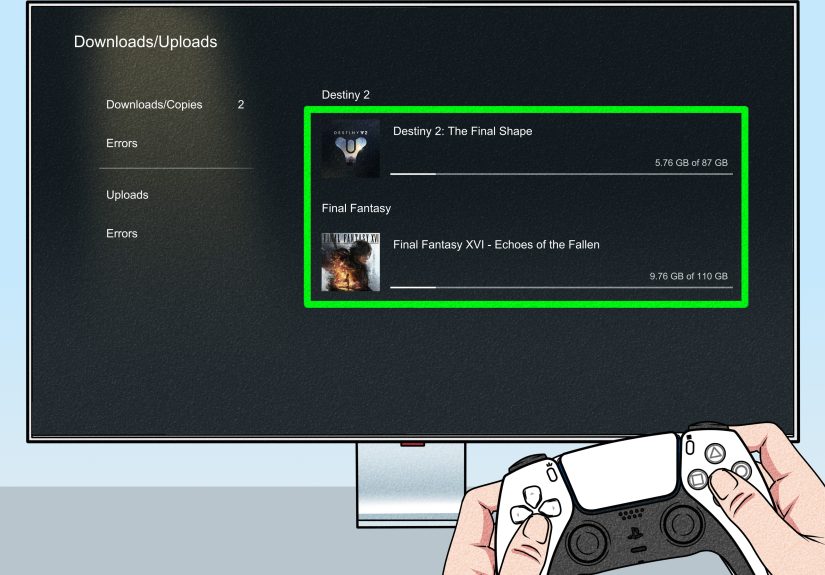
Sometimes the issue is not the connection speed but the download task itself. A stalled or corrupted download can sit there looking slow when it is really just broken. Pause and resume the download first. If that fails, delete it from the queue and restart it from your library or store page.
This is especially helpful when one update suddenly looks absurdly slow compared with everything else you have downloaded recently.
Clear cache and rebuild the database
If your PS5 has ongoing performance weirdness, download issues, or library glitches, clearing the system software cache and rebuilding the database in Safe Mode can help. Rebuilding the database does not magically boost your ISP speed, but it can clean up system-level issues that interfere with normal behavior.
Think of it less like “internet acceleration” and more like cleaning out a cluttered garage so you can actually reach the bicycle.
Try a DNS change, but keep your expectations realistic
This is one of the internet’s favorite topics, usually explained with all the restraint of a late-night infomercial. The truth is simple: changing DNS will not usually transform your raw download speed. However, it can help in some network setups where the current DNS path is unstable, slow to resolve, or causing connection hiccups.
So yes, it is worth trying if the basics failed. No, it is not a miracle. Treat it like a troubleshooting step, not wizardry.
Check for niche network setup issues
If your router is set to IPv6-only, that can be a problem because the PS5 supports IPv6 but not IPv6-only networking. In that case, you may need an IPv4 or dual-stack configuration. This is not the first thing most people should investigate, but it is a very real issue if nothing else makes sense.
What Usually Helps Less Than People Think
Not every popular “fix” deserves a standing ovation. Some are overhyped.
- DNS changes: Sometimes helpful, rarely magical.
- Buying a more expensive plan immediately: Useful if your household bandwidth is genuinely too low, but pointless if the real issue is Wi-Fi quality or router placement.
- Blaming the PS5 instantly: Many slow downloads come from the home network, not the console itself.
- Ignoring your router’s age: An old router can bottleneck a fast internet plan.
If you are getting decent speeds on Ethernet but terrible speeds on Wi-Fi, your answer is probably not “buy even more internet.” Your answer is probably “fix the Wi-Fi.”
A Simple Troubleshooting Order That Saves Time
If you want the shortest path to a faster PS5 download, follow this order:
- Check PSN status.
- Run a PS5 internet connection test.
- Confirm you have enough free storage.
- Pause other heavy internet use in the house.
- Restart the PS5, router, and modem.
- Switch to Ethernet if possible.
- If using Wi-Fi, switch to 5 GHz and move closer to the router.
- Enable Rest Mode downloads.
- Update router firmware and PS5 system software.
- Delete and restart the download if it seems stuck.
- Use Safe Mode to clear cache and rebuild the database.
- Try advanced options like DNS or network reconfiguration only after the basics.
This order works because it starts with the easiest and most common fixes before drifting into deeper troubleshooting. In other words, you avoid spending 45 minutes tweaking advanced settings when the real problem is that your brother is downloading three movies and your router is hiding behind a fish tank.
Real-World Experiences: What PS5 Owners Usually Notice
In real homes, slow PS5 download speeds rarely show up as one neat, obvious issue. They show up as a pattern. A player might notice that multiplayer works fine, Netflix looks normal, and phones seem fast enough, yet the PS5 says a routine update will take forever. That usually leads people to assume the console is the problem. Sometimes it is, but more often the experience points to how the PS5 is connecting to the network rather than whether the household internet plan is “fast” on paper.
A very common experience is this: the console is connected over Wi-Fi in a bedroom or media room, while the router sits in another room behind furniture. During the day, downloads are tolerable. In the evening, when everyone gets home, speeds crater. The reason is not mysterious. More devices are active, more bandwidth is being shared, and Wi-Fi interference is often worse when the whole house lights up with streaming, smart devices, and video calls. In that situation, moving the PS5 a little closer to the router, switching from 2.4 GHz to 5 GHz, or testing a temporary Ethernet cable often produces the first “wow, that actually helped” moment.
Another familiar experience is the stuck update that seems cursed. One game takes ages, but another download later in the week is fine. That usually suggests the queue itself is stuck, the file needs to be paused and restarted, or the service side had a temporary issue. People often waste time changing every setting they can find before trying the wonderfully unglamorous fix of deleting the broken download and starting fresh.
Rest Mode is another one people tend to misunderstand. Many players feel like downloads finish better in Rest Mode, and in practice that can be true from the user’s perspective. It is not because Rest Mode gives the PS5 magical new bandwidth. It is because the console is no longer trying to do other things at the same time, and the household may leave it alone overnight. The experience is smoother, the progress is steadier, and the next morning the game is ready instead of being stuck at 37% like a tiny digital hostage negotiation.
Router reboots also get mocked until they work. A lot of users report that speeds gradually become weird over time rather than instantly failing. Maybe the console was fine last week, terrible today, and randomly better after restarting the modem and router. That is not fake. Home networking gear sometimes gets flaky, congested, or simply tired in ways that are very boring and very real.
Then there is the household bandwidth lesson. Many people only discover how much traffic is happening on their network after trying to download a huge PS5 game. A 4K stream here, a cloud backup there, a laptop update in the background, and suddenly the console looks slow when the real story is that every device in the house is taking a sip from the same straw. Once people test downloads when the network is quiet, they often realize the PS5 was never the main problem at all.
The biggest practical takeaway from real-world experience is simple: test one change at a time. Use Ethernet once. Try 5 GHz once. Reboot the router once. Put the PS5 in Rest Mode once. When you do that, you can actually see what helps. If you change twelve things in five minutes, the only thing you will definitely improve is your confusion.
Conclusion
If you want to fix slow download speeds on your PS5, start with the basics that matter most: check service status, test the connection, free up storage, reduce bandwidth competition, and use Ethernet whenever possible. If Wi-Fi is your only option, 5 GHz, better router placement, and less interference can make a real difference. After that, move on to software updates, router firmware, Rest Mode downloads, and Safe Mode maintenance tools.
In most cases, the best PS5 download speed fix is not one dramatic trick. It is a stack of small, sensible improvements that work together. And that is honestly better news, because sensible improvements are a lot cheaper than rage-buying a new router at midnight because one patch ruined your evening.