Table of Contents >> Show >> Hide
- What “Chat History from a Gmail Address” Really Means
- Method 1: Search Chat History Inside Gmail or Google Chat
- Method 2: Export Chat History with Google Takeout
- Why You Might Not See the Chat History You Expected
- Which of the 2 Ways Should You Use?
- Best Practices for Keeping Chat History Easy to Find Later
- Real-World Experiences: What Usually Happens When People Try to Get Chat History
- Final Thoughts
If you have ever thought, “I know the conversation happened somewhere in Gmail, but where did it go?” welcome to the club. Google Chat history can feel like it wandered off to join a yoga retreat. The good news is that getting chat history tied to a Gmail address is usually very doable. The better news is that you do not need to perform digital archaeology with a tiny brush and a flashlight.
In most cases, there are two practical ways to get the chat history from a Gmail address: search for it directly inside Gmail or Google Chat, or export it through Google Takeout. One method is best when you want to quickly find a message. The other is ideal when you want a backup, a record, or a larger archive.
Before we dive in, let’s clear up one important point. You cannot legitimately pull a stranger’s private chat history just because you know their Gmail address. To access chat history, you generally need access to the same Google account, the same conversation, or authorized organizational data. In plain English: this is a retrieval guide, not a spy movie.
What “Chat History from a Gmail Address” Really Means
When people search for this topic, they usually mean one of three things:
- They want to find old Google Chat messages connected to their own Gmail account.
- They want to download or back up chat history for recordkeeping.
- They want to locate messages with a specific person who uses a Gmail address.
If that sounds like you, great. You are in the right place. If you were hoping to type in someone’s email and instantly unlock their private chats, this article is going to disappoint your inner movie hacker. But it will help you do things the correct way.
Method 1: Search Chat History Inside Gmail or Google Chat
This is the fastest option when you just need to find a conversation, message, file, link, or quote. Think of it as the “I know it exists, I just need it now” method.
When This Method Works Best
Use this approach when:
- You remember part of the message.
- You know the sender’s Gmail address or name.
- You want to locate a specific file or date range.
- You need the chat in context instead of in an exported archive.
How to Search Chat History in Gmail on Desktop
- Sign in to Gmail using the Google account connected to the chat history.
- Make sure Google Chat is turned on in Gmail.
- Click the search bar at the top.
- Type a keyword, phrase, or the person’s Gmail address.
- To narrow results to chats, use the search operator
in:chats. - Review the results and open the relevant conversation.
For example, if you are trying to find a chat with [email protected] about an invoice, you could search:
in:chats [email protected] invoice
That simple search often saves a ridiculous amount of time.
Useful Search Tricks That Make You Look Suspiciously Organized
Google Chat search can get much more precise. Here are some practical ways to narrow down results:
in:chats "project launch"Finds an exact phrase in chats.from:me budgetFinds messages you sent containing “budget.”after:2025/01/01 before:2025/02/01Searches within a date range.has:fileFinds messages with file attachments.has:pdfFinds messages that include PDFs.is:dmNarrows results to direct messages.is:roomNarrows results to spaces.in:recipesSearches inside a specific space if you know its name.
This matters because searching “contract” across everything can return a giant digital junk drawer. Searching in:chats from:[email protected] has:pdf contract is far more civilized.
How to Search Within Google Chat Itself
If you prefer working in Google Chat instead of Gmail, you can search there too. Open Google Chat, use the top search field, and then apply filters such as sender, conversation, date, or attachments. If you already know which direct message or space you need, open it and use the Search in this chat option for more focused results.
This is especially helpful when you remember the conversation but not the exact wording. For instance, maybe you know the message was in the “Website Redesign” space sometime around mid-March. That is enough to narrow things down without reading half your year again.
Pros of Method 1
- Fast and easy.
- No export required.
- Great for finding one message, one file, or one conversation.
- Keeps everything in its original context.
Cons of Method 1
- Not ideal for long-term backup.
- Depends on the message still being available.
- Can be frustrating if history was turned off or messages were auto-deleted.
Method 2: Export Chat History with Google Takeout
If Method 1 is like grabbing one book from a shelf, Method 2 is like packing up the whole bookshelf and taking it home. Google Takeout lets you export your Google data, including Google Chat, so you can keep a local copy for your records.
When This Method Works Best
Use Google Takeout when:
- You want a backup of chat history.
- You need records for work, legal, compliance, or personal organization.
- You are switching accounts or cleaning up old data.
- You want more than a quick search result.
How to Export Google Chat History
- Sign in to the Google account connected to the chats.
- Go to Google Takeout.
- Click Deselect all if you only want chat data.
- Scroll down and select Google Chat.
- Click Next step.
- Choose your delivery method, such as email or cloud storage.
- Select the export type, file type, and archive size.
- Click Create export.
Once the export is ready, Google sends you a link or places the archive in the cloud destination you selected. Depending on how much data you have, this can take anywhere from a short wait to a longer one. Big archive energy, basically.
What the Export Usually Includes
A Google Chat export can include:
- User profile information
- Memberships in direct messages, group messages, and spaces
- Messages and attachments from direct messages, group messages, and spaces
That makes Takeout the better choice if you need a broader record instead of just one missing message.
Export Settings Worth Knowing
Google Takeout gives you a few choices that are more useful than they first appear:
- One-time archive if you want a single backup.
- Scheduled exports if you want Google to create an archive every two months for one year.
- ZIP if you want easy compatibility on most computers.
- TGZ if you are comfortable handling archive formats and want that option.
If you are exporting for personal use, ZIP is usually the easiest choice. If your goal is “future me will thank present me,” scheduled exports can be surprisingly smart.
Pros of Method 2
- Best for backup and recordkeeping.
- Can include attachments and broader chat data.
- Useful if you want offline access to your archive.
Cons of Method 2
- Not as fast as simple search.
- You may need to sort through exported files afterward.
- Availability can depend on account type and admin settings.
Why You Might Not See the Chat History You Expected
If your search comes up empty, do not panic and do not immediately blame your laptop. There are several common reasons chat history appears to be missing.
1. Chat History Was Turned Off
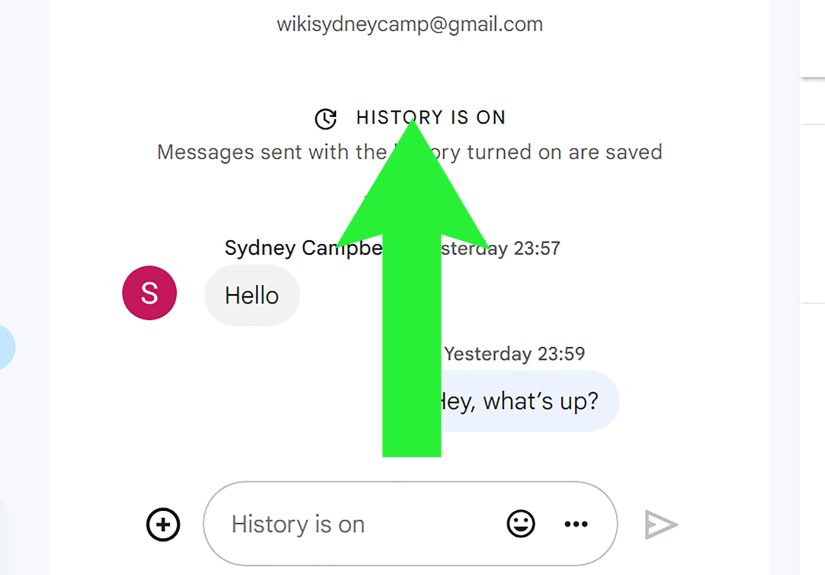
In Google Chat, conversation history can be turned on or off. When history is off, chats can be automatically deleted after 24 hours. That means a missing message is not always hidden. Sometimes it is actually gone.
2. You Are Using the Wrong Google Account
This happens more often than people admit. Many users have a personal Gmail account, a work Google Workspace account, maybe a side-project account, and one mysterious login from 2018 that still appears in the browser menu. If you are signed into the wrong one, your chat history will look like it vanished into another dimension.
3. Chat Is Not Enabled in Gmail
If Google Chat is not turned on inside Gmail, searching there may not show what you expect. Turn on the Chat tab first, then try again.
4. Workspace Admin Rules Are Involved
If you use a school or work account, your organization may control retention settings, export permissions, and whether chat history is saved by default. In a business environment, what you can view or export is not always entirely up to you.
5. You Are Looking for a Conversation You Were Not Allowed to Search
Google Chat search is designed around conversations you joined or are allowed to join. So if you are trying to search a space that belongs to another organization or a conversation you were never part of, search will not magically reveal it.
Which of the 2 Ways Should You Use?
| Goal | Best Method |
|---|---|
| Find one old message fast | Search in Gmail or Google Chat |
| Locate a file, date, or sender | Search in Gmail or Google Chat |
| Create a backup of chats | Google Takeout export |
| Keep an archive for records | Google Takeout export |
| Review conversations in original context | Search in Gmail or Google Chat |
| Store data offline | Google Takeout export |
If you are in a hurry, start with search. If you are thinking ahead, use Takeout. If you are both in a hurry and thinking ahead, congratulations, you are the rare organized person every team secretly loves.
Best Practices for Keeping Chat History Easy to Find Later
Finding old chats gets much easier when you build a few smart habits now.
Use Clear Language in Important Messages
Search loves specific nouns. “Approved the Q3 vendor agreement” is much easier to find later than “Yep, sounds good.” Efficient in the moment, confusing forever.
Keep History On When Appropriate
If your conversations need to remain searchable, make sure history is on where privacy policies and workplace rules allow it.
Use Spaces Thoughtfully
Named spaces are much easier to search than a pile of vague side chats. A space called “Client Onboarding 2026” is a gift to your future self.
Export Periodically If the Chats Matter
If your chats contain project decisions, approvals, timelines, or shared files, periodic exports are a smart backup habit. Not glamorous, but very adult.
Real-World Experiences: What Usually Happens When People Try to Get Chat History
In real life, people usually come looking for chat history because of one of a few very specific headaches. A freelancer wants proof that a client approved a change. A manager needs the original message where a deadline shifted. A student wants to recover shared notes from a study group. Someone changing jobs wants a personal record of conversations they are allowed to keep. And quite a few people simply remember that a file was sent “in chat somewhere,” which is the digital equivalent of saying your keys are “in the house.” Helpful? Barely.
One common experience is the “I remember the phrase, but not the date” problem. In that case, Gmail or Google Chat search is usually the winner. Searching by a phrase, sender, or file type can pull up the conversation in seconds. It feels magical when it works, and mildly insulting when it reminds you how much random stuff you have typed over the years.
Another common situation is the “I need everything, not just one message” scenario. This often happens during audits, project handoffs, or personal organization overhauls. People realize that scrolling forever is not a strategy. That is when Google Takeout becomes far more useful. Instead of trying to remember exact words from months ago, they export the relevant chat data and keep an archive for later review.
Then there is the “Why is nothing showing up?” experience. This is where expectations collide with reality. Sometimes chat history was turned off, and messages were removed after 24 hours. Sometimes the user is signed into the wrong Google account. Sometimes the conversation happened in a work account, but the person is checking their personal Gmail. Sometimes the chat exists, but only inside a specific space, and they are searching too broadly. The technology is not always broken. Sometimes the setup is just messy, and messy accounts create messy results.
Workplace users often run into admin restrictions too. They may assume they can export everything themselves, only to discover their Google Workspace settings say otherwise. That is not a glitch. It is governance. Not exciting, but very real. In those situations, people often need to coordinate with an administrator instead of wrestling with search operators for an hour and pretending that counts as progress.
There is also a practical emotional layer here. People look for old chat history when something matters: money, deadlines, approvals, shared files, or proof of what was actually said. That is why the best approach is not just learning how to retrieve chats once. It is creating a system so future retrieval is easy. Search well now, export what matters, and keep the important conversations in spaces or threads that make sense. Your future self should not have to solve a mystery novel every time you need one sentence from six months ago.
Final Thoughts
If you want to get the chat history from a Gmail address, the simplest answer is this: search it if you need to find something quickly, and export it if you need a record. Those are the two methods that solve the vast majority of real-world situations.
Method 1 is best for speed. Method 2 is best for backup. Together, they give you a reliable way to retrieve Google Chat history without turning the process into a dramatic expedition through forgotten tabs and old login sessions.
And if all else fails, check whether you are signed into the correct account before declaring that Google has swallowed your conversation whole. Nine times out of ten, the missing chat is not gone. It is just laughing quietly from another inbox.