Table of Contents >> Show >> Hide
- What You’ll Learn
- Before You Start: The 60-Second Setup Check
- Step 1: Confirm Your Kindle Book Has Audible Narration
- Step 2: Get the Audiobook (Without Overpaying)
- Step 3: Turn On Sync So Your Place Follows You
- Step 4: Listen in Audible (and Read Along if You Want)
- Troubleshooting: Fix the “It’s Not Showing Up” Moments
- No Audiobook Available? Your Best Alternatives
- FAQ
- Real-World Experiences: What It’s Like to Use This Daily (+ Pro Tips)
- Experience #1: The commute becomes “reading time” (and you stop doomscrolling)
- Experience #2: Switching formats feels like a superpower (when sync behaves)
- Experience #3: Read-and-listen helps focusespecially for dense books
- Experience #4: The “cheap upgrade” discovery feels like finding money in a jacket
- Experience #5: The “robot voice” fallback is… fine (but not the same)
- Experience #6: You’ll develop your own “audio rituals”
- Conclusion
You bought a Kindle book. You want to listen to it on Audible. Your eyes want a break, your hands are busy, and your brain is screaming, “Multitask like a responsible adult!” Totally fair.
Here’s the catch (and it’s an important one): Audible plays audiobooks. A Kindle eBook is a text file. So “listening to a Kindle book on Audible” really means one of these scenarios:
- You have (or can add) the matching Audible audiobook for that Kindle title.
- You want the read-and-listen experience (text highlighted while the narrator speaks) using Amazon’s sync features.
- You don’t have an audiobook version, and you’ll use text-to-speech alternatives (not the same vibe, but it works).
In this guide, you’ll learn the cleanest, least-stressful way to get your Kindle title into your Audible listening lifewithout guesswork, weird account mix-ups, or shouting “WHY WON’T IT SYNC?!” into your pillow.
Before You Start: The 60-Second Setup Check
Let’s make sure you’re not trying to bake a cake without an oven. (Or worse: trying to bake a cake with a hairdryer.) Here’s what you typically need to listen to Kindle books on Audible smoothly:
- One Amazon account used consistently for Kindle and Audible (same login, same region).
- The Audible app on your phone/tablet (or an Audible-compatible device).
- The Kindle app (optional, but useful for syncing and read-along features).
- A title that has a matching Audible audiobook (often labeled “Audible narration” or “Whispersync for Voice”).
- Wi-Fi for downloading and syncing (you can listen offline afterwardyour airplane seatmate thanks you).
If you have all that, you’re about to become the kind of person who “reads” three books a week. (Your friends will be impressed. Your shelves will be smug.)
Step 1: Confirm Your Kindle Book Has Audible Narration
Not every Kindle eBook has a professionally narrated audiobook twin. Some do. Some don’t. Some are “in a complicated situationship” where the audiobook exists, but it’s not linked properly to the Kindle edition you own.
How to check (fast)
- On the Amazon book page: Look for messaging like “Add Audible narration” near the buy button, or a badge/label indicating Audible narration or Whispersync for Voice.
- In your Kindle library (mobile app): Some titles show a headphone/narration option when Audible narration is available for that book.
- Use Amazon’s Matchmaker tool (if you own lots of Kindle books): It scans your Kindle library and shows which titles have matching discounted audiobook upgrades.
Why this matters
If your Kindle book doesn’t have an Audible version, you can’t “listen to it on Audible” in the traditional sense because there’s nothing for Audible to play. In that case, jump ahead to No Audiobook Available? and we’ll get you a workable Plan B.
Step 2: Get the Audiobook (Without Overpaying)
Once you’ve confirmed the title has Audible narration, it’s time to get the audiobook into your Audible library. This is where people accidentally spend more than they need toso let’s do this intelligently.
Option A: Buy the Kindle eBook and add Audible narration
Many eligible Kindle titles let you add the audiobook at checkout (or after purchase). You’ll often see a checkbox like “Add Audible narration” with a price next to it.
Pro move: If you already own the Kindle book, check the Amazon listing again. You may see an upgrade price that’s lower than buying the audiobook outright.
Option B: Buy the Audible audiobook directly
If you prefer staying entirely inside Audible, you can purchase the audiobook in the Audible app or on Audible’s site. After purchase, it should appear in your library. (If it doesn’t, don’t panicStep 3 and the Troubleshooting section have your back.)
Option C: Use credits or member pricing (when it makes sense)
If you’re on an Audible membership plan, credits can be great for expensive audiobooks. But for titles that offer a Kindle-to-Audible upgrade discount, the upgrade price is sometimes cheaper than “spending” a credit.
Quick example: what you might see
On some Kindle book pages you’ll see:
Kindle eBook: $X.XX
Add Audible narration: $Y.YY
The combo can be a surprisingly good dealespecially if you’re a “read at night, listen on commute” type.
Step 3: Turn On Sync So Your Place Follows You
This is the magic part: when it’s set up correctly, you can read on Kindle, listen on Audible, and your spot stays synced. Amazon calls the audiobook/eBook handoff experience Whispersync for Voice (and your sanity will thank you).
Checklist to make sync work
- Use the same Amazon account in both Kindle and Audible.
- Enable syncing in the Kindle app settings (often labeled “Sync for Books” / “Whispersync”).
- Connect to the internet briefly so your last position can upload/download.
- Download both versions (eBook + audiobook) on the devices you’ll use.
Important nuance: “Whispersync for Books” vs “Whispersync for Voice”
You may see syncing options that sound similar:
- Whispersync for Books: keeps your reading progress aligned across Kindle devices/apps.
- Whispersync for Voice: keeps your place aligned between Kindle reading and Audible listening for matching titles.
Turn on sync in general, and you’re usually coveredbut if something feels off, it’s often a settings or account mismatch.
Step 4: Listen in Audible (and Read Along if You Want)
You’ve confirmed the book has narration, you’ve obtained the audiobook, and sync is enabled. Now the fun part: press play and pretend your errands are an epic montage.
Standard listening in Audible
- Open the Audible app.
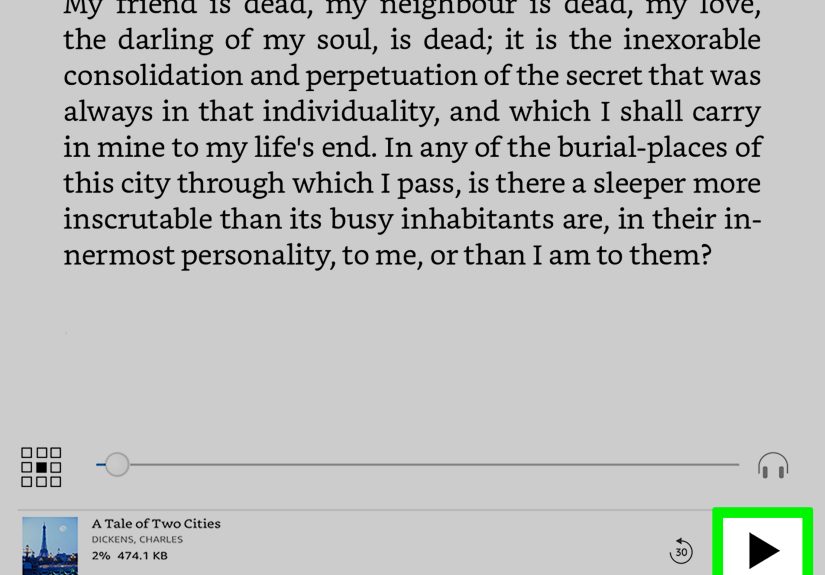
- Go to Library.
- Find your title and download it (recommended for smooth playback and offline listening).
- Tap Play.
Want the “read along while listening” experience?
Depending on your device and the title, you may have one (or both) of these options:
- Immersion Reading in the Kindle app: listen to the Audible narration while the Kindle eBook highlights the text in sync.
- “Read & Listen” inside the Audible app (newer): for eligible titles where you own both the eBook and audiobook, Audible can show the eBook text with real-time highlighting while the audio plays.
Why people love read-and-listen
It’s not just a fancy party trick. Many readers use it to:
- Stay focused when their attention span is doing parkour.
- Improve comprehension for dense books (hello, fantasy world-building and non-fiction).
- Support language learning by hearing pronunciation while seeing the words.
If you don’t see read-along options, it usually means either (1) you don’t own both formats, (2) the title isn’t eligible, or (3) your app needs updating. (Or it’s Tuesday, and technology is in a mood.)
Troubleshooting: Fix the “It’s Not Showing Up” Moments
If your audiobook isn’t appearing in Audible, or your Kindle book isn’t offering narration, run through these fixes. Most issues are solved by one of these “classic hits.”
1) Confirm you’re signed into the same account
The #1 cause of missing titles is accidentally using different Amazon accounts (or different regional marketplaces). If you bought the eBook on one account and the audiobook on another, they won’t syncand they may not even appear where you expect.
2) Make sure the audiobook matches the same book edition
Sometimes there are multiple editions of the same book (publisher changes, updated versions, special editions). Sync features work best when the Kindle and Audible versions are properly matched.
3) Force a sync
- In the Kindle app: check that syncing is enabled and pull-to-refresh your library (or use any “Sync” option available).
- On a Kindle device: use the Sync function (often found in quick actions/menu).
4) Remove and re-download
If the title is stuck in limbo, remove the download from your device (don’t worry, you won’t lose ownership), then download again. This refreshes the local files and often triggers the narration option to appear correctly.
5) Update your apps
Read/listen features evolve. If you’re using an older app version, you might miss newer options or bug fixes.
6) Check whether the book is actually eligible
Some Kindle books simply don’t have Audible narration attached. Others may have narration, but not the synced read-and-listen experience. If the Amazon listing doesn’t mention Audible narration or Whispersync for Voice, that’s usually your answer.
No Audiobook Available? Your Best Alternatives
If your Kindle title doesn’t have an Audible audiobook, you still have optionsjust set expectations: it won’t be a dramatic, actor-packed performance. It’ll be more “helpful robot reads you a bedtime story.”
Option 1: Use Alexa to read eligible Kindle books
If you have Alexa-enabled devices, you can often have Alexa read certain Kindle books aloud. This is convenient for hands-free listening at home, but it’s not the same as a professionally narrated audiobook.
Option 2: Use Kindle accessibility features (text-to-speech style)
Amazon has expanded accessibility tools in Kindle apps and devices in recent years. Depending on the device and the book, features like an assistive reader/screen reader can read text aloud.
Option 3: Use your phone’s built-in screen reader with the Kindle app
iOS and Android include accessibility features that can read on-screen text. Results vary by book formatting and app behavior, but it’s a useful fallback when you just need audiofast.
FAQ
Can I listen to any Kindle book on Audible?
Not automatically. You can listen on Audible only if there’s an Audible audiobook version for that title (or you can add Audible narration). Otherwise, use text-to-speech alternatives.
Do I need to buy the book twice (Kindle + Audible)?
For professional narration and syncing features, you typically need both formats: the Kindle eBook and the Audible audiobook. Some titles offer discounted upgrades when you already own one format.
What is Whispersync for Voice?
It’s Amazon’s feature that keeps your place synced between the Kindle eBook and the Audible audiobook for eligible titles. You can switch between reading and listening without losing your spot.
Can I read and listen at the same time?
Yes, for eligible titles and supported apps/devices. This is often called Immersion Reading or Read & Listen, where text highlights in sync with narration.
Real-World Experiences: What It’s Like to Use This Daily (+ Pro Tips)
Let’s talk about how this actually feels in real lifebecause “press play” is easy, but building a habit is the part that changes your week. Below are common experiences readers report when they start listening to Kindle books via Audible, plus the small tweaks that make the whole thing feel effortless.
Experience #1: The commute becomes “reading time” (and you stop doomscrolling)
The first big win is reclaiming dead time. People who drive, ride the train, or walk to work often notice the same thing: audiobooks fill the brain-space that social media used to rent out for free. A 20-minute commute twice a day can quietly turn into 3–4 hours of audiobook time each week. The trick is keeping downloads ready so you’re not burning mobile data or stuck buffering in a parking garage like it’s 2009.
Pro tip: Download a few chapters ahead over Wi-Fi and keep your “next listen” queued up. Audible makes it easy to resume, but your future self will appreciate not having to hunt for the book while juggling coffee and keys.
Experience #2: Switching formats feels like a superpower (when sync behaves)
When Whispersync for Voice is working properly, it’s honestly delightful: read a chapter in bed on Kindle, pick up where you left off while making breakfast on Audible, then continue reading during lunch. No sticky notes. No “Where was I?” detective work. People often say it feels like the story is following them aroundpolitely, not in a haunted way.
Pro tip: Make sure you’re giving the apps a moment to sync (especially when switching devices). Opening the Kindle book briefly while connected to Wi-Fi, then opening Audible, can help ensure your newest position is uploaded before you hit play.
Experience #3: Read-and-listen helps focusespecially for dense books
For many readers, the “read along while listening” mode is a game-changer for attention and comprehension. Non-fiction with big ideas, fantasy with 47 named kingdoms, and classics with long sentences suddenly become easier to follow when you can see the words and hear the pacing.
Pro tip: Try a slightly faster playback speed (like 1.15x–1.25x) if your mind wanders at normal speed. It sounds counterintuitive, but a small speed increase can keep your brain engagedlike giving your attention span a job.
Experience #4: The “cheap upgrade” discovery feels like finding money in a jacket
A lot of readers don’t realize some Kindle titles offer discounted Audible narration upgrades. Then one day they see “Add Audible narration for $X.XX” and suddenly they’re upgrading books like it’s a buffet. The best part is psychological: it feels easier to start a book when you know you can continue it in audio form later.
Pro tip: If you have a large Kindle library, check the Matchmaker tool periodically. New audiobooks get produced, publishers update listings, and your “no audiobook” titles can quietly become “yes audiobook” titles over time.
Experience #5: The “robot voice” fallback is… fine (but not the same)
When a book doesn’t have an Audible edition, people often try Alexa or accessibility read-aloud features. The experience ranges from “surprisingly usable” to “I miss human emotion.” It’s still valuableespecially for quick consumption, studying, or accessibility needsbut it won’t replace a great narrator.
Pro tip: If you’re using text-to-speech, pick books with straightforward formatting (novels tend to work better than textbooks or complex layouts), and use a sleep timer so your device doesn’t read three chapters while you’re asleep dreaming you’re a wizard.
Experience #6: You’ll develop your own “audio rituals”
The most consistent listeners tend to build mini-routines: audiobook during dishes, audiobook during workouts, audiobook while folding laundry. The secret isn’t motivationit’s friction reduction. If earbuds are always charged, downloads are ready, and your last spot is synced, listening becomes the default instead of a special event.
Pro tip: Use bookmarks for moments you want to revisit (great for non-fiction), and use Audible’s sleep timer at night. Those two features alone make you feel like a professional listener. Yes, that’s a thing now.
Bottom line: once you set it up, listening to Kindle books on Audible can turn reading into an all-day experience instead of a “maybe on weekends” hobby. Four steps now = dozens of finished books later. Future you is already bragging.