Table of Contents >> Show >> Hide
- First, Know What “Open Internet Explorer” Means Today
- How to Open Internet Explorer Directly
- What to Do If Internet Explorer Will Not Open
- How to Open Internet Explorer Mode in Microsoft Edge
- How to Make Internet Explorer Easier to Access
- When You Should Use Edge Instead of Internet Explorer
- Common Questions About Opening Internet Explorer
- Conclusion
- Real-World Experiences Using Internet Explorer and IE Mode
If you feel like opening Internet Explorer in 2026 is a little like trying to find a pay phone or a DVD rewinder, you are not imagining things. Internet Explorer is no longer the star of the Windows show, and on many computers it has already taken its final bow. Still, plenty of people search for how to open Internet Explorer because they need access to an old business portal, a legacy government form, or that one stubborn website apparently built during the dial-up era and never emotionally recovered.
The good news is that there are still a few legitimate ways to deal with this. The not-so-good news is that the right method depends on your version of Windows. On some older or specially managed systems, you may still be able to open Internet Explorer directly. On many modern Windows setups, especially Windows 11 and patched versions of Windows 10, the practical answer is to use Microsoft Edge in Internet Explorer mode. Think of it as Internet Explorer wearing a modern disguise and pretending everything is fine.
This guide walks you through both realities: how to open Internet Explorer if it still exists on your PC, and what to do when it does not. Along the way, you will also learn how to pin it for easier access, troubleshoot common issues, and avoid the classic mistake of downloading random “Internet Explorer installers” from sketchy corners of the internet. That road leads to malware, regret, and possibly a browser toolbar you did not ask for.
First, Know What “Open Internet Explorer” Means Today
Before you start clicking around, it helps to understand one crucial detail: Internet Explorer is not available in the same way on every Windows computer. That means your steps will vary depending on your device.
If you are using Windows 11
On Windows 11, you should not expect to find a normal standalone Internet Explorer browser. Microsoft’s focus is now on Microsoft Edge, and for old websites that still need IE technology, the supported option is IE mode in Edge. So if your goal is to load a legacy website, the answer is not “find Internet Explorer in the Start menu.” The answer is “open Edge and enable IE mode for that site.”
If you are using Windows 10
Windows 10 is where things get messy in a very Windows sort of way. On some older systems or certain enterprise-managed machines, Internet Explorer 11 may still appear in search, under Windows Accessories, or through the iexplore.exe command. On many updated systems, however, clicking Internet Explorer may redirect you to Microsoft Edge instead. If that happens, Windows is basically telling you, “We’re doing this the new way now.”
If you are using an older legacy setup
Some organizations still run older systems or compatibility-managed environments where Internet Explorer remains visible for internal apps. In those cases, the classic methods below may still work exactly as expected. If you are supporting an old payroll dashboard, factory intranet, or specialized government portal, that may be why Internet Explorer seems to be alive in your office even though the rest of the world has moved on.
How to Open Internet Explorer Directly
If Internet Explorer is still present on your computer, these are the simplest methods to launch it.
Method 1: Use the Start Menu Search
This is usually the easiest route. Click the Start button or tap the Windows key on your keyboard. Type Internet Explorer. If the browser is still installed and available, it should appear in the search results. Click it, and you are in business.
This method is especially handy on Windows 10 systems where Internet Explorer is tucked away instead of sitting out in plain sight. If it appears, you can right-click it and choose options like Pin to Start or Pin to taskbar so you do not have to go on a digital treasure hunt every time.
Method 2: Open It from Windows Accessories
On some Windows 10 computers, Internet Explorer may live inside the Windows Accessories folder in the Start menu. Open Start, scroll through the app list, and look for Windows Accessories. Expand that folder, then click Internet Explorer.
This method feels a bit like finding your old yearbook in a closet: surprisingly sentimental, slightly dusty, but still functional if you need it.
Method 3: Use the Run Command
If you enjoy keyboard shortcuts or want the fastest old-school trick, press Windows + R to open the Run dialog box. Then type:
iexplore
or
iexplore.exe
Press Enter. If Internet Explorer still exists on your machine, it should launch. This is one of those classic Windows commands that keeps hanging around like a reliable uncle who still uses a flip phone.
Method 4: Use File Explorer
You can also try launching Internet Explorer through File Explorer if you know where to look. On older systems, the executable may be located in one of these directories:
C:Program FilesInternet Exploreriexplore.exeC:Program Files (x86)Internet Exploreriexplore.exe
Navigate to the folder and double-click iexplore.exe. If the file is present and still active, the browser should open. If nothing happens or Edge launches instead, your system is likely redirecting Internet Explorer requests to the modern replacement path.
What to Do If Internet Explorer Will Not Open
Sometimes Internet Explorer appears to exist, but opening it is another story. If it refuses to launch, use these troubleshooting steps.
Restart your PC
Yes, it is the oldest trick in tech support, but there is a reason people still say it. A restart clears temporary system issues, stuck processes, and weird browser behavior. It is not glamorous, but neither is fighting with a browser designed in another internet era.
Try launching it without add-ons
Some versions of Internet Explorer can misbehave because of extensions or add-ons. If your setup supports it, launching without add-ons can help identify whether a plug-in is causing the issue. This is especially useful in business environments where older toolbars or helper objects still lurk in the background.
Check whether Internet Explorer has been disabled
In certain Windows 10 setups, Internet Explorer may be turned off as a Windows feature. If you suspect that is the case, search for Turn Windows features on or off from the Start menu and review whether Internet Explorer 11 is enabled. If your version of Windows still supports the feature, enabling it may restore access. If your system redirects you to Edge or does not offer a usable IE option, do not force the issue with unofficial downloads.
Reset Internet Options
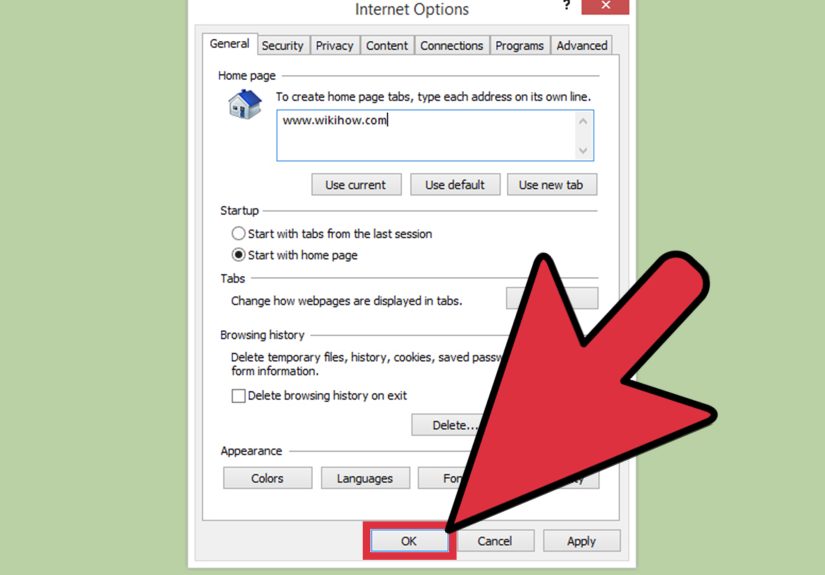
Some launch failures are tied to broken settings rather than the browser executable itself. Open Control Panel, then Internet Options, and review settings under the Advanced tab if you are working on a supported legacy system. IT departments often use this step when dealing with older web apps that suddenly stop behaving.
Do not download “replacement” Internet Explorer installers from random sites
This deserves its own warning label. If Internet Explorer is gone from your supported system, the answer is not downloading a mystery EXE from a website that looks like it still thinks animated GIF flames are cutting-edge design. Use Microsoft Edge with IE mode instead. It is safer, current, and actually supported.
How to Open Internet Explorer Mode in Microsoft Edge
If your computer no longer opens a standalone Internet Explorer window, this is usually the correct solution. IE mode in Microsoft Edge is designed for legacy websites that still rely on older Internet Explorer technology.
Step 1: Open Microsoft Edge
Launch Edge from the Start menu, taskbar, or desktop shortcut. On most current Windows PCs, it is already installed and ready to go.
Step 2: Go to Default Browser Settings
Click the three-dot menu in the upper-right corner of Edge, then choose Settings. In the left-hand menu, click Default browser.
Step 3: Allow sites to reload in Internet Explorer mode
Find the setting labeled Allow sites to be reloaded in Internet Explorer mode. Change it to Allow, then restart Edge if prompted.
Step 4: Open the site you need
Visit the legacy website that requires Internet Explorer. Then open the Edge menu again and choose Reload in Internet Explorer mode. The page should reopen using IE compatibility.
Step 5: Save the behavior for repeat use
If you use the same site often, Edge may let you keep that page in IE mode for a period of time. That is especially useful for internal company tools, older vendor dashboards, and legacy portals that refuse to join the modern web with dignity.
How to Make Internet Explorer Easier to Access
If you have confirmed that Internet Explorer still opens on your machine, make your life easier by setting up shortcuts.
Pin it to the taskbar
Open Start, search for Internet Explorer, right-click the result, and choose Pin to taskbar. This gives you one-click access without repeating the search every time.
Pin it to Start
You can also pin it to the Start menu so it stays visible in your app grid. This is helpful for shared office PCs where not every user knows Windows by keyboard command alone.
Create a desktop shortcut
If you can locate iexplore.exe in File Explorer, right-click it and create a shortcut on the desktop. It is a tiny convenience, but small conveniences are often the only thing standing between a productive morning and a dramatic conversation with your monitor.
When You Should Use Edge Instead of Internet Explorer
Even if you can open Internet Explorer, that does not mean you should use it for everyday browsing. Modern websites expect current security standards, faster rendering, and support for up-to-date web technologies. Internet Explorer struggles in all three departments.
Use Internet Explorer or IE mode only when you have a specific compatibility reason, such as:
- An old company intranet
- A legacy accounting or HR portal
- A government or vendor site designed for IE
- A web app that specifically asks for Internet Explorer
For everything else, Edge is the better choice. It is faster, safer, and much less likely to make you feel like you have accidentally time-traveled back to 2013.
Common Questions About Opening Internet Explorer
Can I open Internet Explorer on Windows 11?
Not as a standard standalone browser in the normal modern sense. Your supported path is Microsoft Edge with IE mode for compatible legacy sites.
Why does Internet Explorer open Edge instead?
Because Microsoft retired Internet Explorer on many systems and redirects users to Edge. The browser is basically being escorted off stage by its successor.
Can I still install Internet Explorer?
On many current consumer systems, no practical supported reinstall path exists for normal use. If you need compatibility, use Edge IE mode rather than hunting down unofficial installers.
Is IE mode the same as Internet Explorer?
Not exactly. It is a compatibility feature inside Edge that lets certain older websites behave as though they are running in Internet Explorer. For most real-world users with legacy-site needs, it is close enough to get the job done.
Conclusion
If you came here wondering how to open Internet Explorer, the honest answer is: it depends on your Windows setup. On some older or managed Windows 10 systems, you may still open it through Start search, Windows Accessories, the Run command, or the iexplore.exe file. On many current systems, however, Internet Explorer has effectively been retired, and the right solution is to use Microsoft Edge in IE mode.
That may sound less nostalgic than launching the famous blue “e,” but it is the more realistic and supported path today. So if you need a legacy site, do not panic, do not download suspicious browser files, and do not assume your PC is broken just because Internet Explorer is hiding. Most of the time, Windows is simply nudging you toward the safer replacement.
In other words, Internet Explorer may be old news, but compatibility is still very much alive. And in the world of office software, old news has an amazing habit of refusing to leave the building.
Real-World Experiences Using Internet Explorer and IE Mode
One of the most common real-world experiences with Internet Explorer is not nostalgia, but confusion. A person sits down at a Windows computer because their bank’s old business portal, a school administration dashboard, or a vendor site says it “works best in Internet Explorer.” They search for the browser, cannot find it, and immediately assume the computer is missing something important. In reality, the machine is often working exactly as designed. It just no longer treats Internet Explorer as a normal everyday app.
Office workers run into this all the time. Someone in accounting may have used the same internal tool for eight years. One day, after a Windows update, clicking the old Internet Explorer shortcut opens Microsoft Edge instead. Panic spreads across the department as if the internet itself has resigned. Then IT steps in, enables IE mode for the specific site, and suddenly the old system works again. The lesson is simple: the website still needs legacy compatibility, but the browser wrapper has changed.
Another common experience happens at home. A user remembers that Internet Explorer “used to be there,” so they try the Run command with iexplore. On some Windows 10 systems, that still opens the browser. On others, it redirects to Edge. That difference can make people think one PC is broken and another is fine, when really they are just on different update paths or policies. Windows can be wonderfully consistent right up until it absolutely is not.
There is also a strange emotional side to all of this. People often do not actually want Internet Explorer itself. What they want is the familiar solution to an old problem. They remember a site that worked in IE and assume the same exact browser must return for the same exact result. But in many cases, Edge with IE mode does the job just as well. Once people see the legacy page load properly, the nostalgia fades and productivity takes over. It is hard to miss the old browser when the payroll report finally opens.
Small businesses have especially practical stories here. Many do not have huge IT teams, so they rely on whatever still works. A shipping portal built years ago, a warehouse dashboard, or a tax-related site may require compatibility settings that were originally written with Internet Explorer in mind. For those teams, the best experience is usually not reviving the old browser at all. It is documenting how to use Edge IE mode, pinning Edge to the taskbar, and training staff on the one or two legacy pages that need special treatment.
Then there are the users who go on an internet scavenger hunt looking for an Internet Explorer download. That experience almost never ends well. At best, they find outdated instructions. At worst, they end up on suspicious download pages with aggressive ads and software bundles nobody invited to the party. The smarter experience is to pause, check the Windows version, and use Microsoft’s supported compatibility tools instead of trying to resurrect software that the platform has already moved beyond.
In everyday terms, opening Internet Explorer today is less about launching an old browser and more about understanding the purpose behind the request. If the goal is compatibility, Edge IE mode is usually the winner. If the goal is curiosity, nostalgia, or checking whether the icon still exists, the answer varies by PC. Either way, the experience teaches the same thing: technology rarely disappears cleanly. It lingers in shortcuts, workflows, and old websites long after the official goodbye.