Table of Contents >> Show >> Hide
- Why Device Security Matters More Than Ever
- Best Ways to Secure Your Devices
- 1. Keep Your Software Updated
- 2. Use Strong, Unique Passwords for Every Account
- 3. Turn On Multi-Factor Authentication
- 4. Learn to Spot Phishing Before It Spots You
- 5. Lock Your Devices and Use Screen Security
- 6. Install Apps Carefully and Review Permissions
- 7. Keep Built-In Security Features Turned On
- 8. Secure Your Home Wi-Fi and Router
- 9. Be Careful on Public Wi-Fi
- 10. Back Up Your Data Before You Need It
- What to Do If You Think Your Device Has Been Hacked
- Common Security Mistakes That Make Hackers Smile
- Real-World Experiences and Lessons People Learn the Hard Way
- Conclusion
Let’s be honest: most people do not wake up thinking, “Today feels like a great day to review my app permissions.” And yet, that one tiny habit can be the difference between a secure phone and a digital disaster that starts with, “Why is my bank texting me?”
If you want to know how to prevent hacking, the good news is that device security does not require a degree in computer science, three monitors, or a hoodie dramatically pulled over your head. In most cases, it comes down to a handful of smart habits repeated consistently.
This guide covers the best ways to secure your devices, including phones, laptops, tablets, and even the Wi-Fi router quietly blinking in the corner like it pays the bills. From strong passwords and multi-factor authentication to software updates, phishing awareness, backups, and safer browsing, these steps can help you prevent hackers from turning your personal data into their next hobby.
Why Device Security Matters More Than Ever
Hackers usually do not “break in” the way movies suggest. They do not need a neon-green code waterfall or a dramatic countdown clock. Most attacks work because people reuse passwords, ignore updates, click suspicious links, install shady apps, or trust fake support messages that sound urgent enough to spike blood pressure.
That is why learning how to prevent hacking starts with changing everyday behavior. Hackers look for easy wins. They love outdated software, weak passwords, default router settings, careless downloads, and panic-clicking on fake alerts. The less convenient you make their job, the safer your devices become.
Think of cybersecurity like locking your front door. One lock is helpful. Several layers are better. A locked door, good lighting, a camera, and a neighbor who notices nonsense? That is a much harder target. Your devices work the same way. Stronger security is built in layers.
Best Ways to Secure Your Devices
1. Keep Your Software Updated
If you skip software updates because they always seem to appear exactly when you want to use your device, you are not alone. But updates are one of the most effective ways to prevent hacking.
Software updates patch security flaws that criminals actively try to exploit. That includes your operating system, web browser, mobile apps, antivirus tools, router firmware, and even smart devices around the house. An outdated app is basically a screen door with a giant hole in it.
Turn on automatic updates whenever possible. That way your phone, tablet, laptop, and desktop can install security patches without waiting for your motivation to show up. If a device is too old to receive updates, it may be time to replace it. Unsupported devices are far easier for attackers to target.
2. Use Strong, Unique Passwords for Every Account
One of the biggest device security mistakes people make is reusing the same password across multiple accounts. It feels efficient. It is also the cybersecurity equivalent of using one key for your house, car, office, storage unit, and diary.
If one password is exposed in a data breach, attackers often try it everywhere else. That is why strong, unique passwords matter so much. Your email, banking app, cloud storage, shopping accounts, and social media should all have different passwords.
The easiest way to do this without melting your brain is to use a password manager. It can generate long, random passwords and store them securely, so you do not have to rely on “Buddy123!” and its suspicious cousins. A memorable passphrase can work too, but uniqueness matters just as much as complexity.
3. Turn On Multi-Factor Authentication
If passwords are the front door, multi-factor authentication is the deadbolt. It adds a second step to sign-in, such as a code, an authenticator app prompt, a security key, or a biometric check. That means even if someone steals your password, they still have another barrier to get through.
When possible, use stronger options like passkeys, security keys, or app-based authentication instead of text-message codes alone. This is especially important for your email, banking, cloud accounts, shopping platforms, and anything connected to your identity or money.
Enable MFA first on your primary email account. That one account often acts like the master key to reset passwords elsewhere. If a hacker gets your email, they can often start a domino effect across your digital life.
4. Learn to Spot Phishing Before It Spots You
Phishing is still one of the most common ways people get hacked, and it works because it preys on human emotion. Fear, urgency, curiosity, and irritation are all excellent bait.
A phishing message might say your account is locked, your package cannot be delivered, your bank needs verification, or your device has a virus. It may look professional. It may even use logos that appear real. What matters is not how polished it looks. What matters is whether it is trying to rush you into clicking, signing in, downloading, or calling a fake number.
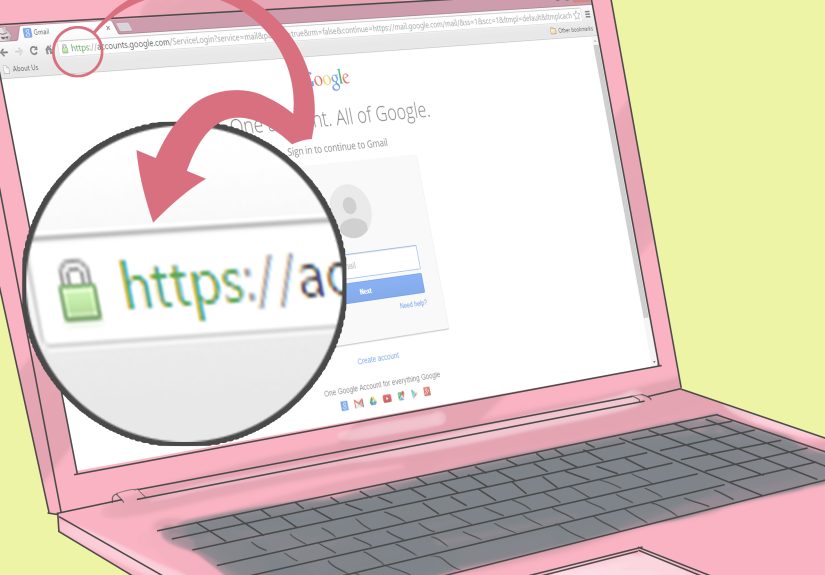
Before you click anything, pause. Check the sender carefully. Hover over links on a computer. Look for odd domains, weird grammar, unexpected attachments, or messages that create panic. If a message claims to be from a bank, retailer, Apple, Google, or Microsoft, go to the official website or app directly instead of using the link provided.
And here is one rule worth framing on the wall: never give remote access to your device to someone who contacted you unexpectedly claiming to be tech support. That road ends badly.
5. Lock Your Devices and Use Screen Security
Plenty of hacking risk is surprisingly low-tech. Sometimes a stolen phone is just a stolen phone. Other times it is a shortcut into your email, saved passwords, payment apps, and private files.
Protect your devices with a strong PIN, passcode, password, fingerprint, or face unlock. On phones, a six-digit code is a much better baseline than a four-digit one. Set your screen to auto-lock quickly when idle. On laptops, require a password immediately after sleep or screen saver activation.
This is not only about theft. It also protects you from casual snooping by anyone who gets physical access to your device for “just a second.” A lot can happen in one second if your screen is already open and your email is feeling generous.
6. Install Apps Carefully and Review Permissions
Every extra app, extension, and plugin is another possible risk. Some are harmless. Others collect too much data, request unnecessary permissions, or open the door to malware and scams.
Download apps from official stores and trusted publishers only. Avoid unknown APK files, random browser extensions, and “free” tools with suspicious reviews or weird permission requests. If a flashlight app wants access to your microphone, contacts, and soul, that is your cue to leave.
Review app permissions regularly. Camera, microphone, location, contacts, Bluetooth, photos, and file access should be limited to apps that truly need them. Remove apps you no longer use. The less clutter on your device, the smaller your attack surface.
7. Keep Built-In Security Features Turned On
Many people accidentally weaken their own security by turning off protections because a warning felt annoying or a scan seemed slow. But built-in tools exist for a reason.
On Windows, keep Microsoft Defender and SmartScreen enabled. On Android, use Google Play Protect. On Apple devices, keep system security settings active and pay attention to privacy and account alerts. These tools can warn you about malicious downloads, suspicious websites, unsafe apps, and unusual account activity.
You do not need to obsess over every setting, but you should absolutely avoid disabling protective features just because a pop-up interrupted your vibe.
8. Secure Your Home Wi-Fi and Router
Your router is the traffic controller of your home network. If it is poorly secured, every connected device can be affected.
Start by changing the default router administrator username and password. Many people never do this, which is exactly why attackers try default credentials first. Use a strong Wi-Fi password, enable modern encryption, and install router firmware updates when available.
Rename your network if it reveals personal details like your family name, apartment number, or router model. Also disable features you do not use, especially if they make remote administration easier than it needs to be.
If you use smart home devices, keep them on the same secure network and update them too. A neglected camera, plug, or speaker can become the weakest link in an otherwise careful setup.
9. Be Careful on Public Wi-Fi
Public Wi-Fi is convenient, but it should never inspire blind trust. Whether you are at an airport, hotel, café, or coworking space, assume the network is shared with strangers and treat it accordingly.
Avoid logging into sensitive accounts or making financial transactions on public Wi-Fi unless you are using a trusted, protected connection. Better yet, use your mobile hotspot when possible. Turn off auto-join for unknown networks and disable Bluetooth when you do not need it.
Convenience is lovely. So is not handing your data to the digital equivalent of a pickpocket in a food court.
10. Back Up Your Data Before You Need It
Backups are not glamorous, but they are a lifesaver if malware, theft, hardware failure, or ransomware strikes. If your device gets locked, wiped, or ruined, a recent backup can be the difference between mild irritation and total chaos.
Use automatic cloud backups for convenience, and keep an additional offline or separate backup for important files when possible. Photos, documents, financial records, work files, and personal archives deserve a recovery plan.
Also enable device recovery features like Find My, remote lock, or remote wipe. If your phone or laptop disappears, these tools can help you locate it, lock it, or erase data before someone else starts poking around.
What to Do If You Think Your Device Has Been Hacked
Even if you follow every good security habit, strange things can still happen. If you suspect your device has been compromised, act quickly and calmly.
- Disconnect the device from the internet if needed, especially if you suspect active malware.
- Change your passwords, starting with your email and financial accounts, using a clean device if possible.
- Turn on or strengthen multi-factor authentication right away.
- Run a trusted security scan and remove anything flagged as malicious.
- Review recent logins, transactions, app installations, and account recovery settings.
- Update the operating system and apps immediately.
- Back up important files if it is safe to do so.
- For severe cases, reset the device and restore only from a trusted backup.
If money, identity theft, or sensitive business information is involved, contact your bank, employer, service provider, or relevant authorities promptly. Speed matters when damage control is on the menu.
Common Security Mistakes That Make Hackers Smile
- Reusing the same password across multiple accounts
- Ignoring software and firmware updates
- Clicking links in urgent or emotional messages
- Allowing unnecessary app permissions
- Using old devices that no longer get security patches
- Keeping default router settings
- Turning off built-in protection tools
- Saving important files with no backup plan
- Trusting unsolicited tech support contacts
- Logging into sensitive accounts on sketchy public Wi-Fi
The good news is that these are fixable. Cybersecurity is not about perfection. It is about reducing easy opportunities for attackers.
Real-World Experiences and Lessons People Learn the Hard Way
Ask around, and you will notice something interesting: most people start taking device security seriously right after a close call.
One common experience starts with a fake delivery text. Someone is busy, expecting a package, and taps the link without thinking. The page looks real enough, asks for a quick login, and suddenly the person has handed over credentials to a criminal with excellent timing and terrible morals. The lesson? Urgency is often the first red flag.
Another person reuses one password for years because it is easy to remember. Then a shopping site gets breached. A few days later, their email, streaming account, and bank login all start acting strange. It feels unfair, but it is incredibly common. That single reused password becomes a skeleton key for attackers. After that experience, password managers stop sounding annoying and start sounding brilliant.
Then there is the phone-theft scenario. Someone leaves a phone on a restaurant table for thirty seconds. Thirty seconds. The phone is gone, and so is the calm. If the screen lock is weak or notifications reveal too much on the lock screen, a thief may gain access to far more than the device itself. People who go through this often become firm believers in strong passcodes, biometric locks, hidden previews, and remote wipe features.
Many users also learn hard lessons from fake tech support scams. A pop-up screams that the computer is infected. A caller promises to “fix” the issue. Remote access is granted. Payment is requested. Files disappear. In hindsight, the warning signs seem obvious. In the moment, fear does the heavy lifting. Once that happens, most people never again trust unsolicited support messages.
Some experiences are quieter but just as important. A person installs dozens of browser extensions over time, then notices their browser is slower, ads are stranger, and search results seem hijacked. Or they download a free utility from a random site and end up with malware bundled inside. These situations teach a simple lesson: every download is a trust decision.
Others learn from near misses instead of full disasters. Maybe Google flags a suspicious sign-in. Maybe Apple sends an account alert. Maybe Microsoft blocks a weird download before it runs. Those moments are gifts. They are reminders that built-in security features are not there to annoy you. They are there because something shady was already knocking on the door.
The most valuable takeaway from all these experiences is that cybersecurity usually fails in ordinary moments, not dramatic ones. It fails when we are tired, rushed, distracted, or overconfident. The fix is not paranoia. It is routine. Update the device. Use better passwords. Turn on MFA. Back up your files. Review your permissions. Pause before you click. Security works best when it becomes boring, automatic, and stronger than your worst lazy habits.
Conclusion
If you want to prevent hacking, start with the basics and do them consistently. Keep software updated, use unique passwords, enable multi-factor authentication, avoid phishing traps, secure your Wi-Fi, review app permissions, and back up your data. None of these steps are flashy, but together they create real protection.
The best ways to secure your devices are not secret tricks hidden in a hacker-proof vault. They are practical habits anyone can build. Start with one or two changes today, then layer on more over time. Hackers are usually looking for the easiest target in the room. Your job is to make sure it is not you.