Table of Contents >> Show >> Hide
- Can You Really See Unsent Messages on an iPhone?
- Quick Workaround: Check Notification Center Immediately
- Make the Workaround More Likely to Work Next Time
- What Apple’s Undo Send Actually Does
- Can You See an Edited Message Instead?
- Can Recently Deleted Recover Unsent Messages?
- Can iCloud Backup Show Unsent Messages?
- What About Messenger, WhatsApp, Instagram, and Other Apps?
- How to Find Your Own Unsent or Failed Messages on iPhone
- What Not to Do When Trying to See Unsent Messages
- Best Privacy-Friendly Setup for Message Notifications
- Quick Troubleshooting Checklist
- Real-Life Experience: What Usually Happens When You Try This
- Conclusion
- SEO Tags
Few modern mysteries are as tiny and irritating as the phrase: “Someone unsent a message.” One second your iPhone lights up, the next second the text vanishes like it joined a witness protection program. Naturally, your brain goes straight to detective mode: What did it say? Was it important? Was it gossip? Was it a typo so dramatic it needed to be erased from history?
Here is the honest answer: if someone uses Apple’s Undo Send feature in iMessage, your iPhone usually will not let you open a secret folder and read the original message later. Apple designed unsending to remove the message from the recipient’s device, as long as both sides are using compatible Apple software. However, there are a few practical workarounds that may help you see an unsent message on an iPhoneespecially if the notification preview appeared before the sender took it back.
This guide explains what works, what does not, and how to avoid wasting time on sketchy “recovery” tricks that promise more than they can deliver. Your iPhone is smart, but it is not a magic crystal ball with a Messages tab labeled “Drama Archive.”
Important note: This article focuses on legitimate ways to view messages that arrived on your own device or account. Do not use spyware, password tricks, or unauthorized access to read someone else’s private messages. Besides being unethical, it can also create serious legal and security problems.
Can You Really See Unsent Messages on an iPhone?
Sometimesbut not always. The answer depends on what you mean by “unsent message.” On an iPhone, people usually use this phrase in one of three ways:
- An iMessage someone sent and then unsent: This is Apple’s Undo Send feature.
- A message that failed to send from your own iPhone: This usually appears with a red exclamation mark.
- A deleted message: This may be recoverable if you deleted it yourself and it is still in Recently Deleted.
The most common meaning is the first one: someone sent you an iMessage, then pulled it back. When that happens, you may see a note in the conversation saying the sender unsent a message. But the original text is normally gone from the chat.
The quick workaround is to check your Notification Center immediately. If the message preview appeared as a notification before the sender unsent it, and if the notification has not been cleared, you may still be able to read part or all of the message there. This is not guaranteed, but it is the closest thing to a built-in workaround on iPhone.
Quick Workaround: Check Notification Center Immediately
If you are trying to see an unsent message on an iPhone, speed matters. Notifications are temporary. They are not a permanent record, and they can disappear after you open the app, clear alerts, restart, or receive updated notifications.
How to Check Notification Center
- If your iPhone is locked, wake the screen.
- From the Lock Screen, swipe up from the middle of the screen to view older notifications.
- If your iPhone is unlocked, swipe down from the top-left area of the screen to open Notification Center.
- Look for the Messages notification from the person who unsent the message.
- If the notification is grouped, tap or press it to expand the stack.
- Read the preview if it is still visible.
This method works best when notification previews are enabled. If your iPhone is set to hide previews, you may only see something like “iMessage” or the sender’s name, not the actual message text. In that case, the unsent message has already done its little disappearing act, complete with jazz hands.
Why This Workaround Is Hit-or-Miss
Notification Center can show recent alerts, but it is not a full notification history database. Once a notification is cleared, opened, or replaced, you usually cannot bring it back. Also, some messaging apps may remove or update notifications when a message is unsent. That means the original preview might vanish before you get to it.
Several factors can affect whether this quick workaround works:
- Timing: If the sender unsent the message quickly, the notification may not stick around.
- Preview settings: If previews are set to “Never,” you will not see the message text.
- Focus mode: Focus can delay or hide notifications.
- Notification Summary: Scheduled summaries may group notifications and reduce immediate visibility.
- Cleared alerts: Once you clear the notification, it is usually gone.
- App behavior: Some apps update notifications after a message is deleted or unsent.
Make the Workaround More Likely to Work Next Time
You cannot force your iPhone to save every unsent message, but you can adjust notification settings so message previews are easier to catch in the future.
Turn On Message Previews
To allow message text to appear in notifications:
- Open Settings.
- Tap Notifications.
- Tap Messages.
- Make sure Allow Notifications is turned on.
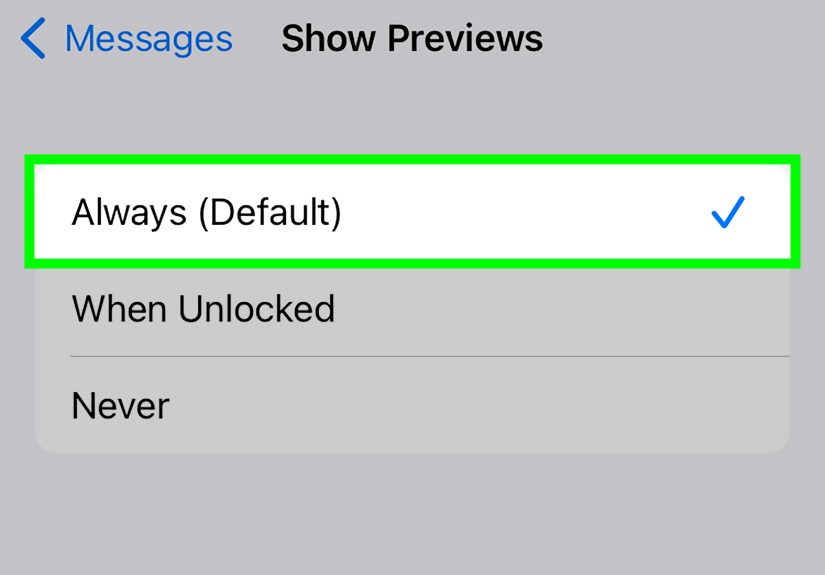
- Tap Show Previews.
- Choose Always or When Unlocked.
Always gives you the best chance of seeing message previews quickly, but it also means anyone who looks at your Lock Screen may see parts of your messages. If your phone spends a lot of time on desks, tables, rideshare seats, or in the hands of curious children, choose When Unlocked instead. Privacy is nice. So is not having your aunt read your group chat by accident.
Use List View for Notifications
iPhone notifications can appear as Count, Stack, or List. If you want to spot messages quickly, List view is often easier because it displays alerts more openly on the Lock Screen.
- Open Settings.
- Tap Notifications.
- Under Display As, choose List.
This does not save unsent messages permanently, but it may make new alerts easier to notice before they disappear.
Check Focus and Scheduled Summary
If Focus mode is silencing Messages or Scheduled Summary is delaying alerts, you may miss the short window when a notification preview is useful. Go to Settings > Focus and review your active Focus modes. Then go to Settings > Notifications > Scheduled Summary to see whether Messages is being bundled into a later summary.
If you care about catching message previews in real time, keep Messages out of Scheduled Summary and allow notifications from important contacts during Focus modes.
What Apple’s Undo Send Actually Does
Apple’s Undo Send feature works only under specific conditions. In Messages, a sender can unsend a recently sent iMessage within a short time window. When they do, both people see a note that a message was unsent. The original message is removed from the recipient’s device when both sides are using compatible software.
There are two important details:
- Undo Send is mainly for iMessage: SMS, MMS, and many carrier-based texts do not behave the same way.
- Older devices may not fully support it: If the recipient is using an older version of iOS, iPadOS, or macOS, the original message may remain visible on that device.
In plain English: if everyone is updated, unsend usually works as intended. If someone is using older software, the message may still be visible there. This is why some people say, “I can still see unsent messages on my old iPhone.” That can happen, but keeping an old device around just to catch unsent texts is not a great long-term strategy. Outdated software can create security risks, and your digital life is worth more than one mysterious text that might have said, “Oops wrong person.”
Can You See an Edited Message Instead?
Yes, and this is where things get more interesting. An edited iMessage is different from an unsent iMessage. If someone edits a message instead of unsending it, the conversation may show an Edited label. You can tap that label to view previous versions of the message.
That means if the sender changed “See you at 8” to “See you at 9,” you may be able to tap Edited and see the earlier version. But if they used Undo Send, there is no equivalent “tap to reveal original message” feature. Edited messages leave a trail. Unsent messages usually sweep the trail, mop the floor, and put a tiny “nothing to see here” sign in the chat.
Can Recently Deleted Recover Unsent Messages?
No, not in the way most people hope. The Recently Deleted folder in Messages can help you recover conversations or messages that you deleted from your iPhone. It is useful if you accidentally deleted an important text thread and want to restore it within the recovery window.
However, Recently Deleted is not a secret vault for messages another person unsent. If someone pulls back an iMessage using Undo Send, that original message normally does not appear in your Recently Deleted folder. The feature is for your deletions, not someone else’s unsend action.
Can iCloud Backup Show Unsent Messages?
Usually, no. If Messages in iCloud is enabled, Apple keeps messages updated across your devices. That means changes often sync, including deletions and message state changes. If a message was unsent before it became part of a backup or before you saw it, restoring from backup is unlikely to help.
There are rare edge cases where a device or backup captured something before a change synced, but this is not a reliable or beginner-friendly method. Restoring an iPhone from an old backup can also overwrite newer data. That is a lot of chaos for a message that may have been nothing more than “nvm.”
For most users, restoring backups just to chase unsent messages is not worth the risk. Use backups for recovering your own lost data, not as a treasure map for erased texts.
What About Messenger, WhatsApp, Instagram, and Other Apps?
The same general idea applies to many third-party messaging apps: once a message is unsent or deleted for everyone, the app usually removes it from the conversation. Your best chance is often the notification preview that appeared before the message was removed.
Messenger
Messenger allows users to unsend or remove messages from chats. If you received a notification before the message was unsent, you might still see the preview in Notification Center for a short time. But Messenger may also update or remove notifications, so this is not guaranteed.
WhatsApp has a “Delete for Everyone” feature. Once a sender deletes a message for everyone, the chat usually shows a deletion notice rather than the original text. Again, the iPhone notification preview may be your only quick chance to see what appeared before deletion.
Instagram also lets users unsend messages in direct chats. If the notification preview remains on your iPhone, you may catch it there. If not, Instagram does not provide a built-in “unsent message viewer.”
Be cautious with apps or websites claiming they can recover all unsent messages from every platform. Many are unreliable, privacy-invasive, or designed to push downloads you do not need. If a tool asks for your Apple ID, social media login, or full device access, back away slowly and maybe dramatically.
How to Find Your Own Unsent or Failed Messages on iPhone
Sometimes “unsent message” means a message you tried to send but your iPhone failed to deliver. That is a different problemand much easier to fix.
Look for the Red Exclamation Mark
Open the Messages app and check the conversation where you tried to send the text. If a message failed, you may see a red exclamation mark or a “Not Delivered” label. Tap the warning icon to try sending again.
Check Your Connection
Messages may fail if your iPhone has poor cellular service, weak Wi-Fi, Airplane Mode enabled, or iMessage temporarily unavailable. Try these steps:
- Turn Airplane Mode on and off.
- Switch between Wi-Fi and cellular data.
- Restart your iPhone.
- Go to Settings > Messages and make sure iMessage is enabled.
- Tap Send as Text Message if iMessage is unavailable and the contact can receive SMS.
If the message was never delivered, the recipient did not receive it. If it was delivered and then you used Undo Send within the allowed window, the recipient may see that you unsent something, even if they cannot read the original text.
What Not to Do When Trying to See Unsent Messages
Curiosity is normal. Downloading suspicious recovery software at 1:00 a.m. because one message disappeared is less normaland not recommended.
Do Not Install Spyware or “Secret Viewer” Apps
Apps that claim to reveal every unsent message often use vague promises and scary urgency. Some may collect personal data, request unnecessary permissions, or lead you into paid subscriptions. If an app claims it can bypass Apple’s privacy systems with one magical button, treat that claim like a raccoon selling insurance.
Do Not Share Your Apple ID
No legitimate method for viewing an unsent message requires giving a random website your Apple ID password. Your Apple ID protects photos, messages, backups, purchases, device location, and more. Guard it like the master key it is.
Do Not Restore Your iPhone Without a Real Reason
Restoring from backup can remove recent data and create more problems than it solves. Unless you are recovering your own deleted messages or fixing a serious device issue, backup restoration is overkill.
Best Privacy-Friendly Setup for Message Notifications
If you want a balanced setup that helps you catch important messages without exposing everything on your Lock Screen, try this:
- Set Messages notifications to appear in Notification Center.
- Use Show Previews: When Unlocked.
- Use List view if you want alerts to be easier to scan.
- Keep Messages out of Scheduled Summary for important conversations.
- Allow key contacts through Focus modes.
- Avoid third-party “message recovery” apps unless they are from a trusted company and serve a clear purpose.
This setup will not guarantee that you can see every unsent message, but it gives you the best reasonable chance while keeping your private texts from turning your Lock Screen into a public bulletin board.
Quick Troubleshooting Checklist
If someone unsent a message and you want to know whether you can still view it, run through this checklist:
- Open Notification Center immediately.
- Look for a Messages, Messenger, WhatsApp, or Instagram notification from that sender.
- Expand grouped notifications if needed.
- Check whether notification previews are enabled.
- Look at any older Apple device you already own and use, if it received the same message.
- If the message says Edited instead of unsent, tap Edited to view previous versions.
- Ignore apps promising guaranteed unsent message recovery.
If none of those steps works, the message is probably gone from your device. At that point, the most reliable solution is also the most human one: ask the sender what they meant to say. Yes, it is less spy-movie. But it has a much higher success rate.
Real-Life Experience: What Usually Happens When You Try This
In everyday use, the Notification Center workaround feels a little like trying to catch toast before it hits the floor. Sometimes you are fast enough. Sometimes you are not. The people who have the best luck usually notice the notification right away, avoid opening the conversation, and check the Lock Screen or Notification Center before clearing anything.
For example, imagine your iPhone buzzes while you are making coffee. You glance over and see the first few words of a message: “I probably should not say this but…” Then, before you pick up the phone, the conversation shows that the sender unsent a message. If that preview is still sitting in Notification Center, you may be able to swipe down, expand the alert, and read what was visible. The full message may be there, or only the first line. Either way, that notification preview is your best shot.
Now imagine a different situation. Your phone is in Focus mode, previews are set to “Never,” and notifications are bundled into Scheduled Summary. By the time you open Messages, all you see is the unsent message notice. In that case, there is probably nothing useful to recover. The iPhone did exactly what you told it to do: protect your attention and hide message content. Helpful for productivity, terrible for curiosity.
Another common experience involves multiple Apple devices. Someone might receive a message on an older iPad or Mac that is not fully updated, while their current iPhone removes the message after it is unsent. In some cases, the older device may still display the original message. But this is not something to rely on. Older software can miss security updates, and using outdated devices just to preserve unsent texts is like refusing to fix a leaky roof because you enjoy indoor puddles.
The most practical lesson is this: if seeing message previews matters to you, set up notifications before the moment happens. Turn on previews when unlocked, keep Messages notifications immediate, and know how to open Notification Center quickly. But also accept the limit. Unsend features exist because people make mistakes. They mistype, send to the wrong chat, panic-send, overthink, or realize autocorrect turned “meeting notes” into “meatball goats.” Sometimes the healthiest response is to let the vanished message stay vanished.
Still, if the message seemed important, sensitive, or connected to plans, it is perfectly reasonable to follow up. A simple “Hey, I saw you unsent somethingwas that meant for me?” works better than installing three suspicious apps and accidentally subscribing to a $19.99 monthly “Text Wizard Pro” plan. Technology gives you tools, but social courage still wins a surprising number of cases.
Conclusion
So, can you see unsent messages on an iPhone? Sometimes, but only under the right conditions. The fastest and safest workaround is to check Notification Center immediately after the message arrives. If the notification preview is still visible, you may be able to read part or all of the unsent message. If it has been cleared, hidden, updated, or never previewed in the first place, there is usually no built-in way to recover it.
Apple’s Undo Send feature is designed to remove recent iMessages from the recipient’s device when both people are using compatible software. Edited messages are different because they may show edit history, but unsent messages usually do not offer a reveal button. Recently Deleted can help with messages you deleted yourself, not messages someone else unsent.
The best approach is simple: adjust your notification settings, understand the limits, avoid sketchy recovery tools, and when necessary, ask the sender directly. It may not feel as exciting as digital detective work, but it is safer, cleaner, and far less likely to end with malware on your phone.