Table of Contents >> Show >> Hide
- What Are the Different Types of Accented E?
- How to Type an E with an Accent on iPhone or iPad
- How to Type an E with an Accent on Android
- How to Type an E with an Accent on Mac
- How to Type an E with an Accent on Windows
- How to Type an E with an Accent on Chromebook
- How to Type an E with an Accent in Google Docs
- Copy and Paste Accented E Characters
- When Should You Use an Accented E?
- Troubleshooting: Why Is My Accented E Not Working?
- Best Method by Device
- Practical Examples
- of Real-World Experience: What Actually Works Best
- Conclusion
- SEO Tags
At some point, everyone meets the tiny but mighty accented e. Maybe you are writing café, polishing your résumé, texting someone named Renée, or trying not to turn “fiancé” into “finance” and accidentally make the sentence about taxes. The letter e with an accent may look small, but it can change pronunciation, meaning, tone, and credibility. In other words, that little mark is not decoration; it is doing actual linguistic cardio.
The good news: typing an e with an accent is easier than it looks. Whether you use an iPhone, Android phone, Mac, Windows PC, Chromebook, Google Docs, Microsoft Word, or email app, there is usually a fast way to type accented e characters like é, è, ê, ë, and ē. This guide explains the simplest methods first, then gives you shortcuts, examples, troubleshooting tips, and real-life writing advice so you can stop copying “é” from the internet like a digital raccoon collecting shiny objects.
What Are the Different Types of Accented E?
Before we tap, click, press, hold, and possibly glare at a keyboard, it helps to know which accented e you need. English writers most often use these characters when typing names, borrowed words, foreign phrases, brand names, and academic text.
| Character | Name | Common Example |
|---|---|---|
| é | e with acute accent | café, résumé, fiancé |
| è | e with grave accent | très, après |
| ê | e with circumflex | crêpe, fête |
| ë | e with diaeresis or umlaut | Noël, Chloë |
| ē | e with macron | often used in pronunciation guides |
The most common one in everyday American typing is é, especially in words like café and résumé. Still, the others matter too. If you are writing someone’s name, typing it correctly is a small act of respect. If you are writing for school, work, or the web, accented letters help your text look accurate and polished.
How to Type an E with an Accent on iPhone or iPad
The easiest method on iPhone and iPad is the long-press method. It works in Messages, Notes, Mail, Safari, Google Docs, social media apps, and most places where the iOS keyboard appears.
Steps for iPhone and iPad
- Open the app where you want to type.
- Tap the text field to show the keyboard.
- Touch and hold the letter e.
- A small pop-up menu will appear with options such as è, é, ê, ë, and others.
- Slide your finger to the accented e you want.
- Release your finger to insert it.
Example: To type é, press and hold e, slide to é, and release. That is it. No secret handshake. No wizard robe. Just one long press.
Tip for iPhone Users
If the accented options are not appearing, make sure you are using the standard Apple keyboard or a keyboard app that supports accented letters. Some third-party keyboards may arrange accent options differently. Also, do not press too quickly. A tiny hold is required; a quick tap only gives you plain old “e,” who is doing its best but is not always enough.
How to Type an E with an Accent on Android
Most Android phones use Gboard, Samsung Keyboard, Microsoft SwiftKey, or another keyboard app. The basic method is usually the same: long-press the letter e and choose the accented version.
Steps for Android Phones
- Open your messaging app, document, browser, or email app.
- Tap where you want to type.
- Press and hold e on the keyboard.
- Wait for the accent menu to appear.
- Slide to é, è, ê, or another option.
- Release your finger.
On some keyboards, you may need to enable additional language settings to see all accented characters. For example, if you type in French, Spanish, Portuguese, or another language often, adding that keyboard language can make accented letters easier to access.
Using Microsoft SwiftKey
In SwiftKey, accented characters are usually available by long-pressing the base letter. If you want more accent options, open the SwiftKey app, go to Layout & keys, and check whether accented characters are enabled. This is helpful if your keyboard keeps showing symbols when you really want letters with accents. The keyboard is not being dramatic; it is just following its settings.
How to Type an E with an Accent on Mac
Mac computers make accented letters surprisingly simple. The easiest option is to press and hold the letter e, similar to iPhone.
Method 1: Press and Hold on Mac
- Place your cursor where you want the accented e.
- Press and hold the e key.
- An accent menu should appear above the letter.
- Click the accented e you want, or press the number shown under it.
This method is excellent for casual typing, emails, blog posts, and school assignments. It is visual, fast, and hard to mess up unless you are typing during an earthquake or after too much coffee.
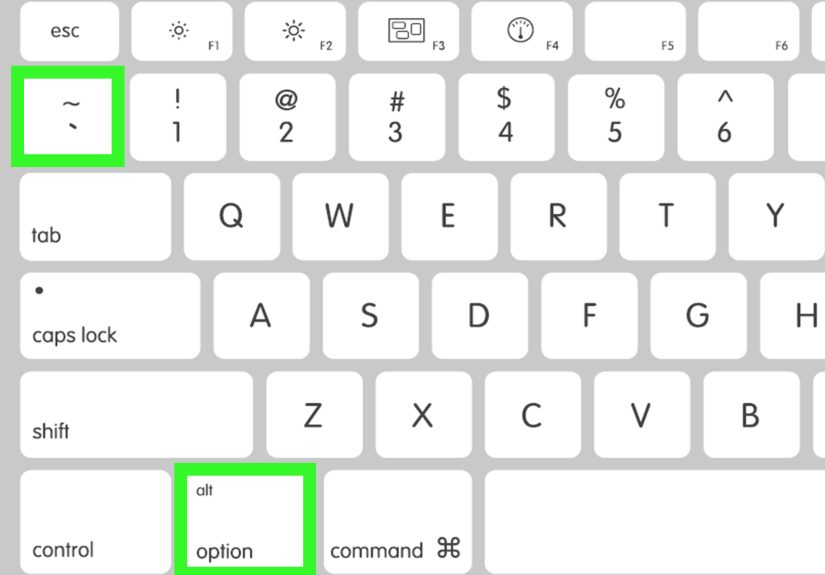
Method 2: Use Option Key Shortcuts on Mac
If you prefer keyboard shortcuts, Mac gives you dead-key combinations. A “dead key” sounds spooky, but it simply means you press a shortcut for the accent first, then press the letter.
| Character | Mac Shortcut |
|---|---|
| é | Option + E, then E |
| è | Option + `, then E |
| ê | Option + I, then E |
| ë | Option + U, then E |
For uppercase versions, turn on Shift for the final letter. For example, to type É, press Option + E, release, then press Shift + E.
How to Type an E with an Accent on Windows
Windows gives you several ways to type accented e characters. The best method depends on whether you are using Microsoft Word, a browser, a laptop without a number pad, or a desktop keyboard with a numeric keypad.
Method 1: Use Microsoft Word and Outlook Shortcuts
In Microsoft Word and Outlook, you can use built-in shortcuts for accented letters. These are especially useful if you write documents, emails, reports, or that one professional résumé you keep updating at midnight.
| Character | Windows Shortcut in Word or Outlook |
|---|---|
| é | Ctrl + ‘, then E |
| è | Ctrl + `, then E |
| ê | Ctrl + Shift + ^, then E |
| ë | Ctrl + Shift + :, then E |
To type uppercase accented E, use Shift when typing the final E. For example, Ctrl + ‘, then Shift + E creates É.
Method 2: Use Windows Alt Codes
If your keyboard has a numeric keypad, Alt codes are another reliable option. Hold down Alt, type the number on the numeric keypad, then release Alt.
| Character | Alt Code |
|---|---|
| é | Alt + 0233 |
| É | Alt + 0201 |
| è | Alt + 0232 |
| È | Alt + 0200 |
| ê | Alt + 0234 |
| Ê | Alt + 0202 |
| ë | Alt + 0235 |
| Ë | Alt + 0203 |
Important: use the numeric keypad, not the number row above the letters. Also check that Num Lock is on. If your laptop does not have a numeric keypad, this method may not work without an external keyboard or a built-in numeric keypad mode.
Method 3: Use Character Map
Windows Character Map is slower than shortcuts, but it is useful when you need a symbol and cannot remember the code.
- Open the Windows search bar.
- Type Character Map.
- Open the app.
- Find the accented e you need.
- Click Select, then Copy.
- Paste it into your document.
This method is not glamorous, but it works. Think of it as the junk drawer of special characters: not elegant, but surprisingly useful.
How to Type an E with an Accent on Chromebook
Chromebooks also support accented characters. On many newer Chromebook setups, you can press and hold a letter to open an accents menu.
Using the Chromebook Accents Menu
- Hold down the e key.
- When the accents menu appears, use the arrow keys, number key, mouse, or touchpad to choose the accented e.
- Press Enter or click the character to insert it.
If you type accents frequently on a Chromebook, you may also want to explore keyboard language settings. Adding an international keyboard can make accented letters easier to type, especially if you are writing in French, Spanish, Portuguese, or another language with frequent diacritical marks.
How to Type an E with an Accent in Google Docs
Google Docs works with the shortcuts and keyboard methods available on your device. That means Mac shortcuts work in Google Docs on Mac, long-press works on many mobile devices, and Windows shortcuts may work depending on your keyboard and browser. You can also use the built-in special characters tool.
Use Insert Special Characters
- Open your Google Docs document.
- Click Insert.
- Select Special characters.
- Search for “e acute,” “e grave,” or “accented e.”
- Click the character you want.
This is a solid option for occasional use. If you type accented letters every day, keyboard shortcuts will be faster. But for one-off words, the menu is perfectly fine. It is like taking the elevator one floor: technically unnecessary, emotionally satisfying.
Copy and Paste Accented E Characters
If you need a quick fix, copy the character you want from this list:
é É è È ê Ê ë Ë ē Ē
Copying and pasting is not cheating. It is a perfectly normal method when you are in a hurry. However, if you write accented letters often, learning your device’s shortcut will save time and reduce errors.
When Should You Use an Accented E?
Use an accented e when the word, name, or phrase requires it. In American English, accents are sometimes dropped from borrowed words, but they still matter in many contexts. For example, resume can mean “continue,” while résumé means a job document. Expose means to reveal something, while exposé is a report that uncovers hidden information. One tiny accent can prevent a surprisingly awkward misunderstanding.
Names are even more important. If someone writes their name as Zoë, Chloë, José, Renée, or André, use the accent if possible. It shows attention to detail and respect. Your keyboard may not care, but people do.
Troubleshooting: Why Is My Accented E Not Working?
The Accent Menu Does Not Appear
On phones, make sure you are pressing and holding the letter long enough. On Mac, check keyboard settings if press-and-hold produces repeated letters instead of the accent menu. On third-party keyboards, check whether accented characters are enabled.
Alt Codes Do Not Work on Windows
Use the numeric keypad, not the top row numbers. Turn on Num Lock. If you are using a compact laptop, try Microsoft Word shortcuts, Character Map, or copy and paste instead.
The Wrong Accent Appears
Be careful with similar marks. é has an acute accent leaning upward to the right. è has a grave accent leaning downward to the right. ê has a little hat, officially called a circumflex. ë has two dots. Yes, typography has hats and dots. It is a tiny fashion show.
Best Method by Device
| Device or App | Best Method |
|---|---|
| iPhone or iPad | Long-press e and slide to the accent |
| Android | Long-press e on Gboard, Samsung Keyboard, or SwiftKey |
| Mac | Press and hold e, or use Option shortcuts |
| Windows | Use Word shortcuts, Alt codes, or Character Map |
| Chromebook | Use the accents menu or international keyboard settings |
| Google Docs | Use device shortcuts or Insert > Special characters |
Practical Examples
Here are common words and names that use an e with an accent:
- café: Let’s meet at the café after class.
- résumé: I updated my résumé before applying.
- fiancé: Her fiancé is planning the party.
- fiancée: His fiancée loves old movies.
- exposé: The journalist published an exposé.
- crêpe: I ordered a strawberry crêpe.
- Noël: Noël is a common name and also means Christmas in French.
Notice that the accent is part of the word’s identity. Leaving it out may not always destroy meaning, but adding it usually makes your writing more precise.
of Real-World Experience: What Actually Works Best
After typing accented letters across phones, laptops, school documents, client emails, blog drafts, and social captions, one lesson becomes clear: the “best” method is the one you remember when you are moving fast. A perfect shortcut is not helpful if your brain throws it into the same drawer as old Wi-Fi passwords and the name of your third-grade substitute teacher.
For phone users, long-press is easily the most practical method. It is visual, intuitive, and works in normal writing situations. You do not need to memorize codes, open a separate tool, or change your entire keyboard layout. When texting “café,” you simply hold e, slide to é, and move on with your life. The only mistake beginners make is lifting their finger too early. Hold, slide, release. That rhythm matters. Think of it like selecting a snack from a tiny vending machine, except the snack is grammar.
On Mac, press-and-hold feels almost as natural as on iPhone. It is great for writers who need accented characters occasionally. However, if you type French or Spanish words often, Option shortcuts become faster. Once your fingers learn that Option + E, then E creates é, the process becomes automatic. The first few times feel weird, but so did riding a bike, and now some people do that down mountains for fun.
Windows is where people usually get frustrated, mostly because there are several methods and none feels universal at first. If you work mainly in Word or Outlook, learn the Ctrl shortcuts. They are cleaner than Alt codes and do not require a numeric keypad. If you use a desktop keyboard with a number pad, Alt codes are dependable. Alt + 0233 for é is worth memorizing if you use it constantly. If you are on a laptop without a keypad, do not wrestle with your keyboard like it owes you money. Use Word shortcuts, Character Map, Google Docs special characters, or copy and paste.
For Chromebooks, the accent menu is the friendliest option when available. Students and casual users should start there. If you are writing in another language regularly, adding the relevant keyboard language is smarter. It reduces friction and helps with more than just the letter e.
The biggest practical tip is to keep a mini cheat sheet. Save your most-used accented e characters somewhere easy: é, è, ê, ë, É. Put them in a note, browser bookmark, text replacement tool, or document template. Writers, teachers, students, bloggers, and job seekers often use the same accented words repeatedly. A shortcut list prevents errors and saves mental energy.
Finally, proofread accents the same way you proofread spelling. Autocorrect may help, but it can also change words unexpectedly. Check names carefully. Check résumé twice. Check fiancé and fiancée, because those are not interchangeable unless your sentence is about creating confusion at a wedding. Accents are small, but in polished writing, small things often make the biggest difference.
Conclusion
Learning how to type an e with an accent on a phone or computer is a small skill with a big payoff. On iPhone and Android, long-press the e key and choose the accent. On Mac, press and hold e or use Option shortcuts. On Windows, use Word shortcuts, Alt codes, or Character Map. On Chromebook, use the accents menu or adjust keyboard language settings. Once you know the method for your device, typing é, è, ê, and ë becomes quick, easy, and much less mysterious.
Whether you are writing a résumé, naming a café, emailing Renée, or ordering a crêpe with maximum confidence, accented letters help your words look correct and professional. Your keyboard already has the tools. You just needed the map.