Table of Contents >> Show >> Hide
- Can You Really Use an Xbox Controller on Switch?
- What You Need Before You Start
- How to Connect an Xbox Controller to Nintendo Switch
- How to Fix the Button Layout Problem
- What Works Well and What Does Not
- Common Problems and How to Fix Them
- Is It Worth Using an Xbox Controller on Switch?
- Real-World Experiences: What Using an Xbox Controller on Switch Actually Feels Like
- Final Thoughts
- SEO Tags
Let’s be honest: the Nintendo Switch is a fantastic little console, but not everyone falls in love with the Joy-Con lifestyle. For some players, those tiny buttons feel charming. For others, they feel like a polite suggestion from Nintendo to develop hand cramps. If you already own an Xbox controller, the obvious question is this: can you use it on a Nintendo Switch instead of buying yet another gamepad?
The good news is yes, you can. The slightly less magical news is that you usually cannot do it by pairing the Xbox controller directly to the Switch like you would with a normal Nintendo controller. In most setups, you need a small adapter that acts as a translator between your Xbox controller and the Switch. Once that bridge is in place, the whole thing becomes surprisingly simple. It is not quite “press one button and ascend to gaming enlightenment,” but it is close.
This guide walks through exactly how to use an Xbox controller on Nintendo Switch, what hardware you need, which Xbox controllers work best, how to fix common setup headaches, and what the real experience is like once everything is connected. If you want the short version, here it is: get a good adapter, turn on the right Switch setting, pair your controller, and then enjoy your games with a shape your hands already know and trust.
Can You Really Use an Xbox Controller on Switch?
Yes, but usually with help from a third-party adapter. Popular options include dongles from brands like 8BitDo and Mayflash. These adapters plug into the Nintendo Switch dock, or into a compatible USB-C accessory for handheld play, and then wirelessly connect to your Xbox controller. Think of the adapter as a very patient interpreter sitting between two consoles that speak different controller languages.
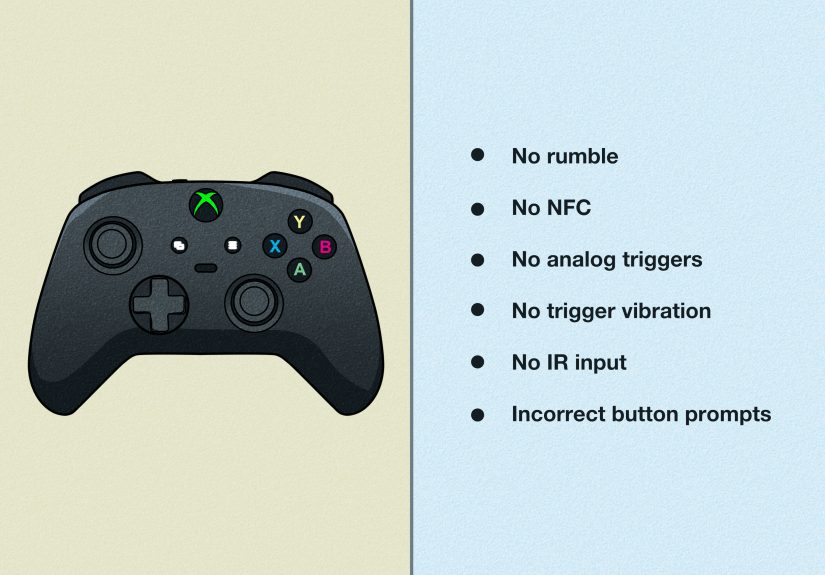
In practical terms, the Switch ends up treating the adapter like a supported controller. That means most games work just fine, menus are easy to navigate, and the overall experience feels much closer to using a Pro Controller than many people expect. The catch is that not every feature carries over perfectly. Depending on the adapter and controller model, you may run into small compromises involving button labels, motion controls, NFC, audio through the controller jack, or wake-from-sleep convenience.
What You Need Before You Start
1. A Nintendo Switch System
This can be the standard Nintendo Switch, the OLED model, or the Switch Lite. The regular Switch and OLED model are the easiest to work with because you can plug an adapter directly into the dock. The Switch Lite can still work, but it may require a compatible USB-C accessory or hub because it does not support TV mode and does not come with a dock-friendly setup out of the box.
2. A Bluetooth-Capable Xbox Controller
Your safest bets are newer Xbox Wireless Controllers, especially Xbox Series controllers and Xbox One models that support Bluetooth. If your controller is extremely old, do not assume it will play nicely. In the world of controller compatibility, “Xbox controller” is not always one single species. Sometimes it is a family reunion with several confusing cousins.
3. A Compatible Adapter
The most commonly recommended choices are the 8BitDo USB Wireless Adapter 2 and the Mayflash Magic-NS 2. Both are known for broad controller compatibility and simple setup. If you are shopping today, it is smart to choose the newer generation of adapter instead of an older leftover model. That reduces the odds of running into weird compatibility gaps with newer first-party Xbox controllers.
4. Optional: A USB-C Hub or Handheld Accessory
If you want to use this setup without docking the Switch, especially on a Switch Lite, you may need a USB-A to USB-C solution, a USB-C hub, or a compatible accessory that gives you the correct port access. This matters because many controller adapters are designed for USB ports, not direct magical floating in the air.
How to Connect an Xbox Controller to Nintendo Switch
Method 1: Using an Adapter with a Docked Switch or Switch OLED
-
Update your Switch and your adapter first. This step is boring, which is exactly why so many people skip it and then spend twenty minutes glaring at a blinking light. If your adapter has firmware updates available, install them before you begin.
-
Place the Switch in its dock and power it on. Make sure the dock is connected normally to power and your display.
-
Turn on “Pro Controller Wired Communication.” On the Switch, go to System Settings > Controllers and Sensors, then enable Pro Controller Wired Communication. This is one of the most important steps in the whole process. Forget it, and your adapter may connect but behave like a decorative USB charm.
-
Plug the adapter into the dock. Insert the adapter into an available USB port on the Switch dock.
-
Put the adapter into pairing mode. Most adapters have a small pairing button. Press it and wait for the indicator light to start blinking.
-
Put your Xbox controller into pairing mode. Turn on the controller, then hold the Pair button until the Xbox logo flashes rapidly.
-
Wait for the connection to finish. Once the adapter recognizes the controller, the light should go solid or otherwise show a successful connection.
-
Check controller recognition on the Switch. If needed, go to Controllers > Change Grip/Order on the Home menu so the console clearly sees the newly connected controller.
After that, you should be able to play as usual. If everything goes right, the setup feels delightfully anticlimactic. One minute you are poking at menus, the next minute you are using an Xbox controller to play Nintendo games and wondering why it took you this long.
Method 2: Using an Xbox Controller in Handheld Mode or on Switch Lite
This setup is possible, but it is a little less elegant. Since the Switch Lite has no dock, and handheld play on any Switch model may not expose a standard USB port the way the dock does, you need a compatible USB-C accessory, hub, or adapter path that lets your controller dongle connect physically to the system.
Once that hardware side is solved, the overall pairing process is almost the same:
-
Connect the USB adapter through your compatible USB-C setup.
-
Turn on Pro Controller Wired Communication if your adapter requires it.
-
Press the pairing button on the dongle.
-
Put the Xbox controller into pairing mode.
-
Confirm the controller appears on the Switch.
It works, but this version is definitely more “enthusiast project” than “standard console setup.” It is great if you are committed to your favorite controller. It is less great if you wanted a completely cable-free pocket miracle.
How to Fix the Button Layout Problem
Here is one of the first things most players notice: the physical button labels on an Xbox controller do not match Nintendo’s layout in the way your muscle memory might expect. The letters are familiar, but their positions are not. It is a tiny piece of chaos that can make menu prompts feel like a pop quiz you were not warned about.
The good news is that you have options. The Nintendo Switch includes button remapping settings for supported controller-style inputs, and some adapters also offer their own customization tools. If your adapter exposes the controller in a Pro Controller-like mode, you may be able to remap your buttons to create something that feels much more natural for your hands.
This is especially helpful for games where you constantly jump, dodge, or confirm menu choices. Even if you do not do a full remap, spending five minutes adjusting the layout can save you from ten hours of pressing the wrong button and blaming the universe.
What Works Well and What Does Not
What Usually Works Well
- Standard gameplay inputs in most Switch games
- Comfortable analog sticks and familiar Xbox ergonomics
- D-pad and face button control for platformers, RPGs, racers, and action games
- Rumble on many setups, depending on adapter and mode
- The ability to reuse hardware you already own instead of buying another controller
What May Be Limited or Missing
- Wireless audio through the controller’s headphone jack
- Remote wake-up of the Switch from the couch
- NFC and amiibo features
- One-adapter-per-controller limitations for multiplayer setups
- Some motion-heavy experiences that feel best on native Switch controllers
None of these issues are necessarily deal-breakers, but they are important to know before you jump in. If your dream is simple comfort and solid control in games like Mario Kart 8 Deluxe, Hollow Knight, Diablo III, or Stardew Valley, you will probably be very happy. If your dream is perfect feature parity with an official Pro Controller, that is a tougher promise.
Common Problems and How to Fix Them
The Controller Connects but Does Nothing
This is often the classic Pro Controller Wired Communication problem. Double-check that the setting is turned on. A connected light does not always mean a usable controller.
The Adapter Refuses to Pair
Update the adapter firmware. New controller revisions sometimes require newer adapter support. Also make sure your Xbox controller is actually a Bluetooth-capable model.
The Connection Drops or Feels Weird
Reduce interference. Keep the controller reasonably close to the Switch. If you are using a Mayflash adapter and pairing keeps failing, nearby Bluetooth devices can sometimes get in the way. Turning off extra Bluetooth gear temporarily can help.
The Buttons Feel Backward
Remap them on the Switch or in the adapter software if available. This is not a failure. It is just the price of making two different controller ecosystems share an apartment.
Multiplayer Is Not Working Right
Many of these adapters connect only one controller at a time. If you want multiple Xbox controllers connected at once, you may need multiple adapters.
Is It Worth Using an Xbox Controller on Switch?
For many players, absolutely. If you already love the feel of the Xbox controller, using it on Switch can make long gaming sessions more comfortable. The grip shape is familiar, the sticks feel dependable, and the overall controller size is often better for adults than default Joy-Con play. It can be especially appealing for action games, shooters, indie titles, and anything that benefits from a more traditional pad.
It is also a practical money move. Instead of buying a separate Pro Controller immediately, you can often use gear you already own. That is a nice little victory in a hobby that has a mysterious talent for turning “I only need one accessory” into “why do I now own three docks, two grips, and a cable pouch the size of Nebraska?”
That said, the setup is best for people who do not mind a small layer of tinkering. If you want a perfectly native Nintendo experience with all features intact, an official Switch controller is still the smoothest path. But if your goal is comfort, flexibility, and value, an Xbox controller plus a good adapter is a very smart combo.
Real-World Experiences: What Using an Xbox Controller on Switch Actually Feels Like
In real-world use, the biggest difference is comfort. That tends to be the first thing players notice and the reason they stay with the setup once it works. If you have spent years playing on Xbox, your hands already know the shape, the trigger feel, the stick placement, and the general rhythm of the controller. That familiarity matters more than people sometimes admit. It is not just about preference; it changes how relaxed you feel during longer sessions.
For racing games, the Xbox controller tends to feel especially natural. Something like Mario Kart suddenly feels more grounded in your hands, and the larger grip can make quick steering adjustments easier to manage. Platformers can also benefit because the controller feels stable and substantial instead of tiny and twitchy. In slower adventure games or cozy titles, the comfort difference becomes less dramatic, but it is still there in the background, quietly making everything more pleasant.
The one thing many players have to get over is the mental mismatch of Nintendo prompts versus Xbox button placement. At first, you may stare at an on-screen command for a second longer than you would like. Your brain says, “Press B,” your thumb says, “I know where B lives,” and the Switch says, “Actually, surprise.” That adjustment period is real. The good news is that it gets better fast, especially if you remap buttons or mostly play games where menu prompts do not matter much once the action begins.
Another real-world point is that the setup feels best when you treat it as a living-room solution, not a magic replacement for every possible Switch scenario. In docked mode, it feels clean and easy. In handheld mode, it becomes more specialized. On Switch Lite, it can be excellent if you truly want it, but it is definitely a “build your preferred setup” experience rather than a casual plug-and-play moment.
There is also a certain satisfaction in reusing hardware you already own. A lot of gamers have a perfectly good Xbox controller sitting nearby, and being able to put it to work on another console feels efficient in the best way. It cuts down on clutter, saves money, and makes your setup feel a little more custom. Instead of adapting your hands to the console, you adapt the console to your hands.
Overall, the experience is less about novelty and more about quality of life. Once the adapter is configured, the Xbox controller stops feeling like a workaround and starts feeling like your normal controller. That is really the goal. You do not want to spend every session thinking about compatibility charts and firmware notes. You want to sit down, launch your game, and play. When the setup is done correctly, that is exactly what happens.
Final Thoughts
If you have been wondering how to use an Xbox controller on Nintendo Switch, the answer is easier than it looks: use a reliable adapter, enable the proper Switch settings, pair the controller, and then tweak the button layout if needed. That is the whole recipe.
It is not a perfectly native Nintendo setup, and it is not meant to be. What it offers instead is flexibility, comfort, and a smart way to get more value out of hardware you already own. For many players, that trade is more than worth it. Once you start playing Zelda, Mario Kart, Metroid, or your favorite indie game with an Xbox pad that fits your hands just right, it becomes very easy to forget the setup ever felt complicated.
In other words, yes, your Xbox controller and your Nintendo Switch can absolutely become friends. They just need a translator and a little supervised bonding time first.