Table of Contents >> Show >> Hide
- What You Need Before You Start
- How to Open Facebook Marketplace on iPhone or iPad
- How to Pin Marketplace to Your Tab Bar (So It’s Always Easy to Find)
- How to Browse and Search Like a Pro (Without Losing Your Afternoon)
- How to Message a Seller (and Not Sound Like a Scam Bot)
- How to Buy Safely on Facebook Marketplace
- How to Sell on Facebook Marketplace Using iPhone or iPad
- Managing Your Listing: Messages, Marking Sold, and Staying Sane
- Shipping and Checkout: What to Know (When Available)
- How to Fix Facebook Marketplace Not Showing Up on iPhone or iPad
- Scam Awareness: The Red Flags to Take Seriously
- Quick FAQ: Using Facebook Marketplace on iPad vs. iPhone
- Conclusion: Marketplace Success Is Mostly About Being Clear (and Cautious)
- of Real-World Experiences (the “Stuff People Actually Run Into” Edition)
Facebook Marketplace is basically the world’s biggest digital yard saleexcept the “yard” is your iPhone or iPad, and the “sale” is you trying to buy a barely-used air fryer from someone named Mike who lives “15 minutes away” (which is never actually 15 minutes away).
Whether you’re here to buy a sofa that “just needs a quick wipe,” or to sell the treadmill that became a clothing rack, this guide walks you through exactly how to use Facebook Marketplace on iPhone or iPadfrom finding the Marketplace tab to posting a listing, filtering searches, messaging safely, avoiding scams, and getting your item from “still in my house” to “successfully gone.”
What You Need Before You Start
Before we tap anything, let’s make sure Marketplace can actually show up for you. Marketplace availability can depend on your account and settings. In general, you’ll have the best experience if:
- You’re using the Facebook app on iOS (Marketplace isn’t a separate app).
- Your account meets eligibility requirements (age, region, account standing).
- You allow Location Services for Facebook so Marketplace can show nearby items.
- You’ve updated the Facebook app to the latest version.
Important: Marketplace is not a separate iPhone/iPad app
You don’t download “Facebook Marketplace” from the App Store. Marketplace lives inside the main Facebook app (and the Facebook website). So if you’re hunting for a standalone Marketplace app… you can stop now and drink some water like you’ve been meaning to.
How to Open Facebook Marketplace on iPhone or iPad
The Facebook interface changes a little over time, but the entry points are usually the same. On iPhone or iPad, you can open Marketplace in one of these ways:
Option 1: Use the Marketplace tab/icon
- Open the Facebook app.
- Look for the Marketplace icon (often a little storefront).
- Tap it to start browsing.
Option 2: Open Marketplace from the Menu
- Open the Facebook app.
- Tap Menu (often the three-line icon or your profile picture).
- Tap Marketplace.
Once you’re in, you’ll typically see a feed of items near your location, plus categories like Vehicles, Electronics, Furniture, Apparel, and “Free Stuff” (a category that regularly features the emotional support couch of someone moving tomorrow).
How to Pin Marketplace to Your Tab Bar (So It’s Always Easy to Find)
If Marketplace keeps disappearing from your shortcuts, you can often pin it so it stays put. Facebook provides a way to customize the tab bar. Here’s the common path on iPhone:
- Open the Facebook app and tap Menu.
- Go to Settings & privacy → Settings.
- Tap Tab bar (or similar shortcut settings).
- Choose Customize the bar.
- Find Marketplace, then set it to Pin (instead of Auto or Hide).
If your tab bar is full, you may need to unpin something else. Yes, this is the digital version of cleaning out a junk drawer to make room for scissors.
How to Browse and Search Like a Pro (Without Losing Your Afternoon)
Marketplace is easy to scroll, but smarter searching saves timeand helps you avoid listings titled “ITEM” with photos taken in witness-protection lighting.
Use Search for exactly what you want
- Tap the search bar and type what you want: “iPad Pro,” “dresser,” “Nintendo Switch,” “standing desk,” etc.
- Use simple modifiers like brand, size, or color: “IKEA Malm dresser,” “blue sofa,” “size 9 boots.”
Filter results on iPhone or iPad
Filters vary by category, but you’ll usually be able to narrow by:
- Location (your city, radius, or a different area)
- Price range
- Condition (new, like new, good, fair)
- Delivery method (local pickup vs. shipping/checkout when available)
- Date listed (helpful to avoid zombie listings from 2019)
Save searches and listings
When you find something promising, tap Save so you can compare options later. This also helps you track price dropsbecause nothing says “healthy adult behavior” like watching a $60 lamp slowly become a $35 lamp.
How to Message a Seller (and Not Sound Like a Scam Bot)
When you tap a listing, you can message the seller through Facebook Messenger. Keep it simple, specific, and polite.
A good first message
- “Hi! Is this still available? If so, what area are you in, and when could I pick up?”
- “Hidoes the iPad have any cracks, and what’s the battery health like?”
- “Can you confirm the dimensions of the dresser? I’m trying to avoid buying furniture that won’t fit through my door.”
Negotiating without being That Person
If you want to negotiate, do it respectfully:
- Ask: “Would you take $80 if I can pick up today?”
- Don’t: “$20 cash rn” (unless you enjoy being blocked).
Pro tip: offering a fast pickup is often more persuasive than offering a dramatic sob story about your cousin’s birthday.
How to Buy Safely on Facebook Marketplace
Marketplace can be great, but you should treat it like meeting the internet in real life: friendly, but with situational awareness.
Inspect before you pay
If you’re meeting locally, inspect the item in person. Turn electronics on. Check buttons. Confirm it matches the photos and description. If it’s a piece of furniture, do a quick stability check. If it wobbles like a baby giraffe, that’s useful information.
Choose a safe meetup location
Local governments and law enforcement commonly recommend meeting in public, well-lit placesand many police stations offer safe exchange zones. Daytime is best, and bringing a friend is even better.
Pick a payment method that fits the situation
For local pickup, many buyers and sellers use cash. If you use a payment app, be carefulscammers love to exploit unfamiliar payment steps. For shipping/checkout transactions (when available), it’s generally safer to use the platform’s checkout flow rather than paying off-platform.
How to Sell on Facebook Marketplace Using iPhone or iPad
Selling is where Marketplace really shines. If you can take a decent photo and answer messages like a human, you’re already ahead of the competition.
Step-by-step: create a listing on iPhone/iPad
- Open the Facebook app and go to Marketplace.
- Tap Sell (often near the top).
- Tap Create listing.
- Select a listing type (for example: Item for sale, Vehicle, or Home for sale/rent).
- Tap Add photos and upload clear pictures.
- Add a title, price, and category.
- Write a helpful description (more on this in a second).
- Confirm your location and choose delivery/pickup options if offered.
- Tap Publish.
Write a listing that actually sells
Great listings do three things: they answer questions, they build trust, and they don’t feel like a hostage note.
Photos: the make-or-break factor
- Use natural light when possible.
- Show the item from multiple angles.
- Include close-ups of any flaws (scratches, dents, worn corners).
- For electronics, include a photo of the device powered on.
Title: searchable beats “Nice thing”
Use words buyers search for: brand + model + key feature. Example: “Apple Magic Keyboard for iPad Pro 11-inch (Great Condition)” is way better than “Keyboard.”
Description: answer the top questions upfront
- How old is it?
- What condition is it in?
- Any issues or missing parts?
- Why are you selling?
- Pickup area and availability window
A solid description example:
“Barely used Instant Pot Duo 6-quart. Works perfectly, includes lid + inner pot + rack. Selling because I upgraded. Pickup near Downtown. Cash preferred. First come, first served.”
Pricing: how to pick a number that gets messages
Before you set a price, search Marketplace for the same item and compare condition. If most similar listings are $120–$150 and yours is in good shape, pricing at $135 (with room to negotiate) is often smarter than listing at $200 and hoping for a miracle.
Many experienced sellers recommend researching local prices, taking quality photos, and leaving a little room for negotiationwithout underpricing your item. Think “reasonable,” not “garage sale at 2 a.m.”
Managing Your Listing: Messages, Marking Sold, and Staying Sane
Reply fast (without living in your phone)
Fast replies usually win. If you can’t respond immediately, consider a quick template: “Hi! Yes, it’s available. Earliest pickup is after 6 p.m. today.”
Use a simple “first confirmed pickup” rule
To avoid chaos, decide your policy:
- First confirmed pickup (time + place agreed) gets priority.
- Everyone else is “next in line” until the item is gone.
Mark the item sold promptly
Once it’s sold, mark it as sold so you don’t keep getting messages. Your future self will thank you. Your inbox will also thank you.
Shipping and Checkout: What to Know (When Available)
Depending on your location and the type of listing, Marketplace may offer shipping and checkout for certain items. When checkout is used, the buyer pays through Facebook’s checkout flow, and the seller ships the item.
Payout timing and accounts
For shipping-enabled sales, payouts typically happen after the seller marks the item as shipped or after delivery confirmation, with a waiting period. Some flows may require linking a payout method such as PayPal, depending on the program and region.
If shipping is not available on your account, don’t paniclocal pickup is still the most common Marketplace transaction style.
How to Fix Facebook Marketplace Not Showing Up on iPhone or iPad
If Marketplace is missing, it’s usually one of these categories: eligibility, settings, or a temporary glitch.
1) Check the basic eligibility and account factors
- Age/region: Marketplace isn’t available everywhere and is generally limited to adult users.
- Account status: New accounts may not see Marketplace right away. Policy issues can also limit access.
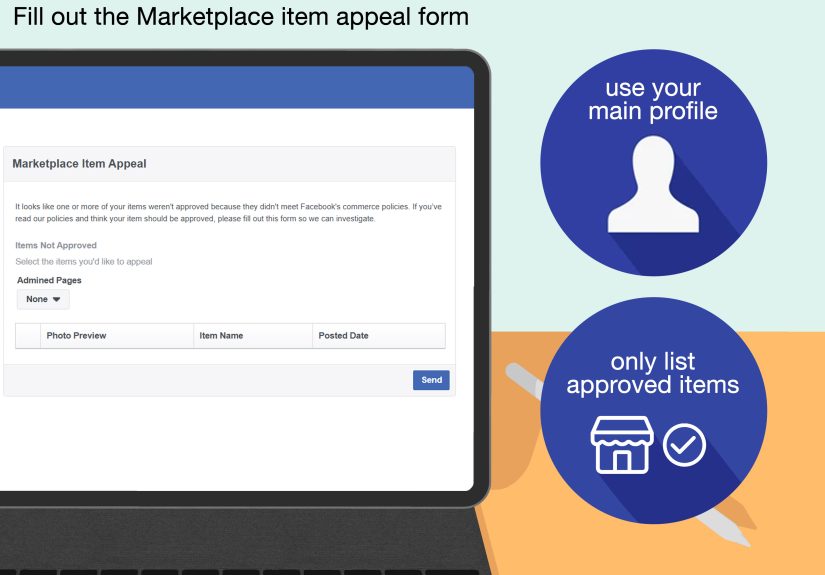
- Profile type: Marketplace may only work on your main profile (not secondary profiles).
2) Try quick troubleshooting steps
- Log out of Facebook and log back in.
- Update the Facebook app.
- Delete and reinstall the Facebook app.
- Try opening Marketplace from the Menu instead of the tab bar.
- Tap a shared link to a Marketplace listing to “wake up” access.
3) Turn on Location Services for Facebook
Location permission can matter for Marketplace. On iPhone/iPad:
- Open the Settings app.
- Tap Privacy & Security → Location Services.
- Find Facebook.
- Select While Using the App (or a similar option).
4) If it was removed for policy reasons
If access was revoked because of a policy violation or listing issues, Facebook may provide an appeals path. In that case, follow the in-app prompts and any official appeal forms available through Facebook Help Center.
Scam Awareness: The Red Flags to Take Seriously
Marketplace scams are common enough that consumer protection organizations and law enforcement repeatedly warn users to slow down and verify details. Here are the patterns that show up again and again:
Top scam red flags (buyer or seller)
- They want you to leave Facebook immediately (text, email, WhatsApp) “because Messenger is glitchy.”
- They ask for a code to “verify you’re real.” This can be used to hijack accounts or create fraudulent accounts.
- Overpayment tricks: “I’ll send extra money, just refund the difference.”
- Fake payment screenshots or emails that look like Zelle/PayPal but aren’t from the real company.
- Urgency pressure: “You must act now,” “I have someone else,” “Click this link immediately.”
- Weird payment demands: gift cards, wire transfers, crypto, or anything hard to trace.
Smart safety rules that prevent most problems
- Keep communication in Messenger and avoid sharing personal details unnecessarily.
- Don’t share verification codesever.
- Don’t accept mobile payments from strangers without understanding protections and policies.
- Never deposit a check for more than the selling price (classic fake check setup).
- Meet in a public place, ideally in daylight, and bring a friend when possible.
- Don’t click links in unsolicited messagesgo directly to the app or official website.
Quick FAQ: Using Facebook Marketplace on iPad vs. iPhone
Is Marketplace different on iPad?
The core features are the same: browse, search, message, and list items. The main difference is layoutiPad may show more on screen, and menus may sit in slightly different places.
Can I use Marketplace without Messenger?
Messaging is a big part of Marketplace because most local transactions require coordination. You can often view items, but communicating with buyers/sellers typically routes through Messenger.
Can I ship items from my iPhone?
If shipping/checkout is available on your account for the listing type, you can manage it from your phone or iPad. If not, local pickup still works great.
Conclusion: Marketplace Success Is Mostly About Being Clear (and Cautious)
If you remember only three things about Facebook Marketplace on iPhone or iPad, make them these:
- Make it easy: clear photos, clear descriptions, clear pickup details.
- Make it safe: public meetups, no weird codes, no sketchy payments.
- Make it human: polite messages and realistic expectations.
Do that, and Marketplace stops feeling like chaos and starts feeling like a useful tool for saving money, decluttering, and upgrading your life one “lightly used” item at a time.
of Real-World Experiences (the “Stuff People Actually Run Into” Edition)
Let’s talk about what using Facebook Marketplace on an iPhone or iPad really feels likebecause the official steps are simple, but the human behavior is where the plot twists live.
Experience #1: The “Is this available?” marathon. You post a perfectly good coffee table. Within minutes you get five messages that all say the same thing: “Is this available?” You reply “Yes.” Two people vanish. One asks if you’ll deliver it across town for free. Another offers half the price and a motivational quote. This is normal. The best move is to keep your replies short and structured: “Yes, available. Pickup near [area]. Earliest is today after 6 p.m. Cash preferred.” When someone confirms a time, they become your priority, and everyone else becomes “next if it falls through.” It sounds cold, but it saves your sanity.
Experience #2: The photo problem. On mobile, people scroll fast. Listings with dark, blurry photos get ignoredeven if the item is great. A simple upgrade: open your curtains, stand near a window, take photos from multiple angles, and include one “proof” photo (electronics turned on, furniture showing full size). It’s amazing how quickly a “meh” listing becomes a “multiple messages in 10 minutes” listing just because it looks trustworthy.
Experience #3: The payment bait. A common scam pattern starts friendly, then pivots: “I’ll pay now, what’s your number? I’m sending a code.” The moment you see “code,” you should think “nope.” Legit buyers don’t need to verify you with a random number. Staying inside Messenger, refusing verification codes, and meeting in public eliminates a huge chunk of Marketplace drama.
Experience #4: The meetup reality check. Public meetups feel awkward until they feel smart. Many people choose a police station parking lot or a busy coffee shop. If someone refuses a public meetup or insists on coming to your home immediately, that’s not a “quirk,” it’s a warning sign. The best transactions feel boring: two people show up, inspect the item, exchange payment, and leave. Boring is the goal.
Experience #5: The iPad advantage. Using Marketplace on an iPad can actually be easier for comparing listings. You can read descriptions without squinting, zoom into photos, and message while still seeing details. If you’re shopping for big items (strollers, desks, furniture), the bigger screen helps you notice missing parts, weird damage, or “creative photography” that hides flaws.
Bottom line: Marketplace success isn’t about mastering secret featuresit’s about clear communication, solid photos, fair pricing, and safety habits that make the whole experience smoother. Your iPhone or iPad is just the tool. The real skill is learning when to say, “Thanks, but I’ll pass.”