Table of Contents >> Show >> Hide
- Choose the Right Spot Before You Turn It On
- Connect the PS5 in the Right Order
- Connect to the Internet Early
- Update the System Software Immediately
- Sign In, Then Secure Your Account
- Transfer Games and Saves From Your PS4
- Fix the Video Settings Before You Judge the Graphics
- Change the PS5 Settings That Actually Matter
- Set Up Storage Before It Becomes a Problem
- Do the Optional Setup Steps You Will Thank Yourself For Later
- What to Do if Setup Goes Sideways
- Conclusion
- Real-World Setup Experiences: What New PS5 Owners Usually Notice
The PlayStation 5 is a terrific console. It is fast, powerful, and just dramatic enough in its design to look like a spaceship that rents expensive apartments. But before you dive into a game and forget what daylight looks like, it helps to set the console up the right way. A smart PlayStation 5 setup is not just about plugging in cables and pressing the power button. It is about getting the best picture, the smoothest performance, the safest account settings, and enough storage to avoid deleting half your library every other weekend.
If you are wondering how to set up a PS5 without turning your living room into a troubleshooting lab, this guide walks you through the simple stuff first and the useful extras second. Whether you bought a standard PS5, a Digital Edition, or a newer slim-style model, the setup basics are the same: place it properly, connect it correctly, update it immediately, and tweak a few settings before your first marathon session.
Choose the Right Spot Before You Turn It On
The easiest way to make your PlayStation 5 setup feel painless is to start with the physical placement. Put the console on a flat, stable surface with plenty of breathing room around it. That means no cramped shelves, no wobbly stacks of books, and no “it fits if I force it” entertainment center logic. Good airflow matters, and the PS5 will thank you by staying cooler and quieter.
Attach the included stand or support feet that match your model before you go any further. Sony’s instructions vary slightly depending on the hardware revision, so do not assume every PS5 uses the exact same base setup. If you have a disc model, make sure the disc slot is oriented correctly once the console is in place. This is one of those tiny details that feels obvious right after you fix it.
What to have ready
Keep the console, power cord, HDMI cable, DualSense controller, and USB cable nearby. If you plan to transfer data from a PS4, keep that console available too. If you use wired internet, now is also the time to bring over an Ethernet cable. A little preparation here saves a lot of crawling behind furniture later.
Connect the PS5 in the Right Order
Now for the easy part. Connect the HDMI cable from the PS5 to your TV or monitor, then connect the power cord. After that, plug the DualSense controller into the console with the USB cable so the controller can pair during the initial startup. Power on the display first, then the console.
On first boot, the PS5 walks you through language selection, controller setup, display detection, and internet connection. The menu flow is straightforward, which is good, because this is not the moment anyone wants a 47-step wizard that asks philosophical questions about brightness.
If your TV supports advanced features, the PS5 can automatically detect a lot of them. Still, do not assume automatic always means ideal. Later in setup, you should double-check your video output settings manually to make sure the console is actually using the best combination of resolution, refresh rate, and HDR available for your display.
Connect to the Internet Early
A PS5 can power on without internet, but a proper setup should include getting online as soon as possible. That is how you download the latest system software, sign in to PlayStation Network, sync cloud saves, install game patches, and access the PlayStation Store. In practical terms, internet is less of a luxury and more of the difference between “ready to play” and “mysteriously missing half the features.”
You can use Wi-Fi or a wired LAN connection. Wi-Fi is perfectly fine for many homes, but Ethernet is the better choice if your router is close enough. A wired connection is usually faster and more stable for large downloads, online multiplayer, Remote Play, and system updates.
If your setup screen does not connect on the first try, do not panic and assume the console is haunted. Recheck your password, restart the router if needed, and try again. Most first-day connection issues are ordinary networking hiccups, not console failures.
Update the System Software Immediately
One of the smartest things you can do after connecting the internet is update the system software. This is the first real “grown-up” move in a PS5 setup guide because it solves problems before they become problems. Updates improve stability, add features, patch bugs, and keep compatibility current.
After setup, head to the system software section and make sure the console is fully updated. Then turn on automatic updates so the PS5 can handle future downloads with less babysitting. If you use Rest Mode, enabling update-related options helps the console download software and game updates in the background.
This is also a good time to let the DualSense controller update its device software. Sony rolls controller updates out alongside broader system improvements, and installing them helps keep pairing, performance, and features working properly.
Sign In, Then Secure Your Account
Once the PS5 is online, sign in with your PlayStation Network account or create one if you are new to the ecosystem. If you already use the PlayStation App, signing in can be faster thanks to QR-based login tools. That makes the process much less annoying than poking an email address into a controller one character at a time like it is 2009.
After sign-in, handle security before you forget. Set up a passkey or another strong sign-in method, and review your account security settings. This is also the perfect moment to adjust privacy controls so your real name, activity, friend requests, and profile visibility are set the way you want them. A clean new console is nice. A clean new console with a protected account is better.
If the PS5 will be shared with family members, check Console Sharing and Offline Play as well. That helps other users on the same console access your digital purchases appropriately, and it is one of those settings people often discover only after someone in the house asks why they cannot launch anything.
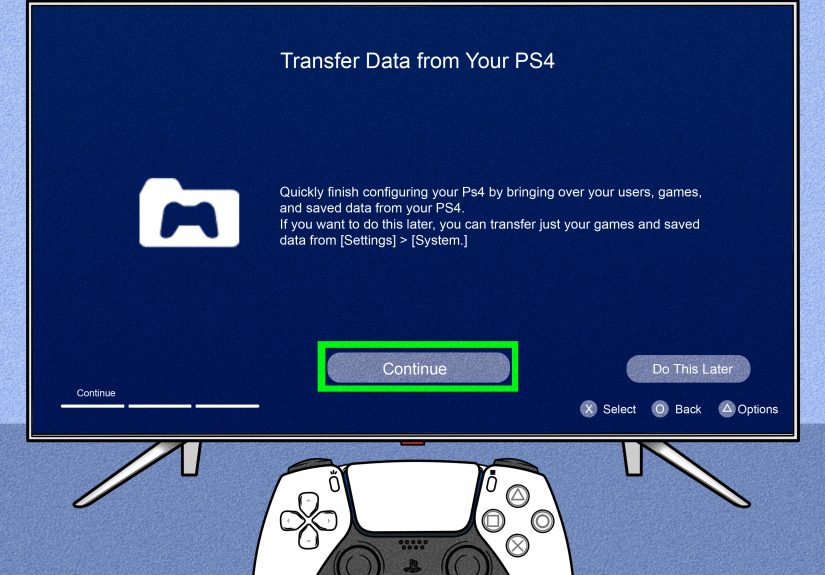
Transfer Games and Saves From Your PS4
If you are upgrading from a PS4, the PS5 gives you a few ways to move data over. You can transfer digital games and data over the network, move some saved data with USB storage, or use cloud storage if you have PlayStation Plus support for saves. The best method depends on how much content you have and how patient you are feeling that day.
For many users, transferring the essentials first is the smartest move. Bring over your save data, your most-played games, and anything you know you will want immediately. Do not feel pressured to migrate your entire digital history in one dramatic evening. Your console does not need all 147 GB of “maybe I will replay this someday” on day one.
Also, pay attention to game versions. Some cross-generation titles have both PS4 and PS5 editions, and you will want to make sure you install the PS5 version when available. That is the one designed to take advantage of the faster SSD, better graphics, and PS5-specific features.
Fix the Video Settings Before You Judge the Graphics
A lot of people hook up a new console, launch a game, and assume whatever appears on screen is the best the hardware can do. That is optimistic, but not always accurate. Check your PS5 display settings and see what the connected HDMI device actually supports.
If you have a compatible TV or monitor, the PS5 can support 4K output, HDR, and higher refresh rate features such as 120Hz gameplay in supported titles. Depending on your display, you may also want to check VRR-related options if available. The goal is simple: let the console use the best settings your screen genuinely supports, not the fanciest-sounding settings your screen politely refuses to handle.
HDR deserves a quick mention because it can look fantastic when adjusted correctly and weirdly gloomy when it is not. Use the built-in HDR calibration screens and follow them carefully. If your TV is older or HDR performance is weak, it is perfectly fine to prioritize a cleaner image over flashy letters in a menu.
Change the PS5 Settings That Actually Matter
This is where a basic PlayStation 5 setup becomes a good one. A few settings changes can make the console easier to use from day one.
1. Set your game presets
The PS5 lets you choose default preferences for things like difficulty, subtitles, camera behavior, and whether supported games should favor performance or resolution. If you usually prefer smoother frame rates, set that globally and save yourself from adjusting it game by game.
2. Review controller settings
The DualSense is excellent, but battery life is not magic. Adjust auto power-off timing, vibration intensity, and trigger strength if you want a little more endurance between charges. Great haptics are fun; a dead controller during a boss fight is less charming.
3. Disable automatic trophy videos if you want extra space
The PS5 can automatically save media clips for trophies, which sounds delightful until you realize how quickly little videos and screenshots eat storage. If you are not creating content or collecting clips, turn that feature down or off.
4. Customize privacy and notifications
New console excitement is high. Random pings, pop-ups, and over-sharing do not need to be. Tweak your privacy profile and notification settings early so the console feels personal instead of noisy.
Set Up Storage Before It Becomes a Problem
Storage management on the PS5 is less glamorous than graphics settings, but it matters more than most people expect. Modern games are large. Very large. “How is this update bigger than my childhood computer?” large.
The simplest approach is to keep the internal storage focused on the games you are actively playing. If you need more room, you have two main options. First, you can use supported USB extended storage for PS4 games and for storing PS5 games when they are not in active rotation. Second, you can install a compatible internal M.2 SSD if you want more fast storage built directly into the console.
The important detail is this: PS4 games can run directly from compatible USB extended storage, but PS5 games need to be played from the console’s internal SSD or a properly installed M.2 SSD. In other words, USB storage is excellent for overflow and convenience, but not a magic shortcut for everything.
Do the Optional Setup Steps You Will Thank Yourself For Later
Once the essentials are done, take five more minutes for the quality-of-life settings that make the console feel finished.
Parental controls
If children will use the console, set family management and parental controls right away. The PS5 lets you manage spending limits, game age restrictions, communication options, and playtime tools. Doing this after a mystery purchase is not nearly as fun.
Accessibility settings
The PS5 includes meaningful accessibility options for text, captions, screen reader support, controller adjustments, chat transcription, audio features, and more. Even users who do not think of themselves as needing accessibility tools may find that a few tweaks make long sessions more comfortable.
Remote Play
If you want to stream your PS5 to a phone, tablet, or computer, enable Remote Play and configure the related Rest Mode settings. This is one of those features many people ignore until they realize they would really like to keep playing while the main TV is suddenly occupied by someone’s very serious reality show.
What to Do if Setup Goes Sideways
Most PS5 setup problems are fixable without drama. If the system software update stalls, restart the download and try again. If the controller does not pair, reconnect it with the USB cable and press the PS button. If the image looks wrong, revisit video output settings and HDR adjustment. If the console has been offline for a long time or an update failed, Safe Mode can be used for manual software updates through USB.
The real trick is not to change ten things at once. Test one issue at a time. Check cables, network connection, power, and display settings in that order. Slow, boring troubleshooting works far better than aggressive button mashing and blaming the HDMI cable with the confidence of a trial lawyer.
Conclusion
The best way to set up a PlayStation 5 is also the simplest: place it properly, connect it carefully, get it online, update everything, secure your account, and make a few smart settings changes before your first game. That basic routine turns a good console into a better everyday experience. You get cleaner visuals, smoother downloads, safer account access, smarter storage use, and fewer annoying surprises later.
In other words, a good PS5 setup is not about being overly technical. It is about doing the obvious things well and the useful things early. Once that is done, the console mostly gets out of your way, which is exactly what great hardware should do.
Real-World Setup Experiences: What New PS5 Owners Usually Notice
One of the most relatable things about setting up a PS5 is how quickly excitement collides with reality. The first few minutes usually feel smooth: the console comes out of the box, the design looks futuristic, the controller feels premium, and everything seems like it will be done in ten minutes. Then the setup process begins and people remember that modern gaming hardware is basically a small computer wearing nicer shoes.
A very common experience is that the physical setup feels easier than the digital setup. Plugging in the HDMI cable, attaching the stand, and powering on the console are simple. The part that takes longer is everything after that: signing in, updating software, choosing privacy settings, adjusting HDR, downloading games, and waiting for patches that somehow appear the exact second you feel most impatient.
Another thing new owners often notice is how much better the experience becomes after just a few settings changes. The default setup is good, but once users tweak performance mode, subtitles, notifications, controller sleep timing, and media capture options, the console starts to feel truly personalized. It stops feeling like a new device and starts feeling like your device.
Display setup is another area where expectations and reality sometimes wrestle in public. Many people assume a PS5 automatically means perfect graphics the moment it turns on. In practice, the best results usually come after checking what the TV or monitor actually supports. Some users discover their HDMI port was not set correctly. Others realize HDR needs calibration. And a surprising number learn that not every screen handles 120Hz, VRR, or gaming features the way the marketing box suggested with suspicious confidence.
Storage also becomes personal very fast. At first, the PS5 SSD feels roomy. Then a few large installs happen, maybe a Call of Duty-sized monster enters the room, and suddenly storage management becomes part of the weekly routine. This is often the moment people start appreciating USB storage for PS4 titles or researching a compatible M.2 SSD like they are shopping for an addition to the house.
For players upgrading from PS4, the experience can be surprisingly emotional in a small nerdy way. Loading times are dramatically shorter, menus feel quicker, and familiar games often run or look better. But there is also a brief adjustment period where people relearn where everything lives in the menus, how the Control Center works, and why the new console insists on offering more customization than they expected.
The funniest shared experience may be the first time someone realizes the DualSense controller is not just marketing hype. Even skeptical users often end up impressed by the haptics and adaptive triggers. It is one thing to read about those features. It is another to feel them in a game and immediately understand why so many players say, “Okay, that is actually pretty cool.”
In the end, setting up the PlayStation 5 is rarely difficult, but it is often more layered than people expect. The good news is that once the updates are finished, the settings are dialed in, and the first game finally launches, most owners come away with the same conclusion: the setup takes a little patience, but the payoff is worth it.