Table of Contents >> Show >> Hide
- Motherboard in Plain English
- The Four Big Jobs of a Motherboard
- Key Motherboard Components (and What They Actually Do)
- How the Motherboard Affects Performance and Features
- Choosing the Right Motherboard (Without Losing Your Mind)
- Real-World Motherboard Experiences: Lessons from the Build Bench (≈)
- Conclusion: The Unsung Hero of Your PC
If your computer were a city, the motherboard would be the entire road system, power grid, and zoning map rolled into one flat green board. It doesn’t get flashy RGB headlines like graphics cards or “world’s fastest” bragging rights like CPUs, but without the motherboard, all those fancy parts are just expensive paperweights.
So what does a motherboard actually do, besides sitting at the bottom of the case looking important? In short: it powers, connects, coordinates, and limits almost everything your PC can do. Once you understand how it works, choosing parts and fixing problems becomes way less mysterious (and a lot more fun).
Motherboard in Plain English
A motherboard is the main circuit board in a computer. It physically holds your core componentsCPU, RAM, storage, graphics cardand lets them talk to each other through copper traces (tiny “roads”) and electronic controllers called chipsets.
Think of it like this:
- CPU (processor): The brain.
- RAM: The short-term memory.
- SSD/HDD: The long-term storage.
- GPU: The visual artist.
- Motherboard: The nervous system, spine, and utility company that keeps everyone powered and in sync.
Modern motherboards don’t just connect parts. They also provide power regulation, determine which CPUs and RAM you can use, offer ports for your devices, and influence how fast data moves through the system.
The Four Big Jobs of a Motherboard
1. Physical Foundation for Your PC
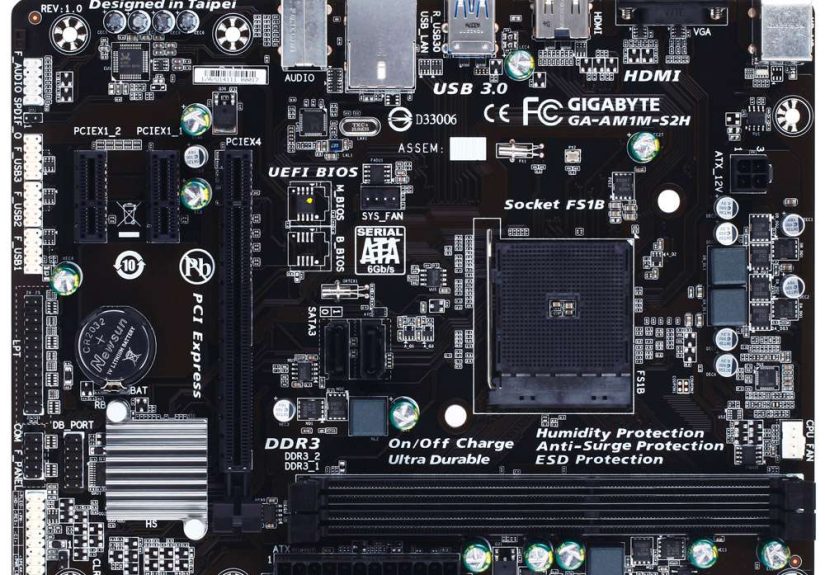
The first job is simple but critical: the motherboard gives all your components a place to live. It has mounting holes that line up with your case, slots for RAM, a socket for the CPU, and connectors for storage, power, and front-panel buttons.
The board’s form factorlike ATX, Micro-ATX, or Mini-ITXdefines its size and the number of slots and ports it can offer. Larger boards usually mean more room for RAM, expansion cards, and connectors.
2. Power Distribution and Regulation
Your power supply sends relatively “raw” power to the motherboard. The board then uses VRMs (Voltage Regulator Modules) to convert that power into the precise, stable voltages your CPU and other components need.
Good VRMs and heatsinks help keep the CPU stable under heavy load or overclocking. Weak VRMs can cause crashes, throttling, or mysterious “why did my PC shut off?” moments.
3. Communication Hub for All Components
The motherboard routes data between the CPU, RAM, GPU, storage, and peripherals via high-speed buses and the chipset. Older designs used separate “northbridge” and “southbridge” chips; modern boards bundle that logic into a single chipset (often called the PCH).
The chipset helps decide:
- How many PCIe lanes you get for GPUs and SSDs
- How many USB ports and what speeds (USB 3.2, USB-C, etc.)
- Support for Wi-Fi, Bluetooth, RAID, and more
4. Gateway to the Outside World
The rear I/O panel on your motherboard is where the PC meets reality: USB ports for your keyboard and mouse, audio jacks, Ethernet for networking, and sometimes display ports for integrated graphics. Internally, front-panel headers connect your case’s power button, LEDs, USB ports, and audio jacks.
All of that flows through the motherboard, which acts like a very busy airport control towerwithout the dramatic voiceovers.
Key Motherboard Components (and What They Actually Do)
CPU Socket
The CPU socket is where the processor plugs in. It looks like a grid of pins (Intel LGA) or tiny holes (older AMD PGA). The exact socketlike Intel LGA1700 or AMD AM5determines which CPUs you can use. If the CPU and socket don’t match, they’re never going to be friends.
This is why every build guide screams: choose your CPU first, then the motherboard.
RAM Slots (DIMM Slots)
Those tall, narrow slots with little latches on either end? Those are RAM slots. They hold your memory modules and determine:
- How much RAM you can install (e.g., 2 slots vs. 4 slots)
- What type (DDR4 vs. DDR5)
- What speed the board officially supports
More slots = more flexibility for upgrades, but the motherboard and CPU still set upper limits on capacity and speed.
The Chipset: The Traffic Cop
The chipset is the motherboard’s traffic controller. It directs data between the CPU, storage, USB ports, and expansion slots. Gaming-focused chipsets might add extra PCIe lanes, overclocking support, and more high-speed USB ports, while budget chipsets pare things down to essentials.
On modern boards, the chipset also helps decide whether you get PCIe 4.0 or 5.0, how many NVMe SSDs you can run, and what sort of RAID or connectivity features you can enable.
Expansion Slots (PCIe Slots)
PCI Express (PCIe) slots are where you plug in add-on cards:
- Graphics cards (GPUs)
- Capture cards or sound cards
- Extra NVMe storage cards or networking cards
The big x16 slot near the CPU usually hosts your GPU. Smaller x1 and x4 slots handle lower-bandwidth cards. High-end motherboards may offer multiple reinforced GPU slots and dedicated PCIe 4.0/5.0 slots for blazing-fast SSDs.
Storage Connectors: SATA and M.2
Motherboards provide two main ways to connect storage:
- SATA ports for 2.5-inch SSDs and 3.5-inch hard drives
- M.2 slots for gumstick-sized NVMe or SATA SSDs
M.2 NVMe SSDs can use PCIe lanes for much higher speeds than SATA, which is why most modern motherboards dedicate multiple M.2 slots near the CPU. The chipset and CPU together decide how many of those slots can run at full speed simultaneously.
Firmware: BIOS/UEFI
Motherboards store firmwareeither classic BIOS or more modern UEFIin non-volatile memory chips. This firmware:
- Initializes hardware when you power on
- Lets you change settings like boot order and RAM speed
- Provides features like secure boot, fan curves, and overclocking controls
Most modern boards let you update UEFI firmware using a USB drive, fixing bugs and adding support for new CPUs over time.
Connectors, Headers, and the “Small Stuff” That Matters
Look closely and you’ll see lots of tiny connectors around the edges of the motherboard. These include:
- Fan headers for CPU and case fans
- RGB/ARGB headers for lighting
- Front-panel headers for power/reset switches and LEDs
- USB 2.0/3.x headers for front USB ports
- Audio header for front-panel headphone/mic jacks
They’re small, but miss one and you lose a featurelike a front USB-C port or case lighting. Builders learn quickly to check these before closing the case.
How the Motherboard Affects Performance and Features
Compatibility and Upgrades
Your motherboard quietly controls how long your system stays “modern.” It dictates:
- Which CPU generations work (e.g., Intel 12th–14th gen, or AMD AM5 chips)
- What RAM type (DDR4 vs. DDR5) and maximum capacity you can use
- How many high-speed NVMe drives or GPUs you can install
Some newer boards even support both DDR4 and DDR5 via separate slots, letting you upgrade memory tech without changing the whole platform.
Power Delivery and Overclocking
Not all motherboards are created equal when it comes to power delivery. Boards aimed at enthusiasts often include:
- Stronger VRM designs with more phases
- Larger heatsinks over the VRMs
- Additional 8-pin or 4-pin CPU power connectors
This doesn’t magically make your CPU faster, but it does help it sustain higher boost clocks or overclocks without overheating or crashing. Budget boards can run powerful CPUs, but they might throttle under sustained heavy load.
Connectivity: Ports, Networking, and Quality of Life
From the number of rear USB ports to built-in Wi-Fi and Bluetooth, the motherboard determines how “plug-and-play” your experience feels. Typical features include:
- 2.5Gb Ethernet or faster networking
- Wi-Fi 6/6E or newer
- USB-C with fast charging or high-speed data
- High-quality onboard audio with shielded circuits
These don’t show up in FPS charts, but they matter a lot in daily use, especially for gaming, streaming, and remote work.
Form Factor and Build Aesthetics
Want a compact living-room PC? That depends on whether your motherboard comes in Mini-ITX. Want a powerhouse workstation with three GPUs and a stack of drives? You’re probably looking at ATX or E-ATX boards. The form factor shapes your entire build: case size, cooling options, number of cards, and even where your cables will route.
Choosing the Right Motherboard (Without Losing Your Mind)
Start with Your CPU and Use Case
Instead of asking “What’s the best motherboard?”, ask “What am I actually doing with this PC?” Then:
- Pick your CPU first (Intel vs. AMD, gaming vs. productivity).
- From there, choose a motherboard socket and chipset that support that CPU.
- Match features to your use case: more PCIe slots and RAM for creators, stronger VRMs and PCIe 5.0 for high-end gamers, simpler boards for office PCs.
Match Features, Not Hype
A solid rule of thumb:
- Basic home/office PC: Entry-level chipset, 2 RAM slots, one M.2 slot, integrated graphics support.
- Mid-range gaming PC: 4 RAM slots, decent VRMs, at least two M.2 slots, PCIe 4.0, and Wi-Fi.
- High-end creator or enthusiast rig: Strong VRM, multiple M.2 and PCIe slots, USB-C, ample fan and RGB headers, and robust BIOS features.
The motherboard doesn’t need to be the most expensive part in your system, but it also shouldn’t be the thing you cheap out on so hard that future upgrades become impossible.
Real-World Motherboard Experiences: Lessons from the Build Bench (≈)
Specs and diagrams are nice, but most people really get what a motherboard does the first time they build or upgrade a PC. That’s when you learn the “ohhh, that’s what this header is for” lessons the hard way.
Experience #1: The “Wrong Socket” Wake-Up Call
One of the most common rookie stories goes like this: someone finds a great deal on a CPU and a separate deal on a motherboard. Both say “Intel” on the box, so they assume it’s a match. Only when they go to install the CPU do they realize the sockets are different. No click, no POST, just frustration.
That’s when it hits: the motherboard isn’t optional paperworkit’s the compatibility gatekeeper. Socket, chipset, and BIOS support must all line up. After one mismatch experience, builders religiously double-check manufacturer compatibility lists before hitting “Add to cart.”
Experience #2: Cable Chaos and Front-Panel Headers
Another classic moment is staring at a tiny row of pins labeled “F_PANEL” and a handful of microscopic wires from the case: POWER SW, RESET SW, HDD LED, POWER LED. The motherboard manual suddenly becomes your favorite book.
Once you’ve successfully wired these up and watched your PC spring to life when you press the case power button, you realize the motherboard is not just a slab of siliconit’s the translator between your case, your power supply, and your components. Miss a pin, and your PC might stay dark even if everything else is installed perfectly.
Experience #3: “Why Won’t My SSD Run at Full Speed?”
Fast NVMe SSDs have made it easy to hit several gigabytes per second in sequential reads, but many users only see part of that speed. Later, they discover that their motherboard shares PCIe lanes between certain M.2 slots and SATA ports. Plug in drives in the “wrong” combination, and some ports slow down or turn off.
This is a hands-on lesson in how the motherboard allocates PCIe lanes and bandwidth. It shows that the board doesn’t just host storageit actively controls how much performance each drive can get. After that, people start consulting the layout diagrams in the manual like they’re treasure maps.
Experience #4: The No-Fan-Header Regret
When you first build a system, three fans feels like a lot. Then you add a better CPU cooler, more case fans, maybe a radiator for liquid cooling, and suddenly you’re hunting for extra fan headers. If your motherboard only has a couple of them, you end up daisy-chaining splitters and hoping nothing overloads.
That’s when you appreciate motherboards with plenty of fan and pump headers plus smart fan control in the BIOS. The board doesn’t just power componentsit gives you fine-grained control over noise and cooling, which directly affects performance and comfort.
Experience #5: Upgrades That “Just Work” (or Don’t)
Over time, you’ll probably want to add RAM, a bigger SSD, or a better GPU. On a well-chosen motherboard, this feels smooth: open some slots, plug in parts, maybe tweak a BIOS setting, and you’re off. On a poorly chosen board, you might hit max RAM capacity, run out of M.2 slots, or discover there’s no physical space for a larger graphics card.
That contrast drives home the long-term role of the motherboard. It doesn’t just connect today’s parts; it defines the ceiling for what your system can grow into. People who’ve been through a couple of upgrade cycles often say, “If you can stretch your budget anywhere, stretch it on the board.” Not because it makes your PC instantly faster, but because it makes your future options much better.
All of these experiences point to one simple truth: once you build or upgrade a PC, you stop thinking of the motherboard as a boring green rectangle and start seeing it as the quiet architect of your entire system.
Conclusion: The Unsung Hero of Your PC
So, what does a motherboard do? It anchors every component in place, feeds them power, orchestrates how they communicate, lets you connect the outside world, and silently decides how far your system can gotoday and years from now. From CPU compatibility to how many fans you can plug in, the motherboard is the hidden rulebook of your PC.
When you’re planning a build or upgrade, don’t treat the motherboard as an afterthought. Pick one that matches your CPU, supports the RAM and storage you want, and has enough headers and expansion for your future plans. Get that right, and the rest of your components can finally shinewithout drama, error codes, or late-night forum posts.