Table of Contents >> Show >> Hide
- What “Download Music With iCloud” Really Means
- 1. Download Music From Apple Music Using Sync Library
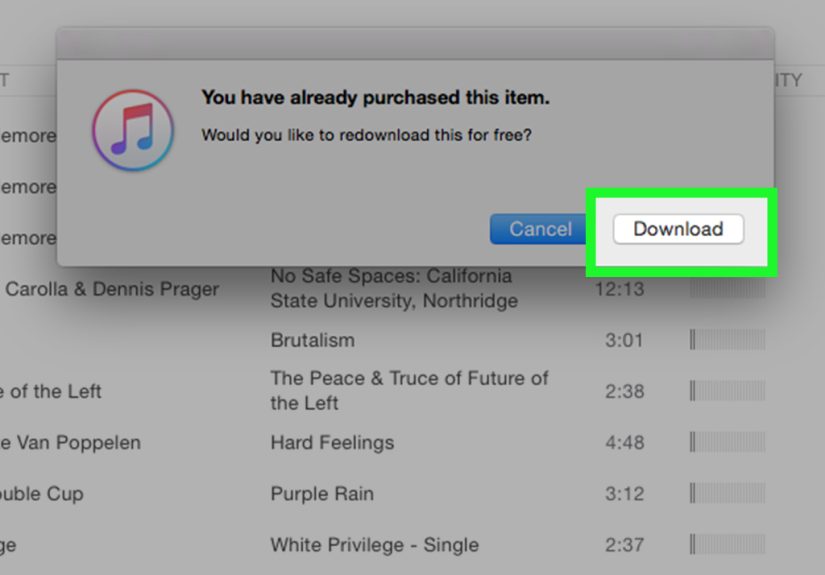
- 2. Redownload Music You Bought From the iTunes Store
- 3. Save and Download Your Own Audio Files Through iCloud Drive
- 4. Use iTunes Match for Imported Music and Older Libraries
- Which iCloud Music Download Method Should You Choose?
- Common Problems When Downloading Music With iCloud
- Real-Life Experiences: What It Actually Feels Like to Use These 4 Methods
- Conclusion
If you have ever stared at your iPhone and thought, “Why is my music in the cloud, yet somehow not in my ears?” welcome to the club. Apple’s music ecosystem is powerful, but it can also feel like a house with four front doors, two side entrances, and one hallway marked Maybe. The good news is that downloading music with iCloud is absolutely possible. The trick is knowing which Apple feature you are actually using.
That is the big secret right up front: iCloud is not one single music button. Depending on your setup, you may be downloading music through Apple Music’s Sync Library, redownloading past iTunes Store purchases, saving audio files in iCloud Drive, or using iTunes Match to keep older imported tracks available. Once you understand that, the whole thing gets much less mysterious and a lot more useful.
In this guide, you will learn four practical ways to download music with iCloud, who each method is best for, and how to avoid the classic “why is this grayed out?” moment that tends to appear right when you want music for a flight, a road trip, or a suspiciously dramatic walk to the grocery store.
What “Download Music With iCloud” Really Means
Before diving into the four methods, let’s clear up one common point of confusion. When people say they want to download music with iCloud, they may mean one of several things:
- Downloading songs from Apple Music for offline listening
- Redownloading music they purchased from the iTunes Store
- Saving their own MP3, M4A, or other audio files in iCloud Drive
- Accessing older ripped or imported songs through iTunes Match
All four are real. All four work a little differently. And no, Apple does not always make those differences obvious. So let’s do the helpful thing and break them down one by one.
1. Download Music From Apple Music Using Sync Library
This is the easiest method for most people, especially if you already pay for Apple Music. When Sync Library is turned on, the music you add to your library becomes available across devices signed in to the same Apple Account. From there, you can download songs, albums, and playlists to listen offline.
Who this method is best for
This works best for people who stream most of their music and want offline listening on an iPhone, iPad, Mac, or Windows PC without manually moving files around like it is 2009.
How it works
First, turn on Sync Library in your Music settings. On iPhone, that usually means opening Settings, going to Apps, tapping Music, and turning on Sync Library. On Mac or Windows, you turn it on inside the Apple Music app. Once that is enabled, any song, album, or playlist you add to your library can also be downloaded to your device.
In practical terms, this is the most “Apple-like” experience. You find a playlist, tap Add, hit Download, and the music is ready for offline listening. It feels neat, smooth, and satisfyingly invisible when it works well. It also means you do not have to babysit files or think about folders unless you enjoy that sort of thing recreationally.
Pros
- Fast and simple
- Works across Apple devices and Windows
- Great for playlists, albums, and large libraries
- Offline listening is built right into the Music app
Things to watch out for
This method depends on an active Apple Music subscription. It is excellent for listening offline, but it is not the same as downloading free-standing music files you can casually drag anywhere you want. Think of it as app-based offline access, not a folder full of universally portable tracks.
If your downloads are not appearing, the usual culprits are simple: Sync Library is off on one device, you are signed into a different Apple Account, or your storage is running low. In other words, the cloud is innocent and your settings are being dramatic.
2. Redownload Music You Bought From the iTunes Store
If you purchased music from the iTunes Store, you may not need Apple Music at all. Apple lets you redownload eligible past purchases on iPhone, iPad, Mac, and Windows. This is one of the best options for people who actually bought songs instead of renting access through a subscription.
Who this method is best for
This is ideal for users with an older purchase history, especially anyone who spent years buying singles and albums before streaming took over the planet.
How it works
On iPhone or iPad, you open the iTunes Store app, go to Purchased, tap Music, and find the tracks or albums you want again. On Mac or Windows, you can do something similar in the Music app or iTunes, depending on your setup. Once you see the cloud download icon, you can pull the item back onto your device.
This method feels a bit like opening a digital attic and finding boxes labeled “songs I forgot I owned.” There is something deeply satisfying about realizing that a track you bought years ago is still available without paying for it again.
Pros
- No Apple Music subscription required for purchases you already made
- Useful for rebuilding a lost library
- Works well on Apple devices and Windows PCs
- Great for people who prefer ownership over streaming
Things to watch out for
You need to be signed in with the same Apple Account used for the original purchase. That sounds obvious until you remember you once had three email addresses, two Apple IDs, and a phase where every password involved your favorite band plus an exclamation point.
Also, while purchased media is generally available to redownload, it is still smart to keep local backups of music you care about. If you truly love a song, treat it like socks in winter: always keep a spare pair nearby.
3. Save and Download Your Own Audio Files Through iCloud Drive
Not all music starts in Apple Music or the iTunes Store. Sometimes you have your own MP3 files, live recordings, demo tracks, podcasts, sound effects, or voice memo masterpieces that deserve better than being lost inside a desktop folder called “New Folder 7.” That is where iCloud Drive comes in.
Who this method is best for
This is the best option if you already own music files and want to keep them synced in the cloud as normal files. It is especially handy for independent musicians, collectors, and anyone moving audio between Mac, iPhone, iPad, Windows, and the web.
How it works
You upload your audio files to iCloud Drive on a Mac, Windows PC, or iCloud.com. Then you can access them through the Files app on iPhone or iPad, Finder on Mac, File Explorer on Windows, or through your browser. If you want offline access, you download the file or mark it to stay downloaded on the device.
On iPhone and iPad, this is especially useful when you want an audio file available offline without adding it to the Music app library. In Files, you can keep a file downloaded locally so it is there even without an internet connection. On Windows, you can pin files so they stay on the device. On the web, iCloud.com lets you download files directly.
Pros
- Great for personal audio files, demos, and imported tracks
- Works across Apple devices, Windows, and browsers
- Simple file-based control
- Easy to organize into folders
Things to watch out for
This method is about file storage, not magical Music app integration. On mobile, your files usually live in Files rather than automatically appearing as polished albums inside Apple Music. That is not a flaw; it is just a different lane. If you want pretty album browsing in Music, use Sync Library or iTunes Match. If you want straightforward file access, iCloud Drive is your friend.
4. Use iTunes Match for Imported Music and Older Libraries
Now we arrive at the method that longtime Apple users tend to remember with a knowing nod: iTunes Match. Yes, it still exists, and yes, it is still useful in the right situation.
Who this method is best for
If you have a personal music collection built from CDs, imported files, old downloads, or songs not neatly tied to Apple Music, iTunes Match can help make that library available across devices through Apple’s cloud ecosystem.
How it works
iTunes Match scans your library and either matches tracks to Apple’s catalog or uploads them, making them accessible on your other devices. From there, you can stream them or download them for offline listening. It is especially useful for people whose music taste was built in the CD era and not fully replaced by streaming.
This is where iCloud starts to feel less like a music locker for the average listener and more like a rescue mission for deeply loved old libraries. If you have rare live recordings, ripped imports, or songs that never made it into the streaming universe, iTunes Match can be a real lifesaver.
Pros
- Excellent for older imported libraries
- Helpful for CD-ripped music and rare tracks
- Keeps personal collections available across devices
- Can reduce the headache of manual syncing
Things to watch out for
This method is more niche than the others. If your library lives mostly in Apple Music, you probably do not need it. But if your collection has history, weird bootlegs, indie EPs from a band that vanished in 2011, or lovingly ripped CDs, iTunes Match is the quiet hero of the group.
Which iCloud Music Download Method Should You Choose?
If you want the simplest answer, here it is:
- Use Apple Music + Sync Library if you subscribe and want seamless offline downloads.
- Use iTunes Store redownloads if you already purchased your music.
- Use iCloud Drive if you want normal downloadable audio files you control like documents.
- Use iTunes Match if your library is full of older imported songs and CD rips.
In other words, the best method depends on where your music came from. Streaming music, purchased music, and personal files all travel through Apple’s ecosystem a little differently. Once you stop expecting one magic cloud button to do everything, Apple’s system suddenly makes a lot more sense.
Common Problems When Downloading Music With iCloud
Music is not showing up on another device
Check that both devices use the same Apple Account and that the right syncing feature is turned on. This is the first thing to verify because it solves an impressive number of problems.
The download icon is missing
That usually means one of three things: the item is already downloaded, the song is not eligible in your current setup, or you are looking in the wrong app. It happens to the best of us, usually right before a trip.
Files are in iCloud Drive but not in the Music app
That is normal. iCloud Drive stores files as files. If you want them handled like library music, use a music-library method instead of a file-storage method.
You are offline and nothing plays
Streaming availability and downloaded availability are not the same thing. Make sure you explicitly downloaded the tracks before you lost your connection. “I thought it would still be there” is not a download strategy, no matter how heartfelt.
Real-Life Experiences: What It Actually Feels Like to Use These 4 Methods
After trying all four approaches, what stands out most is that each one solves a different kind of music problem. Apple Music with Sync Library is the smoothest experience by far. It is the option that feels modern, quiet, and almost invisible. You add an album on one device, open another device later, and there it is, waiting politely. Downloading it for offline listening feels fast and natural, which is exactly what most people want. This is the method that makes you feel like the cloud is finally keeping its promises.
Redownloading iTunes Store purchases has a different vibe. It feels less like streaming and more like reclaiming something that already belongs to you. There is a strange little thrill in opening Purchased and finding songs you bought years ago, especially tracks you forgot you loved. It also gives you a stronger sense of ownership. You are not borrowing access for the month. You are restoring music that is part of your purchase history. For many users, that feels more dependable and more personal.
iCloud Drive is the practical, no-nonsense option. It is not flashy, but it is incredibly useful when your music files are your own. If you are a musician, a podcaster, a language learner, or just someone with a folder full of MP3s, iCloud Drive feels flexible and honest. You upload a file, download a file, move a file, keep a file offline. Done. It lacks the polished album-library look of Apple Music, but it makes up for that with control. Sometimes boring is beautiful, especially when you need something to work.
iTunes Match feels the most nostalgic, but in a good way. It is the option that reminds you Apple once built tools for people with giant personal libraries, not just subscription playlists and algorithmic mood mixes. If your collection includes ripped CDs, obscure live tracks, or songs from way before streaming became dominant, iTunes Match can feel surprisingly valuable. It is less mainstream now, but it still speaks directly to users who built their libraries song by song over time.
The biggest lesson from using all four methods is simple: none of them is wrong, but each one has a very specific job. Problems happen when users expect one method to behave like another. People save files to iCloud Drive and wonder why those tracks do not appear in Apple Music. Or they subscribe to Apple Music and assume downloaded songs behave like ordinary files they can move around forever. Once you match the method to the goal, the frustration drops fast. And that is really the entire secret to downloading music with iCloud without losing your mind, your playlists, or your last bit of patience.
Conclusion
If you want to download music with iCloud, the smartest move is not asking whether it can be done. It can. The real question is which version of “music in iCloud” fits your situation. Apple Music is best for smooth offline listening. iTunes Store redownloads are perfect for past purchases. iCloud Drive shines for personal files. iTunes Match is still a strong option for older imported libraries.
Once you pick the right lane, the whole process gets easier. Less confusion, fewer gray icons, and a much smaller chance of yelling at your phone before boarding a plane. And honestly, that alone makes the setup worth it.