Table of Contents >> Show >> Hide
- Why Your iPhone “Dictionary” Does Not Work Like a Traditional Dictionary
- Method 1: Add a Word with Text Replacement and Leave the Shortcut Blank
- Method 2: Create a Shortcut for a Word, Phrase, or Common Misspelling
- Method 3: Add Names and Special Spellings to Contacts
- Method 4: Train the Keyboard by Rejecting the Wrong Correction
- Which Method Is Best?
- Extra Tips to Improve iPhone Autocorrect and Predictive Text
- Common Mistakes People Make
- Final Thoughts
- Real-World Experiences: What This Looks Like in Everyday Use
- SEO Tags
If your iPhone keeps changing a perfectly good word into something bizarre, welcome to the club. One second you are typing a coworker’s last name, a brand name, a gaming term, or a family nickname. The next second, your iPhone decides it knows better and swaps it for something that looks like it was chosen by a smug little robot editor. Helpful? Sometimes. Annoying? Spectacularly.
The good news is that you can teach your iPhone new words. The slightly less glamorous news is that Apple does not give you a big shiny “Add to Dictionary” button the way some desktop apps do. Instead, you use a few built-in features and practical workarounds to make Auto-Correction and predictive text behave. Once you know where to look, the process is surprisingly easy.
In this guide, you will learn four simple ways to add words to the iPhone dictionary, improve predictive text, and stop autocorrect from mangling names, slang, abbreviations, and industry jargon. We will also cover when each method works best, common mistakes to avoid, and how to make your iPhone keyboard less dramatic overall.
Why Your iPhone “Dictionary” Does Not Work Like a Traditional Dictionary
Before jumping into the steps, it helps to know what people usually mean by the iPhone dictionary. On iPhone, this is really a mix of tools working together: Auto-Correction, predictive text, learned typing patterns, text replacement shortcuts, and contact-based suggestions. In other words, your phone is not just checking spelling like a schoolteacher with red ink. It is trying to guess what you meant, what you usually type, and what you probably want next.
That is why odd words can be tricky. If you use a last name like “Nguyen,” a brand like “Notion,” a gamer term, medical shorthand, or a niche work phrase, your iPhone may not immediately respect it. That is where the methods below come in.
Method 1: Add a Word with Text Replacement and Leave the Shortcut Blank
This is the easiest and most reliable way to add custom words to the iPhone dictionary. If there is one method to remember, make it this one.
When to use this method
- Words your iPhone keeps “correcting” even though they are right
- Unusual names, company names, slang, or technical terms
- Words you want recognized exactly as written
How to do it
- Open Settings.
- Tap General.
- Tap Keyboard.
- Tap Text Replacement.
- Tap the + button in the top-right corner.
- Enter the word or phrase in the Phrase field.
- Leave the Shortcut field blank.
- Tap Save.
That is it. By saving the word as a text replacement with no shortcut, you are effectively telling your iPhone, “Hey, this spelling is intentional. Please stop trying to fix my life.”
Example
Let’s say your iPhone keeps changing Miyazaki into something that looks like a typo written during a turbulent flight. Add Miyazaki to the Phrase field, leave Shortcut blank, and save it. The next time you type it, your iPhone is far more likely to let it live in peace.
Why this method works so well
It is fast, built into iOS, and perfect for individual words or full phrases. It is especially useful if you want to stop iPhone autocorrect from changing a word that is already correct.
Method 2: Create a Shortcut for a Word, Phrase, or Common Misspelling
This method also uses Text Replacement, but this time you fill in both fields. It is excellent for long phrases, hard-to-type terms, and stubborn words you often misspell. Think of it as teaching your iPhone a tiny keyboard trick.
When to use this method
- You type the same phrase all the time
- You want to save time on long words or email-style replies
- You commonly misspell a word and want the correct version to appear automatically
How to do it
- Go to Settings > General > Keyboard > Text Replacement.
- Tap +.
- Type the full word or phrase in Phrase.
- Type the shortcut in Shortcut.
- Tap Save.
Examples
- Phrase: On my way! Shortcut: omw
- Phrase: quarterly performance review Shortcut: qpr
- Phrase: definitely Shortcut: definately
Yes, that last one is especially satisfying. Instead of losing the same spelling battle every day, you turn your typo into a shortcut that fixes itself. That is not cheating. That is strategy.
Best uses for this method
This approach works beautifully for work jargon, school notes, customer service replies, addresses, multilingual phrases, and repeated sign-offs. If you send “I’ll call you in 10 minutes” five times a week, your thumbs deserve support.
Method 3: Add Names and Special Spellings to Contacts
If the word you want your iPhone to recognize is a person’s name, a company name, or a place name, adding it to your Contacts app can help. This is one of those little iPhone tricks that feels oddly powerful for something so simple.
When to use this method
- Names of people, clients, classmates, or relatives
- Business names and custom spellings
- Words that make sense as a contact entry
How to do it
- Open the Contacts app.
- Tap the + button to create a new contact, or edit an existing one.
- Enter the name exactly the way you want your iPhone to recognize it.
- Tap Done.
You do not even need to build a full profile if your main goal is spelling recognition. For many users, simply saving the name is enough to reduce incorrect autocorrections and improve suggestions.
Examples
If your iPhone keeps fighting with names like Siobhan, Joaquin, Aarav, or a company like Shopify Plus, saving them in Contacts can make typing much smoother. This is especially handy for people who text clients, classmates, or family members with names that do not fit standard American spellcheck patterns.
One small caution
This is best for real names and labels that naturally belong in Contacts. If you are trying to save ten random gaming terms, five snack names, and one chaotic inside joke, the Contacts method can get weird fast. Use Text Replacement for that instead.
Method 4: Train the Keyboard by Rejecting the Wrong Correction
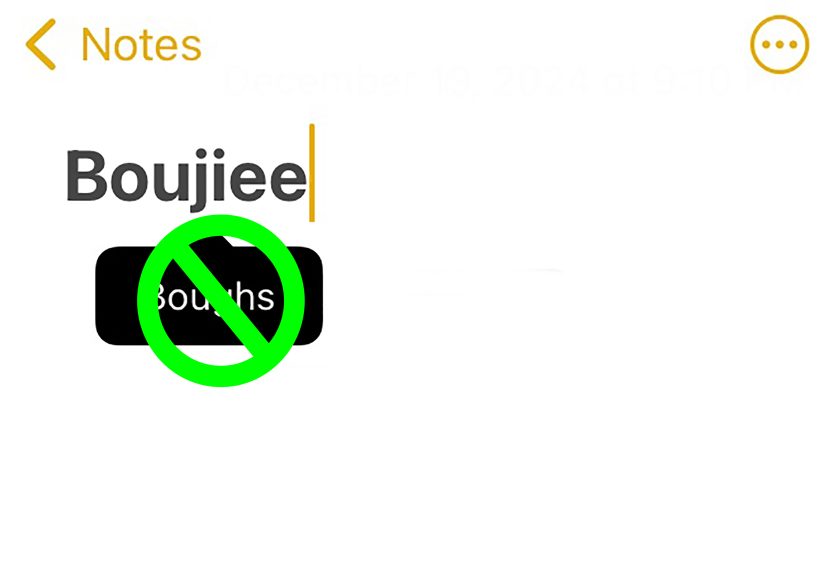
Sometimes the fastest fix is not adding a shortcut at all. It is simply telling your iPhone, repeatedly and with the patience of a saint, that its suggestion is wrong.
When to use this method
- A word is being corrected incorrectly in the moment
- You do not want to create a permanent text replacement yet
- You want predictive text to back off and learn from your actual typing
How to do it
When your iPhone changes a word automatically, tap the underlined correction and choose the original spelling you typed. If predictive text shows a suggestion you do not want, keep typing or tap your original word instead of accepting the prediction. Over time, iPhone can stop pushing the same bad suggestion so aggressively.
This method is not as immediate as Text Replacement, but it is useful when you want your keyboard to learn through repeated use. It is also great for words you are still testing before you decide whether to save them permanently.
Example
Suppose you type fintech and your iPhone decides that was a cry for help and swaps it for something unrelated. Undo the correction, keep using the right spelling, and reject the bad suggestion when it appears. Over time, the keyboard usually gets the hint.
Which Method Is Best?
If you want the short answer, here it is:
- For a single word: use Method 1.
- For speed and shortcuts: use Method 2.
- For names: use Method 3.
- For temporary training and quick fixes: use Method 4.
Most people end up using a mix of all four. That is the sweet spot. You are not building one perfect dictionary entry. You are gradually teaching your iPhone how you actually write.
Extra Tips to Improve iPhone Autocorrect and Predictive Text
Check your keyboard language settings
If you type in more than one language, make sure the right keyboards are added. A mismatch between your keyboard language and your vocabulary can cause autocorrect chaos. Multilingual users especially benefit from adding the appropriate keyboards in Settings.
Use shortcuts for recurring phrases
Text Replacement is not just for strange words. It is also one of the best iPhone productivity features hiding in plain sight. You can create shortcuts for your email address, meeting replies, package updates, or even phrases like “Running a few minutes late.”
Do not overstuff your replacements
If you create dozens of overly similar shortcuts, your system can become confusing. Keep shortcuts memorable and specific. Using “br” for both “best regards” and “bathroom remodel” is the kind of chaos your future self does not deserve.
Reset only if things get truly messy
If predictive text has gone wildly off-course, you can reset the keyboard dictionary. That is the nuclear option, not the first one. It wipes learned words and starts fresh, which can be helpful, but you will lose the good habits along with the weird ones.
Common Mistakes People Make
- Adding a word to the wrong field in Text Replacement
- Forgetting to tap Save
- Using Contacts for non-name words that would be easier as text replacements
- Accepting bad corrections over and over, which teaches the keyboard the wrong lesson
- Expecting one fix to solve every keyboard issue instantly
Your iPhone keyboard is smart, but it is not magic. It learns through patterns, settings, and repetition. Once you understand that, it becomes much easier to work with instead of constantly muttering at it in public.
Final Thoughts
Learning how to add words to the iPhone dictionary is one of those tiny tech skills that pays off immediately. It makes texting smoother, emails more professional, names more accurate, and autocorrect far less likely to embarrass you at the worst possible moment.
If you want the fastest fix, start with Text Replacement and leave the shortcut blank. If you want a productivity boost, create shortcuts for long phrases. If the issue is names, use Contacts. And if the problem shows up in real time, reject the bad correction and train the keyboard instead of surrendering to it.
In other words, your iPhone can learn new words. It just needs a little coaching, a little patience, and occasionally a firm reminder that you know your cousin’s last name better than it does.
Real-World Experiences: What This Looks Like in Everyday Use
In real life, people usually discover this problem at the least convenient time possible. It happens when you are sending a quick work message, replying to a professor, texting a friend with an uncommon name, or trying to type a niche hobby term before a thought disappears. Suddenly, your iPhone “helps” by replacing the exact word you wanted with something more common, more generic, and completely wrong.
For office workers, the frustration often shows up with company terms. Internal project names, software tools, client brands, and industry shorthand do not always play nicely with the default iPhone keyboard. Someone might type Asana, HubSpot, Klaviyo, or an internal acronym and watch autocorrect try to turn it into a regular dictionary word. Once those words are added through Text Replacement, though, typing gets dramatically faster. What used to feel like correcting the same mistake all week starts to feel effortless.
Students run into a similar issue with class vocabulary. Medical students, law students, coding bootcamp learners, and language majors all use terms that can confuse predictive text. If you are constantly writing words like cytokine, estoppel, JavaScript, or a foreign-language phrase, the blank-shortcut method is a lifesaver. It turns your iPhone from an obstacle into something that finally stops arguing.
Then there are names, which may be the biggest source of keyboard drama. Family names, cultural names, hyphenated names, and creative business names are all prime targets for bad autocorrect. People who text large families, work in customer-facing roles, or manage contact lists often notice that adding a name to Contacts makes a huge difference. It is a small step, but it can save you from sending awkward messages that misspell someone’s name right to their face. Technology is powerful, but so is basic respect.
Another common experience is using shortcuts once you realize how much repetitive typing you do. After people set up a few phrase shortcuts, they usually start wondering why they waited so long. Addresses, email signatures, scheduling replies, shipping updates, appointment confirmations, and favorite sign-offs suddenly become one tiny code away. This is where the iPhone keyboard quietly turns into a productivity tool instead of just a place where typos go to multiply.
And finally, there is the emotional journey of rejecting autocorrect suggestions. At first, it feels petty. Then it feels strategic. Then it becomes deeply satisfying. Tapping the original spelling instead of the wrong suggestion is a small act, but over time it helps the keyboard adapt. It is like training a very stubborn assistant who means well but really needs better listening skills.
The biggest takeaway from everyday use is simple: there is no single perfect fix for every word. The best results come from matching the method to the problem. Text Replacement is excellent for custom words and phrases. Contacts are ideal for names. Rejection and retyping are good for quick training. And shortcuts are perfect for speed. Once people combine these methods, the iPhone usually becomes much less irritating and much more useful. Which, frankly, is the kind of character growth we love to see from a keyboard.