Table of Contents >> Show >> Hide
- Quick Navigation
- Why Block Websites on an iPad?
- Built-In Method: Block Websites Using Screen Time (No Extra Apps)
- Block Specific Websites with “Never Allow” (Best for Targeted Blocking)
- Allowlist Mode: “Only Approved Websites” (Maximum Lockdown, Minimum Drama)
- Prevent “Oops, the Settings Changed” (Lock Screen Time Like You Mean It)
- Time Limits for Websites: Great for Focus (and Gentle Self-Defense)
- Network-Level Blocking: DNS & Router Filters (Works for Every Device on Wi-Fi)
- Schools & Businesses: Managed-Device Web Filtering (The “No, Really” Option)
- Troubleshooting: When a Blocked Site Still Shows Up (Rude!)
- So What’s the Best Method?
- Real-World Experiences & Lessons Learned (The Extra Stuff People Wish They Knew)
- Experience #1: The “I blocked it, but they still found it” phenomenon
- Experience #2: Allowlisting is sanity-saving… if you plan for it
- Experience #3: The passcode is the whole ball game
- Experience #4: DNS filtering is great until VPN enters the chat
- Experience #5: Self-control setups work best when they’re slightly annoying
- Experience #6: The best parental control is still a conversation (ugh, yes)
- Conclusion
The internet is amazing. It’s also a 24/7 carnival where the “cotton candy” is homework help and the
“mysterious unmarked tent” is… well, let’s just say you don’t want your kid (or your easily distracted self)
wandering in there during math class.
The good news: your iPad already comes with strong built-in tools to block websites, limit adult content,
and even “VIP-only” the web to a short list of approved sites. And if you need extra muscle (school iPads,
shared devices, or a determined teen with too much free time), there are network-level and managed-device
options that can help.
Quick Navigation
- Why block websites on an iPad?
- Built-in method: Screen Time Web Content
- Block specific sites with “Never Allow”
- Allowlist mode: “Only Approved Websites”
- Prevent “Oops, the settings changed”
- Time limits for websites (focus mode, but spicy)
- Network-level blocking: DNS & router filters
- Schools & businesses: managed-device filtering
- Troubleshooting & common gotchas
- Real-world experiences & lessons learned
- SEO tags (JSON)
Why Block Websites on an iPad?
“Blocking websites” can sound dramaticlike you’re building a digital moat with alligators. In reality,
most people block sites on an iPad for totally normal reasons:
- Kid-safe browsing: limit adult content, gambling, or random corners of the web.
- Focus: keep schoolwork from turning into “just one quick video” for 47 minutes.
- Shared iPads: prevent guests from visiting sketchy sites or signing into stuff.
- Security & privacy: reduce phishing risks and drive-by “download this now” nonsense.
Whatever your reason, you’ll typically want one of two outcomes: (1) block a few specific websites,
or (2) allow only a small list of sites and block everything else. Your iPad can do both.
Built-In Method: Block Websites Using Screen Time (No Extra Apps)
The main control center for website blocking on an iPad is Screen Time. It’s built into iPadOS
and designed for both parental controls and personal limits. Think of it as the bouncer at the door:
it checks IDs, enforces the rules, and does not care if the website says, “But I’m totally educational!”
Step 1: Turn on Screen Time and set a passcode
- Open Settings.
- Tap Screen Time.
- If it’s not enabled, turn it on and follow the prompts.
-
Set a Screen Time passcode (use something different from your device unlock code).
This is what keeps the rules from being changed later.
If you’re managing a child’s iPad through a family group, you can often set and adjust these rules from
your own devicehandy when you’re not physically next to the iPad during a “but I need it for school”
negotiation.
Step 2: Open Web Content controls
- In Settings > Screen Time, tap Content & Privacy Restrictions.
- Turn Content & Privacy Restrictions ON.
- Tap App Store, Media, Web, & Games (wording may vary slightly by iPadOS version).
- Tap Web Content.
Choose your filtering style
You’ll usually see three options:
- Unrestricted Access (no filtering)
- Limit Adult Websites (blocks many adult sites automatically + lets you add your own blocked list)
- Only Approved Websites (allowlist modetightest control)
Next, we’ll set up both the “block some sites” approach and the “only allow these sites” approach.
Block Specific Websites with “Never Allow” (Best for Targeted Blocking)
If you want a normal web experience but need to block specific sites (social media during homework,
adult content, certain video sites, etc.), this is your sweet spot.
How to add blocked sites
- Go to Web Content settings (from the steps above).
- Select Limit Adult Websites.
- Scroll to the section typically labeled Never Allow.
- Tap Add Website.
- Enter the website URL (example: example.com) and save.
Pro tips so your blocks actually stick
-
Block the whole domain, not a single page: If you block example.com,
you’ll usually catch www.example.com toobut some sites use multiple domains.
If the site still loads, add related domains (like m.example.com or region variants) when applicable. -
Block the “short links” too: Some platforms use different domains for sharing links,
images, or login. If a blocked platform still peeks through, it’s often because part of it lives elsewhere. -
Remember in-app browsers: Many apps open links inside a built-in browser view.
Screen Time web filters often apply broadly, but some apps are more stubborn than others.
This method is great when you want to keep the iPad flexible while quietly removing the biggest distractions
(or dangers). It’s like leaving the pantry open but locking the cookie jar.
Allowlist Mode: “Only Approved Websites” (Maximum Lockdown, Minimum Drama)
If you’re setting up an iPad for a younger child, a classroom, or a shared device, allowlisting is
the cleanest approach: the iPad can visit only the websites you approve.
How to allow only specific websites
- Go to Web Content settings.
- Select Only Approved Websites.
- Add sites you want to allow (for example: a school portal, a homework site, a kid-friendly encyclopedia).
What this feels like in real life
When allowlist mode is on, random links won’t work. Search results can be frustrating unless your
approved list includes the sites those results lead to. The upside is huge: it’s extremely hard to “accidentally”
wander into something inappropriate, because the internet is essentially reduced to a curated mini-web.
Use cases where allowlisting shines
- Elementary school iPads: only learning platforms, school login pages, and approved resources.
- Therapy or special-needs routines: predictable access without surprise content.
- Work iPads: approved tools and internal sites only.
Prevent “Oops, the Settings Changed” (Lock Screen Time Like You Mean It)
Blocking websites works best when the rules can’t be casually undone. If the person using the iPad can
change the passcode, install a VPN, or just remove the app that enforces focus, you’re basically
putting a “Do Not Enter” sign on a door with no lock.
Make your Screen Time passcode hard to guess
- Don’t reuse the iPad unlock code.
- Avoid birthdays, “1234,” and anything a sibling could guess with mild detective work.
Block app installs (optional but powerful)
If your goal is parental controls or a dedicated school iPad, consider restricting installs/deletes:
- Go to Settings > Screen Time > Content & Privacy Restrictions.
- Tap iTunes & App Store Purchases.
- Set Installing Apps and/or Deleting Apps to Don’t Allow, as needed.
Why this matters: it prevents quick installation of alternate browsers, VPN apps, or “helper tools”
that can route around your restrictions.
Limit account changes (so the grown-up stays the grown-up)
In Content & Privacy Restrictions, look for the “Allow Changes” area and consider setting
things like Account Changes (and related settings) to Don’t Allow. This helps keep the
management structure intact.
Time Limits for Websites: Great for Focus (and Gentle Self-Defense)
Not everyone wants to fully block a website. Sometimes you just want to stop the “infinite scroll”
from eating your afternoon like a hungry raccoon in a pantry.
Option A: Limit browser time with App Limits
- Go to Settings > Screen Time > App Limits.
- Tap Add Limit.
- Select the browser app (or category) you want to limit.
- Set a daily time limit and turn on Block at End of Limit.
For strict focus, some people set the limit to something tiny (like one minute) to effectively “lock”
the browser unless the passcode is entered. It’s not subtle. It’s effective.
Option B: Limit specific websites (when available)
Depending on your setup and iPadOS version, Screen Time can support website-based limits in addition to
app-based limits. If you see websites as a selectable item under App Limits, you can cap time on certain
domains without blocking the entire browser experience.
This is especially useful for “I still need the web for research, I just don’t need that web”
situations.
Network-Level Blocking: DNS & Router Filters (Works for Every Device on Wi-Fi)
Screen Time is excellent on the device. But if you want broader coveragelike blocking adult websites for
everything connected to your home Wi-Finetwork-level filtering can help.
How DNS filtering works (in plain English)
DNS is like the internet’s phone book. When a device tries to visit a domain, DNS helps translate that
name into the server address. A “family filter” DNS service can refuse to resolve certain categories
(adult content, malware, etc.), so the site never loads.
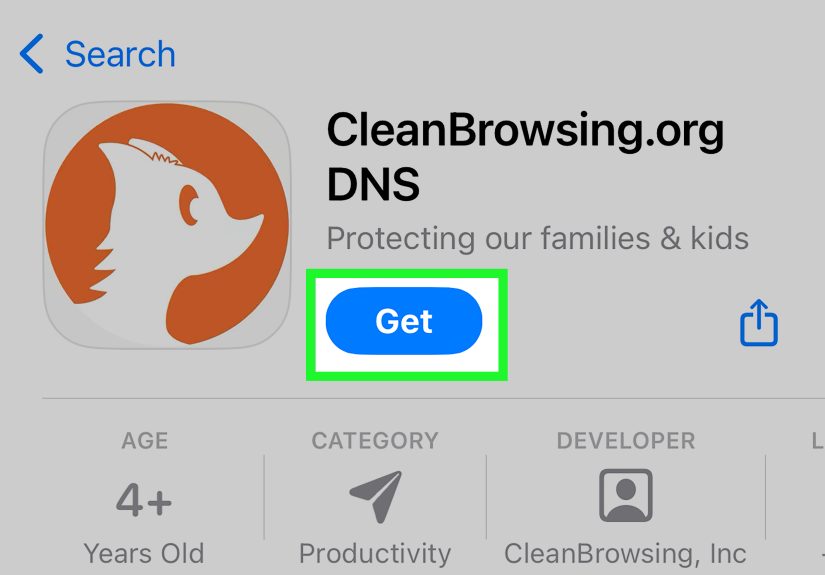
Option 1: Set family-friendly DNS on the iPad (per Wi-Fi network)
- Open Settings > Wi-Fi.
- Tap the (i) info button next to your connected network.
- Find Configure DNS and switch to Manual.
- Add your chosen DNS servers, then save.
Example family DNS server pairs (commonly used):
- Family DNS (malware + adult content filtering): 1.1.1.3 and 1.0.0.3
- Family DNS (adult-content filtering): 208.67.222.123 and 208.67.220.123
Option 2: Set DNS on your router (whole-home coverage)
If you set filtered DNS on the router, every device on your Wi-Fi inherits it automatically. This is
perfect for families, guest networks, and “I don’t want to configure 17 devices individually” reality.
Important limitations of DNS filtering
-
It’s category-based, not perfect: DNS filters are great for broad categories, but not always
precise for one-off pages or new domains. -
VPNs can bypass it: If a device uses a VPN, it may route DNS and traffic through the VPN,
dodging your router’s rules. That’s why app-install restrictions (or managed-device controls) matter. -
It mainly blocks by domain: If the content is hosted on the same domain as “good” content,
DNS can’t always separate them cleanly.
Schools & Businesses: Managed-Device Web Filtering (The “No, Really” Option)
If you’re deploying iPads for an organization (school, clinic, business, kiosk setup), you may want stronger,
centrally managed web controls. Managed-device filtering can allow or deny specific URLs, automatically filter
adult content, and enforce policies more reliably than individual device settings alone.
What managed web filtering can do
- Allow only specific websites and push those as bookmarks.
- Automatically filter adult content, then add explicit “allow” and “deny” lists on top.
- Apply different rules to different groups (grade levels, departments, shared iPads).
This approach usually requires a device management service (MDM). It’s more setup up front, but it scales well
and helps reduce “workarounds” when devices are institution-owned.
Troubleshooting: When a Blocked Site Still Shows Up (Rude!)
If you blocked a website and it still loads, don’t panic. Most of the time it’s one of these common issues:
1) The URL you blocked isn’t the URL the site is using
Many big sites use multiple domains for login, media, or shortened links. If you blocked one domain but the
app is calling another, the content can still appear.
2) You’re blocking the website… but not the app
Blocking a site in Web Content settings is powerful, but if the content comes through a dedicated app, you may
need to restrict the app too (using App Limits, age ratings, or allowed apps controls). For example, blocking a
video site’s domain doesn’t necessarily remove the app experience.
3) The user is being offered an “Allow Website” option
On some restricted pages, the iPad can display a prompt that lets a user request access. Depending on your setup,
this may require the Screen Time passcodeso it’s not truly bypassing you, it’s asking the bouncer to check the list.
If the person knows the passcode… well, then the bouncer has been bribed.
4) The iPad has a VPN or alternate DNS
If you’re using router/DNS blocking and the iPad suddenly ignores it, check for VPN profiles and DNS changes.
This is where blocking app installs (or managing the device) becomes important.
5) You changed settings on the wrong device profile
If you manage multiple family devices, double-check you’re editing the correct iPad’s Screen Time profile.
It’s easy to tighten rules on the wrong device and wonder why nothing changes.
If you want a quick sanity check, temporarily switch Web Content to “Only Approved Websites.” If that works,
your Screen Time enforcement is activethen you can go back and fine-tune a smaller blocklist.
So What’s the Best Method?
Here’s a quick decision guide:
- Blocking a few sites? Use Screen Time > Web Content > Limit Adult Websites + Never Allow.
- Kid-safe iPad with minimal browsing? Use Only Approved Websites (allowlist).
- Focus for yourself? Use App Limits (and make “one more video” require a passcode).
- Whole-home protection? Add family DNS at the router or per Wi-Fi network.
- School/business fleet? Use managed-device web filtering via MDM policies.
The best setup is the one you’ll actually maintain. A perfect system that never gets updated is basically
a museum exhibit: impressive, untouchable, and not helping anyone do homework tonight.
Real-World Experiences & Lessons Learned (The Extra Stuff People Wish They Knew)
Let’s talk about what tends to happen in real homes, real classrooms, and real “I only needed to check one thing”
moments. These aren’t personal war storiesjust patterns that show up again and again when people try to block
websites on an iPad and keep the peace.
Experience #1: The “I blocked it, but they still found it” phenomenon
When someone says, “I blocked that site and it still loads,” the culprit is often a second domain. Big platforms
might use different domains for login, media delivery, or link shorteners. The fix is boring but effective:
identify the domains actually being used and add them to the blocked list too. It feels less like parenting and
more like playing digital whack-a-mole, but once you catch the supporting domains, the mole usually stays down.
Experience #2: Allowlisting is sanity-saving… if you plan for it
Allowlist mode (“Only Approved Websites”) can be magical for younger kids because it changes the default behavior:
instead of hoping they don’t click the wrong thing, the wrong thing simply doesn’t open. The common surprise?
Search results become less useful unless you pre-approve the sites that search results lead to. Families who love
allowlisting usually start with a small set (school portal + two or three learning sites), then add more as needed.
Families who hate it often tried to allowlist without considering day-to-day browsing needs.
Experience #3: The passcode is the whole ball game
A strong Screen Time passcode is the difference between “this works” and “my child is now an IT consultant.”
The passcode should not be the device unlock code, not a birthday, and definitely not “0000” unless you enjoy
chaos and spontaneous app installations. Also: if multiple adults manage the iPad, agree on who knows the passcode.
If everyone knows it, it will eventually travel… like gossip, but numeric.
Experience #4: DNS filtering is great until VPN enters the chat
Many people start with router or DNS filtering because it’s simple and covers every device on Wi-Fi. For broad
adult-content blocking, it’s often a win. But if a user installs a VPN, that can route traffic around your DNS
rules. That’s why a “belt and suspenders” approach is common: use DNS filtering for baseline protection, and use
Screen Time restrictions to limit app installs (which reduces the odds of VPN workarounds).
Experience #5: Self-control setups work best when they’re slightly annoying
Adults using website blocking for focus often discover a weird truth: the goal isn’t to make temptation disappear,
it’s to add just enough friction that your brain remembers you had a plan. Setting a tiny daily limit for a browser
(or a specific site) and requiring a passcode to extend time creates a pause. That pause is the moment you can choose
“back to work” instead of “okay but one more scroll.” If your system is too easy to override, it becomes decorative.
If it’s too strict, you’ll disable it the first time you need to do something legitimate. The sweet spot is
“slightly annoying but fair.”
Experience #6: The best parental control is still a conversation (ugh, yes)
Even the best blocking method won’t replace clear expectations. House rules like “screens stay in the living room,”
“no private browsing,” or “homework first” (paired with a consistent routine) reduce the need for extreme lockdown.
Website blocking is most effective as a support toolnot a substitute for boundaries. Plus, when kids understand
why something is blocked (safety, focus, age-appropriate content), you’ll usually get less pushback than the
mysterious “because I said so” approach. You still might get pushback. But it’ll be… higher quality pushback.
Bottom line: blocking websites on an iPad is totally doable, but the most reliable setup usually mixes
device rules (Screen Time) with practical guardrails (passcodes, install limits,
routines). If you need heavy-duty enforcement for institutions, managed-device filtering is the grown-up version
of the same ideacentral policies, fewer loopholes, and a lot less manual babysitting.
Conclusion
If you want the simplest, most reliable way to block websites on an iPad, start with Screen Time’s Web Content
restrictions and a strong passcode. Add a targeted “Never Allow” list for problem sites, or switch to “Only
Approved Websites” when you want strict, kid-safe browsing. Then, if you need extra coverage, layer in network-level
DNS filteringespecially for home Wi-Fi. And for schools or organizations, managed-device web filtering can bring
structure and consistency at scale.