Table of Contents >> Show >> Hide
- Table of Contents
- Reality check: what “download” means on YouTube
- The official pages that actually work in Chrome
- Chrome extensions: why they’re risky (and how to vet them)
- Downloader pages: what you should know before you click
- Troubleshooting: missing buttons, failed downloads, and limits
- Best practices for safer offline viewing
- FAQ
- Real-world experiences (what people run into, and what actually works)
- SEO tags (JSON)
Let’s be honest: when most people say “download a YouTube video,” they usually mean
“I want this saved so my Wi-Fi can stop holding my plans hostage.” The problem is that
YouTube doesn’t treat most videos like downloadable filesand Chrome is often the
battleground where “convenient” collides with “terms, security, and reality.”
The good news: there are legit ways to download YouTube videos in Chromeespecially if you’re a
YouTube Premium member or you’re downloading content you uploaded yourself. The other good news:
the sketchy “download anything” ecosystem (extensions and random web pages) is avoidableand your
browser, your privacy, and your future self will thank you.
Table of Contents
- Reality check: what “download” means on YouTube
- The official pages that actually work in Chrome
- Chrome extensions: why they’re risky (and how to vet them)
- Downloader pages: what you should know before you click
- Troubleshooting: missing buttons, failed downloads, and limits
- Best practices for safer offline viewing
- FAQ
- Real-world experiences
- SEO tags (JSON)
Reality check: what “download” means on YouTube
YouTube’s rules are pretty straightforward: you’re generally not allowed to download or reproduce
videos unless YouTube explicitly provides a download feature for that content, or you have
permission from YouTube and (when relevant) the rights holder. In plain English: if YouTube doesn’t
offer a download option for a video, using tools to rip it anyway can violate YouTube’s Terms and
may also create copyright problems.
That’s why this guide focuses on:
- Official “Download” features that work inside YouTube (including in Chrome)
- Downloading videos you uploaded (because you actually have a legitimate reason)
- Safe extension habits (because extensions are powerfulsometimes a little too powerful)
- Practical offline alternatives when you can’t download a file
If what you’re trying to do is save a creator’s video for offline viewing, the most reliable “Chrome-friendly”
path is usually YouTube Premium’s download feature (where available) or getting permission/a direct file from
the uploader. Not as thrilling as a magical “Download Everything” buttonbut a lot less likely to end with
malware, missing extensions, or a “Why is my browser acting haunted?” moment.
The official pages that actually work in Chrome
1) YouTube Premium: download videos on your computer (in Chrome)
In some locations, YouTube Premium lets you download videos directly from the YouTube website on desktop browsers,
including Chrome. This is the closest thing to a true “download” experience inside Chromewithout turning your
browser into a science experiment.
How it works (high level):
- Sign in to YouTube with your Premium account in Chrome.
- Open the video watch page.
- Click the Download button under the video (when available).
- Use the Downloads section in the left menu to find offline videos.
Important nuance: Premium downloads are designed for offline viewing within YouTube.
In other words, you’re not typically getting a neat MP4 file you can drag into a folder and email to your friend
like it’s 2009. Think “offline access,” not “free-range video file.”
Example: You’re flying, airport Wi-Fi is basically interpretive dance, and you want to watch a tech tutorial offline.
Premium downloads (when available on desktop in your region) let you do that without relying on third-party tools.
2) YouTube Studio: download videos you uploaded
If you’re downloading your own uploads, YouTube Studio is the official, clean, no-drama option. You can download an MP4
version of videos you uploaded (with some limitations based on strikes, restricted audio, and download frequency).
Basic workflow:
- Open YouTube Studio in Chrome and sign in.
- Go to Content.
- Find the video and use the menu to choose Download.
This is perfect for backing up your channel, grabbing a copy of a live stream after it processes, or pulling your content
for editing in Premiere/DaVinci/CapCut (pick your fighter).
Example: You posted a product demo last month and now need it for a client deck. Download from Studio,
trim the highlights, and you’re back in business.
3) Google Takeout: download all your uploaded videos in bulk
If your goal is “I want everything I uploaded, all at once,” Google Takeout is the heavy-duty moving truck.
Instead of downloading one video at a time, you export your YouTube data (including uploads) in bulk.
When Takeout is the right move:
- You’re migrating your content archive to a new drive or editor workstation
- You want periodic backups (especially if your channel is business-critical)
- You have a lot of uploads and Studio would take forever
Takeout can take time depending on how much content you have. But as a “big picture” backup strategy, it’s one of the most
legitimate and reliable options available.
4) Creator-provided downloads: the most underrated “page” option
Sometimes the best “download page” isn’t YouTubeit’s the creator’s own link. Many educators, software companies, and public-domain
archives post the video on YouTube for discovery and also provide an official download on:
- Their website’s resources page
- A course portal (with permission)
- A press kit, media page, or documentation page
If you’re using a video for work, school, or training, asking for permission or a direct file can be faster (and safer) than
trying to outsmart YouTube with a mystery tool.
Chrome extensions: why they’re risky (and how to vet them)
Extensions are convenient because they sit right in your browser and promise one-click everything. They’re also risky because
they can request sweeping permissionssometimes the digital equivalent of handing a stranger your house keys and a map to your sock drawer.
Why “YouTube downloader extensions” often disappear (or stop working)
YouTube’s rules restrict downloading content unless authorized by YouTube. Chrome and the Chrome Web Store also enforce policies that can lead to extensions
being removed, disabled, or marked “unsupported.” So many downloader-style extensions end up in a cycle of:
“works for a while” → “gets flagged/removed” → “reappears under a new name” → “repeat.”
That instability is a huge reason not to build your workflow around random downloader extensionsespecially if you care about reliability
(and not having your browser turn into a pop-up circus).
How to vet any extension before installing it
Even if you’re not downloading videos, you should treat extensions like apps with superpowers. Here’s a practical checklist:
- Read the permissions: If an extension asks to “read and change all your data on all websites,” be skeptical.
- Prefer “on click” access: Many extensions can be set to run only when you click them, not constantly.
- Check who made it: Real company/known developer? Clear website? Support contact? Privacy policy?
- Watch for review weirdness: Thousands of reviews posted in a short time, repetitive wording, or spammy patterns.
- Install fewer extensions: Every extra extension is another potential attack surface.
Security reality: extensions are a common target
Security researchers and news reports have documented cases where legitimate extensions were compromised or hijacked and used to steal data.
That doesn’t mean “never install anything,” but it does mean “be picky,” especially with extensions that touch lots of websites or user data.
Safer alternative: If your goal is offline learning, consider extensions that help you save notes, timestamps, or transcripts,
rather than extensions that promise direct video downloading. You’ll get the “I can study later” benefit without the “I just installed a
browser-shaped raccoon” risk.
Downloader pages: what you should know before you click
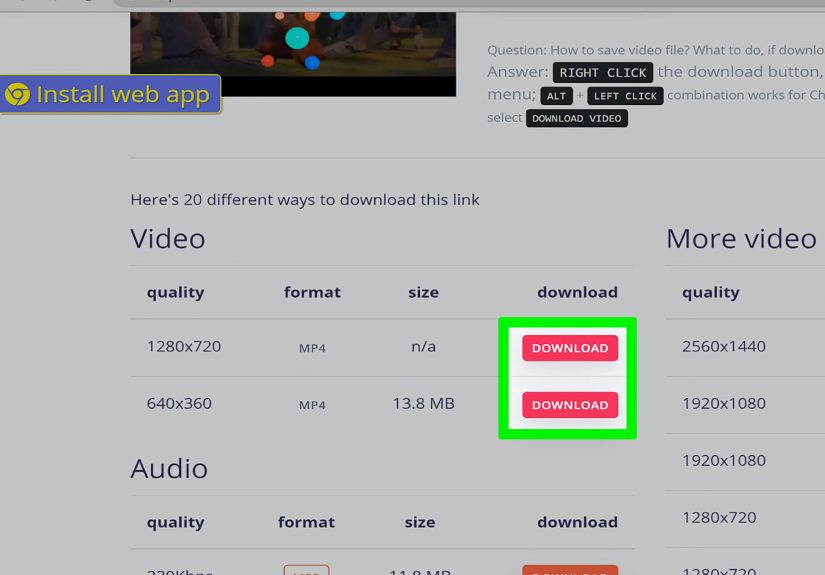
There are plenty of “download YouTube video” web pages out there. Many exist in a gray zone: they often encourage downloading content without permission,
and they can be risky from a security standpoint (aggressive ads, fake buttons, shady redirects, and sometimes malware).
Because these pages can be used to bypass YouTube’s intended restrictions, I’m not going to provide step-by-step instructions for using them.
If you have permission to download a video (or it’s your own), use the official options above first.
If you’re tempted anyway, at least protect yourself
- Don’t install “required” companion extensions from random prompts.
- Avoid pages that force notifications or request you “Allow” anything unrelated.
- Watch for fake download buttons (the big flashy one is often the wrong one).
- Never enter credentials on a third-party download site.
- Use a strong browser security posture: updated Chrome, safe browsing, and minimal extensions.
Here’s the bottom line: if you need downloads regularly, Premium + official pages is the boring answer that keeps winning.
Troubleshooting: missing buttons, failed downloads, and limits
“I don’t see the Download button in Chrome.”
- Check your account: Are you signed in to the correct Premium account?
- Check availability: Desktop downloads may vary by location and rollout.
- Try another supported browser: If YouTube says the feature works in Chrome/Edge/Firefox/Opera, test one more to isolate the issue.
- Disable conflicting extensions: Some privacy tools or script blockers can hide UI elements.
“My downloaded videos aren’t normal files.”
That’s expected for Premium offline viewing. The purpose is offline playback inside YouTube, not exporting an MP4.
“I can’t download my own video from YouTube Studio.”
YouTube can block downloads for your uploads in certain caseslike if the video is removed, has copyright/community strikes, uses restricted audio,
or if you’ve hit download frequency limits.
“I want the original file quality.”
If you need originals at scale, consider Google Takeout as part of your backup workflow. For single videos, Studio downloads can be convenient,
but don’t assume they match your original upload quality every time. If you’re running a serious content operation, the safest strategy is:
always keep local originals in addition to any platform-hosted versions.
Best practices for safer offline viewing
- Use official tools first: Premium downloads, Studio, Takeout, creator-provided files.
- Minimize extensions: Install only what you truly needand review permissions regularly.
- Keep Chrome updated: Browser security fixes matter more than most people realize.
- Use “save” features strategically: Watch Later playlists, downloads sections, and organized lists reduce repeat searching.
- Respect rights: If it isn’t yours and you don’t have permission, don’t treat it like a free MP4 buffet.
FAQ
Can I download YouTube videos in Chrome without extensions?
Yesif you use official methods such as YouTube Premium’s download feature (where available) or download your own uploads via YouTube Studio.
Why do some YouTube downloader extensions stop working?
Many rely on methods that conflict with YouTube’s restrictions or platform policies, so they can be removed, disabled, or broken by updates.
Is it legal to download YouTube videos?
It depends. Downloading via YouTube’s provided features (like Premium downloads) or downloading content you own/are authorized to download is typically fine.
Downloading other people’s copyrighted videos without permission can violate YouTube’s Terms and may violate copyright law.
What’s the safest way to keep videos for offline use?
Use YouTube Premium downloads (for offline viewing in YouTube), or get the file from the rights holder/creator. For your own content, use Studio or Takeout.
Real-world experiences (what people run into, and what actually works)
If you’ve ever tried to download YouTube videos in Chrome, you’ve probably had one of these classic experiences:
You find an extension that claims it can download anything, you click “Add to Chrome,” and for about ten glorious minutes
you feel like you just discovered fire. Then Chrome updates, the extension vanishes, or YouTube suddenly acts like it has
never met that extension in its entire life. You’re left staring at a grayed-out button thinking, “We had something special.”
That cycle is common because the “download anything” promise is fragile. YouTube’s platform is designed around streaming,
and YouTube’s own rules don’t generally allow downloading content unless YouTube provides a built-in method. So a lot of
downloader tools end up fighting the platform instead of working with it. In practice, that means you’re not just downloading
a videoyou’re adopting a high-maintenance pet that may run away every time you open the door.
Another very real experience: the “download page” rabbit hole. People often land on a site that looks like it was designed
during the golden age of dial-up, with multiple “Download” buttons that all lead to different placesnone of them your video.
Sometimes it’s just aggressive advertising. Sometimes it’s a pushy notification request. Sometimes it’s a file you definitely
did not ask for. The worst part is the time sink: even if you eventually get something, you’ve spent 20 minutes playing a
game of “Is this the real button?” when you could’ve just used a legit option and moved on with your life.
The smoother experiences usually happen when people switch their goal from “I want an MP4” to “I want offline access.”
For example, students prepping for a commute, travelers heading somewhere with bad internet, or anyone trying to learn a skill
without buffering every 12 seconds often do best with YouTube Premium’s offline downloads (where the feature is supported on desktop
in their area). It’s not as flexible as a standalone file, but it’s dependable: the button is in the interface, the downloads live
in the Downloads section, and you’re not gambling with unknown code or pop-up traps.
Creators have their own version of this story. Many people don’t realize how easy it is to download your own uploads from
YouTube Studiountil the day they need a copy for a client, a reel, a repurpose project, or a “please send the video by noon”
email. When that happens, Studio downloads feel like discovering an emergency exit you should’ve noticed earlier. For bigger backups,
creators who get serious about not losing content tend to graduate to Google Takeout, especially if they want an archive that doesn’t rely
on clicking one video at a time.
And here’s the most relatable experience of all: you only care about downloading because you’re trying to be productive. If your real goal is to
study, reference, or re-watch, you can often get 80% of the benefit by saving videos into organized playlists, writing timestamped notes,
or using transcriptswithout needing to “own” the file. In other words, you don’t always need a download. Sometimes you just need a plan.
The moment you stop treating YouTube like a free file cabinet and start using the tools YouTube actually supports, the whole process gets
less stressful, more reliable, and a lot less likely to come with surprise browser “features” you didn’t install on purpose.