Table of Contents >> Show >> Hide
- Can You Get discovery+ on Roku?
- What You Need Before You Start
- How to Install discovery+ on Roku
- How to Sign Up for discovery+ on Roku
- How to Sign In to discovery+ on Roku
- What Can You Watch on discovery+ on Roku?
- Is discovery+ Still Worth It If You Already Have HBO Max?
- Troubleshooting discovery+ on Roku
- How to Manage or Cancel discovery+ on Roku
- Common Questions About discovery+ on Roku
- Real-World Experiences With discovery+ on Roku
- Final Thoughts
Note: App menus, pricing, and free-trial offers can change over time, so it is always smart to confirm the latest details on your Roku device or the official discovery+ site before subscribing.
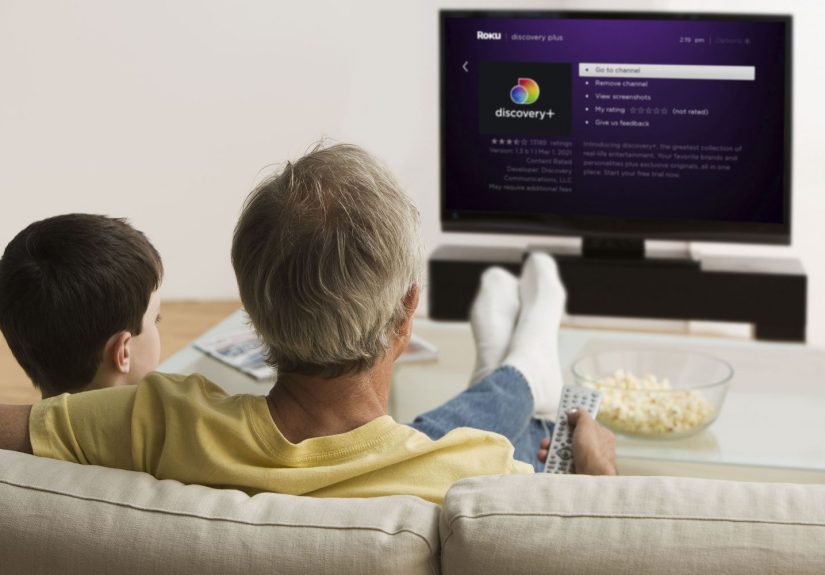
If your Roku remote is practically glued to your hand and your idea of a relaxing evening involves HGTV makeovers, true-crime rabbit holes, Shark Week chaos, or enough cooking shows to make you suspiciously confident around saffron, discovery+ is still a very good match for your TV. The good news is that getting discovery+ on Roku is usually easy. The less-good news is that streaming services enjoy changing button names just often enough to keep everyone humble.
This guide walks you through the whole thing in plain English: how to install discovery+ on Roku, how to subscribe, how to sign in, what to do if the app misbehaves, and how to avoid the classic “Why am I being billed twice?” streaming-service plot twist. If you want the short version, here it is: add the discovery+ app from the Roku Store, open it, then either sign in with an existing account or subscribe through Roku or directly with discovery+.
Can You Get discovery+ on Roku?
Yes, you can get discovery+ on Roku. In the United States, discovery+ remains available as a standalone streaming service, and Roku supports the standard app-download process through its app store. That means you do not need a cable subscription, a complicated bundle, or a teenager standing behind you saying, “No, no, click the other menu.”
For many Roku users, discovery+ makes sense because it focuses on the kind of “just one more episode” comfort viewing people actually keep on for hours: HGTV, Food Network, TLC, ID, Magnolia Network, Animal Planet, OWN, Discovery Channel, and more. It is also one of the lower-cost premium streaming services, which matters in an era when your monthly streaming bill can start to resemble a car payment with better theme music.
What You Need Before You Start
Before you install discovery+ on Roku, make sure you have a few basics covered:
1. A working Roku device or Roku TV
Any reasonably current Roku player or Roku TV should make the process straightforward. If you are using a much older Roku model, app compatibility can get shaky. In that case, the app may not appear, may run poorly, or may not be supported at all.
2. A Roku account
Your Roku device needs to be linked to a Roku account for app downloads and subscription billing. If your Roku is already set up and streaming other apps, you are probably fine here.
3. An internet connection that is stable enough to stream
If your Wi-Fi is having one of its “I simply cannot today” moments, install may succeed while playback fails. Discovery+ is not magic, and neither is your router.
4. A plan for how you want to subscribe
You generally have three practical paths:
- Subscribe directly with discovery+ on its website
- Subscribe through the discovery+ app on Roku
- In some cases, access discovery+ through another provider or bundle
The important part is remembering where you signed up. That determines where you manage billing later.
How to Install discovery+ on Roku
Here is the simplest way to get discovery+ on your Roku device.
Step 1: Go to the Roku Store
From the Roku home screen, press the Home button on your remote. Scroll to Store, then browse apps or use search.
Step 2: Search for discovery+
Type discovery+ into the search bar. The official app should appear in the results. Select it.
Step 3: Choose “Add App”
Select Add App. Roku will download and install the app on your device. If your Roku account has purchase restrictions or a PIN enabled, you may need to enter it.
Step 4: Open the app
Once the install finishes, choose Go to App or return to your home screen and open discovery+ from there.
That is the basic setup. If you use multiple Roku devices on the same Roku account, some apps may sync across devices, which can save you from repeating the process in every room like a very tired streaming butler.
How to Sign Up for discovery+ on Roku
After installing the app, you have two main ways to get started.
Option 1: Sign up through Roku
Open the discovery+ app and choose the sign-up option. If Roku billing is supported for your setup, you may be able to subscribe directly through the app using the payment method already attached to your Roku account.
This is convenient because it keeps billing in one place. It is also the easiest way to forget who is charging you later, so make a mental note that the subscription is billed through Roku.
Option 2: Sign up directly with discovery+
You can also create your account directly through discovery+ and then sign in on Roku. Many users prefer this route because it keeps the subscription tied to discovery+ rather than a device platform.
As of now, discovery+ in the U.S. offers an ad-supported plan and an ad-free plan. The official site currently lists plans starting at $5.99 per month, with the ad-free version at $9.99 per month. New subscribers may also see a free-trial offer, depending on current promotions and eligibility.
How to Sign In to discovery+ on Roku
If you already have a discovery+ account, open the app and select Sign In. In most cases, you will either:
- Enter your email and password directly on the TV screen, or
- Use a phone or computer to complete sign-in if the app presents an activation flow
Once you are in, the app should load your home screen and recommendations. From there, you can start browsing categories, networks, or shows.
One helpful detail for households with multiple viewers: discovery+ supports multiple user profiles, so you do not have to let your crime-documentary obsession contaminate someone else’s adorable baking queue.
What Can You Watch on discovery+ on Roku?
Quite a lot, especially if you prefer unscripted entertainment over prestige dramas where everyone whispers in expensive kitchens.
Discovery+ is built around popular brands such as:
- HGTV
- Food Network
- TLC
- Investigation Discovery
- Discovery Channel
- Animal Planet
- OWN
- Magnolia Network
- A&E and other partner content in selected areas of the catalog
You will also find discovery+ Originals, specials, lifestyle programming, home renovation series, cooking shows, documentaries, nature content, and plenty of reality TV. In other words, it is a strong pick if your dream weekend includes home makeovers, barbecue competitions, survival challenges, paranormal investigations, or watching other people organize pantries with unreasonable confidence.
Is discovery+ Still Worth It If You Already Have HBO Max?
This is a fair question, because HBO Max now carries a lot of Discovery-branded content. Still, discovery+ can make sense for a specific kind of viewer.
If you mainly want unscripted TV and lifestyle programming, discovery+ is usually the cheaper way to get that fix. It is a more focused service, and many people like that. HBO Max is broader and includes prestige series, movies, and more, but it also costs more. So if your streaming personality is “less dragons, more kitchen islands,” discovery+ can still be the smarter buy.
Troubleshooting discovery+ on Roku
If the app is not working the way it should, do not panic. This is streaming. A little chaos is part of the décor.
The app will not install
First, check that your Roku device is connected to the internet and signed in to a valid Roku account. If discovery+ still does not appear, your device may be too old, or the app store may not be refreshing properly. Restart the device and search again.
The app opens but will not play shows
Start with the classics:
- Restart Roku
- Check your internet connection
- Update Roku software
- Remove and reinstall the discovery+ app
On Roku, software updates are found under Settings > System > Software update. If the app itself is acting up, highlight it on the home screen, press the * button on the remote, remove the app, restart Roku, and then reinstall it.
The app is glitchy, freezing, or crashing
This often points to an outdated app install, outdated Roku software, or a weak network connection. Reinstalling the app is one of the most reliable fixes on Roku. It is not glamorous, but neither is rebooting your router while wearing house slippers, and yet here we are.
You cannot find where to cancel
This is usually a billing-location problem, not a technical one. If you subscribed through Roku, manage the subscription through Roku. If you subscribed directly with discovery+, manage it through discovery+ account settings. If you signed up through another provider, you will need to cancel there.
You think you are being charged twice
Check whether you accidentally created one subscription through Roku and another directly through discovery+. This happens more often than people would like to admit. Review your Roku purchase history and your email receipts before canceling anything.
How to Manage or Cancel discovery+ on Roku
If your subscription is billed through Roku, go to the discovery+ app tile on your home screen, press the * button on the remote, and look for Manage subscription. From there, you can review renewal details or turn off auto-renew.
You can also manage Roku-billed subscriptions online through your Roku account. This is especially useful if you are on a laptop, have misplaced the remote, or are trying to look like a person who has their digital life completely under control.
Common Questions About discovery+ on Roku
Do I need cable to watch discovery+ on Roku?
No. discovery+ is a standalone streaming service, so you do not need a cable package to use it.
Can I get a free trial of discovery+ on Roku?
You may be able to, depending on current offers and whether you are a new subscriber. Promotions change, so check the latest details before signing up.
Can I watch discovery+ on more than one device?
Yes. Discovery+ supports multiple profiles and simultaneous streams, which makes it practical for families or roommates.
Why is discovery+ missing from my Roku?
If the app is not showing up, your Roku software may be outdated, the device may be too old, or the app store needs a refresh. Restarting the device and checking for updates are the best first moves.
Real-World Experiences With discovery+ on Roku
In day-to-day use, getting discovery+ on Roku tends to be one of those rare streaming tasks that is easier than people expect. The usual experience goes like this: you sit down meaning to “quickly add one app,” search for discovery+, click install, and within a few minutes you are already deciding whether to watch a home renovation show, a barbecue competition, or a documentary about the ocean that suddenly makes your living room feel underqualified.
One of the best parts of using discovery+ on Roku is that the setup feels familiar. If you have ever added any other streaming app on Roku, this process feels almost identical. There is no weird hardware trick, no special cable, and no advanced settings menu that looks like it was designed by astronauts. You install the app, sign in, and start watching. For people who are not especially tech-savvy, that matters a lot.
Another common experience is realizing that discovery+ fills a very specific entertainment mood. People often say they turn to it when they want TV that is relaxing, easy to dip into, and less mentally demanding than heavily serialized dramas. Roku is great for that kind of viewing because the platform is simple, fast, and built around app hopping. You can go from a cooking competition to a home makeover to a true-crime series without feeling like you need a map and a support group.
Families also tend to like the combination of discovery+ and Roku because it is easy to use across different age groups. One person might be there for Magnolia Network and clean design inspiration, another for ID mysteries, another for nature programming, and someone else for Food Network content that somehow turns into an immediate craving for tacos. Multiple profiles help keep recommendations from becoming a total circus.
Of course, the real-world experience is not always flawless. A lot of people run into the same small annoyances: forgotten passwords, uncertainty about whether the subscription was purchased through Roku or directly from discovery+, or the occasional app hiccup after a Roku software update. The good news is that these are usually fixable without much drama. A restart, a software update, or a reinstall often clears things up. The bigger headache is billing confusion, which is why it helps to remember where you first subscribed.
There is also the value question. In practice, users who love unscripted television often feel discovery+ on Roku is worth it because it gives them a ton of content without forcing them into a more expensive all-purpose streaming plan. That is especially true for viewers who are not chasing every blockbuster movie release and just want a dependable place for comfort TV. For them, discovery+ on Roku is not just convenient; it is kind of ideal. It is easy to launch, easy to browse, and easy to keep on for hours while folding laundry, cleaning the kitchen, or pretending you are only watching “one background episode.”
In short, the real experience is usually this: simple setup, familiar Roku navigation, lots of comfort viewing, and the occasional reminder that every streaming service is just one password away from turning into a scavenger hunt.
Final Thoughts
If you are wondering how to get discovery+ on Roku, the process is refreshingly manageable. Add the app from the Roku Store, open it, then sign in or subscribe. From there, you get access to a deep catalog of lifestyle, food, home, nature, documentary, and reality content that feels especially at home on a Roku device.
The biggest keys to a smooth experience are simple: use a supported Roku device, keep the software updated, remember where you subscribed, and reinstall the app if it starts acting weird. Do that, and you should be streaming discovery+ on Roku with minimal fuss and maximum couch efficiency.