Table of Contents >> Show >> Hide
- The Short Answer
- How to Download the Official Instagram App on iPad
- What Makes the iPad App Different?
- If You Cannot Find Instagram in the App Store
- How to Use Instagram on iPad Through Safari
- Official App vs. Browser Version
- Common Problems and Fixes
- Tips for the Best Instagram Experience on iPad
- Why So Many Old Articles Still Get This Wrong
- Final Thoughts
- Hands-On Experiences: What Getting Instagram for iPad Actually Feels Like
- SEO Tags
For years, getting Instagram on an iPad felt a little like trying to fit jeans from middle school: technically possible, deeply awkward, and best avoided in public. The good news is that the old advice floating around the internet is now outdated. You no longer need to settle for a stretched iPhone app and pretend it feels “close enough.” Instagram is now available on iPad through an official app, and that changes the game for browsing Reels, checking DMs, posting updates, and doom-scrolling with far more elbow room.
This guide explains exactly how to get Instagram for iPad, what to do if you cannot find it, when the web version still makes sense, and how the iPad experience compares with the old workaround methods. Whether you are a casual user, creator, student, or someone who just likes seeing memes on a larger screen, this article walks you through the process without making it feel like a tax form.
The Short Answer
If you want Instagram on your iPad, the easiest method is to open the App Store, search for Instagram, and download the official app. That is now the best option for most users. If your iPad is too old, your software is outdated, or the app is not showing up properly, you can still use Instagram in Safari and even save it to your Home Screen as a web app-like shortcut.
That means there are now two realistic ways to get Instagram for iPad:
- The official Instagram iPad app from the App Store
- The Instagram website in Safari, optionally added to the Home Screen
Most people should start with the official app first. It is cleaner, easier, and built for the larger display. The browser method is your backup plan, your lightweight option, or your “my iPad is being weird today” plan.
How to Download the Official Instagram App on iPad
Step 1: Open the App Store
On your iPad, tap the App Store. If you have not used it in a while, congratulations on your emotional stability.
Step 2: Search for Instagram
Tap the Search tab and type Instagram. Look for the app from Instagram, Inc. or Instagram from Meta. Avoid random copycat apps, because downloading the wrong one is how tech support stories begin.
Step 3: Tap Get or Download
If the app is free to download, tap Get. If you have downloaded it before, you may see the cloud-shaped redownload icon instead. Authenticate with Face ID, Touch ID, or your passcode if prompted.
Step 4: Open the App and Sign In
Once installed, tap Open. Sign in with your Instagram username, phone number, or email. If you use two-factor authentication, complete the verification step and you are in.
Step 5: Customize the Experience
After logging in, take a minute to adjust notifications, privacy settings, and account preferences. If you use Instagram heavily for messaging, creator work, or business, this is also a smart time to review your security settings and saved login information.
What Makes the iPad App Different?
The dedicated Instagram iPad app is not just the old iPhone version wearing a bigger shirt. It is designed to make better use of the larger screen. That matters more than it sounds. On a tablet, wasted space is annoying, and Instagram finally seems to have admitted that iPad users also have eyes.
Compared with older workaround methods, the official iPad version gives you a more spacious layout, easier navigation, and a better viewing experience for content. Reels have a more prominent role, Stories stay easy to access, and some interfaces such as messages and comments feel less cramped. The larger screen also makes casual browsing more comfortable when you are on the couch, at a desk, or pretending to work in class.
In practical terms, the official app feels more native, more polished, and less like a compromise. That alone is enough for many users to switch immediately.
If You Cannot Find Instagram in the App Store
If Instagram does not appear correctly on your iPad, do not panic. It usually comes down to one of a handful of boring but fixable issues.
Check Your iPadOS Version
The current App Store listing requires a recent version of iPadOS. If your iPad is running older software, the app may not install, may not appear as expected, or may stay stuck in compatibility limbo. Go to Settings > General > Software Update and install the latest available update for your device.
Confirm Your App Store Region
In rare cases, App Store availability issues are tied to your Apple Account country or region settings. If your region is set incorrectly, some apps may not display properly. Only change this if you truly need to, because switching regions can affect subscriptions and payment methods.
Search Again Carefully
Sometimes the problem is not deep or mysterious. Sometimes search is just being search. Try searching for Instagram again, then look specifically for the official publisher. If you previously installed only the iPhone version years ago, you may need to redownload the current version rather than assume what you already had is the best option.
Restart the iPad
Yes, the oldest advice in tech support still works more often than any of us would like. Restart the iPad, reopen the App Store, and try again.
Check Download Restrictions
If you use Screen Time, family controls, or a managed school or work iPad, app installation may be limited. In that case, the issue is not Instagram. The issue is that your iPad has rules.
How to Use Instagram on iPad Through Safari
If the app is unavailable, you prefer lighter browser use, or you simply do not want another app living rent-free on your device, Instagram’s web version still works on iPad. It is also a good fallback if your iPad is older or you are troubleshooting.
Here is how to do it:
- Open Safari on your iPad.
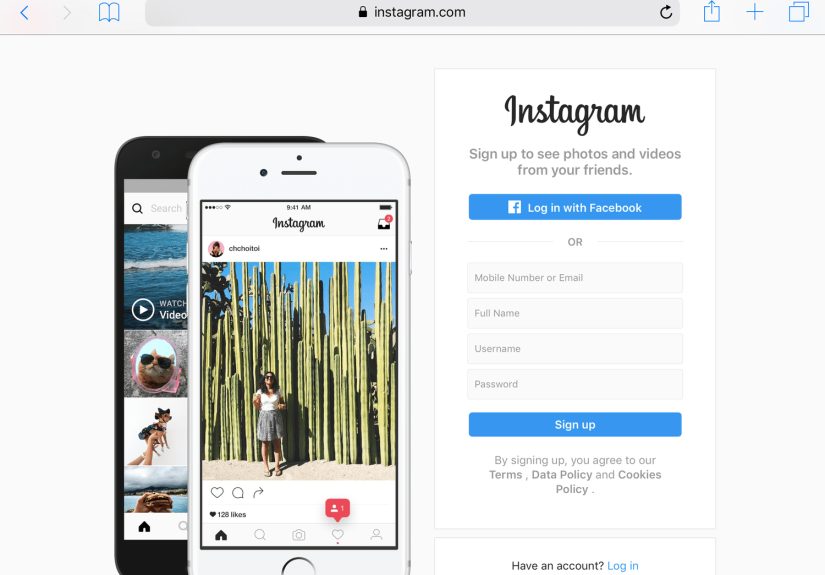
- Go to Instagram.com.
- Sign in to your account.
- Use Instagram directly in the browser.
The web version is much better than it used to be. It is no longer the digital equivalent of eating soup with a fork. You can browse your feed, watch content, access messages, and handle many everyday tasks comfortably on iPad.
Add Instagram to the Home Screen
If you want the website to feel more app-like, you can save it to your Home Screen:
- Open Instagram in Safari.
- Tap the Share button.
- Select Add to Home Screen.
- Turn on Open as Web App if the option appears.
- Tap Add.
This creates a shortcut that behaves more like a dedicated app entry point. It is not identical to the full native app, but it is fast, convenient, and surprisingly useful.
Official App vs. Browser Version
Choose the Official App If You Want:
- A smoother, more polished experience
- Better use of the iPad’s larger display
- Easier messaging and navigation
- A setup that feels more modern and less improvised
Choose the Browser Version If You Want:
- A backup when the app will not install
- A simpler way to use Instagram without another full app
- A quick Home Screen shortcut
- A temporary option on an older iPad
For most users, the native app wins. It is the most straightforward answer to the question, “How do I get Instagram for iPad?” The browser version is still worth knowing about because backup plans are sexy in a responsible-adult kind of way.
Common Problems and Fixes
Instagram Downloads but Will Not Open
Force close the app, restart the iPad, and check for both iPadOS and app updates. If the problem continues, delete the app and reinstall it.
Instagram Looks Wrong or Feels Zoomed
If you are somehow still opening an older compatibility version or old shortcut, remove it and download the current official app from the App Store. The dedicated iPad version should look far more natural on the display.
Login Issues
Double-check your username, email, or phone number. If needed, use the password recovery option. If you use login codes or an authenticator app, keep your second device nearby.
App Not Available
This usually points to software version limits, device compatibility, App Store region issues, or restrictions set on the iPad. In those cases, Safari is a useful workaround while you sort things out.
Tips for the Best Instagram Experience on iPad
- Keep iPadOS updated so the app remains compatible and secure.
- Use Wi-Fi for smoother video playback if your connection is unstable.
- Review notification settings so Instagram does not become your full-time employer.
- Enable two-factor authentication for better account security.
- Use the Home Screen web app option as a backup, especially if you travel or use multiple Apple devices.
If you create content, the iPad can also be a surprisingly comfortable review screen for captions, comments, DMs, and visual planning. You may still prefer a phone for quick capture and posting on the go, but the iPad is excellent for checking your account in a more relaxed, less thumb-cramped way.
Why So Many Old Articles Still Get This Wrong
The internet has a long memory and zero shame. For years, the standard answer was that Instagram did not have a proper iPad app. That used to be true. Plenty of articles still recommend downloading the iPhone version only or using the website because that was the best advice at the time.
Now, that advice is outdated. If you are reading an older guide that says Instagram is “not really available” on iPad, treat it like milk with an adventurous expiration date. The current reality is much better: there is an official iPad app, and the browser option has also improved. In other words, iPad users finally graduated from workaround culture.
Final Thoughts
If you want to get Instagram for iPad today, start with the App Store and download the official app. That is now the cleanest, easiest, and most user-friendly solution. If your iPad cannot install it or you prefer a browser-based setup, open Instagram in Safari and add it to your Home Screen as a web app.
The biggest takeaway is simple: the iPad experience is no longer an afterthought. Whether you are scrolling through Reels, replying to messages, checking Stories, or managing your account on a larger screen, Instagram on iPad is now practical, polished, and dramatically less weird than it used to be. Truly, growth is possible.
Hands-On Experiences: What Getting Instagram for iPad Actually Feels Like
One of the most interesting things about getting Instagram on an iPad is how quickly it changes your expectations. If you used Instagram on iPad years ago, you probably remember the awkward phase: giant black bars, a stretched interface, and the overall feeling that the app had shown up to the party wearing someone else’s clothes. The modern experience feels far less compromised. That matters because people do not just use Instagram for quick photo checks anymore. They watch videos, send messages, manage creator pages, reply to comments, save inspiration, and occasionally spend 40 minutes looking at kitchen renovation reels they never asked for but now deeply need.
For casual users, the biggest improvement is comfort. Instagram on a larger screen feels easier on the eyes and more natural for extended browsing. If you are lying on the couch, sitting at a table, or multitasking with an iPad keyboard attached, the app feels less cramped than on a phone. Reels are more immersive, comments are easier to read, and it is simpler to move between content and messages without feeling like your thumbs are working overtime. It turns Instagram from a quick-check phone app into something you can actually settle into.
For students and younger users, the iPad version also makes sense because the device often sits in that strange middle zone between phone and laptop. Maybe you are using an iPad for school notes, art, or streaming, and then you want to jump into Instagram during a break. In that case, downloading the official app is more convenient than constantly switching to your phone. It also keeps your workflow on one device, which sounds productive even when what you are really doing is sending your friend a reel of a raccoon stealing cat food.
Creators and small business users may notice different benefits. An iPad is not automatically the best device for shooting content, but it is a very comfortable device for reviewing visuals, responding to DMs, checking engagement, and handling day-to-day account maintenance. Looking at your feed on a bigger screen can also help with layout awareness. You start noticing how your content feels visually, not just how fast you can post it. That is especially useful if you care about brand consistency, portfolio presentation, or planning an aesthetic that says “intentional” rather than “I posted this while standing in line for coffee.”
The browser route also has its own kind of charm. Some users simply do not want every service to become a full app. Opening Instagram in Safari and saving it to the Home Screen can feel cleaner and more lightweight. It is great for people who want access without committing too much storage, too many notifications, or too much emotional involvement. The web-app style shortcut is also a practical solution for shared devices, older habits, or users who just prefer browser tabs because they like living a little dangerously.
Overall, the real-world experience of getting Instagram for iPad is less about technical difficulty and more about finally having options that do not feel second-rate. The official app is now the obvious first choice, the browser version is a strong backup, and both are a huge improvement over the old days. So if you have been wondering whether Instagram on iPad is finally worth it, the answer is yes. The app has caught up, the workarounds are better, and your iPad no longer has to pretend it is just a really confident phone.