Table of Contents >> Show >> Hide
- What Is the X Bar Symbol in Word?
- The Best Ways to Make an X Bar Symbol in Word
- Which Method Should You Use?
- Common Problems When Making an X Bar Symbol in Word
- Examples of When You Might Need an X Bar Symbol
- Best Practices for Cleaner Results
- Windows vs. Mac: The Practical Difference
- Experience Section: What Actually Happens When Real People Try to Insert an X Bar
- Conclusion
If you have ever stared at Microsoft Word wondering how on earth people type x̄ so neatly in statistics notes, lab reports, or research papers, welcome to the club. The x bar symbol looks tiny, innocent, and harmless. In reality, it can send perfectly normal adults into a keyboard rage spiral that ends with twenty browser tabs open and one deeply suspicious-looking “x—-” in the middle of a document.
The good news is that making an x bar symbol in Word is not actually difficult once you know which method fits your situation. The better news is that you do not need to sacrifice your formatting, install strange fonts from the internet, or bribe Word with coffee. Whether you are using Word on Windows or Word on Mac, there are several reliable ways to insert an x bar symbol, and each one has its sweet spot.
In this guide, you will learn the easiest ways to make an x bar symbol in Word, when to use each method, and how to avoid the most common formatting headaches. We will also cover practical examples, troubleshooting tips, and a real-world experience section at the end so you can pick the method that works best when deadlines are breathing down your neck.
What Is the X Bar Symbol in Word?
The x bar symbol usually represents the sample mean in statistics. If you have taken a math class, a business stats course, or any class where averages suddenly become “more official,” you have probably seen x with a horizontal line over it. In Word, this symbol can be created either as a true mathematical expression or as a regular text character using a combining mark.
That distinction matters more than it sounds. An equation-style x bar tends to look cleaner in formulas and academic writing. A text-style x bar is often easier to paste into sentences, headings, worksheets, or tables where you do not want Word to switch into full math mode like it just joined a research conference.
The Best Ways to Make an X Bar Symbol in Word
There is no single “perfect” method for every document. The best option depends on whether you want a polished equation, a plain-text character, or something fast enough to save your sanity five minutes before class or a meeting.
Method 1: Use the Equation Editor in Word
This is the best overall method on both Windows and Mac because it creates a clean-looking x bar that is designed for mathematical notation.
- Click where you want the symbol to appear.
- Open Equation mode.
- On Windows, press
Alt + =. - On Mac, press
Ctrl + =.
- On Windows, press
- On the Equation tab, choose Accent.
- Select Bar or Overbar.
- Click the box under the bar and type
x.
That gives you a professional x bar symbol with the line centered neatly over the letter. If your document includes formulas, statistical notation, or other symbols such as y bar, x hat, or sigma, this is usually the cleanest route.
The only catch is that Word treats this as an equation object, not plain body text. That means it may use math formatting, and depending on your document, it can behave a little differently from normal text. In other words, it is elegant, but slightly dramatic.
Method 2: Type X Bar with Equation Commands
If you like keyboard shortcuts more than ribbon menus, Word also supports a command-based way to build the symbol inside Equation mode.
- Open Equation mode in Word.
- Type
overbar(x)in UnicodeMath mode. - Press the spacebar.
In many versions of Word, this instantly converts into a formatted x bar. If your equation input is set to LaTeX instead, you may prefer overbar{x}. This method is wonderfully fast once you memorize it, and it feels just academic enough to make your document look smarter than you feel at 11:47 p.m.
This is a great method for students, analysts, and anyone who types lots of math in Word. Once you get comfortable with equation commands, you can create other symbols quickly without clicking through menus every time.
Method 3: Use Unicode and Alt+X on Windows
If you want an x bar that behaves more like regular text, the Unicode method is one of the fastest ways on Windows.
- Type
x0304in your document. - Select the
0304portion if needed. - Press
Alt + X.
Word converts the code into a combining macron, giving you x̄. You can also experiment with 0305, which creates a combining overline and may give you a slightly different visual result in some fonts.
This method is excellent when you want the symbol to sit inside normal text instead of inside an equation box. For example, it works well in short explanations, inline notes, headings, or teacher handouts. It is also handy if you need to copy and paste the symbol into a sentence without Word wrapping it in equation formatting.
That said, combining marks are not always perfectly centered. Depending on the font, the bar can look a little too high, a little too short, or slightly off-center. Word is being technically correct, which is lovely in theory and mildly annoying in practice.
Method 4: Insert the Combining Mark from the Symbol Menu
If you prefer clicking over remembering codes, Word also lets you insert the overline-related mark from the symbol dialog.
On Windows
- Type
xfirst. - Go to Insert > Symbol > More Symbols.
- Look for the Combining Diacritical Marks subset.
- Choose a combining mark such as the macron or overline.
- Insert it after the x.
On Mac
- Type
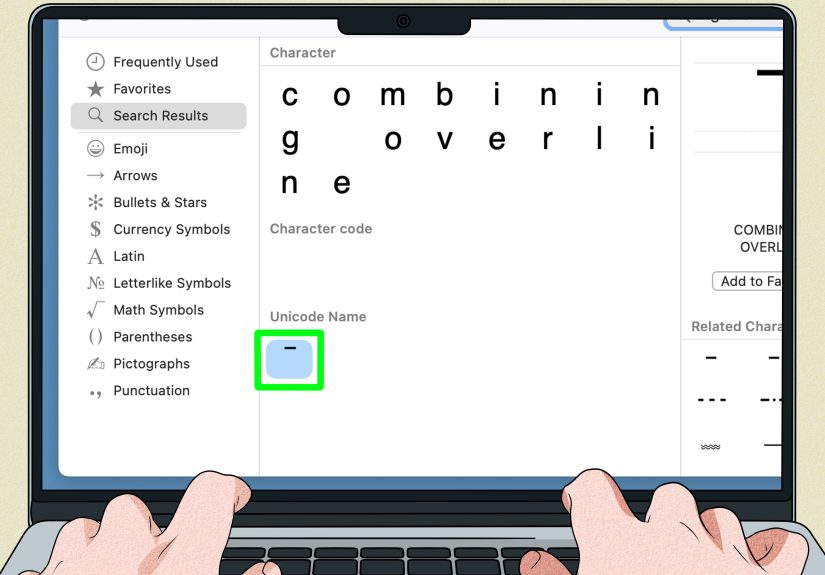
xin your document. - Go to Insert > Advanced Symbol in Word, or open the Mac Character Viewer.
- Find the Unicode combining marks.
- Insert the macron or overline after the letter.
This method is useful when you do not remember the Unicode code, or when you want to browse other symbols at the same time. It is slower than keyboard shortcuts, but it is beginner-friendly and reassuring. Sometimes you just want Word to show you the thing instead of asking you to become part-time Unicode support staff.
Which Method Should You Use?
Here is the simple version.
- Use Equation Editor if you want the cleanest mathematical formatting.
- Use overbar(x) if you already type equations and want maximum speed.
- Use x + 0304 + Alt+X on Windows if you want something closer to plain text.
- Use Advanced Symbol or Character Viewer on Mac if you want a visual menu-based method.
If you are writing a formal paper, report, or equation-heavy document, Equation Editor is usually the winner. If you are inserting x bar only once or twice into regular text, the Unicode or symbol method may be more convenient.
Common Problems When Making an X Bar Symbol in Word
The Bar Looks Off-Center
This usually happens with combining characters. Try changing the font or switching to the Equation Editor method for a more balanced result.
The X Becomes Italic
That often happens in Equation mode because Word formats math differently. If the italic look bothers you, adjust the equation formatting or use the plain-text Unicode route instead.
The Shortcut Does Nothing
Make sure you are using the correct shortcut for your platform. Windows uses Alt + = for Equation mode, while Mac uses Ctrl + =. For Alt + X, remember that this is a Windows Unicode conversion feature, not the standard Mac approach.
The Equation Command Does Not Convert
If overbar(x) just sits there like stubborn text, Word may be in the wrong equation input mode or the conversion setting may not be enabled. In that case, use the Accent menu directly or check the Equation options.
Examples of When You Might Need an X Bar Symbol
The x bar symbol shows up in more places than people expect. Of course, it is common in statistics. But it can also appear in economics coursework, science reports, quality control documents, education materials, and technical writing where averages or grouped values need to be shown clearly.
For example, you might write:
- x̄ = 24.6 to show a sample mean
- The value of x̄ increased after the second trial in a lab report
- Compare x̄ and ȳ in a workbook or lecture note
In each case, the right method depends on context. Inside an equation, use the equation-based x bar. Inside a sentence or heading, a text-style x bar often feels more natural.
Best Practices for Cleaner Results
If you want your Word document to look polished instead of cobbled together during a caffeine emergency, keep these tips in mind.
- Be consistent. Do not mix equation-style x bar and text-style x bar randomly in the same document.
- Test your font. Some fonts display combining marks more cleanly than others.
- Save a favorite. If you use x bar often, create an AutoCorrect entry or keep a reusable version nearby.
- Think about your audience. If the document is academic, Equation Editor usually looks more professional.
- Check copy-paste behavior. Equation objects may not paste the same way as plain text into email, slides, or web forms.
Windows vs. Mac: The Practical Difference
In theory, Word on Windows and Word on Mac can both produce an x bar just fine. In practice, they feel slightly different. Windows users often get more mileage out of the Alt + X Unicode trick, which is wonderfully fast once learned. Mac users usually have better luck with Equation mode or the built-in symbol and character viewer tools.
So if you are moving between devices, do not panic when your favorite shortcut disappears. Word is not broken. It is simply expressing its cross-platform personality in a slightly unhelpful way.
Experience Section: What Actually Happens When Real People Try to Insert an X Bar
Let’s be honest: most people do not search for “how to make an x bar symbol in Word” because they are having a calm, well-planned afternoon. They search for it because an assignment is due, a professor expects proper notation, or a report has to look polished in front of someone important. That is why the “best” method on paper is not always the best method in real life.
In actual use, the Equation Editor is usually the method that gives the prettiest result. If you are writing a statistics assignment, a formal lab report, or a document with several equations, it is the clear winner. The bar is centered well, the symbol looks intentional, and the result blends with other mathematical notation. The downside is that it can feel a little heavy if all you wanted was one tiny x bar inside a regular sentence.
The Unicode method on Windows is where things get interesting. It is fast, efficient, and satisfying once it works. You type a letter, add the code, press Alt + X, and suddenly Word behaves like it respects your time. But the look of the finished symbol depends heavily on the font. In one font, the x bar looks perfect. In another, it looks like the bar missed the meeting and parked itself slightly too far north.
Mac users often have a different experience. The Character Viewer feels helpful once you get used to it, but it is not exactly the kind of tool most people discover by accident. It is more of a “hidden drawer full of tiny symbols” situation. Once you know where it is, it becomes useful. Before that, it might as well be buried in a cave guarded by menu options.
Another real-world issue is copy and paste. A plain-text x bar is often easier to move into emails, worksheets, forms, or web editors. An equation-built x bar usually looks better in Word itself, but sometimes behaves less predictably outside the document. So the smartest choice is not always the fanciest one. It is the one that still looks right after you paste it where it actually needs to go.
People who use the symbol frequently usually settle into one habit. Students often stick with Equation Editor for homework and papers. Teachers and office workers sometimes prefer the plain-text version because it fits more naturally into handouts, instructions, and quick notes. The real trick is not finding one magical method forever. It is knowing which method saves the most time for the document in front of you.
If you only remember one practical takeaway, remember this: use Equation Editor for polished math, and use Unicode or symbols for plain text convenience. That one rule will solve most x bar problems without turning your document into a formatting soap opera.
Conclusion
Making an x bar symbol in Word on Windows and Mac is much easier once you know the right path. For the cleanest academic result, use the Equation Editor. For faster inline text on Windows, use the Unicode 0304 method with Alt + X. On Mac, Equation mode and Advanced Symbol tools are usually the most dependable choices.
The real secret is choosing the method that fits your document instead of trying to force one trick into every situation. When you do that, the x bar symbol stops being a weird formatting puzzle and becomes just another useful tool in Word. And that, frankly, is the kind of quiet victory we should all celebrate.