Table of Contents >> Show >> Hide
- Quick Answer: How to Remove a Gmail Account from the App
- Before You Tap Anything: Remove vs. Sign Out vs. Delete
- How to Remove an Account on Gmail App on iPhone
- How to Remove an Account on Gmail App on Android
- What Happens After You Remove the Account?
- When You Should Remove a Gmail Account
- Common Problems and How to Fix Them
- How to Permanently Delete Gmail Instead of Just Removing It
- Best Practices Before Removing an Account
- Real-World Experiences: What People Usually Learn the Hard Way
- Conclusion
- SEO Tags
If your Gmail app looks like a digital junk drawer packed with old accounts, work logins, school addresses, and that one email you made in 2012 for “serious adulting,” you are not alone. Figuring out how to remove an account on the Gmail app should be simple, but mobile apps love a little drama. On iPhone, the process can feel different from Android. On Android, it can feel like Gmail opens a trapdoor and drops you straight into phone settings. Delightful.
The good news is that removing a Gmail account from the Gmail app is usually quick once you know where Google hides the button. The even better news? In most cases, removing an account from the app does not mean deleting the Gmail address forever. That is the big misunderstanding that causes people to panic, hover over the button, and whisper, “Wait… is this going to erase my life?”
This guide walks you through exactly how to remove an account on the Gmail app for iPhone and Android, explains what happens after removal, covers common problems, and shows when you should remove an account, sign out, or permanently delete Gmail. We will also dig into real-life experiences people have with this process, because sometimes the hardest part is not the tap itself. It is knowing what the tap actually does.
Quick Answer: How to Remove a Gmail Account from the App
If you are in a hurry and your thumb is already halfway to the screen, here is the short version:
On iPhone
- Open the Gmail app.
- Tap your profile picture in the top right.
- Tap Manage accounts on this device.
- Tap Remove from this device next to the account.
- Confirm the removal.
On Android
- Open the Gmail app.
- Tap your profile picture.
- Tap Manage accounts on this device.
- Select the account you want to remove.
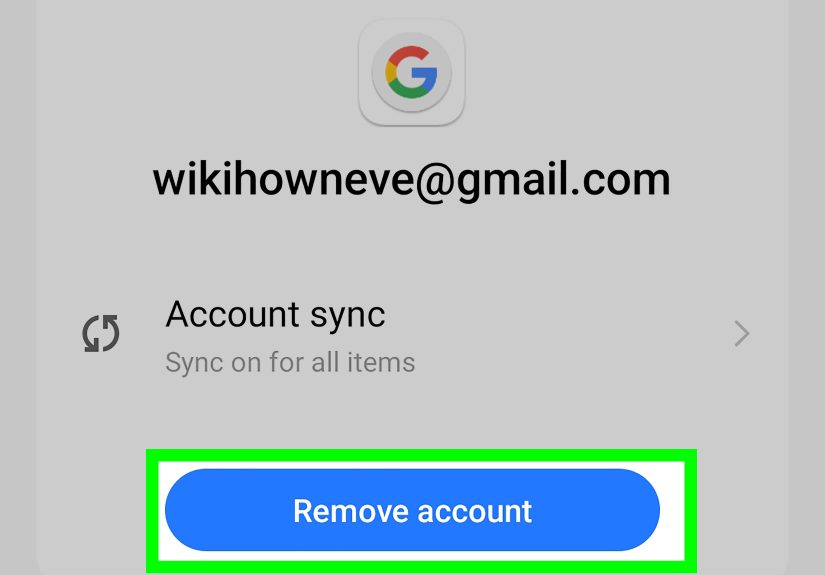
- Tap Remove account and confirm.
Easy enough, right? Well, mostly. The important part is understanding what kind of removal you are doing.
Before You Tap Anything: Remove vs. Sign Out vs. Delete
When people search for how to remove an account on Gmail app, they are often trying to do one of three completely different things:
- Remove the account from the Gmail app on one device: This signs the account out of Gmail on that phone or tablet.
- Stop using Gmail but keep the Google Account: This is more drastic and involves deleting the Gmail service from your Google Account.
- Delete the entire Google Account: This is the nuclear option and affects Gmail, Drive, Photos, YouTube, and more.
For most readers, the goal is the first one: remove the account from the app on a specific phone. That is useful if you sold your device, changed jobs, switched email addresses, or simply want a cleaner inbox lineup. It is also the safest option because it does not usually erase your actual email account.
Think of it this way: removing the account from the Gmail app is like taking your coat off a hook. Deleting Gmail is more like throwing away the coat. Deleting the whole Google Account is burning down the closet. Different energy levels.
How to Remove an Account on Gmail App on iPhone
If you use Gmail on an iPhone, the removal process is handled inside the app. That makes it pretty convenient, assuming you know where to look.
Step-by-Step for iPhone
- Launch the Gmail app.
- Tap your profile icon in the upper-right corner.
- Select Manage accounts on this device.
- Find the account you want to remove.
- Tap Remove from this device.
- Confirm when prompted.
After that, the account should disappear from the Gmail app on your iPhone. If you had multiple Google apps signed in with the same account, you may also be signed out of those apps on that device. That is why this is a good idea to do only when you are sure you are done using that account there.
What If You Use Apple Mail Instead of the Gmail App?
This is where many people get tripped up. If your Gmail address is set up in the Apple Mail app, removing it is a different process. You would go through your iPhone settings instead of the Gmail app.
- Open Settings.
- Tap Apps, then Mail.
- Tap Mail Accounts.
- Select the email account.
- Tap Sign Out or Delete Account.
That removes the email account from Apple Mail and other apps that use it on the iPhone. It does not cancel the email account itself. So no, tapping “Delete Account” in iPhone settings does not mean your Gmail address vanishes from the face of the Earth. It just leaves your phone.
How to Remove an Account on Gmail App on Android
Android is a little different. Gmail starts the process, but depending on your phone, you may end up inside Android’s account settings. That is because Google accounts on Android are often tied into the whole system, not just the Gmail app.
Step-by-Step for Android
- Open the Gmail app.
- Tap your profile picture in the top-right corner.
- Tap Manage accounts on this device.
- Choose the account you want to remove.
- Tap Remove account.
- Confirm the action.
On some Android phones, the wording may vary slightly. You might see menu labels such as:
- Passwords & accounts
- Users & accounts
- Passwords, passkeys & autofill
- Manage accounts
That is normal. Android manufacturers like to customize menus just enough to make everyone doubt themselves. But the general path remains the same: open account settings, choose the Google account, and remove it.
Important Android Warning
When you remove a Google account from an Android device, it may affect more than Gmail. You can also lose access on that device to Google apps tied to the same account, such as Drive, Calendar, Maps, YouTube, or Play Store activity. In some cases, if it is the only Google account on the phone, Android may ask for your PIN, password, or pattern before confirming.
So if your goal is simply to stop Gmail notifications, removing the account may be overkill. Turning off sync or disabling notifications might be the better move.
What Happens After You Remove the Account?
This is the question everyone asks five seconds after confirming removal.
Here is what usually happens when you remove a Gmail account from the app:
- The account no longer appears in the Gmail app on that device.
- You stop receiving email for that account in the app on that device.
- You may be signed out of other Google apps using the same account on that device.
- Your emails still exist on Google’s servers unless you deleted the account itself.
- You can usually add the account back later by signing in again.
In other words, removing the account from the Gmail app is usually reversible. It is more like stepping out than moving out permanently.
When You Should Remove a Gmail Account
There are plenty of good reasons to remove an account from the Gmail app. Some are practical, and some are sanity-saving.
1. You Changed Jobs or Schools
If you no longer need a work or school Gmail account on your personal phone, removing it is a smart security habit. Nobody wants old corporate emails hanging around like a ghost from meetings past.
2. You Are Selling or Giving Away Your Phone
Before handing over your device, remove your accounts first. Better yet, sign out and factory reset the phone after backing up what you need. The new owner does not need front-row access to your inbox newsletters and password reset emails.
3. You Added the Wrong Account
It happens. Maybe you signed in with your main account instead of your side-business account. Maybe you accidentally added your cousin’s account while helping them troubleshoot. Time to clean house.
4. You Want a Less Chaotic Gmail App
Multiple inboxes can be useful, but they can also turn your phone into a buzzing little stress machine. Removing unused accounts can make the Gmail app faster to navigate and easier to manage.
Common Problems and How to Fix Them
I Cannot Find “Manage Accounts on This Device”
Make sure you tapped your profile photo in the top-right corner of the Gmail app, not the three-line menu. If the option still does not appear, update the Gmail app through the App Store or Google Play.
The Remove Button Is Missing on Android
Some Android devices route the process through system settings. Open your phone’s Settings app, look for Accounts or Passwords & accounts, tap the Google account, and remove it there.
I Only Want to Stop Notifications
Then do not remove the account yet. Go to Gmail settings and turn off notifications for that account, or disable sync. That lets you keep access without the constant buzzing soundtrack of incoming mail.
It Is a Work Account and Removal Is Restricted
If the phone is managed by your employer or school, removal may be limited by admin controls. In some work-profile cases on Android, removing the work profile can also remove work-managed apps. If the device shows an error, contact your administrator instead of picking a fight with your settings screen.
I Removed the Account and Now Want It Back
No problem. Open the Gmail app, tap your profile icon, choose Add another account, and sign in again. As long as the Gmail address still exists and you know the login details, you can reconnect it.
How to Permanently Delete Gmail Instead of Just Removing It
Sometimes people do not want to remove the account from one device. They want to stop using that Gmail address entirely. That is a separate process.
If you want to delete Gmail but keep your Google Account, you need to go into your Google Account settings and choose the option to delete a Google service. Google normally asks for another email address so you can still sign in to the account after Gmail is gone.
If you want to delete the entire Google Account, that is even more serious. Doing that can remove access to Gmail, Google Drive, Calendar, Photos, YouTube, and other Google services tied to that account.
This is why a lot of tutorials confuse readers. Removing a Gmail account from the app sounds dramatic, but permanent deletion is an entirely different road.
Best Practices Before Removing an Account
- Double-check that you know the password in case you need to add the account back later.
- Make sure two-factor authentication methods are still accessible.
- Confirm whether the account is tied to purchases, app data, calendars, contacts, or backups.
- If it is a work or school account, make sure you are allowed to remove it.
- If the phone is being sold, back up your data and fully reset the device afterward.
A little preparation saves a lot of “Why is my calendar empty?” energy later.
Real-World Experiences: What People Usually Learn the Hard Way
One of the most common experiences people have with removing a Gmail account is realizing that the phrase remove account sounds way scarier than the action really is. Many users expect the account itself to disappear forever, so they hesitate for days. Then they finally remove it and discover their email is still perfectly fine when they log in from a laptop. That little moment of relief is almost universal. The wording feels dramatic, but in everyday use, it usually means the account is being removed from that device, not from existence.
Another very common experience happens on Android. Someone opens Gmail, taps their profile picture, chooses account management, and suddenly ends up in a maze of system settings. At that point, they start wondering whether they have left Gmail entirely, whether they are now editing the whole phone, and whether one wrong tap will anger the technology gods. The truth is that Android often treats Google accounts as device-level accounts, so the Gmail app is really just handing you off to the operating system. It feels more complicated than iPhone, but it is usually normal behavior.
People also learn quickly that multiple accounts can be both helpful and chaotic. A lot of users add a personal Gmail, a work Gmail, an old college email, and maybe a shared family account, all with the best intentions. Then the inbox view turns into a digital food court. Notifications pile up, profile icons blur together, and someone eventually sends an email from the wrong address. Removing an unused account often feels less like losing access and more like finally cleaning out a closet that had been silently judging you.
There is also the classic iPhone confusion: some users think they are using “Gmail on iPhone,” but they are actually checking Gmail through Apple Mail. So they search the Gmail app for removal options, do not see what they expect, and assume the app changed or broke. In reality, they just need to remove the email account in iPhone settings under Mail accounts. This is one of those tiny tech mix-ups that can eat 30 minutes of your life for no good reason.
Work and school accounts create another memorable experience. Someone tries to remove the account from an Android phone and gets blocked by device management rules. Suddenly, what looked like a simple cleanup job becomes an IT policy lesson. Managed devices can be stricter because organizations want to protect company or school data. Users often discover that removing a work profile is not the same as removing a casual personal Gmail. If the account was set up by an employer, the phone may treat it very differently.
Finally, many people come away from the process with the same lesson: the smartest move is to decide what problem you are actually trying to solve. If the goal is fewer notifications, turn them off. If the goal is privacy on a shared phone, remove the account. If the goal is leaving an old email behind forever, look for the Gmail deletion route instead. Once you understand that difference, the whole process gets much less intimidating. And that is the real victory here. Not just removing an account, but removing the panic that came with it.
Conclusion
Learning how to remove an account on Gmail app on iPhone and Android is not difficult once you know the right path. On iPhone, you usually remove the account directly in the Gmail app. On Android, Gmail may hand the job off to your phone’s account settings. In both cases, removing the account from the device is usually not the same as deleting the actual Gmail address.
That distinction matters. A lot. It is the difference between tidying up your phone and accidentally choosing a much bigger change than you intended. So before tapping anything, decide whether you want to remove, sign out, mute, or permanently delete. Then proceed with confidence, a calm thumb, and maybe a little less tech-induced suspense.