Table of Contents >> Show >> Hide
- Table of Contents
- First: What password did you actually forget?
- Quick wins before you reset anything
- Forgot the iPhone/iPad passcode: how to reset it (yes, you must erase)
- After the reset: restore your data the smart way
- Forgot Apple Account password: reset it safely
- Forgot Screen Time passcode: reset options (including Family Sharing)
- Troubleshooting: when the reset doesn’t go smoothly
- Prevent it next time: backups, recovery, and “future-you” favors
- Real-world experiences : what usually happens in the wild
- SEO tags (JSON)
Your iPhone or iPad has a special talent: it can remember everything… except the one thing you need
right now. If you’re locked out, don’t panicApple actually gives you a few official paths back in.
The trick is knowing which “password” you forgot and picking the safest reset method.
This guide covers the three most common “forgotten password” situations:
device passcode (the 4–6 digit code), Apple Account password (formerly Apple ID),
and Screen Time passcode. You’ll get clear steps, realistic examples, and a few “learn from my pain”
momentswithout sketchy bypass tools or keyboard-smash advice.
First: What password did you actually forget?
People say “iPhone password” like it’s one thing. It’s not. Apple uses different credentials for different locks,
and the fix depends on which one you forgot.
1) Device passcode (Lock Screen passcode)
This is the 4-digit/6-digit code you type to unlock your device (or after Face ID/Touch ID fails).
If you forget it and the device is locked, the official reset requires erasing the device.
That’s not Apple being dramaticit’s the security design.
2) Apple Account password (formerly Apple ID password)
This is what you use for iCloud, the App Store, Find My, backups, and signing into Apple services.
You can often reset this without erasing your deviceespecially if you have a trusted Apple device.
3) Screen Time passcode
This is the separate code used to change Screen Time settings and restrictions. It’s commonly forgotten because
you set it once and then… never think about it again until your teen discovers the Settings app.
Quick wins before you reset anything
Before you nuke your device into factory-fresh oblivion, try these fast checks. They won’t always work,
but when they do, you’ll feel like a wizard.
Check if you recently changed your passcode (iOS/iPadOS 17+)
If you changed your passcode recently and forgot the new one, Apple has a feature called
Passcode Reset that may let you unlock using your previous passcode for a limited window
(up to 72 hours). If you see that option on the lock screen, it can save your day (and your data).
Confirm what you still have access to
- Do you know your Apple Account password? That can enable the “erase/reset without a computer” option.
- Do you have a computer? A Mac or Windows PC can restore your device via recovery mode.
- Do you have another trusted Apple device? It can help reset your Apple Account password and sometimes Screen Time.
- Do you have a backup? If yes, you can erase confidently. If no, decide what data you’re willing to lose.
Forgot the iPhone/iPad passcode: how to reset it (yes, you must erase)
If your iPhone or iPad is locked and you don’t know the passcode, the official reset removes the passcode by
erasing the device. After that, you can restore from a backup or set up as new.
Method A: Reset directly from the lock screen (no computer)
On many recent iOS/iPadOS versions, you may see a lock screen option like
“Forgot Passcode?” or “Erase iPhone/iPad” after too many failed attempts.
This method is great when you don’t have a computer handy.
- Your device must have an active cellular or Wi-Fi connection.
- Find My must have been enabled on the device.
- You’ll need your Apple Account password to sign out and complete the reset.
- On the lock screen, tap Forgot Passcode? (or Erase Device).
- Confirm you want to reset/erase the device.
- Enter your Apple Account password when prompted.
- Let the device erase and restart to the “Hello” setup screen.
Method B: Use recovery mode with a Mac or Windows PC (most reliable)
Recovery mode is the classic “I’m locked out and I mean business” option. It’s reliable, official,
and works even if you can’t trigger the lock screen reset option.
What you need
- A Mac (Finder) or Windows PC (Apple Devices app or iTunes, depending on your setup)
- A compatible USB cable
- Enough time for software to download (and possibly re-download if your device exits recovery mode)
Step-by-step (high-level)
- Turn off the iPhone/iPad.
- Put the device into recovery mode (button combo varies by model).
- Connect it to your computer while entering recovery mode until you see the recovery screen.
- On your computer, open:
- Finder (macOS Catalina or later), or
- Apple Devices app (many Windows setups), or
- iTunes (older macOS/Windows configurations)
- When prompted, choose Restore (not Update).
- Wait for the process to complete, then set up your device.
Example: You forgot your passcode on an iPhone, you connect it to your Mac, Finder pops up
and says there’s a problem and your iPhone needs to be updated or restored. Choose Restore.
Your iPhone will erase, reinstall iOS, and reboot to setup.
Method C: Erase using Find My (another device or iCloud.com)
If Find My was enabled, you can erase your locked device remotely:
- From the Find My app on another iPhone/iPad, or
- From iCloud.com (Find Devices / Find My)
- Sign in with your Apple Account.
- Select the locked iPhone/iPad from the device list.
- Choose Erase This Device and follow prompts.
After the reset: restore your data the smart way
Once the device is erased, you’ll see the “Hello” setup screen. From here, your goal is to get your stuff back
(apps, photos, messages, settings) without accidentally creating a bigger mess.
Option 1: Restore from an iCloud backup
During setup, you’ll reach a screen like Apps & Data (wording varies). Choose
Restore from iCloud Backup, sign in, and select the most recent backup.
- Best when you backed up overnight on Wi-Fi (the “responsible adult” method).
- Requires stable internet; large photo libraries may take time.
Option 2: Restore from a computer backup
If you previously backed up to a computer, you can restore from Finder (Mac) or Apple Devices/iTunes (Windows).
This can be faster than iCloud for huge backups, especially if your Wi-Fi is having a dramatic episode.
Option 3: Set up as new (when there’s no backup)
No backup? You can still sign into iCloud and re-sync content that lives in the cloud (Photos, Contacts, Notes,
iCloud Drive, etc.), but anything stored only on-device may be gone. If you’re unsure what’s cloud-synced,
take a breath and check what appears on iCloud services after sign-in.
Forgot Apple Account password: reset it safely
If what you forgot is your Apple Account password (formerly Apple ID password), you may be able to reset it without erasing your device
especially if you still have a trusted Apple device signed in.
Method A: Reset on a trusted iPhone or iPad (fastest)
- Open Settings.
- Tap your name at the top (your Apple Account banner).
- Tap Sign-In & Security.
- Tap Change Password.
- Authenticate with your device passcode/biometrics and set a new password.
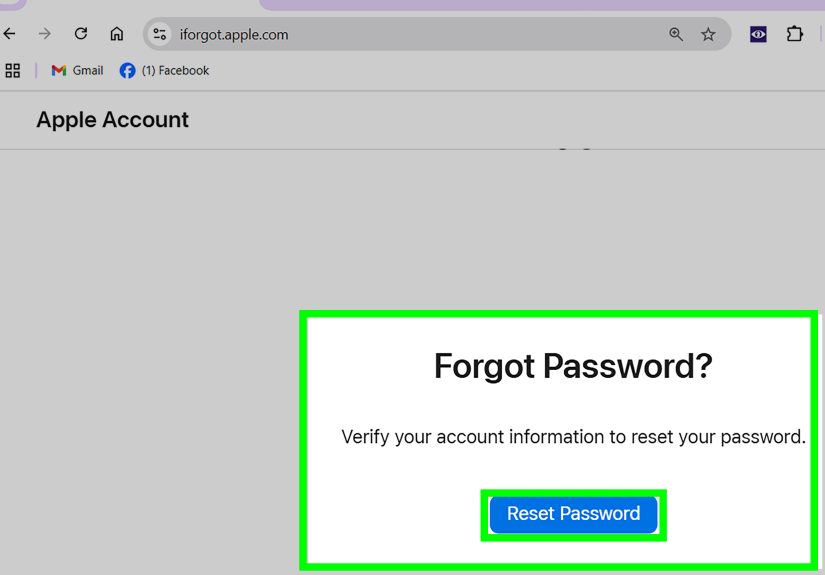
Method B: Use Apple’s password reset website (iforgot)
If you don’t have a trusted Apple device available, Apple’s official reset flow may verify you via your trusted
phone number and account details.
Method C: Use the Apple Support app on a borrowed device
No Apple device of your own available? Borrow one from a friend/family member (or use one at an Apple Store) and:
- Open the Apple Support app.
- Scroll to Support Tools and tap Reset Password.
- Tap Help Someone Else and follow the prompts.
Method D: Account recovery (when other options fail)
If you can’t reset with the usual methods (no trusted device, can’t access trusted number, etc.), Apple may offer
account recovery. This can take days (sometimes longer), and it’s designed that way to protect you
from account takeover.
Security reality check: scammers love “password reset” moments
When you’re locked out, you’re stressedand scammers know it. Don’t share verification codes or passwords with anyone,
even if they claim to be “Apple Support.” A legit company doesn’t need your one-time code. That’s the whole point.
Forgot Screen Time passcode: reset options (including Family Sharing)
Screen Time passcodes are like gym memberships: you’re sure you set one up, and then you don’t think about it for months.
The good news: if Screen Time was set up with an Apple Account, you can often reset it.
Reset Screen Time passcode on your iPhone or iPad
- Go to Settings > Screen Time.
- Tap Change Screen Time Passcode, then tap it again.
- Tap Forgot Passcode? (if shown).
- Enter the Apple Account email and password used to set up Screen Time.
- Create a new Screen Time passcode.
Reset a child’s Screen Time passcode (Family Sharing organizer)
If you manage a child’s device, the organizer (parent/guardian) can reset it from their own device:
- On the organizer’s device, go to Settings > Screen Time.
- Under Family, select the child’s name.
- Tap Manage Screen Time (or similar).
- Tap Change Screen Time Passcode and authenticate.
- Set the new passcode.
Troubleshooting: when the reset doesn’t go smoothly
“My device keeps exiting recovery mode”
If your computer needs to download iOS/iPadOS and it takes too long, your device may exit recovery mode.
Let the download finish, then put the device back into recovery mode and continue.
“I restored it, but now it asks for an Apple Account I don’t know”
That’s Activation Lock. If the device is truly yours, try resetting the Apple Account password
using official methods. If it’s a secondhand device and you can’t contact the previous owner, Apple may require
proof of purchase to help. Be extremely skeptical of anyone claiming they can “bypass iCloud lock” in minutes.
“I don’t see the ‘Forgot Passcode?’ option on the lock screen”
Not every device/version shows it in the same way, and it requires conditions like network connection and Find My.
If it’s not there, recovery mode on a computer is the most universal path.
“I have no backupam I doomed?”
Not always. Many users still recover a lot by signing back into iCloud and letting synced data return
(contacts, photos, notes, messagesdepending on settings). But anything stored only on the device may be lost,
which is why backups are the unsung hero of every “oops” moment.
Prevent it next time: backups, recovery, and “future-you” favors
The best time to prepare for a forgotten password is before you forget itannoying advice, yes, but
also the reason some people recover in 20 minutes while others spend a weekend bargaining with the universe.
Do these three things
- Turn on iCloud Backup (and plug in overnight on Wi-Fi).
- Set up account recovery options (trusted phone number, recovery contact/recovery key if available to you).
- Use a password manager for Apple Account credentials and store your passcode somewhere secure (not in a Notes app locked behind your passcode… yes, people do this).
Do this one thing you’ll thank yourself for
Write down a simple “reset kit” somewhere safe:
Apple Account email, trusted phone number, where your backups live (iCloud vs computer), and which computer you’d use for recovery.
When you’re locked out, your brain will be running on vibes and caffeinegive it a cheat sheet.
Real-world experiences : what usually happens in the wild
Let’s talk about what resets look like outside of neat bullet listsbecause real life includes low battery,
bad Wi-Fi, and the emotional rollercoaster of “I swear I know this passcode.”
One of the most common scenarios: you change your passcode because your device politely suggests it, you pick a “new one”
(which is really just your old one with a different ending), and thendays lateryou reboot your iPhone and suddenly Face ID
won’t save you. iOS asks for the passcode after a restart, and now your brain is blank. If you’re on newer software, the
Passcode Reset window can be a lifesaver: you unlock with the old code, immediately set a new one, and you’re back in business.
When it works, it feels like finding $20 in a jacket pocket.
Another frequent situation: the “no computer” household. People often assume they need a laptop to recover, then discover
the lock screen offers a “Forgot Passcode?” or “Erase Device” option. That path is surprisingly smoothas long as the device
is connected to Wi-Fi/cellular and Find My was enabled. The moment it asks for your Apple Account password, though, it becomes
a two-factor reality check: “Do I know the password… and can I receive verification prompts?” If yes, it’s a clean reset.
If not, you’ve just learned that your Apple Account password is basically the key ring to your digital life.
Recovery mode is where many people get stucknot because it’s impossible, but because it’s finicky in the way only technology
can be. You’re holding the right button combo, you see the cable icon, and then your computer starts downloading iOS… for what
feels like the length of a prestige TV series. If the download takes too long, the device can exit recovery mode, and you’ll
have to re-enter it. This is the moment people think they “broke it,” when really they just hit a timing issue. The fix is
boring but effective: let the download finish, then try recovery mode again.
Screen Time passcodes create a different kind of drama: family drama. A parent sets Screen Time limits with the best intentions,
then forgets the passcode six months later when it’s time to extend weekend hours. The reset process is usually simpleenter the
Apple Account credentials used to set it upbut in family setups, people realize the Screen Time passcode might be tied to the
organizer’s account, not the child’s. That leads to the “Wait, whose Apple Account did we use?” scavenger hunt. Pro tip from the
trenches: if you’re setting Screen Time for a family, document which account is used for management and keep that login updated.
And then there’s the emotional “I don’t have a backup” moment. This is where you decide between getting back into the device and
preserving unsynced data. Most people discover (with relief) that a lot of their life is already in iCloudphotos, contacts,
notes, messagesassuming syncing was enabled. But if you kept everything only on the device, erasing is painful. This is why the
most realistic “experience-based” advice is: turn on backups before you need them. Because when you’re locked out, the only thing
worse than not knowing your passcode is knowing it doesn’t matter because your data isn’t recoverable.
Finally, a scam warning from real-world patterns: the moment you start googling “reset iPhone password,” you’ll see ads and tools
promising magical unlocks. In practice, those tools are often risky, expensive, or outright scamsand if your device has Activation
Lock, “bypassing” it is a giant red flag. The safest experience is also the least exciting: stick with Apple’s official methods,
restore from your backup, and treat your Apple Account password like the crown jewelsbecause, functionally, it is.