Table of Contents >> Show >> Hide
- Why Adding Licenses and Certifications on LinkedIn Matters
- Before You Click “Add”: Gather the Details LinkedIn Will Ask For
- How to Add Licenses & Certifications on LinkedIn (Desktop: Step-by-Step)
- How to Add Licenses & Certifications on LinkedIn (Mobile App: Step-by-Step)
- How to Edit or Delete a License/Certification (Because Typos Happen)
- How LinkedIn Sorts Certifications (and Why Yours Might Be “Out of Order”)
- Where to Find Your Credential ID and Credential URL (The Most Common Sticking Point)
- Adding Certifications from Popular Platforms (Quick, Real-World Examples)
- Make Your Credentials Work for You (Not Just Sit There Looking Pretty)
- Troubleshooting: Quick Fixes for Common LinkedIn Certification Problems
- Conclusion
- Experience-Based Add-On: What People Commonly Run Into (and What Typically Works)
Your LinkedIn profile is basically your professional billboardexcept you don’t have to stand on a street corner waving it around (thankfully). And if you’ve earned a certification or hold a license, that credential deserves a spot where recruiters can actually find it: the Licenses & Certifications section.
In this guide, you’ll learn exactly how to add licenses and certifications to LinkedIn on desktop and mobile, what information to include, how to avoid common mistakes (like putting the wrong issuer), and how to make your credentials work harder for you in recruiter searches without turning your profile into a cluttered trophy shelf.
Why Adding Licenses and Certifications on LinkedIn Matters
LinkedIn isn’t just a digital resumeit’s a searchable database. Recruiters often filter candidates by skills and keywords, and credentials can be a quick “proof point” that you’ve got training in a tool, a methodology, or a regulated requirement.
Certifications can help most when they’re:
- Relevant to the roles you want (a cybersecurity cert for IT roles: yes; a random “Productivity Ninja” badge for an RN role: maybe not).
- Recognized by employers in your industry (think PMP, CPA, CompTIA, AWS, state licenses, etc.).
- Verifiable (a public credential URL or badge link is a trust booster).
One important reality check: credentials don’t replace experience. They support it. The best approach is to treat certifications like seasoning enough to make the dish better, not so much that nobody can taste the actual food.
Before You Click “Add”: Gather the Details LinkedIn Will Ask For
Adding a certification is fast when you have the information ready. LinkedIn’s Licenses & Certifications entry typically includes these fields:
Credential checklist (grab this first)
- Name (the official certification or license title)
- Issuing organization (the accrediting body, training provider, or platformmore on this in a second)
- Issue date (month/year)
- Expiration date (month/year) or mark it as not expiring
- Credential ID (optionalonly if you actually have one)
- Credential URL (highly recommended if you have a verification link)
License vs. certification vs. certificate of completion (what goes here?)
LinkedIn’s “Licenses & Certifications” section is meant for professional credentialsthings that validate knowledge or authorization. Common examples include:
- Professional licenses (state-issued or regulatory credentials)
- Industry certifications (AWS, CompTIA, PMI, Google, Microsoft, etc.)
- Digital badges (often issued through platforms like Credly)
- Course certificates (okay when the course is career-relevant and recognizableespecially when verifiable)
If you’re unsure, ask yourself: “Would an employer care about this credential when hiring for my target role?” If yes, it probably belongs. If it’s mostly personal enrichment, consider posting it as a LinkedIn update instead of placing it front-and-center on your profile.
Pro tip: include acronyms people actually search for
Recruiters often search by abbreviation (like “PMP” or “CPA”) rather than typing the full name. A clean way to handle this is: Full name (ACRONYM). Example: Project Management Professional (PMP).
How to Add Licenses & Certifications on LinkedIn (Desktop: Step-by-Step)
If you’re on a computer, LinkedIn’s Help Center flow is straightforward. Here’s the current path that typically works.
- Click the Me icon at the top of your LinkedIn homepage, then select View Profile.
- In the intro area of your profile, click Add profile section.
- Open the Recommended dropdown, then click Add licenses & certifications.
- Fill in the credential details (name, issuer, dates, credential ID/URL as applicable).
- When you type the Issuing organization, choose the correct one from the dropdown if it appearsthis can display the issuer’s logo.
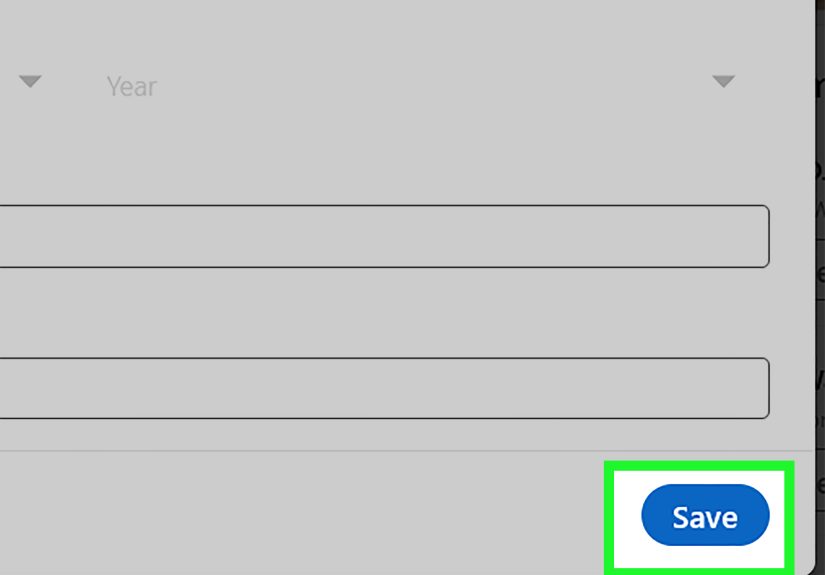
- Click Save.
Already have the Licenses & Certifications section? Great. You can repeat the add process to include more credentials.
How to Add Licenses & Certifications on LinkedIn (Mobile App: Step-by-Step)
On mobile, the buttons are similar, just tucked into a slightly different menu. Here’s the typical flow:
- Tap your profile picture.
- Tap your profile photo again to open your profile.
- Tap Add section.
- Tap Recommended, then choose Add licenses and certifications.
- Enter your credential details and tap Save.
If your app layout looks a little different, don’t panicLinkedIn updates navigation often. The key is to find the Add section (or Add profile section) option on your profile page.
How to Edit or Delete a License/Certification (Because Typos Happen)
Maybe you accidentally credited “Google” when the credential is technically issued through a platform. Maybe you typed the wrong year. Either way, you can fix it.
Edit or delete on desktop
- Go to Me > View Profile.
- Scroll to Licenses & certifications.
- Click the Edit (pencil) icon next to the item to update it, or delete it.
Edit or delete on mobile
- Tap your profile picture, then View Profile.
- Scroll to Licenses & certifications.
- Tap the Edit icon to add, edit, or remove items in that section.
How LinkedIn Sorts Certifications (and Why Yours Might Be “Out of Order”)
If you’re trying to showcase your most impressive credential first, here’s the catch: LinkedIn generally controls the display order and you can’t manually reorder licenses and certifications like you can with some other sections.
That means your strategy is less “drag-and-drop” and more “curate and highlight.” If one credential is especially important, you can:
- Mention it in your headline (where appropriate).
- Reference it in your About section in one sentence (not a full credential dump).
- Add a Featured item that links to proof (portfolio, credential page, or a post announcing it).
Where to Find Your Credential ID and Credential URL (The Most Common Sticking Point)
Two fields confuse people the most: Credential ID and Credential URL. Here’s the simplest rule:
- Credential ID is an internal identifier (often a certificate number). If you don’t have one, don’t invent one.
- Credential URL is a verification link that lets someone confirm the credential is real.
Common places to find the credential URL
- Your issuer’s “Share” or “Verify” page
- Your badge platform (for digital badges)
- Your course provider’s “Accomplishments” or “Completed” area
- An emailed completion message with an “Add to profile” link
If your credential uses a badge platform like Credly, the “Add to profile” process may prefill details and optionally post to your feed. If you only want it on your profile, you can usually choose “Add to profile” without sharing a feed post.
Adding Certifications from Popular Platforms (Quick, Real-World Examples)
Many providers make this easier by giving you a one-click or guided “Add to LinkedIn” option. The exact buttons vary, but the idea is the same: they help you populate LinkedIn fields correctly (and often include a verification link).
Example: Adding a LinkedIn Learning certificate
If you completed training on LinkedIn Learning, you can often add it from your Learning history by choosing an option like “Add to profile.” This is especially useful for keeping course credentials consistent and easy to verify.
Example: Adding a HubSpot Academy certification
HubSpot provides sharing options that can send you directly to LinkedIn’s “Add licenses & certifications” window. You typically enter the certification name, select the issuer (HubSpot Academy), add dates, and paste the achievement link as the credential URL.
Example: Adding a Coursera certificate
Many learners share Coursera certificates via an “Accomplishments” area and use an “Add to LinkedIn” option, which helps generate a shareable credential link for verification.
Example: Adding a Microsoft certification or credential
Microsoft credentials can be shared from your Microsoft Learn profile, where you can view credential details and select sharing options. If you’re using a verification link, make sure your sharing/privacy settings allow others to validate the credential.
Make Your Credentials Work for You (Not Just Sit There Looking Pretty)
Adding certifications is the start. Optimizing them is what turns them into actual career leverage.
1) Use the official credential name (but make it searchable)
Recruiters may search for the official title or the acronym. Best practice is: Official Name (Acronym).
2) Choose the correct issuing organization from LinkedIn’s dropdown
When LinkedIn suggests an issuer as you type, select the correct one. This can attach the issuer’s logo and improves credibility. If the exact issuer doesn’t appear, type it manually and keep it consistent.
3) Add a credential URL whenever possible
A verification link makes the credential feel “real” to humans and easy to validate. It can also reduce skepticism, especially for online-only courses and badges.
4) Don’t overload the section
A long list of low-signal credentials can bury the important ones. Consider a simple quarterly cleanup: keep what supports your target role(s), remove outdated or irrelevant entries, and refresh any expiring items.
5) Pair certifications with proof in your Experience or Featured section
The best profiles connect the dots. If you earned a certification in data analytics, add a project link (dashboard, case study, GitHub repo) in Featured. Credentials + evidence = much stronger story.
Troubleshooting: Quick Fixes for Common LinkedIn Certification Problems
“I can’t find the Licenses & Certifications section.”
Go to your profile and look for Add profile section (desktop) or Add section (mobile). The Licenses & Certifications option is typically inside Recommended.
“The issuing organization logo isn’t showing.”
Try selecting the issuer from LinkedIn’s dropdown list rather than typing freehand. If it still doesn’t show, it may mean LinkedIn doesn’t have a logo mapped for that issuer.
“I don’t have a Credential IDwhat do I put?”
Nothing. Leave it blank. If a platform explicitly says it doesn’t provide IDs, don’t force it.
“My certification doesn’t expire.”
Use the “does not expire” option if available, or leave the expiration date empty if LinkedIn allows. Just don’t add a fake expiration datefuture-you will not enjoy that calendar reminder.
“The order looks weird.”
LinkedIn’s ordering can depend on issue/expiration dates and how entries were added. Since manual reordering isn’t typically available, highlight your most important credential elsewhere (headline, About, Featured, or a pinned post).
Conclusion
Adding licenses and certifications to your LinkedIn profile is one of the easiest high-impact upgrades you can make. It takes minutes, improves credibility, helps recruiters find you, and gives your profile “proof points” beyond job titles.
The key is to be intentional: add credentials that support your target roles, use accurate issuer names, include acronyms for search, and always attach a credential URL when you can. Thenbecause LinkedIn is LinkedIncheck back occasionally to keep everything current.
Experience-Based Add-On: What People Commonly Run Into (and What Typically Works)
After watching how professionals use (and sometimes misuse) the Licenses & Certifications section, a few patterns show up again and again. Think of these as “career common sense” meets “LinkedIn reality.”
First, many people add everything. Every webinar. Every one-hour training. Every “Congratulations!” email that ever hit their inbox. The result is a section that looks busybut not necessarily impressive. In practice, hiring teams tend to value credentials that are either (1) required for the work, (2) widely recognized, or (3) clearly tied to outcomes. If you’re aiming for a marketing role, a credential like Google Analytics or HubSpot can signal relevant skills. But a scattershot list can dilute that signal. A tighter, more role-aligned set usually reads as more strategic.
Second, issuer confusion is extremely commonespecially with platform-hosted programs. For example, a certificate might be branded by a major company but delivered through a learning platform. The cleanest approach is to match what the credential documentation says and prioritize what’s verifiable. If the verification link clearly shows the issuing authority, you’re on solid ground. When in doubt, align the LinkedIn entry with the credential’s official display name and the issuer shown on the verification pagebecause that’s what someone will see if they click “Show credential.”
Third, “Credential URL” is a secret weapon that people often skip. When you include a verification link, you turn a simple line item into a trust-building asset. It also helps you stand out in industries where credential fraud is a real concern. Even when the role isn’t regulated, the ability to verify quickly reduces friction for recruiters and hiring managers. If you have a public badge page (common with digital badges), use it. If you have a course achievement page, use that. If the link is private or requires login, consider whether there’s a share setting you can adjust so it becomes publicly viewable.
Fourth, people underestimate how often recruiters search by acronyms. If your credential is known by initials (PMP, CPA, RN, CISSP, CCNA), include the acronym in the credential name field. This isn’t “keyword stuffing”it’s basic findability. You’re helping the right people find you using the terms they already type.
Finally, the strongest profiles don’t treat certifications as a standalone flex. They connect them to results. A certification plus a real project, measurable impact, or portfolio sample is more persuasive than a certification alone. If your credential taught you a skill, show you used it: add a case study to Featured, mention a project in Experience, or post a short “what I built/learned” update. That combination tells a clear story: you learned it, you applied it, and you can do it againpreferably for the company reading your profile.