Table of Contents >> Show >> Hide
- Why YouTube Parental Controls Matter
- 1. Use YouTube Kids First for Younger Children
- 2. Set Up a Supervised YouTube Account With Family Link
- 3. Turn On Restricted Mode for Standard YouTube
- 4. Add Device-Level Limits for Screen Time and App Access
- 5. Lock Down Shared TVs, Browsers, and Home Networks
- How to Choose the Right Setup by Age
- Mistakes Parents Make With YouTube Controls
- Final Thoughts
- Parent Experiences and Practical Lessons From Real Life
- SEO Tags
YouTube can be a magical place for kids. It can also be a place where a child starts with a dinosaur song and somehow ends up watching a prank video, a game streamer yelling at a headset, or a “life hack” involving a toaster that should absolutely not be trusted. That is why smart parents do not rely on one setting and call it a day. The best YouTube parental controls come from layering tools together.
If you are wondering how to put parental controls on YouTube for kids, the good news is that you have more than one option. You can use YouTube Kids, create a supervised YouTube experience, turn on Restricted Mode, add device-level limits, and block workarounds on TVs, browsers, or shared devices. In other words, you do not need to pick one lock for the front door. You can lock the windows too.
This guide breaks down five practical ways to make YouTube safer for children, plus tips for choosing the right setup by age. Whether your child is four and obsessed with excavators or eleven and suddenly “needs” to watch gaming videos for research, these strategies can help you create a setup that is safer, saner, and easier to manage.
Why YouTube Parental Controls Matter
Many parents assume that if content is marked “for kids,” the problem is solved. Not quite. Even kid-focused platforms use automated systems, and no filter is perfect. Kids can still run into content that is too old, too fast, too weird, or simply not right for your family. On top of that, the biggest issue is often not only what kids watch, but how long they watch, how often the next video takes over, and how quickly the algorithm learns their habits.
That is why a strong YouTube safety plan usually covers four things at once: content, search, screen time, and access. If you only filter content but leave unlimited viewing time, YouTube can still turn into an all-day babysitter with suspiciously strong opinions about toy unboxings. If you limit time but do not lock search, kids can still go hunting for content you never intended to allow.
The goal is not to spy on every click or turn your home into a tiny digital prison. The goal is to build age-appropriate guardrails so your child can enjoy videos without YouTube becoming the loudest adult in the room.
1. Use YouTube Kids First for Younger Children
For most younger kids, YouTube Kids is the easiest starting point. It is designed specifically for children and lets parents choose age-based content settings instead of throwing kids into the full version of YouTube. If your child is still in the stage where “skip ad” feels like a superpower, this is usually the best first move.
How YouTube Kids Helps
YouTube Kids lets parents create child profiles and choose from several content levels. These generally map to age groups like Preschool, Younger, and Older. There is also an “Approve content yourself” option, which is exactly what it sounds like: you pick what your child can watch instead of letting the app decide. If you want maximum control, that is the gold-standard setting.
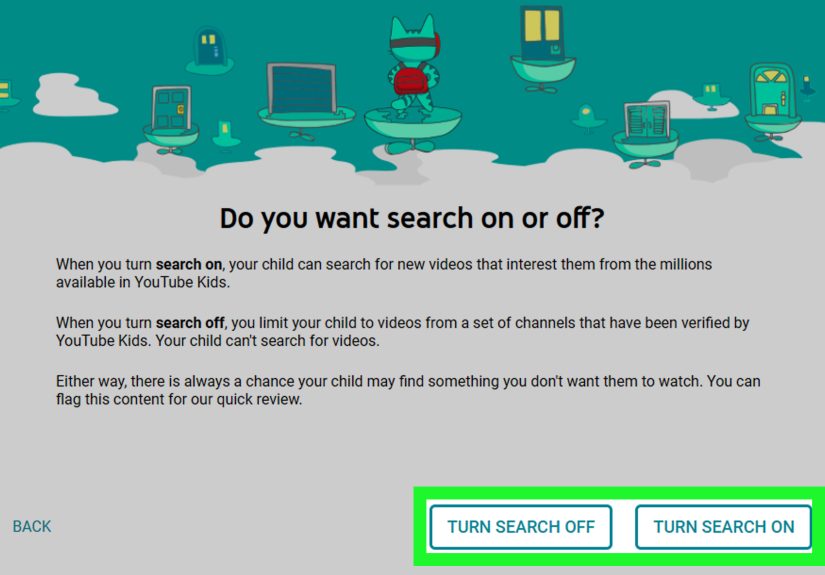
You can also turn search off. That matters more than many parents realize. Search is often where a carefully controlled app turns into a treasure hunt for chaos. When search is off, kids can only watch videos from the content already allowed in their profile. That one switch can dramatically reduce surprises.
How to Set It Up Well
- Create a separate profile for each child instead of sharing one family profile.
- Choose the narrowest age setting that still fits your child.
- Turn search off for younger kids who do not need to type in their own content requests.
- Use the built-in timer so the app locks when viewing time is over.
- Set a custom passcode so kids cannot casually wander into the parent settings.
A good example: if you have a six-year-old who mostly watches crafts, songs, and read-aloud videos, the “Younger” setting with search off is usually safer than the “Older” setting just because they can read now. Reading is not the same thing as judgment. Most adults are still working on that too.
Best For
YouTube Kids works best for children roughly under age 9, though some older kids still do fine with it. It is especially useful when you want a more controlled video library and simpler parental controls without handing over the full YouTube universe.
2. Set Up a Supervised YouTube Account With Family Link
Eventually, some kids outgrow YouTube Kids, or at least they think they do. This is where Google’s supervised experience for YouTube becomes useful. Instead of giving your child unrestricted access to standard YouTube, you can create a supervised account and manage settings through Family Link and YouTube’s Family Center.
What a Supervised Experience Does
With a supervised account, parents can choose a content setting for the child’s regular YouTube access. These settings are designed to limit what children can find and watch while still giving them a broader experience than YouTube Kids. Parents can also manage features like autoplay, watch history, search history, and even a daily Shorts feed limit in supported setups.
This option is a strong middle ground for tweens who are ready for more independence but not ready for the complete, algorithm-shaped circus of unrestricted YouTube.
How to Use It Wisely
- Create or link your child’s Google account through Family Link.
- Open YouTube or Family Link and go to the child’s YouTube controls.
- Select the most appropriate content setting for your child’s maturity level.
- Turn off autoplay if you want to stop endless video chains.
- Pause search or watch history if you want fewer recommendation signals shaping the feed.
- Set a Shorts limit if fast-scroll video binges are becoming a problem.
Here is a real-life style example: your ten-year-old wants to watch science explainers, Minecraft tutorials, and sports highlights. A supervised YouTube account lets them do that without opening the floodgates to every questionable recommendation the platform can throw at them. It is not a perfect bubble, but it is a far better setup than a fully unsupervised account.
Best For
This works well for older kids and tweens who are not a fit for YouTube Kids anymore but still need structure. It is also helpful for families who want to manage YouTube from one central dashboard instead of chasing settings across every device like tired digital detectives.
3. Turn On Restricted Mode for Standard YouTube
Restricted Mode is not a complete parental control system, but it is still useful. Think of it as a content filter, not a parenting miracle. It helps screen out much of the more mature material on YouTube, though it does not catch everything. Still, if your child uses regular YouTube on a phone, tablet, laptop, or browser, turning it on is one of the fastest safety upgrades you can make.
When Restricted Mode Makes Sense
Restricted Mode is especially helpful for shared devices, school-age kids who use standard YouTube occasionally, or teens who are not using YouTube Kids. It can also be a backup layer if your child sometimes accesses YouTube outside their main supervised profile.
What Parents Should Know
Restricted Mode reduces access to potentially mature videos, but it is not foolproof. It does not replace supervised accounts, and it does not stop time-wasting rabbit holes. It is a filter, not a force field.
That said, layering it on top of other controls is smart. If your child uses a family laptop, turn on Restricted Mode in the browser. If they watch YouTube on a smart TV while you are cooking dinner, turn it on there too. Make it your default setting in every place YouTube appears, because YouTube has a sneaky habit of appearing everywhere.
Best For
Use Restricted Mode for older kids, shared family devices, and as a second layer when you cannot fully lock the platform down. It is better than nothing, and when it comes to online safety, “better than nothing” is often the first step toward “actually pretty solid.”
4. Add Device-Level Limits for Screen Time and App Access
If YouTube controls what kids can watch, device settings control when they can watch it and whether they can get around your rules by switching devices or apps. This is where parents often win the battle they forgot they were fighting.
Why Device Controls Matter
Imagine you carefully lock down YouTube Kids, but your child opens Safari, Chrome, Edge, or the smart TV app instead. Congratulations, your parental controls just met their first loophole. Device-level tools close those loopholes by letting you limit app use, block websites, and set daily schedules.
Options by Device
On Android: Google Family Link can set app limits, manage screen time, and control what apps are available. If YouTube is becoming an all-day habit, you can set limits directly on the app.
On iPhone and iPad: Apple Screen Time lets parents block or limit apps, restrict web content, and set downtime schedules. That means you can limit both the YouTube app and browser access to YouTube if needed.
On Windows and Microsoft devices: Microsoft Family Safety can help filter websites and set app or time limits across supported devices.
Smart Setup Ideas
- Set a daily app limit for YouTube, not just a general screen time limit.
- Use downtime or bedtime hours so YouTube is unavailable late at night.
- Block youtube.com in browsers if your child is only supposed to use YouTube Kids.
- Require approval before new apps are installed, especially browsers or video apps.
Example: if your child is allowed thirty minutes of YouTube after homework, the cleanest setup is a supervised account plus an app limit plus a bedtime block. That way, even if they try the classic “but I was just finishing one video” speech, the device itself does not negotiate.
5. Lock Down Shared TVs, Browsers, and Home Networks
Parents often focus on phones and tablets and forget the living room TV, game console browser, or family laptop. Then one rainy Saturday, the child discovers the giant-screen version of YouTube and your beautifully crafted rules evaporate in 4K. Shared devices need controls too.
Use TV and Browser Barriers
Some smart TV versions of YouTube now offer parent codes that help prevent kids from accessing unsigned or older accounts without permission. If your household watches YouTube on TV, set that code. It is one of those small settings you will not appreciate until the day you really appreciate it.
On browsers, block direct access to YouTube if that is not part of your child’s approved setup. Apple Screen Time, Microsoft Family Safety, and some third-party parental control tools can block sites by URL. This is especially useful when a child keeps bypassing app-level controls by using a browser instead.
Consider Network-Level Filtering
If you want one rule that applies to multiple devices, consider router-based or network-level parental controls. Some families also use third-party tools to filter content, monitor video activity, or shut off access at certain times. This approach is helpful when kids switch between tablets, laptops, consoles, and smart TVs like tiny IT consultants determined to test your patience.
The key is not to rely only on one app setting. Your child lives in an ecosystem of screens, so your parental control strategy should live there too.
How to Choose the Right Setup by Age
Ages 4 to 7
Start with YouTube Kids, use the lowest practical content setting, turn search off, use approved content if you want the tightest control, and always set a timer or device limit.
Ages 8 to 12
Use either YouTube Kids Older mode or a supervised YouTube account, depending on maturity. Keep autoplay off, consider limiting Shorts, and use device-level app limits so viewing does not stretch forever.
Teens
Teens may need a lighter touch, but they still benefit from supervision, Restricted Mode on shared devices, and family discussions about algorithmic content, privacy, sleep, and screen habits. The goal shifts from pure blocking to coaching and accountability.
Mistakes Parents Make With YouTube Controls
- Using only one setting and assuming the job is done.
- Forgetting browser access while controlling only the app.
- Leaving autoplay on and wondering why thirty minutes became two hours.
- Sharing one profile between multiple kids with very different ages.
- Never reviewing blocked videos, viewing habits, or changing needs over time.
The best YouTube parental controls are not “set it and forget it.” They are “set it, check it, and adjust it when your child suddenly becomes interested in content you did not see coming.” Which, to be fair, is basically parenting in one sentence.
Final Thoughts
If you want to put parental controls on YouTube for kids, the smartest move is to think in layers. Start with the platform setting that matches your child’s age, then add time limits, passcodes, browser restrictions, and shared-device controls. One layer filters content. Another limits time. Another blocks loopholes. Together, they create a much safer setup than any single tool can offer on its own.
The five best ways are simple: use YouTube Kids, set up a supervised YouTube account, turn on Restricted Mode, add device-level time and app controls, and lock down TVs or browsers. You do not need to use every feature on day one. But if you build a thoughtful setup now, you will spend less time panicking later because the algorithm introduced your third grader to something wildly unhelpful.
In the end, parental controls work best when they support a family plan, not replace one. Use the tools, talk to your kids, and revisit the settings as they grow. The internet changes fast. Kids change faster. And YouTube? YouTube never sleeps.
Parent Experiences and Practical Lessons From Real Life
Many parents start out thinking YouTube is either harmless or impossible to manage, and both ideas usually last about three days. A common experience is that the first problem is not clearly inappropriate content. It is overstimulation. A child watches one fast, bright, noisy video after another, gets cranky when the screen turns off, and suddenly even dinner feels like an unfair interruption to their very important research on monster trucks or slime recipes.
One parent might begin with regular YouTube because it seems easier, then realize their seven-year-old is getting recommended gaming commentary clearly meant for older viewers. Switching to YouTube Kids often helps right away, especially when search is turned off. The child may complain at first because some favorite channels disappear, but within a week the overall viewing experience is calmer and more predictable. That matters more than having every possible video available.
Another frequent lesson is that timers work better than verbal warnings alone. When a parent says, “Five more minutes,” kids hear, “We are beginning a negotiation.” When the app or device says, “Time’s up,” there is less room for debate. Not no room, of course. Kids are talented negotiators. But less room. Parents often report that built-in timers reduce daily conflict because the rule feels automatic rather than personal.
Families with older kids often discover that supervision works best when it is paired with conversation. A ten- or eleven-year-old usually knows when adults are trying to lock everything down in secret, and that can turn simple safety tools into a power struggle. It often goes better when parents explain the reason for the settings: less junk, better sleep, fewer weird recommendations, and more control over what the family thinks is appropriate. Kids may not cheer, but they usually understand more than adults expect.
Many parents also learn the hard way that the biggest loophole is not the phone. It is the shared TV, the browser on the tablet, or the family laptop in the kitchen. A child who cannot use the YouTube app for another hour may suddenly become extremely interested in “educational browser skills.” That is why experienced parents often say the winning move is not one perfect app setting. It is consistency across devices.
Probably the most reassuring lesson is this: you do not have to build a flawless system on the first try. The best setups usually come from small adjustments. Start with one profile, one timer, one passcode, and one clear rule. Then improve the setup as you notice patterns. Parental controls are not a sign that you do not trust your child. They are a sign that you understand how persuasive digital platforms can be, even for adults who should absolutely know better by now.